> ## Documentation Index
> Fetch the complete documentation index at: https://www.twicecommerce.com/docs/llms.txt
> Use this file to discover all available pages before exploring further.
# How to control where a listing sells
> Three independent settings decide whether a listing is on sale, at which locations, and through which channels — and a listing missing from one store is almost always the second one.
 catalog
A listing that is missing from one store, or visible when it should not be, is almost never a bug. It is one of three separate settings, and they are on two different tabs.
Multi-location merchants hit this constantly, because the obvious control — **Status** — is the one that is *not* per location. This guide is the three gates, in the order to check them.
## Prerequisites
**Required permissions:** `catalog:listing_general` to set Status, and `catalog:listing_publishing` for locations and channels. **All four system roles hold both**, and `catalog:listing_publishing` has no per-location scoping — a role either edits publishing for every location a listing can reach, or none of it. See [Users & Roles](/docs/settings/users-roles).
**Before you start, know:**
* **Which locations you operate.** The list under [Locations](/docs/settings/locations) is the set you are choosing from. See the [Locations](/docs/concepts/admin/locations) concept for every field one carries.
* **That the three settings are independent.** All three must allow a sale. Any one of them will hide a listing on its own, which is what makes this hard to diagnose by guessing.
## The Walkthrough
A customer can buy a listing only when all three of these agree:
| Gate | Where | What it decides |
| ------------------- | ------------------ | -------------------------------------------------------------- |
| **Status** | **General** tab | Whether the listing is on sale **at all**. `Public` or `Draft` |
| **Store locations** | **Publishing** tab | **Which locations** it can be bought at |
| **Sales channels** | **Publishing** tab | **Which surfaces** sell it — Admin, Online store |
They are checked independently, not in sequence, so a listing set **Public** and enabled on the online store still will not appear if no location is selected.
**Status is account-wide. It is not per location.** Moving a listing between **Public** and **Draft** applies everywhere it is available, in every store, on every channel. This is the single most common misreading of the model — it looks like the per-store control and it is not.
On the listing's **General** tab, **Status** takes one of two values:
* **Draft** — not on sale. New listings start here.
* **Public** — on sale, subject to the other two gates.
Use it for the whole-catalog decision: is this thing sellable at all? Retiring a listing everywhere, or holding a new one back until its photos are done, is what Status is for.
Do not reach for it to hide a listing at one store. That is the next step, and using Status for it takes the listing off sale everywhere.
This is the per-store control, and the answer to "why is this listing in the wrong shop".
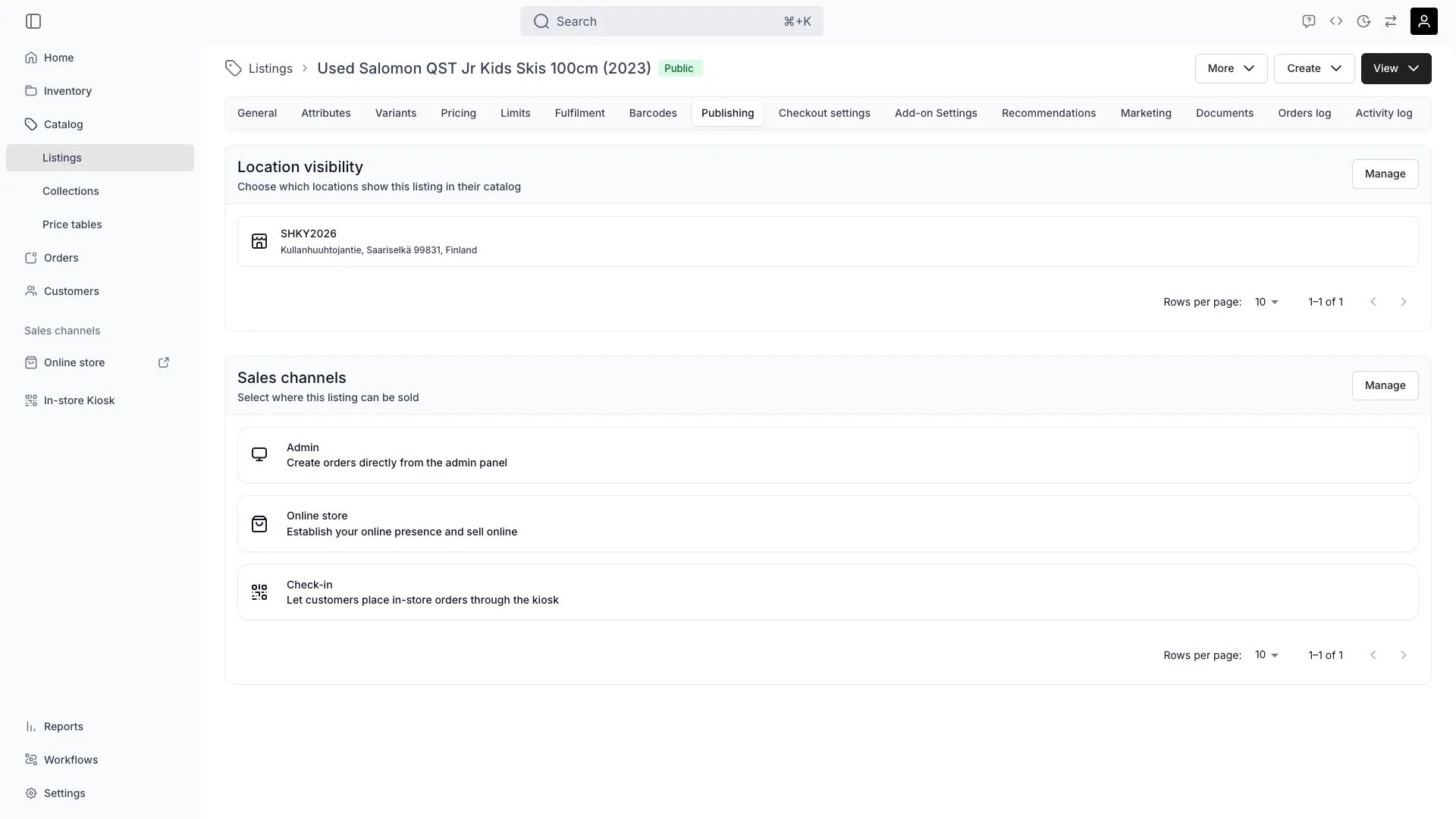
On the **Publishing** tab, the **Store locations** card lists the locations the listing is currently purchasable at. **Manage** opens a drawer to change the selection.
* **Select the locations that should sell it.** A location not selected does not show the listing, and a customer shopping that store will not find it.
* **Selecting none hides the listing from every customer-facing catalog**, whatever its Status says. An empty selection is a valid state and a common accident.
This is where a chain with different stock per store does its real work: one catalog, one listing per product, and each store showing the subset it actually carries.
**Removing a location does not cancel orders already placed there.** Existing orders stand and still need fulfilling; the change only affects what customers can buy from now on.
The **Sales channels** card on the **Publishing** tab carries two toggles:
* **Admin** — your staff can add the listing when creating an order in the admin.
* **Online store** — the listing is sold through your storefront.
These are independent of each other and of location. A listing can be admin-only, which is how counter-only or staff-arranged items are handled without hiding them from your own team.
**Turn both off and the listing stays in the catalog but is unsellable anywhere.** The tab shows a warning when no channel is enabled, so that state is at least visible rather than silent.
When a listing is missing somewhere, check the gates in the order that eliminates the most ground:
1. **Status** — is it **Draft**? Then it is missing everywhere, not just here.
2. **Store locations** — is the location in the selection? This is the answer most of the time on a multi-store account.
3. **Sales channels** — is **Online store** off? Then staff can see it in the admin and customers cannot, which reads as "it exists but customers say it does not".
4. **Stock and fulfilment** — only now. A listing that passes all three gates and still shows nothing bookable is usually a fulfilment rule matching no units. See [Control what stock a listing draws from](/docs/guides/catalog/listing-inventory-rules).
Working in that order matters, because the first three are one tab apart and the fourth is a different kind of problem entirely.
The locations you are selecting from are managed under [Locations](/docs/settings/locations) — create, edit, reorder and delete, without needing support.
Two things worth knowing before you change the roster:
* **Deleting a location deletes its stock.** The confirmation asks you to confirm the location *and its inventory*. Move stock you want to keep first.
* **There is no location cap to run into.** Locations are billed per location rather than allotted per tier, so adding one is a billing question, not a limit question. See [Subscription](/docs/settings/subscription).
A store that is closed for the season is better left in place and deselected from the listings it no longer sells than deleted and rebuilt.
## How do I know it worked?
* **The listing appears on the storefront for the locations you selected**, and not for the others.
* **A customer switching store on the storefront sees the catalog change** to match what that store sells.
* **Setting one store's selection did not change another's** — that is the difference between doing this on the Publishing tab and doing it with Status.
* **Staff can still add an admin-only listing to an order**, while customers cannot find it.
## Troubleshooting / Common Pitfalls
**Working as designed, and this is the trap the guide exists for.** Status is account-wide — it governs the listing everywhere it is available.
**What to do:** set Status back to **Public**, then deselect the one location on the **Publishing** tab instead. That is the per-store control.
**Cause:** most likely no locations are selected, or both sales channels are off. Either state hides it completely while Status still reads **Public**.
**What to do:** open the **Publishing** tab and check both cards. The tab warns when no channel is enabled; an empty location selection is not flagged as loudly, so check it explicitly.
**Cause:** the **Admin** channel is on and **Online store** is off. That is a legitimate configuration — it is how counter-only items work — but it is indistinguishable from a fault if you did not set it deliberately.
**What to do:** enable **Online store** on the **Publishing** tab if customers should be able to buy it themselves.
**Then it is not a visibility problem.** All three gates pass and the listing is reaching customers; what is missing is stock it can draw from.
**What to do:** check the fulfilment rule actually matches units — see [Control what stock a listing draws from](/docs/guides/catalog/listing-inventory-rules). A rule matching nothing is the most common reason a published listing has no bookable dates.
**Different question, different tab.** Publishing decides *where*, not *how much*.
**What to do:** see [Price a listing](/docs/guides/catalog/price-a-listing) for per-location pricing. Visibility and pricing are set independently and neither implies the other.
**Expected — removing a location from a listing does not touch existing orders.** They stand and still need fulfilling.
**What to do:** work them through as normal. If the location itself is closing rather than just dropping a listing, deal with the open orders before deleting it, since deletion also removes its stock.
## Next Steps
Every field on the tab, and the API flags behind it.
When all three gates pass and there is still nothing to book.
Creating, reordering and deleting the locations you select from.
What a location costs, since there is no cap on how many you run.
catalog
A listing that is missing from one store, or visible when it should not be, is almost never a bug. It is one of three separate settings, and they are on two different tabs.
Multi-location merchants hit this constantly, because the obvious control — **Status** — is the one that is *not* per location. This guide is the three gates, in the order to check them.
## Prerequisites
**Required permissions:** `catalog:listing_general` to set Status, and `catalog:listing_publishing` for locations and channels. **All four system roles hold both**, and `catalog:listing_publishing` has no per-location scoping — a role either edits publishing for every location a listing can reach, or none of it. See [Users & Roles](/docs/settings/users-roles).
**Before you start, know:**
* **Which locations you operate.** The list under [Locations](/docs/settings/locations) is the set you are choosing from. See the [Locations](/docs/concepts/admin/locations) concept for every field one carries.
* **That the three settings are independent.** All three must allow a sale. Any one of them will hide a listing on its own, which is what makes this hard to diagnose by guessing.
## The Walkthrough
A customer can buy a listing only when all three of these agree:
| Gate | Where | What it decides |
| ------------------- | ------------------ | -------------------------------------------------------------- |
| **Status** | **General** tab | Whether the listing is on sale **at all**. `Public` or `Draft` |
| **Store locations** | **Publishing** tab | **Which locations** it can be bought at |
| **Sales channels** | **Publishing** tab | **Which surfaces** sell it — Admin, Online store |
They are checked independently, not in sequence, so a listing set **Public** and enabled on the online store still will not appear if no location is selected.
**Status is account-wide. It is not per location.** Moving a listing between **Public** and **Draft** applies everywhere it is available, in every store, on every channel. This is the single most common misreading of the model — it looks like the per-store control and it is not.
On the listing's **General** tab, **Status** takes one of two values:
* **Draft** — not on sale. New listings start here.
* **Public** — on sale, subject to the other two gates.
Use it for the whole-catalog decision: is this thing sellable at all? Retiring a listing everywhere, or holding a new one back until its photos are done, is what Status is for.
Do not reach for it to hide a listing at one store. That is the next step, and using Status for it takes the listing off sale everywhere.
This is the per-store control, and the answer to "why is this listing in the wrong shop".
On the **Publishing** tab, the **Store locations** card lists the locations the listing is currently purchasable at. **Manage** opens a drawer to change the selection.
* **Select the locations that should sell it.** A location not selected does not show the listing, and a customer shopping that store will not find it.
* **Selecting none hides the listing from every customer-facing catalog**, whatever its Status says. An empty selection is a valid state and a common accident.
This is where a chain with different stock per store does its real work: one catalog, one listing per product, and each store showing the subset it actually carries.
**Removing a location does not cancel orders already placed there.** Existing orders stand and still need fulfilling; the change only affects what customers can buy from now on.
The **Sales channels** card on the **Publishing** tab carries two toggles:
* **Admin** — your staff can add the listing when creating an order in the admin.
* **Online store** — the listing is sold through your storefront.
These are independent of each other and of location. A listing can be admin-only, which is how counter-only or staff-arranged items are handled without hiding them from your own team.
**Turn both off and the listing stays in the catalog but is unsellable anywhere.** The tab shows a warning when no channel is enabled, so that state is at least visible rather than silent.
When a listing is missing somewhere, check the gates in the order that eliminates the most ground:
1. **Status** — is it **Draft**? Then it is missing everywhere, not just here.
2. **Store locations** — is the location in the selection? This is the answer most of the time on a multi-store account.
3. **Sales channels** — is **Online store** off? Then staff can see it in the admin and customers cannot, which reads as "it exists but customers say it does not".
4. **Stock and fulfilment** — only now. A listing that passes all three gates and still shows nothing bookable is usually a fulfilment rule matching no units. See [Control what stock a listing draws from](/docs/guides/catalog/listing-inventory-rules).
Working in that order matters, because the first three are one tab apart and the fourth is a different kind of problem entirely.
The locations you are selecting from are managed under [Locations](/docs/settings/locations) — create, edit, reorder and delete, without needing support.
Two things worth knowing before you change the roster:
* **Deleting a location deletes its stock.** The confirmation asks you to confirm the location *and its inventory*. Move stock you want to keep first.
* **There is no location cap to run into.** Locations are billed per location rather than allotted per tier, so adding one is a billing question, not a limit question. See [Subscription](/docs/settings/subscription).
A store that is closed for the season is better left in place and deselected from the listings it no longer sells than deleted and rebuilt.
## How do I know it worked?
* **The listing appears on the storefront for the locations you selected**, and not for the others.
* **A customer switching store on the storefront sees the catalog change** to match what that store sells.
* **Setting one store's selection did not change another's** — that is the difference between doing this on the Publishing tab and doing it with Status.
* **Staff can still add an admin-only listing to an order**, while customers cannot find it.
## Troubleshooting / Common Pitfalls
**Working as designed, and this is the trap the guide exists for.** Status is account-wide — it governs the listing everywhere it is available.
**What to do:** set Status back to **Public**, then deselect the one location on the **Publishing** tab instead. That is the per-store control.
**Cause:** most likely no locations are selected, or both sales channels are off. Either state hides it completely while Status still reads **Public**.
**What to do:** open the **Publishing** tab and check both cards. The tab warns when no channel is enabled; an empty location selection is not flagged as loudly, so check it explicitly.
**Cause:** the **Admin** channel is on and **Online store** is off. That is a legitimate configuration — it is how counter-only items work — but it is indistinguishable from a fault if you did not set it deliberately.
**What to do:** enable **Online store** on the **Publishing** tab if customers should be able to buy it themselves.
**Then it is not a visibility problem.** All three gates pass and the listing is reaching customers; what is missing is stock it can draw from.
**What to do:** check the fulfilment rule actually matches units — see [Control what stock a listing draws from](/docs/guides/catalog/listing-inventory-rules). A rule matching nothing is the most common reason a published listing has no bookable dates.
**Different question, different tab.** Publishing decides *where*, not *how much*.
**What to do:** see [Price a listing](/docs/guides/catalog/price-a-listing) for per-location pricing. Visibility and pricing are set independently and neither implies the other.
**Expected — removing a location from a listing does not touch existing orders.** They stand and still need fulfilling.
**What to do:** work them through as normal. If the location itself is closing rather than just dropping a listing, deal with the open orders before deleting it, since deletion also removes its stock.
## Next Steps
Every field on the tab, and the API flags behind it.
When all three gates pass and there is still nothing to book.
Creating, reordering and deleting the locations you select from.
What a location costs, since there is no cap on how many you run.