> ## Documentation Index
> Fetch the complete documentation index at: https://www.twicecommerce.com/docs/llms.txt
> Use this file to discover all available pages before exploring further.
# How to connect Excel to TWICE Commerce
> Load the revenue and payments ledgers into an Excel workbook with Power Query, and refresh them whenever the workbook opens.
 reports
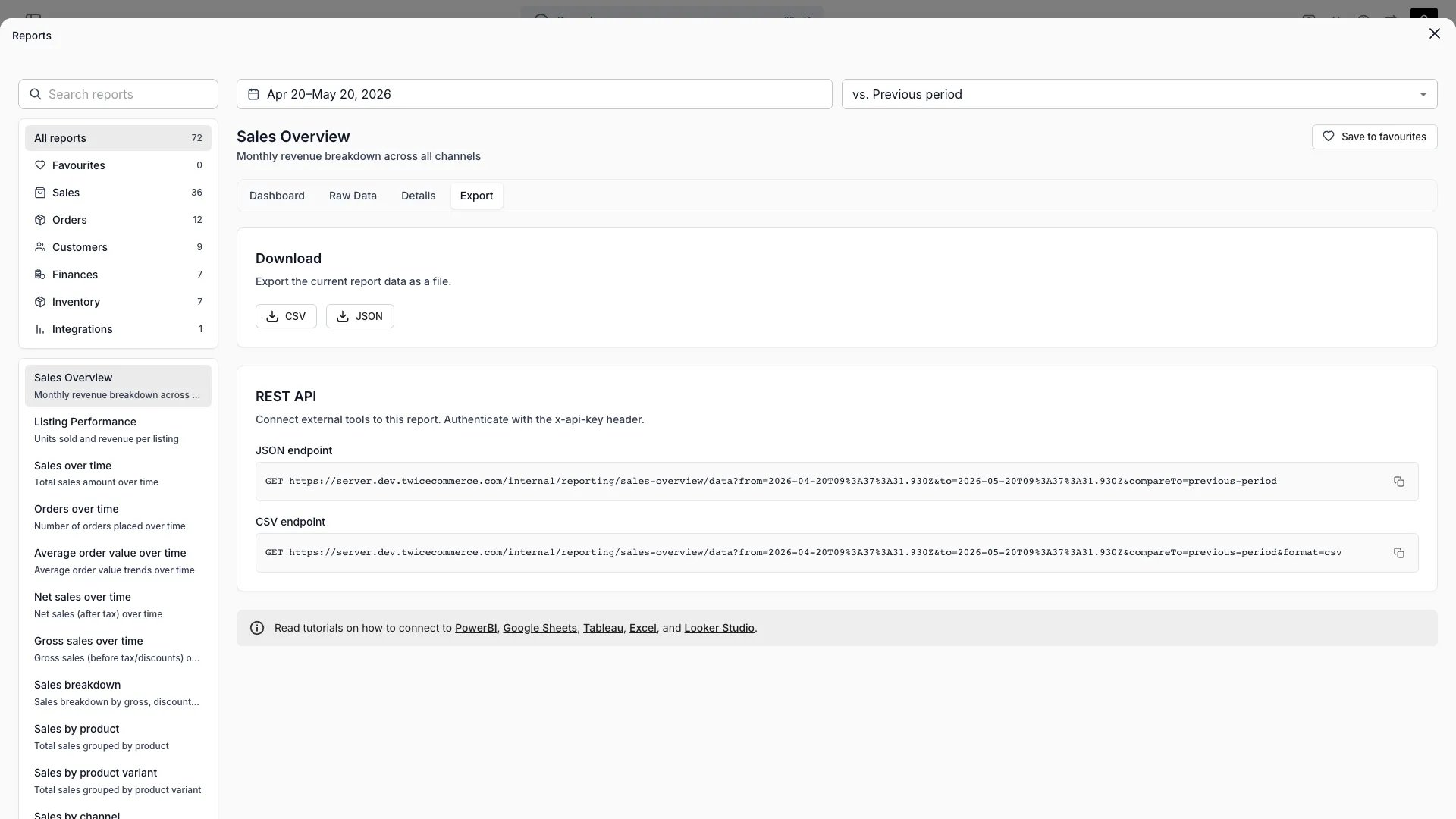
Load the revenue and payments ledgers into Excel as two refreshable tables, then build pivot tables and charts on them. Every refresh fetches the latest rows from TWICE Commerce.
## Prerequisites
**Required access:** a TWICE Commerce API key. It carries owner-level permissions and is saved inside the workbook, so share the workbook only with people you would give the key to. See [API keys](/docs/concepts/integrations/api-keys).
**Before you start:**
* **Excel for Microsoft 365 on Windows.** These steps use its Power Query editor.
* **The ledger endpoints and file format** from [Pull your data into a BI tool](/docs/guides/reports/pull-report-data).
* **Your currency code** and the first date you want history from.
## The walkthrough
Choose **Data → Get Data → From Other Sources → Blank Query**. The Power Query editor opens.
Choose **Home → Manage Parameters → New Parameter**, name it `TwiceApiKey`, set **Type** to **Text**, and paste the key into **Current Value**.
Select the blank query, open **Advanced Editor**, and replace its contents with the query below. Change `currency` and `FromDate` to yours. Rename the query `Revenue`.
Choose **Edit Credentials** when Power Query asks how to connect, pick **Anonymous**, and select **Connect**. The key travels in the header.
Duplicate the `Revenue` query, rename the copy `Payments`, and change `RelativePath` to `internal/reporting/payments/export`. Replace the typed columns with `Payment_Date` as `type date` and `Amount_Total` as `type number`.
Choose **Home → Close & Load**. Each query lands on its own sheet as an Excel table.
Right-click the `Revenue` query in **Queries & Connections**, choose **Properties**, and tick **"Refresh data when opening the file"**. Repeat for `Payments`.
Use this query for the revenue ledger:
```powerquery Revenue theme={null}
let
FromDate = "2025-01-01",
ToDate = Date.ToText(Date.From(DateTime.LocalNow()), "yyyy-MM-dd"),
Source = Web.Contents(
"https://server.twicecommerce.com",
[
RelativePath = "internal/reporting/revenue/export",
Query = [from = FromDate, to = ToDate, currency = "EUR"],
Headers = [#"X-API-KEY" = TwiceApiKey]
]
),
Csv = Csv.Document(Source, [Delimiter = ";", Encoding = 65001, QuoteStyle = QuoteStyle.Csv]),
Promoted = Table.PromoteHeaders(Csv, [PromoteAllScalars = true]),
// A truncated export ends in a notice row with no Row_ID. Drop it.
DataRows = Table.SelectRows(Promoted, each [Row_ID] <> null and [Row_ID] <> ""),
Typed = Table.TransformColumnTypes(
DataRows,
{
{"Create_Date", type date}, {"Start_Date", type date}, {"End_Date", type date},
{"Quantity", type number}, {"Amount_Excl_Tax", type number},
{"Amount_Total", type number}, {"Amount_Paid", type number},
{"Amount_Refunded", type number}, {"Amount_Outstanding", type number}
},
"en-US"
)
in
Typed
```
The `"en-US"` culture reads `202.42` as a number on a computer set to a comma-decimal locale, such as Finnish. The tax columns are left untyped, because their number follows the tax rates in the period.
An Excel table holds about a million rows. For a longer history than one call returns, use the yearly query in [Connect Power BI](/docs/guides/reports/connect-power-bi#load-more-than-100000-rows), which runs unchanged in Excel.
## How do I know it worked?
* The `Revenue` sheet shows one row per order line, and `Amount_Total` is right-aligned as a number.
* A pivot table summing `Amount_Total` filtered to `Started_In_Period` = `Yes` matches the **Revenue report** in the admin for the same period and currency.
* **Data → Refresh All** finishes without an error.
## Troubleshooting / common pitfalls
The column was typed with your computer's locale. Keep the `"en-US"` culture argument in `Table.TransformColumnTypes`, and delete any **Changed Type** step Power Query added on its own.
The credentials were saved for a different URL. Open **Data → Get Data → Data Source Settings**, clear the entry for `server.twicecommerce.com`, refresh, and choose **Anonymous** again.
A step refers to a tax column the new period does not have. Remove tax columns from every typing or renaming step.
Someone deleted or replaced the API key. Put the new key in the `TwiceApiKey` parameter under **Manage Parameters**.
Microsoft documents the editor in [Power Query in Excel](https://support.microsoft.com/en-us/office/about-power-query-in-excel-7104fbee-9e62-4cb9-a02e-5bfb1a6c536a) and the source in [Power Query Web connector](https://learn.microsoft.com/en-us/power-query/connectors/web/web).
## Related articles
The endpoints, the file format and the rate limits.
The same queries, refreshed on a schedule.
Every ledger column, and how each number is derived.
reports
Load the revenue and payments ledgers into Excel as two refreshable tables, then build pivot tables and charts on them. Every refresh fetches the latest rows from TWICE Commerce.
## Prerequisites
**Required access:** a TWICE Commerce API key. It carries owner-level permissions and is saved inside the workbook, so share the workbook only with people you would give the key to. See [API keys](/docs/concepts/integrations/api-keys).
**Before you start:**
* **Excel for Microsoft 365 on Windows.** These steps use its Power Query editor.
* **The ledger endpoints and file format** from [Pull your data into a BI tool](/docs/guides/reports/pull-report-data).
* **Your currency code** and the first date you want history from.
## The walkthrough
Choose **Data → Get Data → From Other Sources → Blank Query**. The Power Query editor opens.
Choose **Home → Manage Parameters → New Parameter**, name it `TwiceApiKey`, set **Type** to **Text**, and paste the key into **Current Value**.
Select the blank query, open **Advanced Editor**, and replace its contents with the query below. Change `currency` and `FromDate` to yours. Rename the query `Revenue`.
Choose **Edit Credentials** when Power Query asks how to connect, pick **Anonymous**, and select **Connect**. The key travels in the header.
Duplicate the `Revenue` query, rename the copy `Payments`, and change `RelativePath` to `internal/reporting/payments/export`. Replace the typed columns with `Payment_Date` as `type date` and `Amount_Total` as `type number`.
Choose **Home → Close & Load**. Each query lands on its own sheet as an Excel table.
Right-click the `Revenue` query in **Queries & Connections**, choose **Properties**, and tick **"Refresh data when opening the file"**. Repeat for `Payments`.
Use this query for the revenue ledger:
```powerquery Revenue theme={null}
let
FromDate = "2025-01-01",
ToDate = Date.ToText(Date.From(DateTime.LocalNow()), "yyyy-MM-dd"),
Source = Web.Contents(
"https://server.twicecommerce.com",
[
RelativePath = "internal/reporting/revenue/export",
Query = [from = FromDate, to = ToDate, currency = "EUR"],
Headers = [#"X-API-KEY" = TwiceApiKey]
]
),
Csv = Csv.Document(Source, [Delimiter = ";", Encoding = 65001, QuoteStyle = QuoteStyle.Csv]),
Promoted = Table.PromoteHeaders(Csv, [PromoteAllScalars = true]),
// A truncated export ends in a notice row with no Row_ID. Drop it.
DataRows = Table.SelectRows(Promoted, each [Row_ID] <> null and [Row_ID] <> ""),
Typed = Table.TransformColumnTypes(
DataRows,
{
{"Create_Date", type date}, {"Start_Date", type date}, {"End_Date", type date},
{"Quantity", type number}, {"Amount_Excl_Tax", type number},
{"Amount_Total", type number}, {"Amount_Paid", type number},
{"Amount_Refunded", type number}, {"Amount_Outstanding", type number}
},
"en-US"
)
in
Typed
```
The `"en-US"` culture reads `202.42` as a number on a computer set to a comma-decimal locale, such as Finnish. The tax columns are left untyped, because their number follows the tax rates in the period.
An Excel table holds about a million rows. For a longer history than one call returns, use the yearly query in [Connect Power BI](/docs/guides/reports/connect-power-bi#load-more-than-100000-rows), which runs unchanged in Excel.
## How do I know it worked?
* The `Revenue` sheet shows one row per order line, and `Amount_Total` is right-aligned as a number.
* A pivot table summing `Amount_Total` filtered to `Started_In_Period` = `Yes` matches the **Revenue report** in the admin for the same period and currency.
* **Data → Refresh All** finishes without an error.
## Troubleshooting / common pitfalls
The column was typed with your computer's locale. Keep the `"en-US"` culture argument in `Table.TransformColumnTypes`, and delete any **Changed Type** step Power Query added on its own.
The credentials were saved for a different URL. Open **Data → Get Data → Data Source Settings**, clear the entry for `server.twicecommerce.com`, refresh, and choose **Anonymous** again.
A step refers to a tax column the new period does not have. Remove tax columns from every typing or renaming step.
Someone deleted or replaced the API key. Put the new key in the `TwiceApiKey` parameter under **Manage Parameters**.
Microsoft documents the editor in [Power Query in Excel](https://support.microsoft.com/en-us/office/about-power-query-in-excel-7104fbee-9e62-4cb9-a02e-5bfb1a6c536a) and the source in [Power Query Web connector](https://learn.microsoft.com/en-us/power-query/connectors/web/web).
## Related articles
The endpoints, the file format and the rate limits.
The same queries, refreshed on a schedule.
Every ledger column, and how each number is derived.