> ## Documentation Index
> Fetch the complete documentation index at: https://www.twicecommerce.com/docs/llms.txt
> Use this file to discover all available pages before exploring further.
# How to take payment and deposits on an order
> Collect money against an order — checkout links, manual payments, collecting part of a total, and reserving, capturing and releasing a deposit.
 orders
Money on an order moves in two directions and in two kinds. There is what the customer owes for what they ordered, and there is the deposit you hold against the goods coming back — collected differently, tracked on its own balance, and released or kept independently of the order total.
This guide is both: charging an order, splitting a total across more than one payment, and the full deposit round trip.
## Prerequisites
**Required permissions:** `orders:order_payments`. Owner, Admin and Manager hold every operation on it. **Member does not hold it at all** — the Payments tab does not appear for that role, so none of this is available to them. See [Users & Roles](/docs/settings/users-roles).
**Have ready before you start:**
* **A way to take the money.** A connected provider for checkout links and card deposits, or a manual method for cash and terminals outside TWICE. See [Payments settings](/docs/settings/payments).
* **The customer's email**, if you are sending a checkout link.
* **A saved card on the order**, if you want a deposit actually authorised rather than only recorded. See the deposit steps for what happens without one.
## The Walkthrough
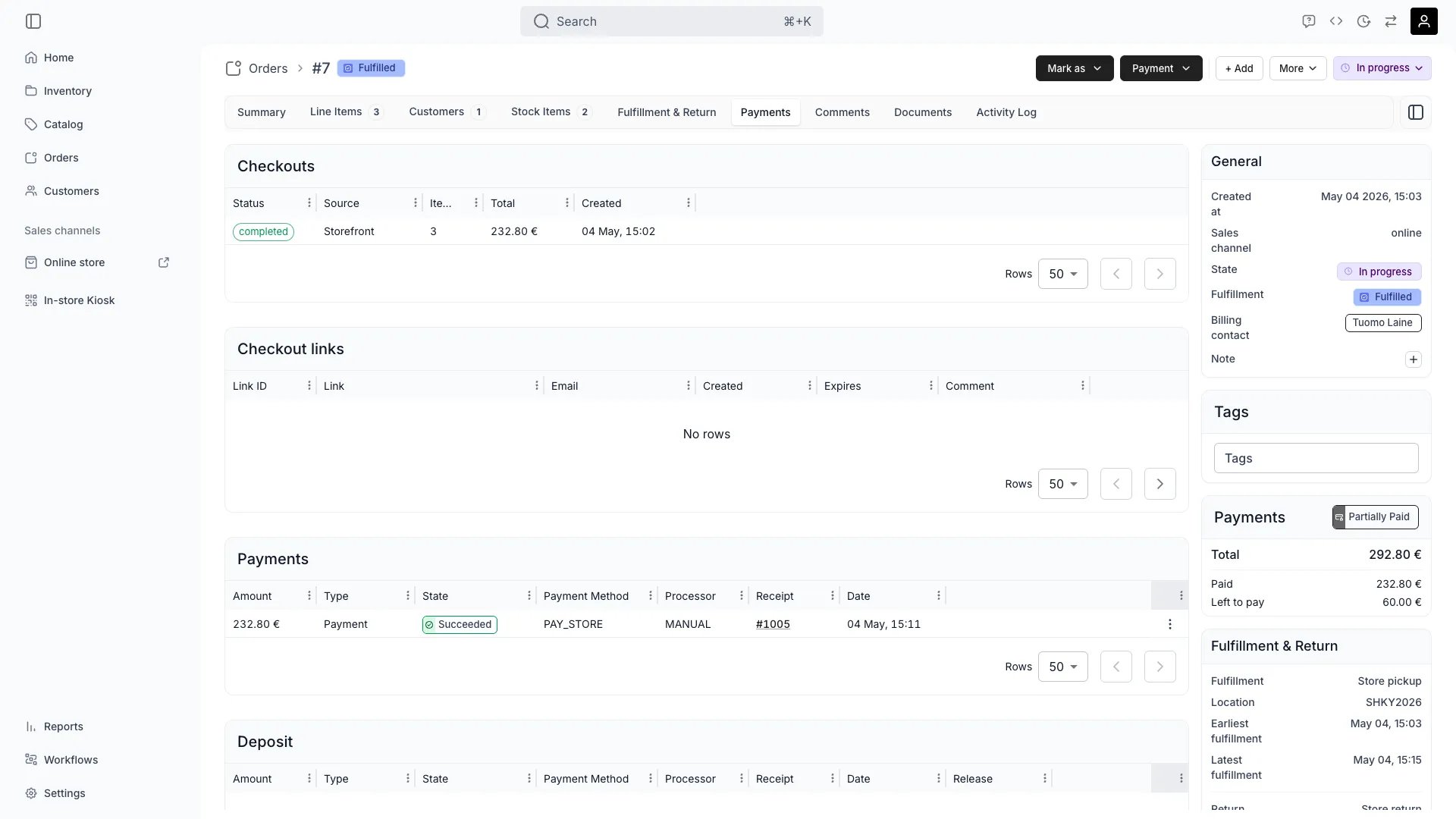
The **Payments** tab is five tables, and it pays to know which one answers which question:
| Table | What it holds |
| ------------------ | --------------------------------------------------------------------------------------------------------------- |
| **Checkouts** | Each checkout created against this order, with its **Source** — **Storefront**, **Checkout link**, or **Admin** |
| **Checkout links** | Every link issued, with **Active**, **Expired**, **Revoked** or **Used** status |
| **Invoices** | The settlement documents, with **Mark as paid**, **Retry**, **Write off** and **Cancel** row actions |
| **Payments** | The money itself — every charge, refund and deposit movement |
| **Deposit** | The deposit balance, separately from everything above |
The order's own **Payment** chip rolls all of it up to **Paid** or **Unpaid**, which is deliberately coarse. Anything finer than "is there a balance" is read here.
The **Payment** button offers the routes, and the customer's location picks one:
* **Send checkout link** — they pay themselves. Set the amount and the recipient **Email**.
* **Manual payment** — money already in hand. Record **Amount to pay**, **Payment method**, and optionally a back-dated **Payment date**.
* **Reserve deposit** — the deposit path, covered below. Only offered when the line items carry a deposit.
Both collect routes open onto the same amount picker, so everything in the next step applies either way.
The collect drawer splits what is owed into two buckets and lets you set an amount against each target:
* **Uncollected items** — the remainder on each line item, per customer.
* **Open invoices** — the remainder on any open invoice, shown as **Invoice #number**.
**Collect all** fills every target at its full remainder. Otherwise, type the amount you want against each. Selecting line items on the order before opening the drawer pre-seeds those lines and leaves everything else at zero, which is how you charge one person's items on a shared order.
**There is no installment plan in TWICE.** Nothing schedules a series of future charges against an order, and nothing chases them. Splitting a payment means collecting part of it now and the rest later, by hand, each time — which is what this drawer is for. The one exception is [subscriptions](/docs/concepts/catalog/subscriptions), which bill on their own cycle and generate an invoice per period.
**Payment → Reserve deposit** holds the deposit against the order. What that means depends on the order, and **the system decides — you are not offered a choice**:
* **The order has a saved card** — the deposit is authorised off-session from that card. The dialog says it will be reserved from the customer's stored card and the button reads **Reserve now**.
* **No saved card** — there is nothing to authorise, so the deposit is recorded as reserved by hand. The button reads **Mark as reserved**, and it is bookkeeping: no money is held anywhere.
The distinction matters at the end. A real authorisation can be captured; a recorded one is a note to yourself that you took a deposit some other way, and collecting on it is your job.
When the goods come back, the deposit either goes back to the customer or some of it does not.
**To keep some of it**, use **Capture deposit**. The dialog shows **Reserved**, **Already captured** and **Available to capture**, and asks for:
| Field | Notes |
| ---------------------------------- | ----------------------------------------------------------------------------------------------- |
| **Amount to capture** | Cannot exceed what is available — the dialog refuses and tells you the ceiling |
| **Reason** | Optional, but this is the one place the reason for a kept deposit is recorded |
| **Tax levels** | Which rate applies to the captured amount. *No tax rates configured* means you have none set up |
| **Send receipt email to customer** | Off unless you tick it, with the address alongside |
**To release it**, capture nothing. An authorisation you never capture lapses on its own, and the Payments table records it as **Expired**. Deposits also have their own reservation schedule and expiry — see [Security deposits](/docs/concepts/orders/deposits).
Every movement lands here as a row: **Receipt**, **Amount**, **Type** and **State**.
**Type** says what the money did — **Payment**, **Refund**, **Deposit Auth**, **Deposit Capture** or **Cancellation**. **State** says how far it got: **Succeeded**, **Captured**, **Pending**, **Failed**, **Voided**, **Cancelled**, **Expired**, **Refunded** or **Refund Reversed**.
A receipt number appears only once a payment has actually settled. A row still **Pending** has no receipt yet and gets one when it succeeds, so a blank receipt on a pending row is not a fault.
## How do I know it worked?
* **The order's Payment chip reads Paid**, or **Unpaid** for a balance you know about and intend to collect.
* **The Payments table carries a Succeeded row** for the amount, with a receipt number.
* **The deposit shows on its own balance** as reserved or captured, not mixed into the order total.
* **The customer has their receipt**, if you sent one.
## Troubleshooting / Common Pitfalls
**Cause:** the order has no stored payment method, so there is no card to authorise against.
**What to do:** the action still works — it records the deposit as reserved rather than holding money. Take the deposit by whatever means you actually use, and remember that capturing it later is a manual step, not a card capture. To hold a real authorisation, the customer has to pay by card through a checkout first so the card is on the order.
**Cause:** a reservation is in flight — usually a double click, or two people on the same order.
**What to do:** wait a moment and check the Payments table before retrying. The first attempt has probably succeeded, and retrying immediately risks a second hold.
**Three usual reasons:**
1. **You collected part of it.** The chip is binary: anything short of the full total reads **Unpaid**.
2. **The payment is still Pending.** It has not settled yet, so it does not count toward paid.
3. **The order total moved after you collected** — an edit re-opened the balance. See [Edit an order](/docs/guides/orders/edit-an-order).
**TWICE does not do this.** There is no schedule of future charges against an ordinary order, no automatic retry of them, and nothing that chases the customer.
**What to do:** collect part now and the rest later, by hand, each time — the collect drawer is built for exactly that. If the arrangement is genuinely recurring rather than a one-off split, model it as a [subscription](/docs/concepts/catalog/subscriptions), which does bill on a cycle.
**Cause:** you cannot capture more than the authorisation is holding. **Available to capture** is the ceiling, and the dialog names the figure it will accept.
**What to do:** capture up to that amount. If the damage exceeds the deposit, the remainder is a separate charge against the order, not a bigger capture.
**Expected, and it is why deposits are not a long-term hold.** An authorisation lapses after its window, and the Payments table records it as **Expired**.
**What to do:** there is nothing to capture from a lapsed authorisation. Charge the customer separately if something is owed. [Security deposits](/docs/concepts/orders/deposits) covers the reservation schedule and expiry window.
**Cause:** your role does not hold `orders:order_payments`. The Member system role does not, by design.
**What to do:** the tab is not hidden — it is not yours. Someone with Owner, Admin or Manager takes the payment, or a custom role adds the permission. See [Users & Roles](/docs/settings/users-roles).
## Next Steps
Sending money back, in full or in part.
Checkouts, payments and transactions in the data model.
The reservation schedule, states and expiry.
The tab this all happens on, including checkout links.
orders
Money on an order moves in two directions and in two kinds. There is what the customer owes for what they ordered, and there is the deposit you hold against the goods coming back — collected differently, tracked on its own balance, and released or kept independently of the order total.
This guide is both: charging an order, splitting a total across more than one payment, and the full deposit round trip.
## Prerequisites
**Required permissions:** `orders:order_payments`. Owner, Admin and Manager hold every operation on it. **Member does not hold it at all** — the Payments tab does not appear for that role, so none of this is available to them. See [Users & Roles](/docs/settings/users-roles).
**Have ready before you start:**
* **A way to take the money.** A connected provider for checkout links and card deposits, or a manual method for cash and terminals outside TWICE. See [Payments settings](/docs/settings/payments).
* **The customer's email**, if you are sending a checkout link.
* **A saved card on the order**, if you want a deposit actually authorised rather than only recorded. See the deposit steps for what happens without one.
## The Walkthrough
The **Payments** tab is five tables, and it pays to know which one answers which question:
| Table | What it holds |
| ------------------ | --------------------------------------------------------------------------------------------------------------- |
| **Checkouts** | Each checkout created against this order, with its **Source** — **Storefront**, **Checkout link**, or **Admin** |
| **Checkout links** | Every link issued, with **Active**, **Expired**, **Revoked** or **Used** status |
| **Invoices** | The settlement documents, with **Mark as paid**, **Retry**, **Write off** and **Cancel** row actions |
| **Payments** | The money itself — every charge, refund and deposit movement |
| **Deposit** | The deposit balance, separately from everything above |
The order's own **Payment** chip rolls all of it up to **Paid** or **Unpaid**, which is deliberately coarse. Anything finer than "is there a balance" is read here.
The **Payment** button offers the routes, and the customer's location picks one:
* **Send checkout link** — they pay themselves. Set the amount and the recipient **Email**.
* **Manual payment** — money already in hand. Record **Amount to pay**, **Payment method**, and optionally a back-dated **Payment date**.
* **Reserve deposit** — the deposit path, covered below. Only offered when the line items carry a deposit.
Both collect routes open onto the same amount picker, so everything in the next step applies either way.
The collect drawer splits what is owed into two buckets and lets you set an amount against each target:
* **Uncollected items** — the remainder on each line item, per customer.
* **Open invoices** — the remainder on any open invoice, shown as **Invoice #number**.
**Collect all** fills every target at its full remainder. Otherwise, type the amount you want against each. Selecting line items on the order before opening the drawer pre-seeds those lines and leaves everything else at zero, which is how you charge one person's items on a shared order.
**There is no installment plan in TWICE.** Nothing schedules a series of future charges against an order, and nothing chases them. Splitting a payment means collecting part of it now and the rest later, by hand, each time — which is what this drawer is for. The one exception is [subscriptions](/docs/concepts/catalog/subscriptions), which bill on their own cycle and generate an invoice per period.
**Payment → Reserve deposit** holds the deposit against the order. What that means depends on the order, and **the system decides — you are not offered a choice**:
* **The order has a saved card** — the deposit is authorised off-session from that card. The dialog says it will be reserved from the customer's stored card and the button reads **Reserve now**.
* **No saved card** — there is nothing to authorise, so the deposit is recorded as reserved by hand. The button reads **Mark as reserved**, and it is bookkeeping: no money is held anywhere.
The distinction matters at the end. A real authorisation can be captured; a recorded one is a note to yourself that you took a deposit some other way, and collecting on it is your job.
When the goods come back, the deposit either goes back to the customer or some of it does not.
**To keep some of it**, use **Capture deposit**. The dialog shows **Reserved**, **Already captured** and **Available to capture**, and asks for:
| Field | Notes |
| ---------------------------------- | ----------------------------------------------------------------------------------------------- |
| **Amount to capture** | Cannot exceed what is available — the dialog refuses and tells you the ceiling |
| **Reason** | Optional, but this is the one place the reason for a kept deposit is recorded |
| **Tax levels** | Which rate applies to the captured amount. *No tax rates configured* means you have none set up |
| **Send receipt email to customer** | Off unless you tick it, with the address alongside |
**To release it**, capture nothing. An authorisation you never capture lapses on its own, and the Payments table records it as **Expired**. Deposits also have their own reservation schedule and expiry — see [Security deposits](/docs/concepts/orders/deposits).
Every movement lands here as a row: **Receipt**, **Amount**, **Type** and **State**.
**Type** says what the money did — **Payment**, **Refund**, **Deposit Auth**, **Deposit Capture** or **Cancellation**. **State** says how far it got: **Succeeded**, **Captured**, **Pending**, **Failed**, **Voided**, **Cancelled**, **Expired**, **Refunded** or **Refund Reversed**.
A receipt number appears only once a payment has actually settled. A row still **Pending** has no receipt yet and gets one when it succeeds, so a blank receipt on a pending row is not a fault.
## How do I know it worked?
* **The order's Payment chip reads Paid**, or **Unpaid** for a balance you know about and intend to collect.
* **The Payments table carries a Succeeded row** for the amount, with a receipt number.
* **The deposit shows on its own balance** as reserved or captured, not mixed into the order total.
* **The customer has their receipt**, if you sent one.
## Troubleshooting / Common Pitfalls
**Cause:** the order has no stored payment method, so there is no card to authorise against.
**What to do:** the action still works — it records the deposit as reserved rather than holding money. Take the deposit by whatever means you actually use, and remember that capturing it later is a manual step, not a card capture. To hold a real authorisation, the customer has to pay by card through a checkout first so the card is on the order.
**Cause:** a reservation is in flight — usually a double click, or two people on the same order.
**What to do:** wait a moment and check the Payments table before retrying. The first attempt has probably succeeded, and retrying immediately risks a second hold.
**Three usual reasons:**
1. **You collected part of it.** The chip is binary: anything short of the full total reads **Unpaid**.
2. **The payment is still Pending.** It has not settled yet, so it does not count toward paid.
3. **The order total moved after you collected** — an edit re-opened the balance. See [Edit an order](/docs/guides/orders/edit-an-order).
**TWICE does not do this.** There is no schedule of future charges against an ordinary order, no automatic retry of them, and nothing that chases the customer.
**What to do:** collect part now and the rest later, by hand, each time — the collect drawer is built for exactly that. If the arrangement is genuinely recurring rather than a one-off split, model it as a [subscription](/docs/concepts/catalog/subscriptions), which does bill on a cycle.
**Cause:** you cannot capture more than the authorisation is holding. **Available to capture** is the ceiling, and the dialog names the figure it will accept.
**What to do:** capture up to that amount. If the damage exceeds the deposit, the remainder is a separate charge against the order, not a bigger capture.
**Expected, and it is why deposits are not a long-term hold.** An authorisation lapses after its window, and the Payments table records it as **Expired**.
**What to do:** there is nothing to capture from a lapsed authorisation. Charge the customer separately if something is owed. [Security deposits](/docs/concepts/orders/deposits) covers the reservation schedule and expiry window.
**Cause:** your role does not hold `orders:order_payments`. The Member system role does not, by design.
**What to do:** the tab is not hidden — it is not yours. Someone with Owner, Admin or Manager takes the payment, or a custom role adds the permission. See [Users & Roles](/docs/settings/users-roles).
## Next Steps
Sending money back, in full or in part.
Checkouts, payments and transactions in the data model.
The reservation schedule, states and expiry.
The tab this all happens on, including checkout links.