> ## Documentation Index
> Fetch the complete documentation index at: https://www.twicecommerce.com/docs/llms.txt
> Use this file to discover all available pages before exploring further.
# How to resolve a stock item conflict
> Find every order whose assigned stock has lost its reservation, tell a missing hold apart from a real double-booking, and clear each one before the customer arrives.
 orders
A conflict means an order is pointing at a unit it no longer holds. On paper the item is committed; in inventory the reservation that kept everyone else off it is gone.
Conflicts do not block anything. The order processes, the table looks normal apart from a banner, and nobody finds out until someone goes to fetch the item and it is not there. That is what makes them worth a routine rather than a reaction.
This guide is that routine: find them all, work out which kind each one is, and clear it. For what a conflict *is* and the five conditions that raise one, see [Stock Item Conflicts](/docs/concepts/orders/stock-item-conflicts).
## Prerequisites
**Required permissions:** `orders:order_stock_items` in view and manage to reassign units, and `orders:order` in view to find the affected orders. All four system roles — Owner, Admin, Manager and Member — hold these. See [Users & Roles](/docs/settings/users-roles).
**Before you start:**
* **Check which locations you have selected.** The conflict count and banner are scoped to your selected service locations, so a clean-looking table can hide conflicts at a site you are not currently viewing.
* **Know your window.** Conflicts on orders picking up today are urgent; one three weeks out can wait for a proper replacement.
## The Walkthrough
Three routes into the same set, on the **Orders** table:
* **The banner.** **Some orders have conflicts** appears at the top with a count — *N orders have stock items that need attention.* **View orders** filters the table down to them.
* **The Has conflicts column.** Filter it to **Yes**, or group by it to split the table into clean and not.
* **The order number.** Conflicted orders carry a highlighted, error-coloured reference chip, so they stand out while you are scrolling for something else.
Work from the filtered list rather than order by order. Conflicts usually arrive in batches — one archived unit takes every future booking that pointed at it with it.
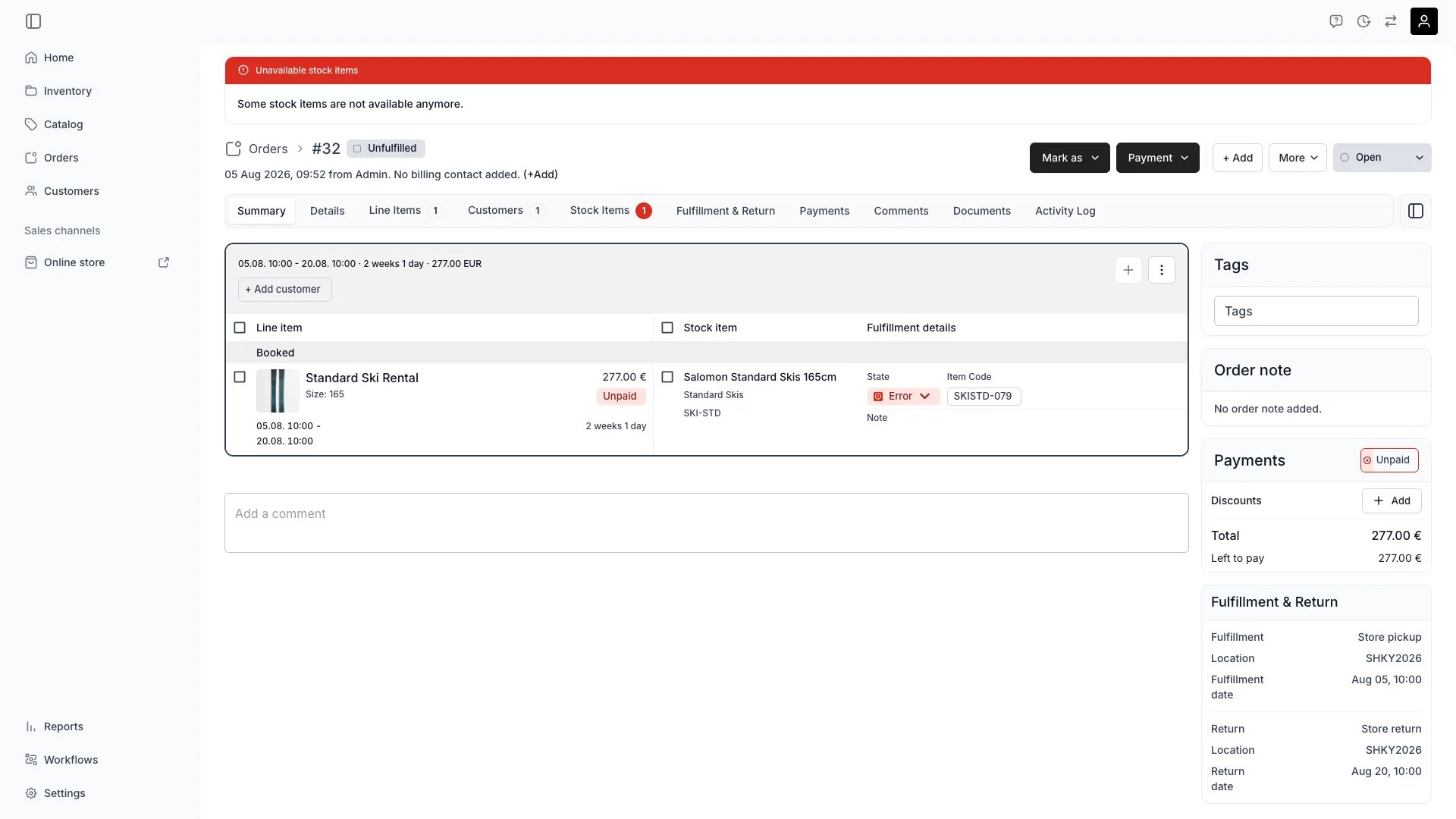
A conflicted order shows a red **Unavailable stock items** banner — *Some stock items are not available anymore.* — and the **Stock Items** tab carries an error badge.
Open that tab. The affected items are highlighted; the rest of the order is untouched and needs nothing.
Open the drawer for a flagged item and look at the **Current** row's **Availability** chip in **Change stock item**. This is the diagnostic, and it is the step people skip:
| Current row reads | What happened | What it costs you |
| ----------------- | ------------------------------------------------------------------------------------------------------------ | -------------------------------------------------------------------------- |
| **Available** | The hold went missing, but nothing else has taken the unit. The unit is still genuinely free for these dates | Cheap. Re-assign the same unit and the reservation is recreated |
| **Committed** | Something else now holds this unit for this period — a real double-booking | You must move to a different unit. One of the two orders is not getting it |
The chip is trustworthy here specifically because the item is in conflict. Normally the current unit is shown as available-to-keep, discounting its own hold; on a conflicted item there is no hold to discount, so what you see is the real availability.
In **Change stock item**, pick a row that is both **Available** and, ideally, a **Full match**. Click it, or use **Switch to →**.
The reservation is created as soon as you assign, and that is what clears the flag. Choosing a **Partial match** or **No match** unit is allowed — availability is the only hard gate — but on a conflict you are already recovering from a surprise, so prefer a full match where one exists.
[Assign and swap stock items](/docs/guides/orders/assign-stock-items) covers the candidate list in full.
Sometimes every candidate is **Committed**. The conflict does not go away on its own, and the order will still be short at the counter, so pick one:
* **Move the dates.** Often the cheapest fix if the customer is flexible — see [Edit an order](/docs/guides/orders/edit-an-order).
* **Pull from another location**, if the customer can collect there and the location's rules allow it.
* **Substitute deliberately.** Assign a unit the rules call **No match** but you know is equivalent.
* **Change what was ordered**, or contact the customer. Better a call now than an empty shelf on the day.
Leaving it is the one option that is never right. The flag is the only warning the order will give you.
Back on the order, the red banner is gone and the **Stock Items** tab badge is back to normal. On the **Orders** table the order's **Has conflicts** reads **No** and its reference chip is no longer highlighted.
Then re-check the filtered list from step one. The count drops as you clear each order, and the banner disappears when the last one at your selected locations is done.
## How do I know it worked?
* **No banner** on the order, and no error badge on its **Stock Items** tab.
* **Every unit's Current row reads Available** in its drawer — each one holds a real reservation again.
* **Has conflicts is No** for the order on the Orders table.
* **The conflicts banner is gone** from the top of the table, for your selected locations.
## Troubleshooting / Common Pitfalls
**Cause:** the count and banner are scoped to your selected service locations. Clearing every conflict at one site removes the banner while another site still has them.
**What to do:** switch locations and check again. On a multi-site operation, make this a pass over each location rather than a single look.
**Almost always an archive.** Archiving a stock item — or a SKU, which takes its items with it — releases that unit's future holds while the orders pointing at it stay live. Every affected booking is flagged, and each one needs its own replacement unit.
**What to do:** work the filtered list. The archive confirmation counts the affected bookings before you confirm, so this is foreseeable — see [Archive stock items](/docs/guides/inventory/archive-stock-items).
**Expected.** Archiving an order releases its holds deliberately: it is not being fulfilled, so the capacity returns to the pool. Its items are then in the same shape as a conflict, and are suppressed only because the order is not live.
Unarchiving makes the order live again, so they surface once more. **The released holds are not recreated**, so every item needs reassigning — the order is not restored to the state it was archived in.
**This is the real double-booking case with no spare capacity.** Two commitments exist for one unit and only one can be honoured.
**What to do:** work step five — move dates, pull from another location, substitute, or talk to the customer. Deciding which order keeps the unit is a business call the admin will not make for you.
**You can, and it will not stop anything** — conflicts do not block processing, payment or fulfilment. But the item may simply not be there when the customer arrives, and by then every alternative is worse.
A conflict found three weeks out is a swap. The same conflict found at the counter is a refund.
**No.** A conflict clears when you reassign the unit, when the order reaches a terminal state, or when the order is archived. TWICE detects them and will keep showing them; it does not repair them.
Where capacity allows, assignment *is* handled gracefully — an existing booking may be moved to another physical unit to free the slot you need. That happens as part of the assignment you make, not instead of it.
## Next Steps
What raises a conflict, and the conditions behind the flag.
The candidate list, rule matching, and scanning.
When every candidate comes back committed.
Moving the dates when no unit can be freed.
orders
A conflict means an order is pointing at a unit it no longer holds. On paper the item is committed; in inventory the reservation that kept everyone else off it is gone.
Conflicts do not block anything. The order processes, the table looks normal apart from a banner, and nobody finds out until someone goes to fetch the item and it is not there. That is what makes them worth a routine rather than a reaction.
This guide is that routine: find them all, work out which kind each one is, and clear it. For what a conflict *is* and the five conditions that raise one, see [Stock Item Conflicts](/docs/concepts/orders/stock-item-conflicts).
## Prerequisites
**Required permissions:** `orders:order_stock_items` in view and manage to reassign units, and `orders:order` in view to find the affected orders. All four system roles — Owner, Admin, Manager and Member — hold these. See [Users & Roles](/docs/settings/users-roles).
**Before you start:**
* **Check which locations you have selected.** The conflict count and banner are scoped to your selected service locations, so a clean-looking table can hide conflicts at a site you are not currently viewing.
* **Know your window.** Conflicts on orders picking up today are urgent; one three weeks out can wait for a proper replacement.
## The Walkthrough
Three routes into the same set, on the **Orders** table:
* **The banner.** **Some orders have conflicts** appears at the top with a count — *N orders have stock items that need attention.* **View orders** filters the table down to them.
* **The Has conflicts column.** Filter it to **Yes**, or group by it to split the table into clean and not.
* **The order number.** Conflicted orders carry a highlighted, error-coloured reference chip, so they stand out while you are scrolling for something else.
Work from the filtered list rather than order by order. Conflicts usually arrive in batches — one archived unit takes every future booking that pointed at it with it.
A conflicted order shows a red **Unavailable stock items** banner — *Some stock items are not available anymore.* — and the **Stock Items** tab carries an error badge.
Open that tab. The affected items are highlighted; the rest of the order is untouched and needs nothing.
Open the drawer for a flagged item and look at the **Current** row's **Availability** chip in **Change stock item**. This is the diagnostic, and it is the step people skip:
| Current row reads | What happened | What it costs you |
| ----------------- | ------------------------------------------------------------------------------------------------------------ | -------------------------------------------------------------------------- |
| **Available** | The hold went missing, but nothing else has taken the unit. The unit is still genuinely free for these dates | Cheap. Re-assign the same unit and the reservation is recreated |
| **Committed** | Something else now holds this unit for this period — a real double-booking | You must move to a different unit. One of the two orders is not getting it |
The chip is trustworthy here specifically because the item is in conflict. Normally the current unit is shown as available-to-keep, discounting its own hold; on a conflicted item there is no hold to discount, so what you see is the real availability.
In **Change stock item**, pick a row that is both **Available** and, ideally, a **Full match**. Click it, or use **Switch to →**.
The reservation is created as soon as you assign, and that is what clears the flag. Choosing a **Partial match** or **No match** unit is allowed — availability is the only hard gate — but on a conflict you are already recovering from a surprise, so prefer a full match where one exists.
[Assign and swap stock items](/docs/guides/orders/assign-stock-items) covers the candidate list in full.
Sometimes every candidate is **Committed**. The conflict does not go away on its own, and the order will still be short at the counter, so pick one:
* **Move the dates.** Often the cheapest fix if the customer is flexible — see [Edit an order](/docs/guides/orders/edit-an-order).
* **Pull from another location**, if the customer can collect there and the location's rules allow it.
* **Substitute deliberately.** Assign a unit the rules call **No match** but you know is equivalent.
* **Change what was ordered**, or contact the customer. Better a call now than an empty shelf on the day.
Leaving it is the one option that is never right. The flag is the only warning the order will give you.
Back on the order, the red banner is gone and the **Stock Items** tab badge is back to normal. On the **Orders** table the order's **Has conflicts** reads **No** and its reference chip is no longer highlighted.
Then re-check the filtered list from step one. The count drops as you clear each order, and the banner disappears when the last one at your selected locations is done.
## How do I know it worked?
* **No banner** on the order, and no error badge on its **Stock Items** tab.
* **Every unit's Current row reads Available** in its drawer — each one holds a real reservation again.
* **Has conflicts is No** for the order on the Orders table.
* **The conflicts banner is gone** from the top of the table, for your selected locations.
## Troubleshooting / Common Pitfalls
**Cause:** the count and banner are scoped to your selected service locations. Clearing every conflict at one site removes the banner while another site still has them.
**What to do:** switch locations and check again. On a multi-site operation, make this a pass over each location rather than a single look.
**Almost always an archive.** Archiving a stock item — or a SKU, which takes its items with it — releases that unit's future holds while the orders pointing at it stay live. Every affected booking is flagged, and each one needs its own replacement unit.
**What to do:** work the filtered list. The archive confirmation counts the affected bookings before you confirm, so this is foreseeable — see [Archive stock items](/docs/guides/inventory/archive-stock-items).
**Expected.** Archiving an order releases its holds deliberately: it is not being fulfilled, so the capacity returns to the pool. Its items are then in the same shape as a conflict, and are suppressed only because the order is not live.
Unarchiving makes the order live again, so they surface once more. **The released holds are not recreated**, so every item needs reassigning — the order is not restored to the state it was archived in.
**This is the real double-booking case with no spare capacity.** Two commitments exist for one unit and only one can be honoured.
**What to do:** work step five — move dates, pull from another location, substitute, or talk to the customer. Deciding which order keeps the unit is a business call the admin will not make for you.
**You can, and it will not stop anything** — conflicts do not block processing, payment or fulfilment. But the item may simply not be there when the customer arrives, and by then every alternative is worse.
A conflict found three weeks out is a swap. The same conflict found at the counter is a refund.
**No.** A conflict clears when you reassign the unit, when the order reaches a terminal state, or when the order is archived. TWICE detects them and will keep showing them; it does not repair them.
Where capacity allows, assignment *is* handled gracefully — an existing booking may be moved to another physical unit to free the slot you need. That happens as part of the assignment you make, not instead of it.
## Next Steps
What raises a conflict, and the conditions behind the flag.
The candidate list, rule matching, and scanning.
When every candidate comes back committed.
Moving the dates when no unit can be freed.