> ## Documentation Index
> Fetch the complete documentation index at: https://www.twicecommerce.com/docs/llms.txt
> Use this file to discover all available pages before exploring further.
# How to refund an order
> Send money back on an order — refunding whole line items or an arbitrary amount, what the refund does to the order's totals, and the cases the payment will not allow.
 orders
A refund in TWICE is not an edit to the original payment. It is a new payment in the opposite direction, linked to the one it reverses, with its own receipt number. The original charge stays on the record exactly as it was.
That matters for two reasons: your books show both movements rather than one adjusted figure, and the amount you can send back is bounded by what is left of the original charge, not by what the order is now worth.
## Prerequisites
**Required permissions:** `orders:order_payments`. Owner, Admin and Manager hold every operation on it. **Member does not hold it at all** and cannot see the Payments tab. See [Users & Roles](/docs/settings/users-roles).
**Before you start, know:**
* **Which payment you are refunding.** Refunds are issued against a payment row, not against the order as a whole, so an order paid in two goes has two possible sources.
* **How much is still refundable.** Earlier partial refunds reduce it, and the dialog shows the figure.
* **Whether the money is TWICE's to move.** A card payment through a connected provider is sent back by the provider. A manual payment is a record — TWICE records the reversal and handing the cash back is yours to do.
## The Walkthrough
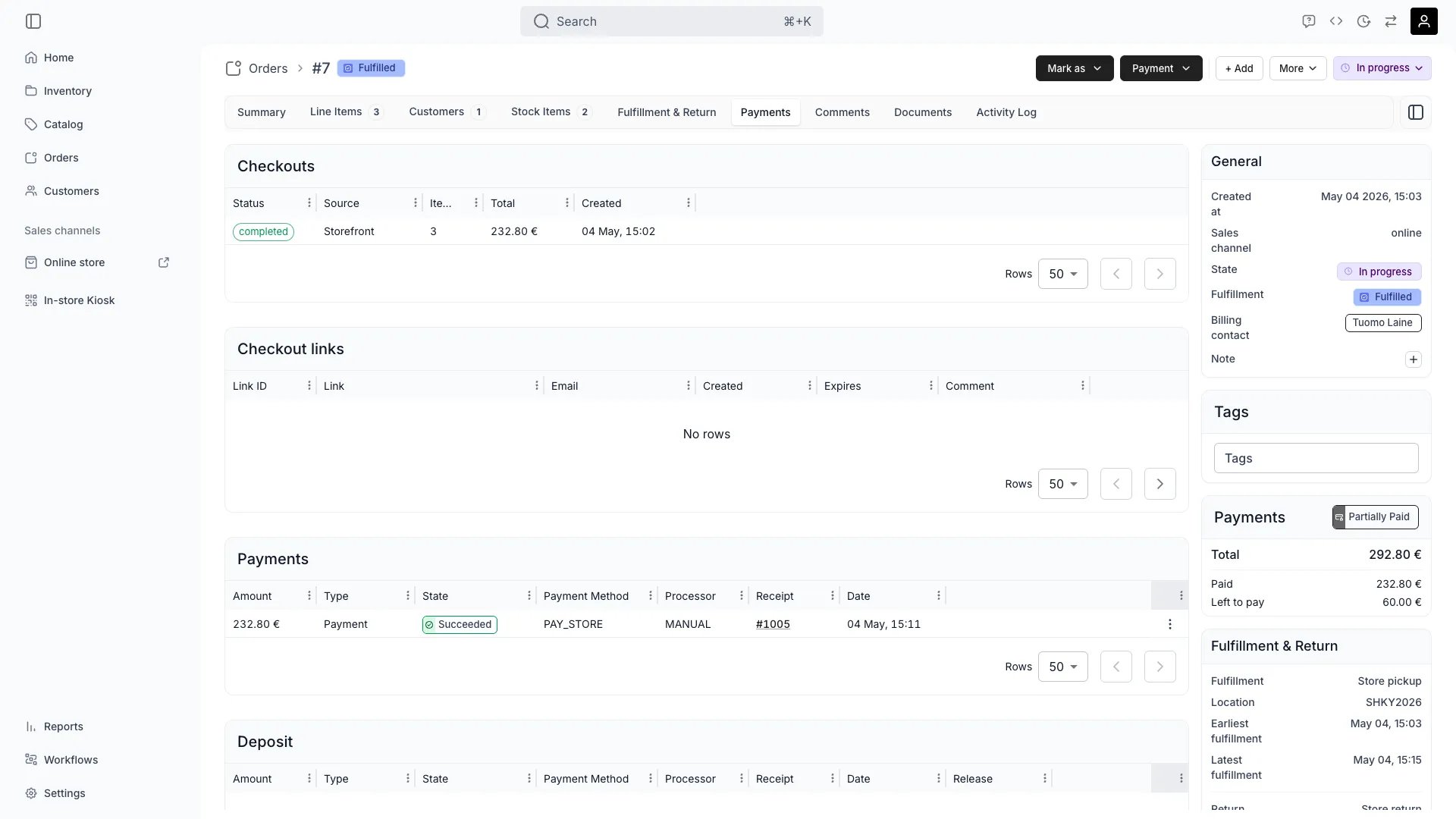
On the **Payments** tab, work from the **Payments** table. Each row carries its **Receipt**, **Amount**, **Type** and **State**.
You want a row of type **Payment** in state **Succeeded** or **Captured**. A **Pending** payment has not settled, so there is nothing to send back yet, and a row already **Refunded** has nothing left.
A closed order can still be refunded. Closing locks editing, not money — see [Order lifecycle](/docs/concepts/orders/order-lifecycle).
Open **Refund payment** on that row. The dialog leads with three figures, and the third is the one that governs:
| Figure | Meaning |
| ------------------------ | ----------------------------------------------------------- |
| **Charged** | What this payment originally took |
| **Already refunded** | What earlier refunds against it have sent back |
| **Remaining refundable** | Charged less already refunded — the most this refund can be |
Nothing you do below can exceed **Remaining refundable**. Attempting it is refused with *Refund amount cannot exceed* and the figure it will accept.
Two modes, and they are for different conversations:
**Select line items** — refund specific things. Each line shows **Item name**, **Total**, **Refunded** and **Refundable**, and you refund per line. Use this when the refund has a reason attached to particular items: one of three bikes was never collected, an add-on was not delivered.
**Custom amount** — refund a figure. Set **Amount to refund** directly, or give a **Percentage** and let it compute. Use this for goodwill, a negotiated settlement, or anything that is not "these items".
Line refunds can cover items, shipping, fees, deposits and rounding, each shown with its own type, so a refund can be aimed at the shipping charge alone.
Confirm the refund. It appears in the **Payments** table as a new row of type **Refund** with its own receipt number — not as a change to the original row, which keeps its own amount and gains a **Refunded** or partially-refunded state.
A refund can itself be undone by the provider, in which case a **Refund Reversed** state appears. That is money coming back to you after a refund failed to stick, usually a chargeback-adjacent event, and it is worth investigating rather than ignoring.
A refund moves money and nothing else. In particular:
* **The order's line items are unchanged.** The customer is still recorded as having ordered what they ordered.
* **No stock is released.** A refunded booking still holds its units until you change the order.
* **The order is not closed or cancelled** by refunding it.
If the refund is because the customer is not taking the goods, the refund is one of two steps. The other is releasing the stock — [edit the order](/docs/guides/orders/edit-an-order) to remove the line, or [stand the whole order down](/docs/guides/orders/cancel-or-archive-an-order). Otherwise the stock stays committed to an order nobody is coming for.
## How do I know it worked?
* **A Refund row is in the Payments table** for the amount, with its own receipt number.
* **The original payment shows as refunded** or partially refunded, still carrying its original amount.
* **The order's Payment chip reflects the new position** — an order refunded in full no longer reads **Paid**.
* **The customer has the money**, on the provider's timeline rather than instantly. Card refunds commonly take several working days to appear.
## Troubleshooting / Common Pitfalls
**Cause:** you asked for more than **Remaining refundable** on that payment.
**What to do:** check whether the order was paid across several payments. Each is refunded separately against its own ceiling, so a refund larger than any single payment has to be issued as more than one refund.
**Usually just time.** A card refund is initiated by TWICE and settled by the provider and the customer's bank, which commonly takes several working days.
**What to do:** confirm the row reads **Succeeded** rather than **Pending**, then point the customer at the receipt. If the row is **Failed** or later shows **Refund Reversed**, the money genuinely did not go back and the provider is where to look.
**Expected.** A manual payment is a record of money handled outside TWICE — cash, a terminal that is not connected. TWICE records the reversal so your books balance; it has no way to hand the cash back.
**What to do:** return the money by the same route you took it. The refund row is the record, not the mechanism.
**Working as designed** — refunding is a money operation only.
**What to do:** if the customer is not coming, remove the line or cancel the order as well. See [Edit an order](/docs/guides/orders/edit-an-order). A refunded order that still holds its units will quietly block those dates for everyone else.
**Deposits have their own path.** They are tracked on a separate balance from the order total, so a deposit is released by not capturing it, or partially captured with the rest released — not by refunding the order.
**What to do:** see [Take payment and deposits](/docs/guides/orders/take-payment) for the capture and release round trip, and [Security deposits](/docs/concepts/orders/deposits) for the states.
**The refund was clawed back** — the money came back to you after the refund failed to complete at the provider.
**What to do:** treat the customer as not refunded, because they are not. Find out why at the provider before issuing another one, or you risk refunding twice.
## Next Steps
Collecting, splitting a total, and the deposit round trip.
Why a refund is a payment of its own.
Removing the line the refund was for.
The tab refunds are issued from.
orders
A refund in TWICE is not an edit to the original payment. It is a new payment in the opposite direction, linked to the one it reverses, with its own receipt number. The original charge stays on the record exactly as it was.
That matters for two reasons: your books show both movements rather than one adjusted figure, and the amount you can send back is bounded by what is left of the original charge, not by what the order is now worth.
## Prerequisites
**Required permissions:** `orders:order_payments`. Owner, Admin and Manager hold every operation on it. **Member does not hold it at all** and cannot see the Payments tab. See [Users & Roles](/docs/settings/users-roles).
**Before you start, know:**
* **Which payment you are refunding.** Refunds are issued against a payment row, not against the order as a whole, so an order paid in two goes has two possible sources.
* **How much is still refundable.** Earlier partial refunds reduce it, and the dialog shows the figure.
* **Whether the money is TWICE's to move.** A card payment through a connected provider is sent back by the provider. A manual payment is a record — TWICE records the reversal and handing the cash back is yours to do.
## The Walkthrough
On the **Payments** tab, work from the **Payments** table. Each row carries its **Receipt**, **Amount**, **Type** and **State**.
You want a row of type **Payment** in state **Succeeded** or **Captured**. A **Pending** payment has not settled, so there is nothing to send back yet, and a row already **Refunded** has nothing left.
A closed order can still be refunded. Closing locks editing, not money — see [Order lifecycle](/docs/concepts/orders/order-lifecycle).
Open **Refund payment** on that row. The dialog leads with three figures, and the third is the one that governs:
| Figure | Meaning |
| ------------------------ | ----------------------------------------------------------- |
| **Charged** | What this payment originally took |
| **Already refunded** | What earlier refunds against it have sent back |
| **Remaining refundable** | Charged less already refunded — the most this refund can be |
Nothing you do below can exceed **Remaining refundable**. Attempting it is refused with *Refund amount cannot exceed* and the figure it will accept.
Two modes, and they are for different conversations:
**Select line items** — refund specific things. Each line shows **Item name**, **Total**, **Refunded** and **Refundable**, and you refund per line. Use this when the refund has a reason attached to particular items: one of three bikes was never collected, an add-on was not delivered.
**Custom amount** — refund a figure. Set **Amount to refund** directly, or give a **Percentage** and let it compute. Use this for goodwill, a negotiated settlement, or anything that is not "these items".
Line refunds can cover items, shipping, fees, deposits and rounding, each shown with its own type, so a refund can be aimed at the shipping charge alone.
Confirm the refund. It appears in the **Payments** table as a new row of type **Refund** with its own receipt number — not as a change to the original row, which keeps its own amount and gains a **Refunded** or partially-refunded state.
A refund can itself be undone by the provider, in which case a **Refund Reversed** state appears. That is money coming back to you after a refund failed to stick, usually a chargeback-adjacent event, and it is worth investigating rather than ignoring.
A refund moves money and nothing else. In particular:
* **The order's line items are unchanged.** The customer is still recorded as having ordered what they ordered.
* **No stock is released.** A refunded booking still holds its units until you change the order.
* **The order is not closed or cancelled** by refunding it.
If the refund is because the customer is not taking the goods, the refund is one of two steps. The other is releasing the stock — [edit the order](/docs/guides/orders/edit-an-order) to remove the line, or [stand the whole order down](/docs/guides/orders/cancel-or-archive-an-order). Otherwise the stock stays committed to an order nobody is coming for.
## How do I know it worked?
* **A Refund row is in the Payments table** for the amount, with its own receipt number.
* **The original payment shows as refunded** or partially refunded, still carrying its original amount.
* **The order's Payment chip reflects the new position** — an order refunded in full no longer reads **Paid**.
* **The customer has the money**, on the provider's timeline rather than instantly. Card refunds commonly take several working days to appear.
## Troubleshooting / Common Pitfalls
**Cause:** you asked for more than **Remaining refundable** on that payment.
**What to do:** check whether the order was paid across several payments. Each is refunded separately against its own ceiling, so a refund larger than any single payment has to be issued as more than one refund.
**Usually just time.** A card refund is initiated by TWICE and settled by the provider and the customer's bank, which commonly takes several working days.
**What to do:** confirm the row reads **Succeeded** rather than **Pending**, then point the customer at the receipt. If the row is **Failed** or later shows **Refund Reversed**, the money genuinely did not go back and the provider is where to look.
**Expected.** A manual payment is a record of money handled outside TWICE — cash, a terminal that is not connected. TWICE records the reversal so your books balance; it has no way to hand the cash back.
**What to do:** return the money by the same route you took it. The refund row is the record, not the mechanism.
**Working as designed** — refunding is a money operation only.
**What to do:** if the customer is not coming, remove the line or cancel the order as well. See [Edit an order](/docs/guides/orders/edit-an-order). A refunded order that still holds its units will quietly block those dates for everyone else.
**Deposits have their own path.** They are tracked on a separate balance from the order total, so a deposit is released by not capturing it, or partially captured with the rest released — not by refunding the order.
**What to do:** see [Take payment and deposits](/docs/guides/orders/take-payment) for the capture and release round trip, and [Security deposits](/docs/concepts/orders/deposits) for the states.
**The refund was clawed back** — the money came back to you after the refund failed to complete at the provider.
**What to do:** treat the customer as not refunded, because they are not. Find out why at the provider before issuing another one, or you risk refunding twice.
## Next Steps
Collecting, splitting a total, and the deposit round trip.
Why a refund is a payment of its own.
Removing the line the refund was for.
The tab refunds are issued from.