> ## Documentation Index
> Fetch the complete documentation index at: https://www.twicecommerce.com/docs/llms.txt
> Use this file to discover all available pages before exploring further.
# How to cancel or archive an order
> Stand an order down — why cancelling means archiving, how archiving differs from closing, what each one releases, and what unarchiving does not bring back.
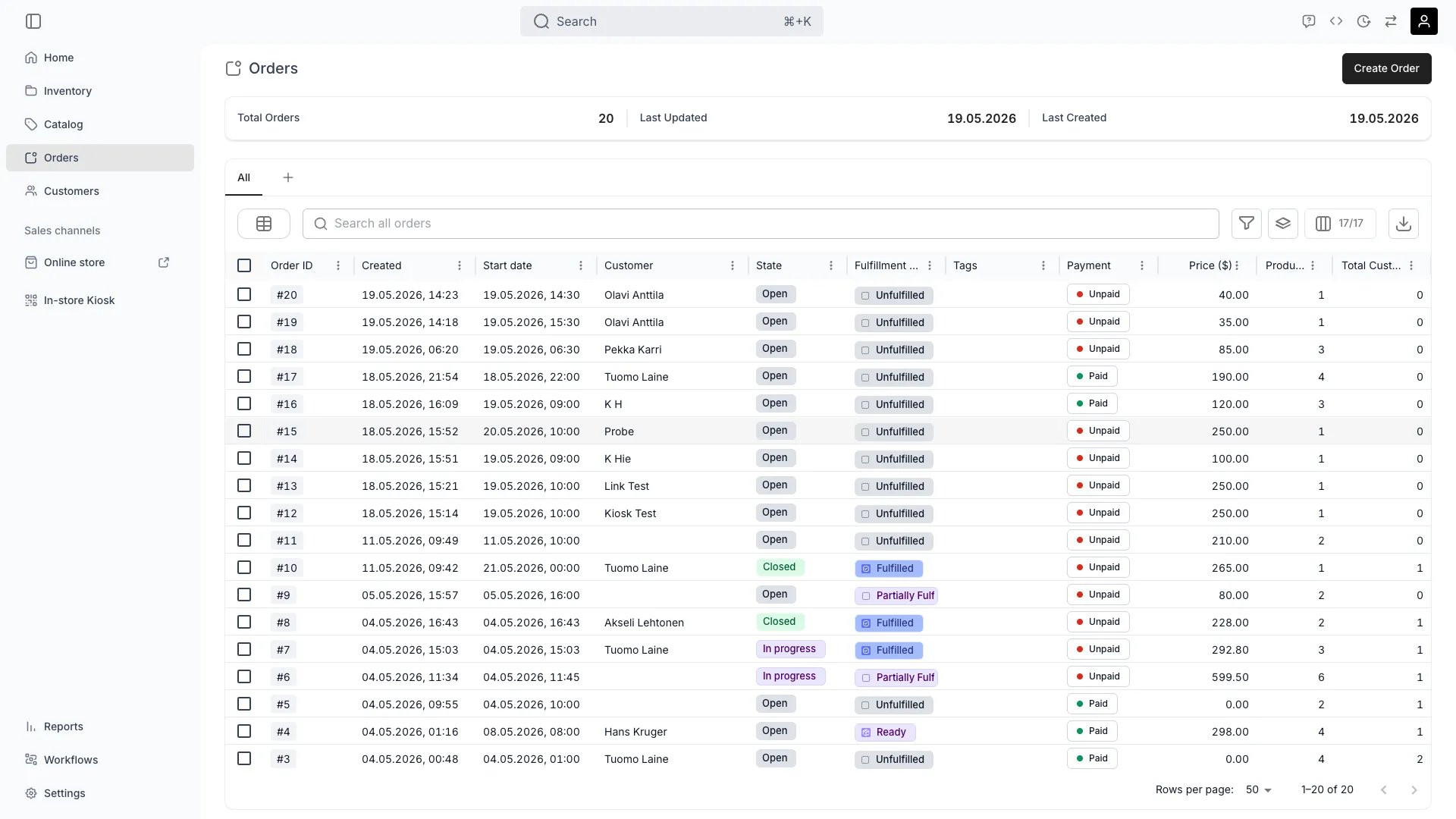 orders
**Cancelling an order means archiving it.** There is no separate Cancel button, and no status called cancelled — archiving is the action that stands an order down, and it does most of the work for you: it closes the order, releases its future holds so the stock goes back into the pool, and revokes any live checkout links.
What it does not do is the money. Nothing refunds automatically at any point, and there is no cancellation policy that calculates what to give back. So a cancellation is really two things: settle the money yourself, then archive. This guide is that, plus the difference between archiving and merely closing, and what unarchiving does not bring back.
## Prerequisites
**Required permissions:** `orders:order` in manage to close and archive, `orders:order_stock_items` in manage to release the items, and `orders:order_payments` for any refund — **which the Member role does not hold**. See [Users & Roles](/docs/settings/users-roles).
**Decide before you start:**
* **Whether money has been taken.** Nothing refunds automatically at any point in this sequence.
* **Whether the customer keeps anything.** A part-cancelled order is an edit, not a cancellation.
* **Whether you need it out of the table**, or only finished. Closing is enough for the second; archiving is for the first.
## The Walkthrough
Archiving releases *future* holds. It cannot release an item recorded as being with the customer, so anything already **Fulfilled** has to come back before the order can be cleanly stood down — that is a [return](/docs/guides/orders/handle-a-return), not a cancellation.
For a part-cancellation — the order goes ahead minus some items — you have two choices about what the record should say:
* **Mark the items Excluded** (`Mark as → Excluded`) — they stay on the order, visibly not being fulfilled, and the original scope is preserved.
* **Remove the lines** — see [Edit an order](/docs/guides/orders/edit-an-order). Use this when the items were never really part of it.
For a whole-order cancellation you can skip both: archiving releases the holds itself.
**Nothing in cancelling or archiving refunds anything.** If money was captured, it stays captured until you send it back.
Issue the refund now, while the order is still editable — see [Refund an order](/docs/guides/orders/refund-an-order). Refunds do still work on a closed order, but doing it first means you are not reopening anything.
A deposit is separate: release it by not capturing it, or capture what you are keeping. See [Take payment and deposits](/docs/guides/orders/take-payment).
There is no cancellation policy that computes a refund for you. What to give back is your decision and your terms, applied by hand.
Set the status chip to **Closed**. The dialog lists what closing does — checkout links stop working, scheduled payment collections stop, and the order can no longer be edited, plus a line about subscriptions being cancelled if it has any.
Closing on its own is the lighter option: it finishes an order without cancelling it. Use it when the order ran its course, or when you want it done but still in the table. It does **not** release future holds — only archiving does that — so a cancellation needs the next step as well.
Subscriptions are the exception worth reading: closing cancels them, and **Cancel subscriptions immediately** decides whether that happens today or after the notice period, during which they keep billing. Off by default, so the notice period is honoured unless you say otherwise.
This is the step that makes it a cancellation. Archiving is separate from closing: it takes the order out of the **Orders** table without deleting it, and releases what closing leaves held.
**Archiving an open order closes it first**, which is why the confirmation asks you to acknowledge that. A selection mixing open and closed orders lets you archive only the closed ones instead.
Two consequences worth knowing before you confirm:
* **Still-active checkout links are revoked.** They move to **Revoked** and tell the customer the link was cancelled. Links already expired or used keep the state they had.
* **Future holds are released.** The order is not being fulfilled, so the capacity goes back into the pool — which is the cleanup you want here, and also why an unarchived order comes back without them.
Nothing is archived automatically. Review and restore from [Settings → Archived assets](/docs/settings/archived-assets).
| Action | Reversible? | What comes back |
| ------------ | ------------------------------------------------------------------------- | ------------------------------------------------------------------------------------------------------------------------------- |
| **Closed** | Yes — set the status back to **Open** or **In progress** | Everything. Closing only locks editing |
| **Archived** | Yes — **Unarchive**, from the banner on the order or from Archived assets | The order returns to *closed*, not to how it was. Its released holds are **not** recreated, and its checkout links stay revoked |
That asymmetry is the one to remember. Unarchiving gives you the record back, not the reservations — so an unarchived order needs its stock reassigning, and will show [conflicts](/docs/guides/orders/resolve-stock-item-conflicts) until it gets it.
## How do I know it worked?
* **The units are free again** for the dates the order held, and available to other customers.
* **The money is settled** — refunded, or knowingly kept.
* **The order reads Closed**, and is gone from the Orders table if you archived it.
* **The record survives.** Nothing here deletes an order; it is still readable, with its [activity log](/docs/orders/order-tabs/activity-log) showing who stood it down and when.
## Troubleshooting / Common Pitfalls
**Archiving is the cancel action.** There is no separate button and no cancelled status — an archived order is a cancelled order, and archiving handles the closing and the hold release for you.
**What to do:** refund first if money was taken, then archive. If you also want the *reason* on the record, put it in a [comment](/docs/orders/order-tabs/comments) on the order — archiving records that it was stood down, not why.
**Check whether the items were fulfilled.** Archiving releases *future* holds. An item marked **Fulfilled** is recorded as being with the customer, so there is no future hold to release.
**What to do:** mark those items **Returned** or **Excluded** as appropriate, then check availability again.
**Expected, and not a fault.** Archiving released the order's holds deliberately. Unarchiving makes it live again but does not recreate them, so every assigned unit is now pointing at a reservation that no longer exists.
**What to do:** reassign each unit — [Resolve a stock item conflict](/docs/guides/orders/resolve-stock-item-conflicts) covers the routine, including telling a merely-missing hold apart from a unit something else has taken in the meantime.
**Archiving revoked it.** Still-active links are revoked when the order is archived, and revocation is one-way.
**What to do:** if the order is going ahead after all, unarchive it and issue a **new** link. The old one does not come back. Payments taken before the revocation stand.
**Closing cancels an order's subscriptions** — the dialog says so when the order has any.
**What to do:** whether they ended today or at the end of the notice period depends on the **Cancel subscriptions immediately** checkbox, which is off by default. Check the subscription's state on the order before assuming the worst, and see [Subscriptions](/docs/concepts/catalog/subscriptions).
**Archiving is as far as it goes** for an order, by design — the financial and fulfilment record is kept.
**What to do:** archive it. If the requirement is a data-erasure obligation rather than tidiness, that is a customer-data question rather than an order one. See [Archiving and Deletion](/docs/concepts/repeating-patterns/archiving-and-deletion).
## Next Steps
When items are with the customer and have to come back first.
Sending the money back before you close.
How archiving behaves across every asset type.
What each stage allows.
orders
**Cancelling an order means archiving it.** There is no separate Cancel button, and no status called cancelled — archiving is the action that stands an order down, and it does most of the work for you: it closes the order, releases its future holds so the stock goes back into the pool, and revokes any live checkout links.
What it does not do is the money. Nothing refunds automatically at any point, and there is no cancellation policy that calculates what to give back. So a cancellation is really two things: settle the money yourself, then archive. This guide is that, plus the difference between archiving and merely closing, and what unarchiving does not bring back.
## Prerequisites
**Required permissions:** `orders:order` in manage to close and archive, `orders:order_stock_items` in manage to release the items, and `orders:order_payments` for any refund — **which the Member role does not hold**. See [Users & Roles](/docs/settings/users-roles).
**Decide before you start:**
* **Whether money has been taken.** Nothing refunds automatically at any point in this sequence.
* **Whether the customer keeps anything.** A part-cancelled order is an edit, not a cancellation.
* **Whether you need it out of the table**, or only finished. Closing is enough for the second; archiving is for the first.
## The Walkthrough
Archiving releases *future* holds. It cannot release an item recorded as being with the customer, so anything already **Fulfilled** has to come back before the order can be cleanly stood down — that is a [return](/docs/guides/orders/handle-a-return), not a cancellation.
For a part-cancellation — the order goes ahead minus some items — you have two choices about what the record should say:
* **Mark the items Excluded** (`Mark as → Excluded`) — they stay on the order, visibly not being fulfilled, and the original scope is preserved.
* **Remove the lines** — see [Edit an order](/docs/guides/orders/edit-an-order). Use this when the items were never really part of it.
For a whole-order cancellation you can skip both: archiving releases the holds itself.
**Nothing in cancelling or archiving refunds anything.** If money was captured, it stays captured until you send it back.
Issue the refund now, while the order is still editable — see [Refund an order](/docs/guides/orders/refund-an-order). Refunds do still work on a closed order, but doing it first means you are not reopening anything.
A deposit is separate: release it by not capturing it, or capture what you are keeping. See [Take payment and deposits](/docs/guides/orders/take-payment).
There is no cancellation policy that computes a refund for you. What to give back is your decision and your terms, applied by hand.
Set the status chip to **Closed**. The dialog lists what closing does — checkout links stop working, scheduled payment collections stop, and the order can no longer be edited, plus a line about subscriptions being cancelled if it has any.
Closing on its own is the lighter option: it finishes an order without cancelling it. Use it when the order ran its course, or when you want it done but still in the table. It does **not** release future holds — only archiving does that — so a cancellation needs the next step as well.
Subscriptions are the exception worth reading: closing cancels them, and **Cancel subscriptions immediately** decides whether that happens today or after the notice period, during which they keep billing. Off by default, so the notice period is honoured unless you say otherwise.
This is the step that makes it a cancellation. Archiving is separate from closing: it takes the order out of the **Orders** table without deleting it, and releases what closing leaves held.
**Archiving an open order closes it first**, which is why the confirmation asks you to acknowledge that. A selection mixing open and closed orders lets you archive only the closed ones instead.
Two consequences worth knowing before you confirm:
* **Still-active checkout links are revoked.** They move to **Revoked** and tell the customer the link was cancelled. Links already expired or used keep the state they had.
* **Future holds are released.** The order is not being fulfilled, so the capacity goes back into the pool — which is the cleanup you want here, and also why an unarchived order comes back without them.
Nothing is archived automatically. Review and restore from [Settings → Archived assets](/docs/settings/archived-assets).
| Action | Reversible? | What comes back |
| ------------ | ------------------------------------------------------------------------- | ------------------------------------------------------------------------------------------------------------------------------- |
| **Closed** | Yes — set the status back to **Open** or **In progress** | Everything. Closing only locks editing |
| **Archived** | Yes — **Unarchive**, from the banner on the order or from Archived assets | The order returns to *closed*, not to how it was. Its released holds are **not** recreated, and its checkout links stay revoked |
That asymmetry is the one to remember. Unarchiving gives you the record back, not the reservations — so an unarchived order needs its stock reassigning, and will show [conflicts](/docs/guides/orders/resolve-stock-item-conflicts) until it gets it.
## How do I know it worked?
* **The units are free again** for the dates the order held, and available to other customers.
* **The money is settled** — refunded, or knowingly kept.
* **The order reads Closed**, and is gone from the Orders table if you archived it.
* **The record survives.** Nothing here deletes an order; it is still readable, with its [activity log](/docs/orders/order-tabs/activity-log) showing who stood it down and when.
## Troubleshooting / Common Pitfalls
**Archiving is the cancel action.** There is no separate button and no cancelled status — an archived order is a cancelled order, and archiving handles the closing and the hold release for you.
**What to do:** refund first if money was taken, then archive. If you also want the *reason* on the record, put it in a [comment](/docs/orders/order-tabs/comments) on the order — archiving records that it was stood down, not why.
**Check whether the items were fulfilled.** Archiving releases *future* holds. An item marked **Fulfilled** is recorded as being with the customer, so there is no future hold to release.
**What to do:** mark those items **Returned** or **Excluded** as appropriate, then check availability again.
**Expected, and not a fault.** Archiving released the order's holds deliberately. Unarchiving makes it live again but does not recreate them, so every assigned unit is now pointing at a reservation that no longer exists.
**What to do:** reassign each unit — [Resolve a stock item conflict](/docs/guides/orders/resolve-stock-item-conflicts) covers the routine, including telling a merely-missing hold apart from a unit something else has taken in the meantime.
**Archiving revoked it.** Still-active links are revoked when the order is archived, and revocation is one-way.
**What to do:** if the order is going ahead after all, unarchive it and issue a **new** link. The old one does not come back. Payments taken before the revocation stand.
**Closing cancels an order's subscriptions** — the dialog says so when the order has any.
**What to do:** whether they ended today or at the end of the notice period depends on the **Cancel subscriptions immediately** checkbox, which is off by default. Check the subscription's state on the order before assuming the worst, and see [Subscriptions](/docs/concepts/catalog/subscriptions).
**Archiving is as far as it goes** for an order, by design — the financial and fulfilment record is kept.
**What to do:** archive it. If the requirement is a data-erasure obligation rather than tidiness, that is a customer-data question rather than an order one. See [Archiving and Deletion](/docs/concepts/repeating-patterns/archiving-and-deletion).
## Next Steps
When items are with the customer and have to come back first.
Sending the money back before you close.
How archiving behaves across every asset type.
What each stage allows.