> ## Documentation Index
> Fetch the complete documentation index at: https://www.twicecommerce.com/docs/llms.txt
> Use this file to discover all available pages before exploring further.
# How to assign and swap stock items on an order
> Put the right physical unit behind an order line — what auto-assign does for you, how to pick or swap a unit by hand, how to read the candidate list, and what assignment changes.
 orders
A line item says *what* the customer ordered. A stock item says *which physical unit* is going out of the door. Assignment is the link between them, and it is what turns a booking into something a person can actually pick off a shelf.
Sometimes assignment happens for you, sometimes you do it by hand, and sometimes you have to change one that is already made — because the unit came back damaged, because a customer asked for a different colour, or because the one that was picked is no longer free.
## Prerequisites
**Required permissions:** `orders:order_stock_items` in view, create, manage and delete. All four system roles — Owner, Admin, Manager and Member — hold every one. See [Users & Roles](/docs/settings/users-roles).
**Have ready before you start:**
* **Whether the order's location auto-assigns.** It decides whether you are confirming a choice the system made or making it yourself. See [Auto-fulfillment](/docs/concepts/orders/auto-fulfillment).
* **An editable order.** Closed and archived orders are read-only — see [Edit an order](/docs/guides/orders/edit-an-order).
* **The unit's code**, if you intend to scan rather than click.
## The Walkthrough
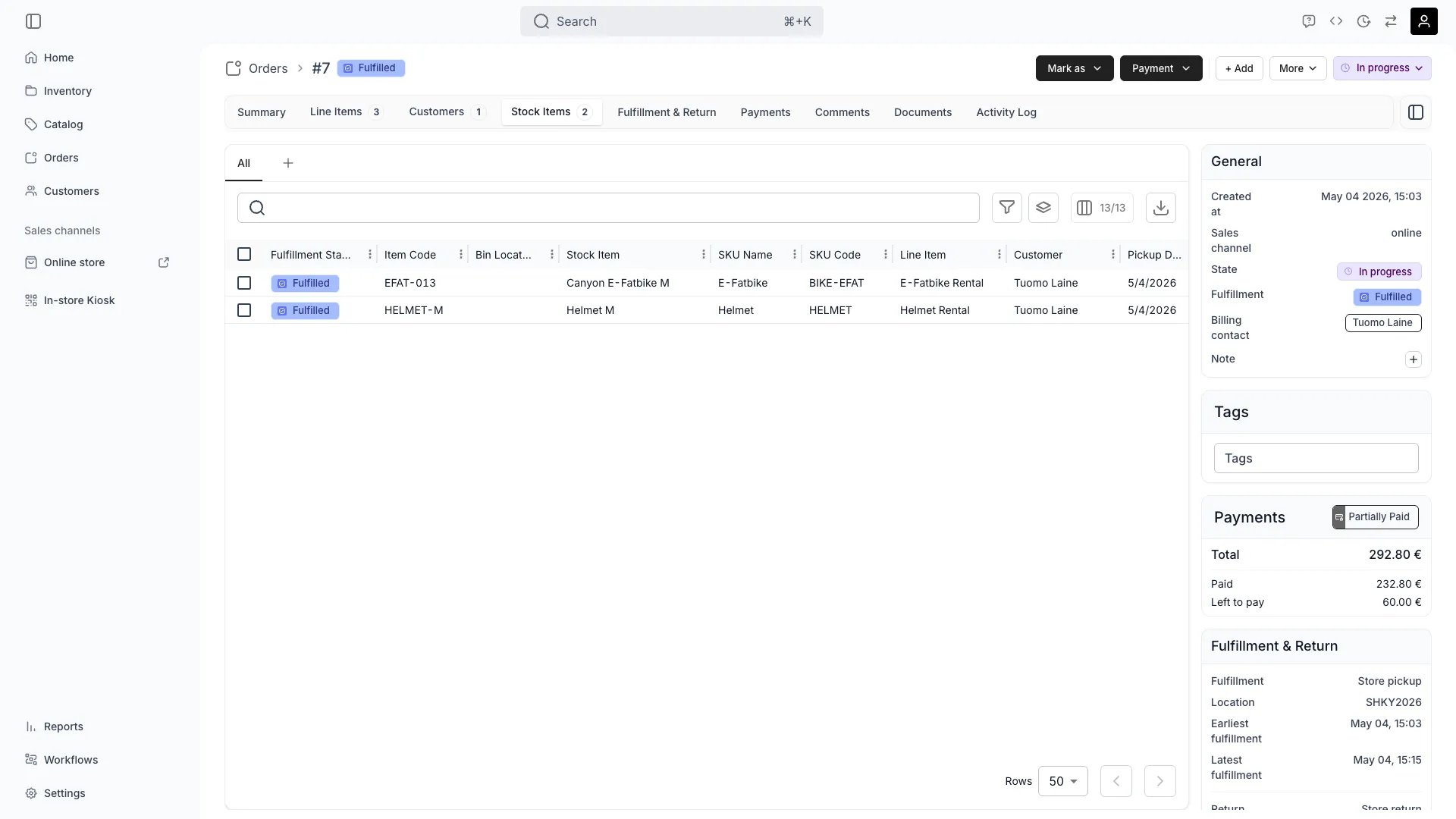
The fulfilment chip on each item tells you, and the same state renders two different ways:
* **Assigned** (blue) — the location auto-assigns. A unit was picked at order creation and can still be swapped.
* **Unassigned** (orange) — the location does not auto-assign. Picking a unit is your job, and the orange is the normal resting state here rather than a fault.
Auto-assign never overbooks. If nothing was free for the period, the line is left without a unit whether or not the location auto-assigns, and it waits for you.
On the **Stock Items** tab, open the row you are assigning or changing. The drawer holds everything about that one unit-to-line pairing:
| Section | What it tells you |
| ------------------------------ | --------------------------------------------------------------- |
| **Item Codes** | The codes on the unit currently assigned |
| **Reserved for** | Which line item and customer this unit is being held for |
| **Fulfilment criteria** | The rule this line matches on — what a candidate has to satisfy |
| **Storage location** / **BIN** | Where to physically find it |
| **Change stock item** | The candidate list, covered next |
The state menu at the top of the drawer sets this one item's fulfilment state independently of the rest of the order.
**Change stock item** lists the units that could fulfil this line. Two chips per row decide whether a candidate is a good idea and whether you may pick it at all:
| Column | Values | Means |
| ----------------- | ----------------------------------------------------------------------- | ---------------------------------------------------------------- |
| **Rule matching** | **Full match** (green) · **Partial match** (amber) · **No match** (red) | How completely the unit satisfies the line's fulfilment criteria |
| **Availability** | **Available** (green) · **Committed** (red) | Whether the unit is free for this line's period |
The list is ordered to put the answer near the top: the current unit first, marked **Current**, then Full match, then Partial, then No match. Search by name or code narrows it.
The two chips do different jobs. **Availability** is a hard gate — a **Committed** row cannot be selected, because the unit is already held for something else. **Rule matching** is advice: you may deliberately assign a **No match** unit when you know better than the rule, and nothing stops you.
Click an available row, or use **Switch to →** on it. On a line with nothing assigned yet the action reads **Assign** instead.
The swap takes effect immediately: the old unit's hold is released and a new hold is created for the one you picked. There is no separate save.
Scanning a stock item's code while the order is open assigns it, which is usually faster at a counter than finding it in a list.
**The scanner is stricter than the list.** A scan is only accepted onto a line whose criteria the unit matches *and* where the unit is free — so a **No match** unit you could assign deliberately by hand will simply be skipped when scanned. If a scan appears to do nothing, that is usually why.
See [Identify stock items with stock codes and barcodes](/docs/guides/inventory/stock-codes-and-barcodes) for how codes are set up.
Assigning a unit is not only a label. It creates the reservation that holds that unit for these dates, which means:
* **The unit stops being available to anything else** for the line's period, buffers included.
* **The fulfilment chip moves** to reflect the new pairing, and can then be marked **Ready** and **Fulfilled** as the item goes out.
* **The old unit becomes free again** when you swap away from it.
None of that happens for a line left unassigned. An unassigned line holds no stock, so nothing stops another order taking the last unit before your customer arrives.
## How do I know it worked?
* **Every line on the order carries a unit**, and none of them shows an error badge on the **Stock Items** tab.
* **The drawer's Current row reads Available**, not **Committed** — the unit is genuinely held for this order.
* **The unit's own history shows the reservation**, on its [stock item record](/docs/guides/inventory/read-stock-item-history).
* **The period is gone from general availability** — the unit no longer offers those dates to anything else.
## Troubleshooting / Common Pitfalls
**Cause:** nothing that could fulfil this line is free for its dates. This is a real availability problem, not a display one.
**What to do:** work out what is holding the units — [Work out what is available, and why something is not](/docs/guides/inventory/check-availability). The usual answers are an overlapping order, a buffer window, a maintenance reservation, or stock sitting at another location. Changing the line's dates is the other way out, via [Edit an order](/docs/guides/orders/edit-an-order).
**Cause:** the listing's fulfilment rules match no stock at all, so there are no candidates to offer.
**What to do:** fix it on the listing rather than the order — see [control what stock a listing draws from](/docs/guides/catalog/listing-inventory-rules). A listing bound to nothing can be ordered and priced and will never be fulfillable.
**Three reasons, in likelihood order:**
1. **The unit does not match the line's criteria.** The scan path requires a rule match; the drawer does not. Assign it by hand if you are sure.
2. **The unit is not free** for the line's period.
3. **There is no line waiting for it** — every line already has its unit, so the scan has nowhere to land.
**Allowed, and sometimes correct.** **Rule matching** is guidance about how well a unit fits the line's criteria; it does not gate the choice. Only **Availability** does.
**When to do it:** an equivalent unit the rule does not know about, or a deliberate upgrade for a customer. Click the row in the drawer — scanning will not do it.
**When not to:** repeatedly overriding the same rule means the rule is wrong. Fix the listing instead.
**Check three things:**
1. **Auto-assign is off at this location** — then **Unassigned** is the normal state and picking is your job.
2. **Nothing was available** at order creation. Auto-assign never overbooks, so it leaves the line empty rather than double-committing a unit.
3. **The location's rules do not cover this purchase type or channel** — a location set to online orders only never auto-assigns an order taken in admin.
[Auto-fulfillment](/docs/concepts/orders/auto-fulfillment) covers the full set of conditions.
**That is a conflict, not an ordinary swap.** The line still points at the unit, but the hold that reserved it is gone and something else has taken it.
**What to do:** see [Resolve a stock item conflict](/docs/guides/orders/resolve-stock-item-conflicts) — the unit has to be replaced, and the guide covers finding every order in that state.
## Next Steps
When an assigned unit has lost its reservation.
What decides whether a unit is picked for you.
The tab this all happens on.
The rules behind Full, Partial and No match.
orders
A line item says *what* the customer ordered. A stock item says *which physical unit* is going out of the door. Assignment is the link between them, and it is what turns a booking into something a person can actually pick off a shelf.
Sometimes assignment happens for you, sometimes you do it by hand, and sometimes you have to change one that is already made — because the unit came back damaged, because a customer asked for a different colour, or because the one that was picked is no longer free.
## Prerequisites
**Required permissions:** `orders:order_stock_items` in view, create, manage and delete. All four system roles — Owner, Admin, Manager and Member — hold every one. See [Users & Roles](/docs/settings/users-roles).
**Have ready before you start:**
* **Whether the order's location auto-assigns.** It decides whether you are confirming a choice the system made or making it yourself. See [Auto-fulfillment](/docs/concepts/orders/auto-fulfillment).
* **An editable order.** Closed and archived orders are read-only — see [Edit an order](/docs/guides/orders/edit-an-order).
* **The unit's code**, if you intend to scan rather than click.
## The Walkthrough
The fulfilment chip on each item tells you, and the same state renders two different ways:
* **Assigned** (blue) — the location auto-assigns. A unit was picked at order creation and can still be swapped.
* **Unassigned** (orange) — the location does not auto-assign. Picking a unit is your job, and the orange is the normal resting state here rather than a fault.
Auto-assign never overbooks. If nothing was free for the period, the line is left without a unit whether or not the location auto-assigns, and it waits for you.
On the **Stock Items** tab, open the row you are assigning or changing. The drawer holds everything about that one unit-to-line pairing:
| Section | What it tells you |
| ------------------------------ | --------------------------------------------------------------- |
| **Item Codes** | The codes on the unit currently assigned |
| **Reserved for** | Which line item and customer this unit is being held for |
| **Fulfilment criteria** | The rule this line matches on — what a candidate has to satisfy |
| **Storage location** / **BIN** | Where to physically find it |
| **Change stock item** | The candidate list, covered next |
The state menu at the top of the drawer sets this one item's fulfilment state independently of the rest of the order.
**Change stock item** lists the units that could fulfil this line. Two chips per row decide whether a candidate is a good idea and whether you may pick it at all:
| Column | Values | Means |
| ----------------- | ----------------------------------------------------------------------- | ---------------------------------------------------------------- |
| **Rule matching** | **Full match** (green) · **Partial match** (amber) · **No match** (red) | How completely the unit satisfies the line's fulfilment criteria |
| **Availability** | **Available** (green) · **Committed** (red) | Whether the unit is free for this line's period |
The list is ordered to put the answer near the top: the current unit first, marked **Current**, then Full match, then Partial, then No match. Search by name or code narrows it.
The two chips do different jobs. **Availability** is a hard gate — a **Committed** row cannot be selected, because the unit is already held for something else. **Rule matching** is advice: you may deliberately assign a **No match** unit when you know better than the rule, and nothing stops you.
Click an available row, or use **Switch to →** on it. On a line with nothing assigned yet the action reads **Assign** instead.
The swap takes effect immediately: the old unit's hold is released and a new hold is created for the one you picked. There is no separate save.
Scanning a stock item's code while the order is open assigns it, which is usually faster at a counter than finding it in a list.
**The scanner is stricter than the list.** A scan is only accepted onto a line whose criteria the unit matches *and* where the unit is free — so a **No match** unit you could assign deliberately by hand will simply be skipped when scanned. If a scan appears to do nothing, that is usually why.
See [Identify stock items with stock codes and barcodes](/docs/guides/inventory/stock-codes-and-barcodes) for how codes are set up.
Assigning a unit is not only a label. It creates the reservation that holds that unit for these dates, which means:
* **The unit stops being available to anything else** for the line's period, buffers included.
* **The fulfilment chip moves** to reflect the new pairing, and can then be marked **Ready** and **Fulfilled** as the item goes out.
* **The old unit becomes free again** when you swap away from it.
None of that happens for a line left unassigned. An unassigned line holds no stock, so nothing stops another order taking the last unit before your customer arrives.
## How do I know it worked?
* **Every line on the order carries a unit**, and none of them shows an error badge on the **Stock Items** tab.
* **The drawer's Current row reads Available**, not **Committed** — the unit is genuinely held for this order.
* **The unit's own history shows the reservation**, on its [stock item record](/docs/guides/inventory/read-stock-item-history).
* **The period is gone from general availability** — the unit no longer offers those dates to anything else.
## Troubleshooting / Common Pitfalls
**Cause:** nothing that could fulfil this line is free for its dates. This is a real availability problem, not a display one.
**What to do:** work out what is holding the units — [Work out what is available, and why something is not](/docs/guides/inventory/check-availability). The usual answers are an overlapping order, a buffer window, a maintenance reservation, or stock sitting at another location. Changing the line's dates is the other way out, via [Edit an order](/docs/guides/orders/edit-an-order).
**Cause:** the listing's fulfilment rules match no stock at all, so there are no candidates to offer.
**What to do:** fix it on the listing rather than the order — see [control what stock a listing draws from](/docs/guides/catalog/listing-inventory-rules). A listing bound to nothing can be ordered and priced and will never be fulfillable.
**Three reasons, in likelihood order:**
1. **The unit does not match the line's criteria.** The scan path requires a rule match; the drawer does not. Assign it by hand if you are sure.
2. **The unit is not free** for the line's period.
3. **There is no line waiting for it** — every line already has its unit, so the scan has nowhere to land.
**Allowed, and sometimes correct.** **Rule matching** is guidance about how well a unit fits the line's criteria; it does not gate the choice. Only **Availability** does.
**When to do it:** an equivalent unit the rule does not know about, or a deliberate upgrade for a customer. Click the row in the drawer — scanning will not do it.
**When not to:** repeatedly overriding the same rule means the rule is wrong. Fix the listing instead.
**Check three things:**
1. **Auto-assign is off at this location** — then **Unassigned** is the normal state and picking is your job.
2. **Nothing was available** at order creation. Auto-assign never overbooks, so it leaves the line empty rather than double-committing a unit.
3. **The location's rules do not cover this purchase type or channel** — a location set to online orders only never auto-assigns an order taken in admin.
[Auto-fulfillment](/docs/concepts/orders/auto-fulfillment) covers the full set of conditions.
**That is a conflict, not an ordinary swap.** The line still points at the unit, but the hold that reserved it is gone and something else has taken it.
**What to do:** see [Resolve a stock item conflict](/docs/guides/orders/resolve-stock-item-conflicts) — the unit has to be replaced, and the guide covers finding every order in that state.
## Next Steps
When an assigned unit has lost its reservation.
What decides whether a unit is picked for you.
The tab this all happens on.
The rules behind Full, Partial and No match.