> ## Documentation Index
> Fetch the complete documentation index at: https://www.twicecommerce.com/docs/llms.txt
> Use this file to discover all available pages before exploring further.
# How to reserve a stock item
> Block a stock item for maintenance or internal use — how a reservation holds the dates, when it displaces existing bookings, and when to reserve rather than archive.
 inventory/stock-items
A reservation takes a stock item out of bookable circulation for a set window without changing anything about the item itself. It is the right tool for a service interval, a repair, a photo shoot, an item lent to staff — anything where the unit comes back.
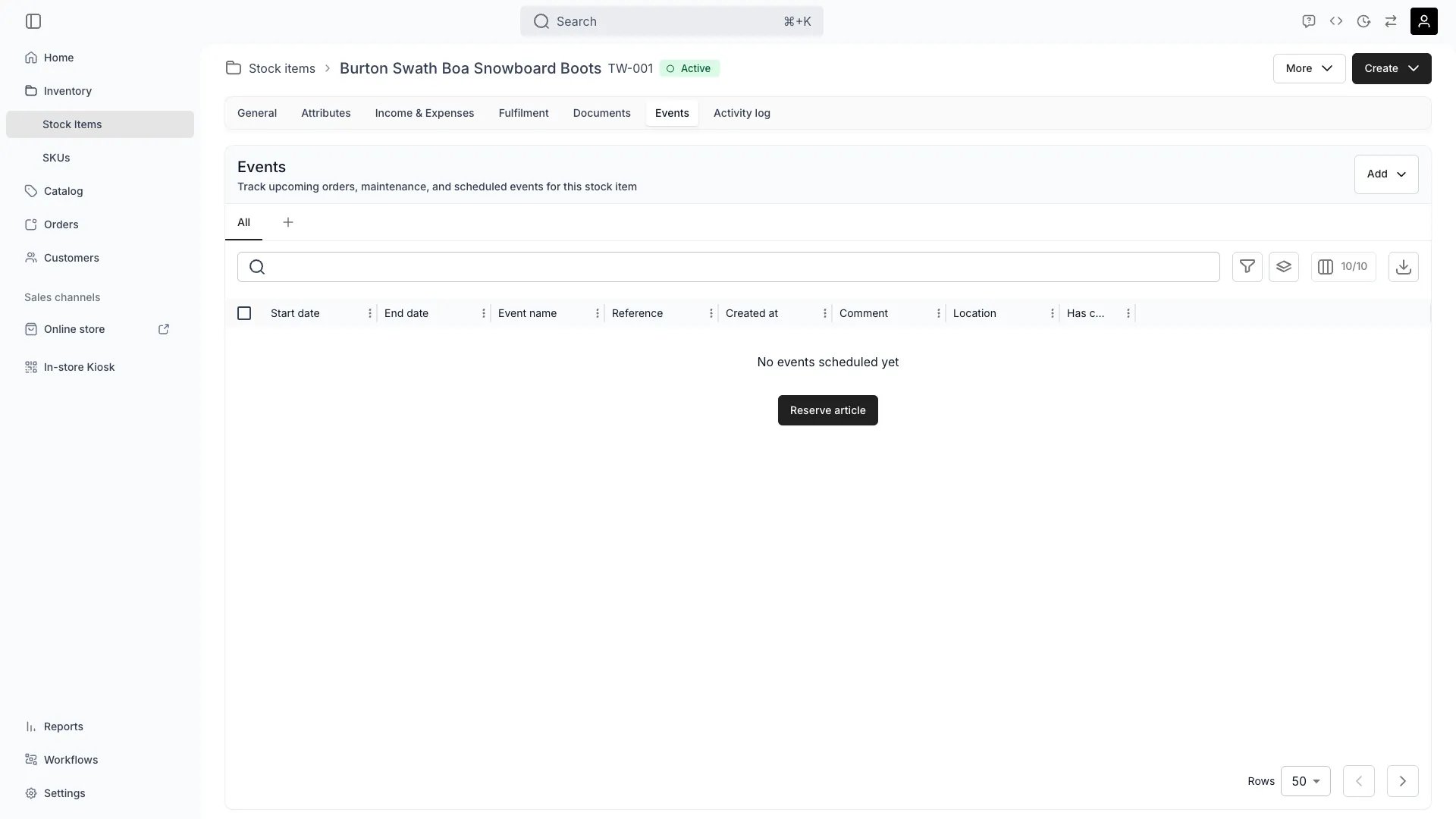
Reservations live on the item's **Events** tab alongside its orders, so the item's history reads as one timeline. They can also carry costs and income, which is how a repair bill ends up attached to the unit that incurred it.
## Prerequisites
**Required permissions:**
* `inventory:stock_item_events:create` — creating a reservation
* `inventory:stock_item_events:manage` — editing one
* `inventory:stock_item_events:delete` — removing one
All four system roles hold all three. Attaching costs or income to the reservation additionally needs `inventory:stock_item_cost`, which **Member does not hold** — a Member can reserve the item but cannot record what the repair cost.
**Before you start, decide:**
* **Reserve, or take the item out of service?** A reservation blocks dates and leaves everything else alone. Archiving retires the item and releases its holds. Setting it **Inactive** stops new bookings without touching existing ones.
* **Which location.** A reservation is made at one location and only affects that location's stock. The dropdown lists your other locations too, marked **— not stocked here**.
* **Whether it ends.** A reservation needs an end date unless you tick **No end date**, which blocks the item open-endedly.
## The Walkthrough
From **Inventory > Stock items**, open the item and select the **Events** tab.
Two shortcuts do the same thing: **Add > Reservation** on the Events tab itself, or **Create > Reservation** from the item's header (hotkeys `a` then `r`). An item with no events yet shows a **Reserve article** button in the empty state.
The **Schedule a reservation** dialog asks for:
| Field | Required | Notes |
| -------------- | :------: | ----------------------------------------------------------------------------------------------------- |
| **Title** | Yes | What the reservation is for. Shows in the timeline. |
| **Note** | No | Free text. Despite the label, this is the reservation's comment, not a Note event. |
| **Location** | Yes | Where the item is held. Locations that do not stock this item are listed with **— not stocked here**. |
| **Start date** | Yes | Date and time. |
| **End date** | Yes | Unless **No end date** is ticked. Must be after the start. |
Picking a location that does not stock the item is allowed, but it blocks capacity at a location the item is not at — check the suffix before you select.
**Add Income & Expenses** attaches financial entries to the reservation itself — a service fee, a parts cost, a rental charge for internal use. They appear on the item's **Income & Expenses** tab against this event.
You can add these later by editing the reservation; you do not have to decide now.
If the item has no free capacity at that location for the window, TWICE lists what your reservation would push out and requires you to acknowledge it.
inventory/stock-items
A reservation takes a stock item out of bookable circulation for a set window without changing anything about the item itself. It is the right tool for a service interval, a repair, a photo shoot, an item lent to staff — anything where the unit comes back.
Reservations live on the item's **Events** tab alongside its orders, so the item's history reads as one timeline. They can also carry costs and income, which is how a repair bill ends up attached to the unit that incurred it.
## Prerequisites
**Required permissions:**
* `inventory:stock_item_events:create` — creating a reservation
* `inventory:stock_item_events:manage` — editing one
* `inventory:stock_item_events:delete` — removing one
All four system roles hold all three. Attaching costs or income to the reservation additionally needs `inventory:stock_item_cost`, which **Member does not hold** — a Member can reserve the item but cannot record what the repair cost.
**Before you start, decide:**
* **Reserve, or take the item out of service?** A reservation blocks dates and leaves everything else alone. Archiving retires the item and releases its holds. Setting it **Inactive** stops new bookings without touching existing ones.
* **Which location.** A reservation is made at one location and only affects that location's stock. The dropdown lists your other locations too, marked **— not stocked here**.
* **Whether it ends.** A reservation needs an end date unless you tick **No end date**, which blocks the item open-endedly.
## The Walkthrough
From **Inventory > Stock items**, open the item and select the **Events** tab.
Two shortcuts do the same thing: **Add > Reservation** on the Events tab itself, or **Create > Reservation** from the item's header (hotkeys `a` then `r`). An item with no events yet shows a **Reserve article** button in the empty state.
The **Schedule a reservation** dialog asks for:
| Field | Required | Notes |
| -------------- | :------: | ----------------------------------------------------------------------------------------------------- |
| **Title** | Yes | What the reservation is for. Shows in the timeline. |
| **Note** | No | Free text. Despite the label, this is the reservation's comment, not a Note event. |
| **Location** | Yes | Where the item is held. Locations that do not stock this item are listed with **— not stocked here**. |
| **Start date** | Yes | Date and time. |
| **End date** | Yes | Unless **No end date** is ticked. Must be after the start. |
Picking a location that does not stock the item is allowed, but it blocks capacity at a location the item is not at — check the suffix before you select.
**Add Income & Expenses** attaches financial entries to the reservation itself — a service fee, a parts cost, a rental charge for internal use. They appear on the item's **Income & Expenses** tab against this event.
You can add these later by editing the reservation; you do not have to decide now.
If the item has no free capacity at that location for the window, TWICE lists what your reservation would push out and requires you to acknowledge it.
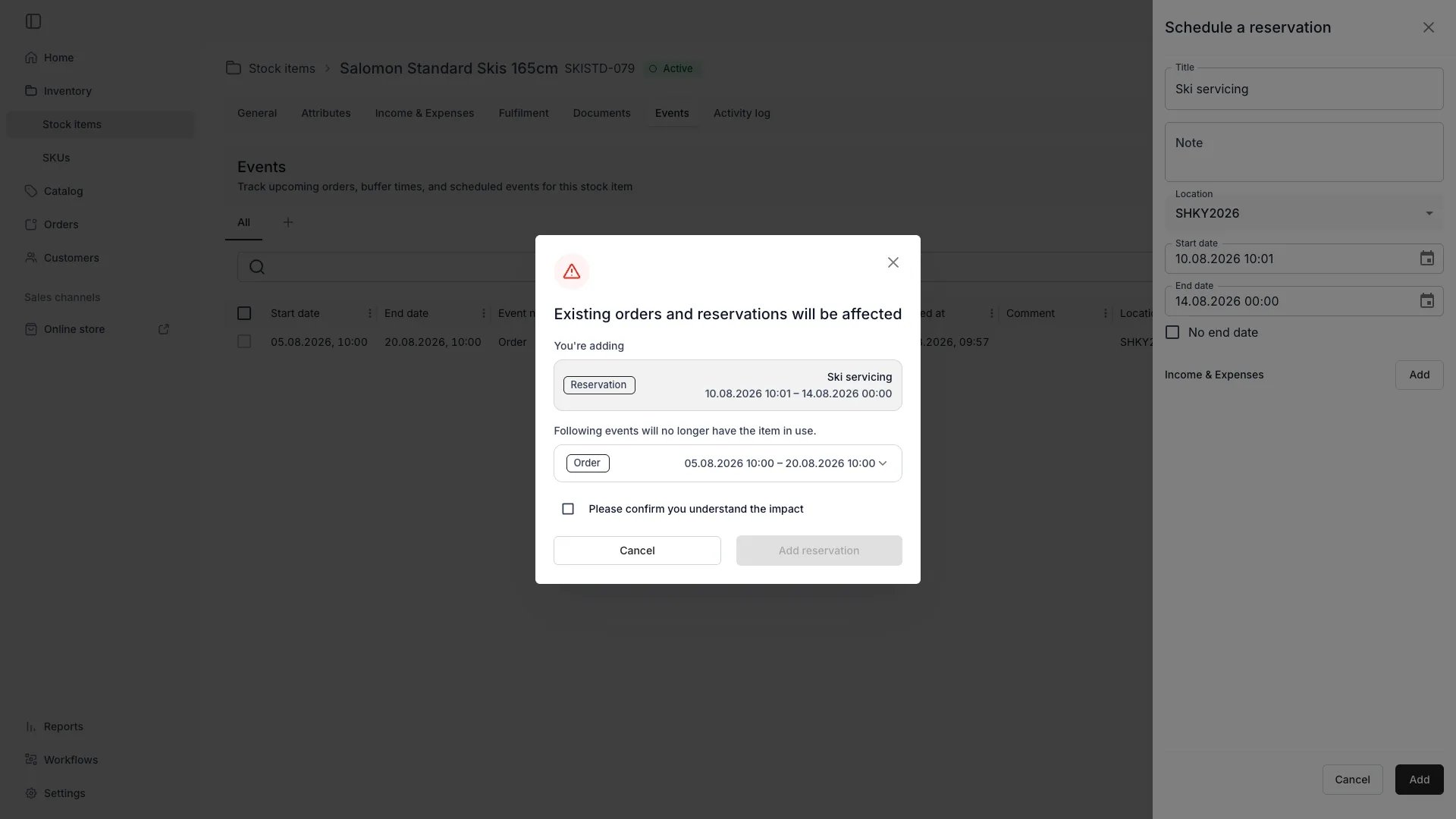 The dialog is headed **Existing orders and reservations will be affected**, with *Following events will no longer have the item in use.* Each row names the order or reservation, its customer and status, and its dates. Tick **Please confirm you understand the impact**, then **Add reservation**.
**This step often does not appear, and that is normal.** A reservation only displaces something when there is genuinely no room. If a slot is free — directly, or by moving another booking to a different unit of the same pooled item — the reservation takes that slot and nothing is disturbed.
The reservation appears in the timeline, and the item stops being bookable for that window at that location.
## How do I know it worked?
The reservation is listed on the **Events** tab for the dates you chose, and filtering the tab by **Reservations** shows it alongside any others.
On **Inventory > Stock items**, set the table's date to a moment inside the window: the item's **Availability** reads **Not Available**. Set it outside the window and the item is available again — that is the whole point of a reservation rather than a status change.
If the confirmation step appeared, also check the orders it named. They keep the item assigned but have lost the hold behind it, so they now carry [stock item conflicts](/docs/concepts/orders/stock-item-conflicts) that need a replacement unit.
## Changing or ending a reservation
Open the reservation from the timeline and choose **Edit event**. Changing the dates moves the block with it.
Editing does **not** re-run the displacement check — it reuses the block the reservation already holds. Extending a reservation over dates that are now booked is therefore possible without a warning, so widen a window with the timeline in view.
Deleting the reservation releases the block and the item becomes bookable again. It does not restore anything the reservation displaced when it was created: those holds were removed, and the affected orders still need their replacement units.
## Reservation, Inactive, or archive?
| | What it does | Existing bookings | Reversible |
| -------------------- | --------------------------------------------- | -------------------------------------------------------------- | ----------------------------------------- |
| **Reservation** | Blocks one window at one location | Displaced only if capacity is full, and only after you confirm | Delete the event |
| **Status: Inactive** | Stops the item being offered for new bookings | Left alone | Set it back to Active |
| **Archive** | Retires the item entirely | All unfinished holds released | Unarchive, but the holds do not come back |
Use a reservation for a known window. Use **Inactive** for an indefinite pause where the existing calendar should stand. Use [archive](/docs/guides/inventory/archive-stock-items) when the item is leaving service.
## Troubleshooting / Common Pitfalls
**Cause:** something claimed the item between the moment TWICE listed what you would displace and the moment you confirmed — another booking landed in the window. Rather than silently removing a hold you never reviewed, the save is refused.
**What to do:** submit again. The dialog reopens with the current set for you to review.
**Cause:** the window had no free capacity, so the reservation took a slot from an existing hold. This is only ever after the confirmation dialog — it cannot happen silently.
**What to do:** open the affected orders and swap in a replacement from the **Stock Items** tab. If you did not mean to displace anything, delete the reservation first: that frees the capacity, but the displaced orders still need reassigning by hand.
Read more: [Stock Item Conflicts](/docs/concepts/orders/stock-item-conflicts)
**When this happens:** the item is pooled and had a spare unit, or another booking could be moved to a different unit without disturbing it. TWICE only takes a hold away when there is no other way to free a slot.
**What to do:** nothing — the bookings are intact. Check the Events tab if you want to see how the window resolved.
**Cause:** the Location dropdown lists every location, marking the ones that do not stock this item with **— not stocked here**. A reservation made against one of those blocks capacity where the item is not.
**What to do:** delete it and create the reservation at the location the item is actually stocked at.
**When this happens:** **No end date** creates an open-ended block. It never expires on its own.
**What to do:** edit the reservation and set an end date, or delete it. Use an open-ended reservation only for an item whose return date is genuinely unknown, and prefer archiving if it is not coming back at all.
**Cause:** cost data is gated by `inventory:stock_item_cost`, the one inventory permission a Member does not hold.
**What to do:** ask an Owner, Admin or Manager to add the entries, or have a custom role grant cost access.
Read more: [Income & Expenses](/docs/inventory/stock-items/income-and-expenses)
## Next Steps
Orders, reservations, and notes as one timeline.
Resolving orders a reservation displaced.
When the item is leaving service for good.
Where a reservation's costs land.
The dialog is headed **Existing orders and reservations will be affected**, with *Following events will no longer have the item in use.* Each row names the order or reservation, its customer and status, and its dates. Tick **Please confirm you understand the impact**, then **Add reservation**.
**This step often does not appear, and that is normal.** A reservation only displaces something when there is genuinely no room. If a slot is free — directly, or by moving another booking to a different unit of the same pooled item — the reservation takes that slot and nothing is disturbed.
The reservation appears in the timeline, and the item stops being bookable for that window at that location.
## How do I know it worked?
The reservation is listed on the **Events** tab for the dates you chose, and filtering the tab by **Reservations** shows it alongside any others.
On **Inventory > Stock items**, set the table's date to a moment inside the window: the item's **Availability** reads **Not Available**. Set it outside the window and the item is available again — that is the whole point of a reservation rather than a status change.
If the confirmation step appeared, also check the orders it named. They keep the item assigned but have lost the hold behind it, so they now carry [stock item conflicts](/docs/concepts/orders/stock-item-conflicts) that need a replacement unit.
## Changing or ending a reservation
Open the reservation from the timeline and choose **Edit event**. Changing the dates moves the block with it.
Editing does **not** re-run the displacement check — it reuses the block the reservation already holds. Extending a reservation over dates that are now booked is therefore possible without a warning, so widen a window with the timeline in view.
Deleting the reservation releases the block and the item becomes bookable again. It does not restore anything the reservation displaced when it was created: those holds were removed, and the affected orders still need their replacement units.
## Reservation, Inactive, or archive?
| | What it does | Existing bookings | Reversible |
| -------------------- | --------------------------------------------- | -------------------------------------------------------------- | ----------------------------------------- |
| **Reservation** | Blocks one window at one location | Displaced only if capacity is full, and only after you confirm | Delete the event |
| **Status: Inactive** | Stops the item being offered for new bookings | Left alone | Set it back to Active |
| **Archive** | Retires the item entirely | All unfinished holds released | Unarchive, but the holds do not come back |
Use a reservation for a known window. Use **Inactive** for an indefinite pause where the existing calendar should stand. Use [archive](/docs/guides/inventory/archive-stock-items) when the item is leaving service.
## Troubleshooting / Common Pitfalls
**Cause:** something claimed the item between the moment TWICE listed what you would displace and the moment you confirmed — another booking landed in the window. Rather than silently removing a hold you never reviewed, the save is refused.
**What to do:** submit again. The dialog reopens with the current set for you to review.
**Cause:** the window had no free capacity, so the reservation took a slot from an existing hold. This is only ever after the confirmation dialog — it cannot happen silently.
**What to do:** open the affected orders and swap in a replacement from the **Stock Items** tab. If you did not mean to displace anything, delete the reservation first: that frees the capacity, but the displaced orders still need reassigning by hand.
Read more: [Stock Item Conflicts](/docs/concepts/orders/stock-item-conflicts)
**When this happens:** the item is pooled and had a spare unit, or another booking could be moved to a different unit without disturbing it. TWICE only takes a hold away when there is no other way to free a slot.
**What to do:** nothing — the bookings are intact. Check the Events tab if you want to see how the window resolved.
**Cause:** the Location dropdown lists every location, marking the ones that do not stock this item with **— not stocked here**. A reservation made against one of those blocks capacity where the item is not.
**What to do:** delete it and create the reservation at the location the item is actually stocked at.
**When this happens:** **No end date** creates an open-ended block. It never expires on its own.
**What to do:** edit the reservation and set an end date, or delete it. Use an open-ended reservation only for an item whose return date is genuinely unknown, and prefer archiving if it is not coming back at all.
**Cause:** cost data is gated by `inventory:stock_item_cost`, the one inventory permission a Member does not hold.
**What to do:** ask an Owner, Admin or Manager to add the entries, or have a custom role grant cost access.
Read more: [Income & Expenses](/docs/inventory/stock-items/income-and-expenses)
## Next Steps
Orders, reservations, and notes as one timeline.
Resolving orders a reservation displaced.
When the item is leaving service for good.
Where a reservation's costs land.