> ## Documentation Index
> Fetch the complete documentation index at: https://www.twicecommerce.com/docs/llms.txt
> Use this file to discover all available pages before exploring further.
# How to import inventory from a CSV
> Bring existing stock into TWICE in bulk — the required columns, how rows become stock items, and what the import creates for you along the way.
 inventory/stock-items
Importing turns each row of a spreadsheet into a stock item. It is the fastest way to bring an existing inventory into TWICE, and the import does more than create items: unrecognised SKUs, locations, and columns become new SKUs, new locations, and new attributes. That is convenient when you mean it and expensive when you do not, so the pitfalls below are worth reading before you start rather than after.
## Prerequisites
**Required permissions:** importing needs `inventory:stock_item_general:create`. Depending on what your file contains, the import also touches:
* `inventory:stock_item_fulfilment:create` — any row with a quantity above 1
* `inventory:stock_item_attributes:create` — attribute values on a row
* `inventory:sku_general:create` — a SKU name or code that does not exist yet
* `location_settings:contact_info:create` — a location name that does not exist yet
The first four are held by all four system roles. The last is not: **Member holds only `location_settings:contact_info:view`**, so an import by a Member fails outright if the Location column contains a name that is not already a location.
**Before you start, decide:**
* **One row per item, or per group?** A row's Quantity decides, and the default is not the one the registration dialog uses — see the walkthrough.
* **Which columns are already attributes.** Existing attributes are offered as columns automatically; anything else you map becomes a new attribute.
* **Exact location names.** Match them to your existing locations character for character.
* **Your account's date format.** `Available from` is parsed with it, not with ISO.
## The columns
Only two columns are required. Everything else is optional, and every column can be mapped from a differently-named header in your file.
| Column | Required | Default | Notes |
| ------------------ | :------: | -------------- | --------------------------------------------------------------------- |
| **Item Name** | Yes | — | The item's name. Cannot be blank. |
| **Location** | Yes | — | Must match an existing location, or a new one is created. |
| **Code** | No | auto-generated | Must be unique in the file *and* not already exist in your inventory. |
| **SKU Code** | No | — | Links the item to a SKU. Creates the SKU if it does not exist. |
| **SKU Name** | No | — | As above. Either column identifies the SKU. |
| **Status** | No | `active` | `active` or `inactive`. |
| **Quantity** | No | `1` | Between 1 and 9999. |
| **Available from** | No | now | Parsed in your account's date format. |
The importer matches common header spellings on its own: `qty` and `count` map to Quantity, `store` and `warehouse` to Location, `sku` to SKU Code, `title` and `label` to Item Name, `id` and `identifier` to Code. You can correct any of its guesses by hand.
## The Walkthrough
Select **Inventory > Stock items** in the sidebar.
Select **Register Items** in the top right, then **Import CSV**.
Choose your file. The wizard runs through five steps — **Upload**, **Select header**, **Match Columns**, **Validate data**, **Complete**.
Point the importer at the row holding your column names, so a title block or blank rows above your data do not become items.
Map each column in your file to a TWICE column. **Item Name** and **Location** must both be mapped before you can continue.
Any column you do not map to a built-in field can be brought in as a **new attribute**. You pick its attribute group and format at this point, and the attribute is created on your account — so a stray column you leave mapped adds a permanent attribute you will have to clean up later.
This is the step that surprises people. A row's **Quantity** decides whether you get one record or several, and the CSV import behaves the *opposite* way to the registration dialog:
| Quantity in the row | Result |
| ------------------- | ---------------------------------------------------------------------- |
| 1 or blank | One stock item, tracked individually |
| 2 or more | **One pooled stock item** with that stock balance, under a single code |
The registration dialog defaults to tracking individually and creates one record per unit. The import never does: any row with a quantity above 1 becomes a single pooled record. If you need each unit tracked separately — its own code, history and costs — give each unit its own row with a quantity of 1.
The importer checks every cell and reports the failures. Fix them in the wizard or in your file and re-upload.
Run it. Large files are sent in batches of 1,000 rows, so a big import takes a moment.
## How do I know it worked?
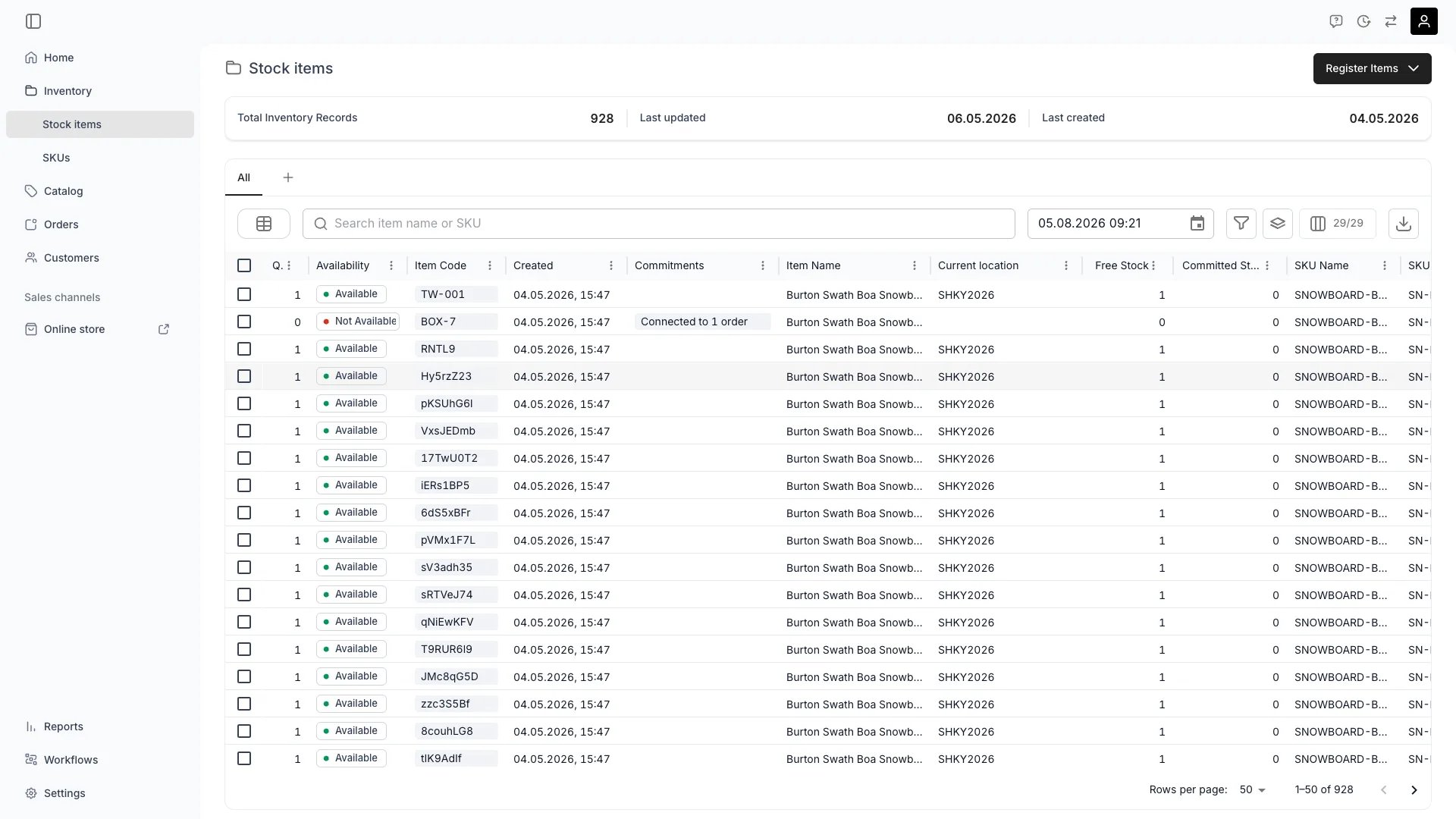
Open **Inventory > Stock items**. The new rows are in the table, and **Total Inventory Records** and **Last created** in the header reflect the import.
Then check what the import created alongside the items:
* **SKUs** — any SKU name or code that did not exist is now on **Inventory > SKUs**.
* **Locations** — any location name that did not exist is now in **Settings > Locations**, with an empty address and no opening hours.
* **Attributes** — columns you brought in as new attributes are now on **Settings > Attributes & Tags**.
## Troubleshooting / Common Pitfalls
**Cause:** the row's Quantity was 50, and the import treats a quantity above 1 as a single pooled record — the opposite of the registration dialog's default.
**Solution:** give each unit its own row with a quantity of 1, then re-import. Archive the pooled record you no longer want.
Read more: [Inventory Tracking](/docs/concepts/inventory/inventory-tracking)
**When this happens:** the importer accepts any location name and creates the ones it does not recognise. "Helsinki Store" and "Helsinki store " are two different locations to it.
**What to do:** check **Settings > Locations** after any import. A location created this way has an empty address and no opening hours, and it inherits its timezone from your first existing location — so it will not behave like a real one until you fill it in. Locations can also affect what your plan bills, so an accidental one is worth removing rather than leaving.
Read more: [Locations](/docs/settings/locations)
**Cause:** item codes are unique across your whole account, and the importer checks your file against existing inventory as well as against itself.
**Solution:** remove or change the duplicate codes, or leave the Code column out entirely and let TWICE generate codes for you.
**Cause:** **Available from** is parsed using your account's date format, not ISO. A file written as `2026-03-14` fails on an account set to `DD/MM/YYYY`.
**Solution:** match the file to your account's format, or change the format in **Settings > General** before importing.
**When this happens:** every unmapped column offered as a new attribute is created on your account, not just on the imported rows.
**What to do:** delete it in **Settings > Attributes & Tags**. Skip the column at the Match Columns step next time instead of mapping it.
**When this happens:** the import sends rows in batches. If a later batch fails, earlier batches have already been created, so you can be left with a partial import.
**What to do:** check the table for what landed before re-running, and filter by **Created** to find the partial batch. A Member hitting a new location name is the most common cause — see the permissions above.
## Next Steps
The dialog route, one item or a handful at a time.
Serialized versus pooled tracking, and when each is right.
The product definitions your imported items link to.
How attribute formats and groups work before you create more.
inventory/stock-items
Importing turns each row of a spreadsheet into a stock item. It is the fastest way to bring an existing inventory into TWICE, and the import does more than create items: unrecognised SKUs, locations, and columns become new SKUs, new locations, and new attributes. That is convenient when you mean it and expensive when you do not, so the pitfalls below are worth reading before you start rather than after.
## Prerequisites
**Required permissions:** importing needs `inventory:stock_item_general:create`. Depending on what your file contains, the import also touches:
* `inventory:stock_item_fulfilment:create` — any row with a quantity above 1
* `inventory:stock_item_attributes:create` — attribute values on a row
* `inventory:sku_general:create` — a SKU name or code that does not exist yet
* `location_settings:contact_info:create` — a location name that does not exist yet
The first four are held by all four system roles. The last is not: **Member holds only `location_settings:contact_info:view`**, so an import by a Member fails outright if the Location column contains a name that is not already a location.
**Before you start, decide:**
* **One row per item, or per group?** A row's Quantity decides, and the default is not the one the registration dialog uses — see the walkthrough.
* **Which columns are already attributes.** Existing attributes are offered as columns automatically; anything else you map becomes a new attribute.
* **Exact location names.** Match them to your existing locations character for character.
* **Your account's date format.** `Available from` is parsed with it, not with ISO.
## The columns
Only two columns are required. Everything else is optional, and every column can be mapped from a differently-named header in your file.
| Column | Required | Default | Notes |
| ------------------ | :------: | -------------- | --------------------------------------------------------------------- |
| **Item Name** | Yes | — | The item's name. Cannot be blank. |
| **Location** | Yes | — | Must match an existing location, or a new one is created. |
| **Code** | No | auto-generated | Must be unique in the file *and* not already exist in your inventory. |
| **SKU Code** | No | — | Links the item to a SKU. Creates the SKU if it does not exist. |
| **SKU Name** | No | — | As above. Either column identifies the SKU. |
| **Status** | No | `active` | `active` or `inactive`. |
| **Quantity** | No | `1` | Between 1 and 9999. |
| **Available from** | No | now | Parsed in your account's date format. |
The importer matches common header spellings on its own: `qty` and `count` map to Quantity, `store` and `warehouse` to Location, `sku` to SKU Code, `title` and `label` to Item Name, `id` and `identifier` to Code. You can correct any of its guesses by hand.
## The Walkthrough
Select **Inventory > Stock items** in the sidebar.
Select **Register Items** in the top right, then **Import CSV**.
Choose your file. The wizard runs through five steps — **Upload**, **Select header**, **Match Columns**, **Validate data**, **Complete**.
Point the importer at the row holding your column names, so a title block or blank rows above your data do not become items.
Map each column in your file to a TWICE column. **Item Name** and **Location** must both be mapped before you can continue.
Any column you do not map to a built-in field can be brought in as a **new attribute**. You pick its attribute group and format at this point, and the attribute is created on your account — so a stray column you leave mapped adds a permanent attribute you will have to clean up later.
This is the step that surprises people. A row's **Quantity** decides whether you get one record or several, and the CSV import behaves the *opposite* way to the registration dialog:
| Quantity in the row | Result |
| ------------------- | ---------------------------------------------------------------------- |
| 1 or blank | One stock item, tracked individually |
| 2 or more | **One pooled stock item** with that stock balance, under a single code |
The registration dialog defaults to tracking individually and creates one record per unit. The import never does: any row with a quantity above 1 becomes a single pooled record. If you need each unit tracked separately — its own code, history and costs — give each unit its own row with a quantity of 1.
The importer checks every cell and reports the failures. Fix them in the wizard or in your file and re-upload.
Run it. Large files are sent in batches of 1,000 rows, so a big import takes a moment.
## How do I know it worked?
Open **Inventory > Stock items**. The new rows are in the table, and **Total Inventory Records** and **Last created** in the header reflect the import.
Then check what the import created alongside the items:
* **SKUs** — any SKU name or code that did not exist is now on **Inventory > SKUs**.
* **Locations** — any location name that did not exist is now in **Settings > Locations**, with an empty address and no opening hours.
* **Attributes** — columns you brought in as new attributes are now on **Settings > Attributes & Tags**.
## Troubleshooting / Common Pitfalls
**Cause:** the row's Quantity was 50, and the import treats a quantity above 1 as a single pooled record — the opposite of the registration dialog's default.
**Solution:** give each unit its own row with a quantity of 1, then re-import. Archive the pooled record you no longer want.
Read more: [Inventory Tracking](/docs/concepts/inventory/inventory-tracking)
**When this happens:** the importer accepts any location name and creates the ones it does not recognise. "Helsinki Store" and "Helsinki store " are two different locations to it.
**What to do:** check **Settings > Locations** after any import. A location created this way has an empty address and no opening hours, and it inherits its timezone from your first existing location — so it will not behave like a real one until you fill it in. Locations can also affect what your plan bills, so an accidental one is worth removing rather than leaving.
Read more: [Locations](/docs/settings/locations)
**Cause:** item codes are unique across your whole account, and the importer checks your file against existing inventory as well as against itself.
**Solution:** remove or change the duplicate codes, or leave the Code column out entirely and let TWICE generate codes for you.
**Cause:** **Available from** is parsed using your account's date format, not ISO. A file written as `2026-03-14` fails on an account set to `DD/MM/YYYY`.
**Solution:** match the file to your account's format, or change the format in **Settings > General** before importing.
**When this happens:** every unmapped column offered as a new attribute is created on your account, not just on the imported rows.
**What to do:** delete it in **Settings > Attributes & Tags**. Skip the column at the Match Columns step next time instead of mapping it.
**When this happens:** the import sends rows in batches. If a later batch fails, earlier batches have already been created, so you can be left with a partial import.
**What to do:** check the table for what landed before re-running, and filter by **Created** to find the partial batch. A Member hitting a new location name is the most common cause — see the permissions above.
## Next Steps
The dialog route, one item or a handful at a time.
Serialized versus pooled tracking, and when each is right.
The product definitions your imported items link to.
How attribute formats and groups work before you create more.