> ## Documentation Index
> Fetch the complete documentation index at: https://www.twicecommerce.com/docs/llms.txt
> Use this file to discover all available pages before exploring further.
# How to bulk-edit stock items
> Edit many stock items at once — how the selection becomes an edit session, which fields reach every item, and which quietly reach only one.
 inventory/stock-items
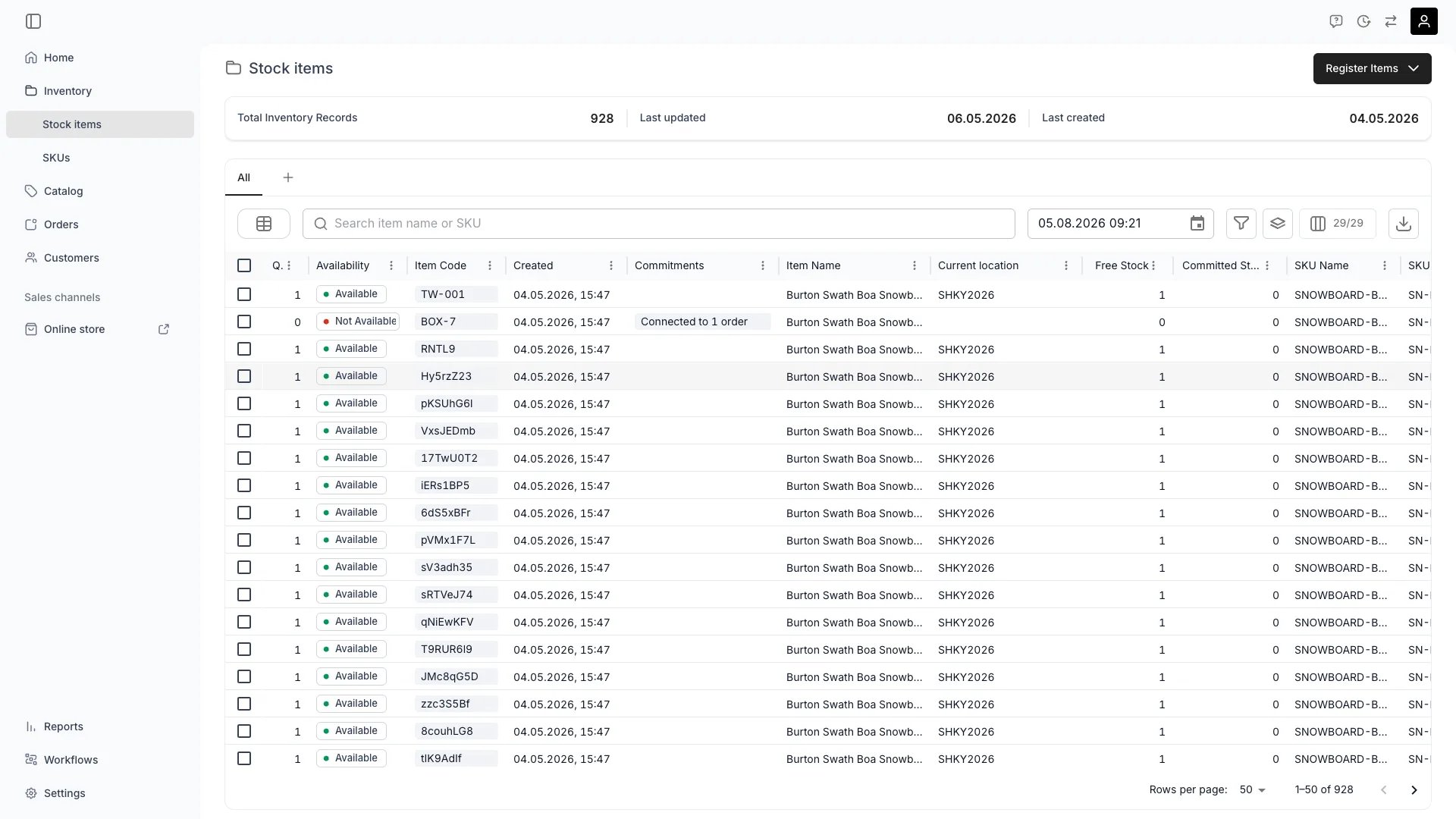
Selecting several rows in the Stock Items table and choosing **Edit** opens one stock item page that writes to the whole selection. It is the fastest way to attach a batch of items to a SKU, set a category across them, or fill in an attribute you added after the items already existed.
The page looks exactly like a single stock item, which is the thing to watch: not every field on it reaches every selected item. The table under [What reaches every item](#what-reaches-every-item) is the part of this guide worth reading twice.
It is also not the only way to change many items at once. Editing the **SKU** the items are linked to reaches all of them through inheritance, and for several fields it is the only thing that works — see [Editing through the SKU instead](#editing-through-the-sku-instead).
## Prerequisites
**Required permissions:** bulk editing needs `inventory:stock_item:manage`. Adding an attribute that does not exist yet also needs `inventory:attribute:create`.
All four system roles — Owner, Admin, Manager and Member — hold both. A custom role that grants only `inventory:stock_item_general:view` can open the page but not save from it.
**Before you start, decide:**
* **Which items belong in one selection.** The edit session is built from the rows you tick, and cannot be added to afterwards.
* **Whether the fields you want to change actually propagate.** Item Name, Category, SKU, and attributes do. Item Code, Purchase Price, Condition, Description, Tags, and Bin Location do not.
* **How you want differing values resolved.** Where the selected items disagree, TWICE hands you a per-value dialog rather than overwriting silently.
## What reaches every item
A bulk edit writes through two separate mechanisms, and they cover different fields.
| Field | Where it lives | Applies to |
| ----------------------- | -------------------------------------------------- | ------------------------------------------------------------------- |
| **Item Name** | General | Every selected item |
| **Category** | General | Every selected item |
| **SKU Name / SKU Code** | General | Every selected item |
| **Attributes** | Attributes tab, and the attribute cards on General | Every selected item |
| **Media** | General | Every selected item |
| **Item Code** | General | The first item only |
| **Purchase Price** | General | The first item only |
| **Condition** | General | The first item only |
| **Description** | General | The first item only |
| **Tags** | General | The first item only |
| **Status** | General | The first item only — unless the selected items disagree, see below |
| **Bin Location** | Fulfilment | The first item only |
"The first item" is the row whose name the page loads — the one the header would show if you were editing it alone.
The **Multiple matching values** dialog is the exception, and it is the more capable of the two paths: whatever it writes reaches every item in the group it lists. That includes Status, which the inline dropdown does not propagate. So a Status change lands everywhere when the selected items started out with different statuses, and on one item when they all started the same.
Income & Expenses, Documents, and Events are per-item tabs. They render in a bulk edit session, but they read and write the first item only. Nothing on them is a bulk action.
## Editing through the SKU instead
There is a second way to change many items at once, and for several fields it is the only one that works: edit the **SKU**.
Stock items inherit from the SKU they are linked to. A field left empty on the item takes the SKU's value, live — nothing is copied at link time, so changing the SKU changes every linked item that has not set its own value. One SKU edit can reach hundreds of items.
| Field on the SKU | How it reaches the items |
| -------------------------------- | ------------------------------------------------------------------- |
| **Purchase Price** | Used by every item with no price of its own |
| **Description** | Used by every item with no description of its own |
| **Bin Location** | Used by every item with no bin location of its own |
| **Category** | Used by every item with no category of its own |
| **Buffer time** (Fulfilment tab) | Used by every item with no buffer time of its own |
| **Attributes** | Added to every item, except where the item overrides that attribute |
| **Tags** | Added to every item, on top of the item's own tags |
| **Media** | Added to every item, alongside the item's own media |
The first five are **fallbacks** — an item-level value wins, and the SKU's is ignored for that item. The last three are **additive** — the SKU's attributes, tags and media appear on the item in addition to its own, and cannot be removed from the item's side. Inherited values are marked in the admin with a link icon reading **Inherited from SKU**.
Compare this against the table above and the split stops looking arbitrary. Purchase Price, Description, Bin Location and Tags do not propagate in a stock item bulk edit — but they are all inherited from the SKU, which is where they are meant to be set. Setting one of them in a bulk edit session does not just fail to reach the other items; it writes an **override** on the first item that will then ignore the SKU.
**Use the SKU when** the value is a property of the product — what it cost, how it is described, how long the turnaround is. **Use a stock item bulk edit when** the value is a property of these particular units — which SKU they belong to, what they are called, a serial-level attribute.
Editing several SKUs at once is not possible. On **Inventory > SKUs**, selecting more than one row disables **Edit** — only Archive, Unarchive and Delete work across a multi-SKU selection. Open each SKU on its own page to edit it.
## The Walkthrough
Open **Inventory > Stock items** and tick the rows you want. A toolbar appears above the table reading **{'{count}'} selected**.
**Select all {'{total}'} items** does not extend a bulk edit. That banner appears once every row on the page is ticked, and it applies to the **Archive** action only — **Edit** always acts on the rows you have ticked by hand. To edit more than one page's worth, raise the page size or filter the table down first.
Select **Edit ({'{count}'})**. TWICE opens a stock item page titled **Editing multiple items**, with **({'{count}'} selected)** beside it.
Selecting exactly one row opens that item normally instead — there is no bulk mode for a selection of one.
Any field where all selected items already hold the same value renders as a normal input. Change it, and a save banner appears at the top of the page.
Where the selected items hold different values, the input is replaced by an amber box reading **Multiple matching values**. Select it to open the **Edit {''}** dialog.
The dialog has two halves:
* **Unique values** on the left — one row per distinct value, labelled with an item's name and how many items share that value, each with its own input and a **Reset** button.
* **Update all with one value** on the right — type one value, then select **Apply to all** to stage it into every row on the left.
Nothing is written until you select **Update field**. That button writes immediately and closes the dialog — it does not wait for the save banner.
Item Code always opens this dialog in a bulk edit session, even when the codes happen to match, and its **Apply to all** is disabled: codes must stay unique, so each one has to be set by hand.
Open the **Attributes** tab. Attribute values behave the same way — a shared value is a plain input, a differing one is the **Multiple matching values** box.
**Add Attribute** creates the attribute on your account and attaches it to every selected item straight away, with no save step. An attribute added this way is permanent: it appears on **Settings > Attributes & Tags** and as a column option in the Stock Items table.
Select **Save to selected items** in the banner. **Discard** rolls the form back to what the items currently hold.
## How do I know it worked?
Go back to **Inventory > Stock items** and add a column for the field you changed — the table pulls fresh values, so a bulk edit that landed shows the same value across the rows you selected.
Attribute changes are easiest to confirm this way: attributes appear as columns in the table, and you can filter on the value you just set to see exactly which items received it.
## Troubleshooting / Common Pitfalls
**Cause:** the field is one of the per-item fields — Item Code, Purchase Price, Condition, Description, Tags, Bin Location, or Status where the items already agreed. The save applied it to the first item in the selection and left the rest untouched.
**What to do:** check the table for the field you changed, then pick the right lever. Purchase Price, Description, Bin Location and Tags belong on the **SKU**, where one edit reaches every linked item — see [Editing through the SKU instead](#editing-through-the-sku-instead). For a value that is genuinely per-unit, set it on each item's own page, or use an attribute: attributes propagate across a selection, and a custom attribute is often the better home for a value you routinely set in batches.
Note that the failed bulk edit left an **override** on the first item — it now carries its own value and will ignore the SKU. Clear that field on the item if you intend the SKU to govern it.
**Cause:** the edit session expired. A session lives in the browser tab you started it in and lasts one hour. Reopening the URL in a new tab, or coming back to it the next morning, finds nothing.
**What to do:** go back to **Inventory > Stock items**, reselect the rows and start again. The session is not recoverable, and no partial write survives it — everything you saved before it expired is already on the items.
**When this happens:** **Apply to all** stages your value into every row in the **Unique values** list, not just the row you were looking at.
**What to do:** if you have not selected **Update field** yet, **Reset** each row you did not mean to change. Once **Update field** has run the values are written — reopen the dialog and set them back.
**When this happens:** **Add Attribute** creates the attribute definition on the account, not just on the selection, and attaches it immediately without a save step.
**What to do:** remove the value from the items, and delete the attribute in **Settings > Attributes & Tags** if you do not want it. See [Attributes](/docs/concepts/admin/attributes) for how formats and groups work before creating more.
**Cause:** Purchase Price, Description, Bin Location and Media can be inherited from the item's SKU. Clearing the override on the item drops it back to the SKU's value rather than to empty. Inherited fields carry a link icon labelled **Inherited from SKU**.
**What to do:** change it on the SKU if you want it changed everywhere, or set an explicit item-level value to override the inheritance. [Editing through the SKU instead](#editing-through-the-sku-instead) covers which fields work which way.
Read more: [Stock item attributes](/docs/inventory/stock-items/attributes)
**When this happens:** TWICE only checks Item Name, Status, Category, SKU, Location, Item Code, and attributes for differing values. Purchase Price and Condition are not checked, so a selection whose items hold different prices shows a plain input carrying the first item's price, with no **Multiple matching values** warning.
**What to do:** treat both as per-item fields — they save to the first item only in any case. Set them on each item's own page, or from the SKU if the items inherit it.
## Next Steps
The dialog route, one item or a handful at a time.
Bring an existing inventory in from a spreadsheet.
The other lever — one edit that reaches every linked item.
Formats, groups, and how attribute values are inherited.
Filtering and column selection, for checking what a bulk edit landed on.
inventory/stock-items
Selecting several rows in the Stock Items table and choosing **Edit** opens one stock item page that writes to the whole selection. It is the fastest way to attach a batch of items to a SKU, set a category across them, or fill in an attribute you added after the items already existed.
The page looks exactly like a single stock item, which is the thing to watch: not every field on it reaches every selected item. The table under [What reaches every item](#what-reaches-every-item) is the part of this guide worth reading twice.
It is also not the only way to change many items at once. Editing the **SKU** the items are linked to reaches all of them through inheritance, and for several fields it is the only thing that works — see [Editing through the SKU instead](#editing-through-the-sku-instead).
## Prerequisites
**Required permissions:** bulk editing needs `inventory:stock_item:manage`. Adding an attribute that does not exist yet also needs `inventory:attribute:create`.
All four system roles — Owner, Admin, Manager and Member — hold both. A custom role that grants only `inventory:stock_item_general:view` can open the page but not save from it.
**Before you start, decide:**
* **Which items belong in one selection.** The edit session is built from the rows you tick, and cannot be added to afterwards.
* **Whether the fields you want to change actually propagate.** Item Name, Category, SKU, and attributes do. Item Code, Purchase Price, Condition, Description, Tags, and Bin Location do not.
* **How you want differing values resolved.** Where the selected items disagree, TWICE hands you a per-value dialog rather than overwriting silently.
## What reaches every item
A bulk edit writes through two separate mechanisms, and they cover different fields.
| Field | Where it lives | Applies to |
| ----------------------- | -------------------------------------------------- | ------------------------------------------------------------------- |
| **Item Name** | General | Every selected item |
| **Category** | General | Every selected item |
| **SKU Name / SKU Code** | General | Every selected item |
| **Attributes** | Attributes tab, and the attribute cards on General | Every selected item |
| **Media** | General | Every selected item |
| **Item Code** | General | The first item only |
| **Purchase Price** | General | The first item only |
| **Condition** | General | The first item only |
| **Description** | General | The first item only |
| **Tags** | General | The first item only |
| **Status** | General | The first item only — unless the selected items disagree, see below |
| **Bin Location** | Fulfilment | The first item only |
"The first item" is the row whose name the page loads — the one the header would show if you were editing it alone.
The **Multiple matching values** dialog is the exception, and it is the more capable of the two paths: whatever it writes reaches every item in the group it lists. That includes Status, which the inline dropdown does not propagate. So a Status change lands everywhere when the selected items started out with different statuses, and on one item when they all started the same.
Income & Expenses, Documents, and Events are per-item tabs. They render in a bulk edit session, but they read and write the first item only. Nothing on them is a bulk action.
## Editing through the SKU instead
There is a second way to change many items at once, and for several fields it is the only one that works: edit the **SKU**.
Stock items inherit from the SKU they are linked to. A field left empty on the item takes the SKU's value, live — nothing is copied at link time, so changing the SKU changes every linked item that has not set its own value. One SKU edit can reach hundreds of items.
| Field on the SKU | How it reaches the items |
| -------------------------------- | ------------------------------------------------------------------- |
| **Purchase Price** | Used by every item with no price of its own |
| **Description** | Used by every item with no description of its own |
| **Bin Location** | Used by every item with no bin location of its own |
| **Category** | Used by every item with no category of its own |
| **Buffer time** (Fulfilment tab) | Used by every item with no buffer time of its own |
| **Attributes** | Added to every item, except where the item overrides that attribute |
| **Tags** | Added to every item, on top of the item's own tags |
| **Media** | Added to every item, alongside the item's own media |
The first five are **fallbacks** — an item-level value wins, and the SKU's is ignored for that item. The last three are **additive** — the SKU's attributes, tags and media appear on the item in addition to its own, and cannot be removed from the item's side. Inherited values are marked in the admin with a link icon reading **Inherited from SKU**.
Compare this against the table above and the split stops looking arbitrary. Purchase Price, Description, Bin Location and Tags do not propagate in a stock item bulk edit — but they are all inherited from the SKU, which is where they are meant to be set. Setting one of them in a bulk edit session does not just fail to reach the other items; it writes an **override** on the first item that will then ignore the SKU.
**Use the SKU when** the value is a property of the product — what it cost, how it is described, how long the turnaround is. **Use a stock item bulk edit when** the value is a property of these particular units — which SKU they belong to, what they are called, a serial-level attribute.
Editing several SKUs at once is not possible. On **Inventory > SKUs**, selecting more than one row disables **Edit** — only Archive, Unarchive and Delete work across a multi-SKU selection. Open each SKU on its own page to edit it.
## The Walkthrough
Open **Inventory > Stock items** and tick the rows you want. A toolbar appears above the table reading **{'{count}'} selected**.
**Select all {'{total}'} items** does not extend a bulk edit. That banner appears once every row on the page is ticked, and it applies to the **Archive** action only — **Edit** always acts on the rows you have ticked by hand. To edit more than one page's worth, raise the page size or filter the table down first.
Select **Edit ({'{count}'})**. TWICE opens a stock item page titled **Editing multiple items**, with **({'{count}'} selected)** beside it.
Selecting exactly one row opens that item normally instead — there is no bulk mode for a selection of one.
Any field where all selected items already hold the same value renders as a normal input. Change it, and a save banner appears at the top of the page.
Where the selected items hold different values, the input is replaced by an amber box reading **Multiple matching values**. Select it to open the **Edit {''}** dialog.
The dialog has two halves:
* **Unique values** on the left — one row per distinct value, labelled with an item's name and how many items share that value, each with its own input and a **Reset** button.
* **Update all with one value** on the right — type one value, then select **Apply to all** to stage it into every row on the left.
Nothing is written until you select **Update field**. That button writes immediately and closes the dialog — it does not wait for the save banner.
Item Code always opens this dialog in a bulk edit session, even when the codes happen to match, and its **Apply to all** is disabled: codes must stay unique, so each one has to be set by hand.
Open the **Attributes** tab. Attribute values behave the same way — a shared value is a plain input, a differing one is the **Multiple matching values** box.
**Add Attribute** creates the attribute on your account and attaches it to every selected item straight away, with no save step. An attribute added this way is permanent: it appears on **Settings > Attributes & Tags** and as a column option in the Stock Items table.
Select **Save to selected items** in the banner. **Discard** rolls the form back to what the items currently hold.
## How do I know it worked?
Go back to **Inventory > Stock items** and add a column for the field you changed — the table pulls fresh values, so a bulk edit that landed shows the same value across the rows you selected.
Attribute changes are easiest to confirm this way: attributes appear as columns in the table, and you can filter on the value you just set to see exactly which items received it.
## Troubleshooting / Common Pitfalls
**Cause:** the field is one of the per-item fields — Item Code, Purchase Price, Condition, Description, Tags, Bin Location, or Status where the items already agreed. The save applied it to the first item in the selection and left the rest untouched.
**What to do:** check the table for the field you changed, then pick the right lever. Purchase Price, Description, Bin Location and Tags belong on the **SKU**, where one edit reaches every linked item — see [Editing through the SKU instead](#editing-through-the-sku-instead). For a value that is genuinely per-unit, set it on each item's own page, or use an attribute: attributes propagate across a selection, and a custom attribute is often the better home for a value you routinely set in batches.
Note that the failed bulk edit left an **override** on the first item — it now carries its own value and will ignore the SKU. Clear that field on the item if you intend the SKU to govern it.
**Cause:** the edit session expired. A session lives in the browser tab you started it in and lasts one hour. Reopening the URL in a new tab, or coming back to it the next morning, finds nothing.
**What to do:** go back to **Inventory > Stock items**, reselect the rows and start again. The session is not recoverable, and no partial write survives it — everything you saved before it expired is already on the items.
**When this happens:** **Apply to all** stages your value into every row in the **Unique values** list, not just the row you were looking at.
**What to do:** if you have not selected **Update field** yet, **Reset** each row you did not mean to change. Once **Update field** has run the values are written — reopen the dialog and set them back.
**When this happens:** **Add Attribute** creates the attribute definition on the account, not just on the selection, and attaches it immediately without a save step.
**What to do:** remove the value from the items, and delete the attribute in **Settings > Attributes & Tags** if you do not want it. See [Attributes](/docs/concepts/admin/attributes) for how formats and groups work before creating more.
**Cause:** Purchase Price, Description, Bin Location and Media can be inherited from the item's SKU. Clearing the override on the item drops it back to the SKU's value rather than to empty. Inherited fields carry a link icon labelled **Inherited from SKU**.
**What to do:** change it on the SKU if you want it changed everywhere, or set an explicit item-level value to override the inheritance. [Editing through the SKU instead](#editing-through-the-sku-instead) covers which fields work which way.
Read more: [Stock item attributes](/docs/inventory/stock-items/attributes)
**When this happens:** TWICE only checks Item Name, Status, Category, SKU, Location, Item Code, and attributes for differing values. Purchase Price and Condition are not checked, so a selection whose items hold different prices shows a plain input carrying the first item's price, with no **Multiple matching values** warning.
**What to do:** treat both as per-item fields — they save to the first item only in any case. Set them on each item's own page, or from the SKU if the items inherit it.
## Next Steps
The dialog route, one item or a handful at a time.
Bring an existing inventory in from a spreadsheet.
The other lever — one edit that reaches every linked item.
Formats, groups, and how attribute values are inherited.
Filtering and column selection, for checking what a bulk edit landed on.