> ## Documentation Index
> Fetch the complete documentation index at: https://www.twicecommerce.com/docs/llms.txt
> Use this file to discover all available pages before exploring further.
# How to set buffer times and bin locations
> Give an item turnaround time between bookings and tell pickers where to find it — and why buffer time alone does not stop a customer booking too soon.
 inventory/stock-items
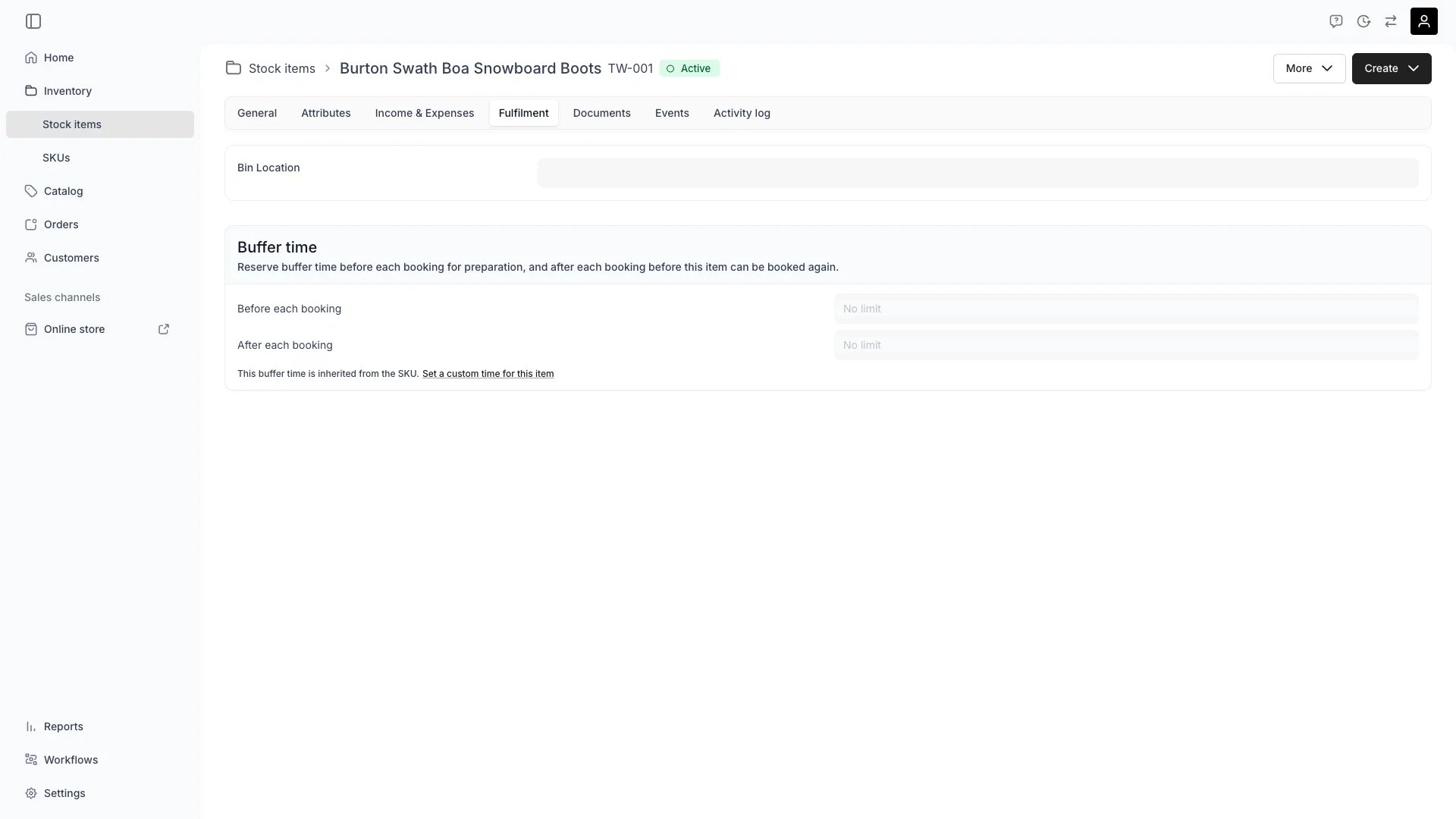
The **Fulfilment** tab on a stock item holds two settings that have nothing to do with each other except that both matter at the moment an item is handed over.
**Buffer time** keeps a gap around each booking, so a wetsuit gets rinsed and a bike gets serviced before it goes out again. **Bin location** is a free-text label — Rack A-3, Shelf 12 — that tells whoever is picking the order where the unit physically lives.
Buffer time is the one worth understanding properly. It does less than most people assume, and the section below explains what it does not cover.
## Prerequisites
**Required permissions:**
* `inventory:stock_item_fulfilment:manage` — buffer time and bin location on a stock item
* `inventory:sku_general:manage` — the same fields on a SKU, where they act as the default
* `catalog:listing_limits:manage` — the listing's **Limits** tab, which you will need for the storefront half
All four system roles hold all three.
**Before you start, decide:**
* **SKU default or item override?** Buffer time set on the SKU applies to every linked item that has not overridden it. Set it on the SKU unless one particular unit needs longer.
* **Before, after, or both.** They are separate settings and they mean different things.
* **Whether customers must be stopped from booking too soon.** If so, buffer time is not enough on its own — see below.
## What buffer time actually does
Buffer time has two halves, set independently:
| Field | Meaning |
| ----------------------- | ---------------------------------------------------------------------------------------- |
| **Before each booking** | Preparation time. The unit must be free for this long *before* a booking starts. |
| **After each booking** | Turnaround time. The unit cannot be booked again until this long *after* a booking ends. |
Both are entered as an amount plus a unit — minutes, hours, days, and so on.
The engine applies them by padding every existing booking. A new booking conflicts with an existing one if it would land inside that padding, and the gap between two consecutive bookings on the same unit has to hold the earlier one's trailing pad **plus** the later one's leading pad — they do not overlap or double-count.
**This part works on the storefront.** The availability your customers see already accounts for buffers around existing bookings, so a slot too close to another booking is not offered.
## What buffer time does not do
**Buffer time does not stop a customer from booking a start that is too soon from now.**
A one-hour "before each booking" buffer does not remove the next hour from the storefront's selectable times. The customer can pick a start ten minutes away, and the calendar will show it as valid. The booking is then rejected — either when the selection is validated, or at checkout, where the pay button stays disabled.
This is not a bug in the calendar. The two cases are genuinely different:
* **Buffer against an existing booking** is a property of that booking, so it can be drawn on the calendar in advance.
* **Buffer as lead time from now** is a moving target measured against the current moment. TWICE deliberately does not fold it into the item's stored availability, so nothing in the rendered calendar marks those starts as unbookable. It is only checked when a selection is validated and again when the order is created.
The result is the shape merchants report: a time that looks bookable, a customer who picks it, and a failure at the end of the flow rather than the start.
### The fix: pair it with the listing's order deadline
The storefront-side control lives on the **listing**, not the stock item. Open the listing, go to its **Limits** tab, and set **Orders must be placed at latest**.
Unlike buffer time, the order deadline is compiled into the availability the storefront renders: a booking cannot *start* inside the deadline window, so those times stop being offered in the first place.
Set the order deadline to at least your longest "before each booking" buffer for that item. The buffer keeps your operation honest; the order deadline is what the customer's calendar obeys.
The listing's **Limits** tab carries three more rules that shape what the storefront offers, all of them worth setting deliberately alongside a buffer:
| Setting | What it constrains |
| ----------------------------------- | -------------------------------------------------- |
| **Minimum booking duration** | The shortest rental a customer can select |
| **Maximum booking duration** | The longest |
| **Booking duration increment** | The step between selectable durations |
| **Orders must be placed at latest** | How far ahead of the start an order must be placed |
inventory/stock-items
The **Fulfilment** tab on a stock item holds two settings that have nothing to do with each other except that both matter at the moment an item is handed over.
**Buffer time** keeps a gap around each booking, so a wetsuit gets rinsed and a bike gets serviced before it goes out again. **Bin location** is a free-text label — Rack A-3, Shelf 12 — that tells whoever is picking the order where the unit physically lives.
Buffer time is the one worth understanding properly. It does less than most people assume, and the section below explains what it does not cover.
## Prerequisites
**Required permissions:**
* `inventory:stock_item_fulfilment:manage` — buffer time and bin location on a stock item
* `inventory:sku_general:manage` — the same fields on a SKU, where they act as the default
* `catalog:listing_limits:manage` — the listing's **Limits** tab, which you will need for the storefront half
All four system roles hold all three.
**Before you start, decide:**
* **SKU default or item override?** Buffer time set on the SKU applies to every linked item that has not overridden it. Set it on the SKU unless one particular unit needs longer.
* **Before, after, or both.** They are separate settings and they mean different things.
* **Whether customers must be stopped from booking too soon.** If so, buffer time is not enough on its own — see below.
## What buffer time actually does
Buffer time has two halves, set independently:
| Field | Meaning |
| ----------------------- | ---------------------------------------------------------------------------------------- |
| **Before each booking** | Preparation time. The unit must be free for this long *before* a booking starts. |
| **After each booking** | Turnaround time. The unit cannot be booked again until this long *after* a booking ends. |
Both are entered as an amount plus a unit — minutes, hours, days, and so on.
The engine applies them by padding every existing booking. A new booking conflicts with an existing one if it would land inside that padding, and the gap between two consecutive bookings on the same unit has to hold the earlier one's trailing pad **plus** the later one's leading pad — they do not overlap or double-count.
**This part works on the storefront.** The availability your customers see already accounts for buffers around existing bookings, so a slot too close to another booking is not offered.
## What buffer time does not do
**Buffer time does not stop a customer from booking a start that is too soon from now.**
A one-hour "before each booking" buffer does not remove the next hour from the storefront's selectable times. The customer can pick a start ten minutes away, and the calendar will show it as valid. The booking is then rejected — either when the selection is validated, or at checkout, where the pay button stays disabled.
This is not a bug in the calendar. The two cases are genuinely different:
* **Buffer against an existing booking** is a property of that booking, so it can be drawn on the calendar in advance.
* **Buffer as lead time from now** is a moving target measured against the current moment. TWICE deliberately does not fold it into the item's stored availability, so nothing in the rendered calendar marks those starts as unbookable. It is only checked when a selection is validated and again when the order is created.
The result is the shape merchants report: a time that looks bookable, a customer who picks it, and a failure at the end of the flow rather than the start.
### The fix: pair it with the listing's order deadline
The storefront-side control lives on the **listing**, not the stock item. Open the listing, go to its **Limits** tab, and set **Orders must be placed at latest**.
Unlike buffer time, the order deadline is compiled into the availability the storefront renders: a booking cannot *start* inside the deadline window, so those times stop being offered in the first place.
Set the order deadline to at least your longest "before each booking" buffer for that item. The buffer keeps your operation honest; the order deadline is what the customer's calendar obeys.
The listing's **Limits** tab carries three more rules that shape what the storefront offers, all of them worth setting deliberately alongside a buffer:
| Setting | What it constrains |
| ----------------------------------- | -------------------------------------------------- |
| **Minimum booking duration** | The shortest rental a customer can select |
| **Maximum booking duration** | The longest |
| **Booking duration increment** | The step between selectable durations |
| **Orders must be placed at latest** | How far ahead of the start an order must be placed |
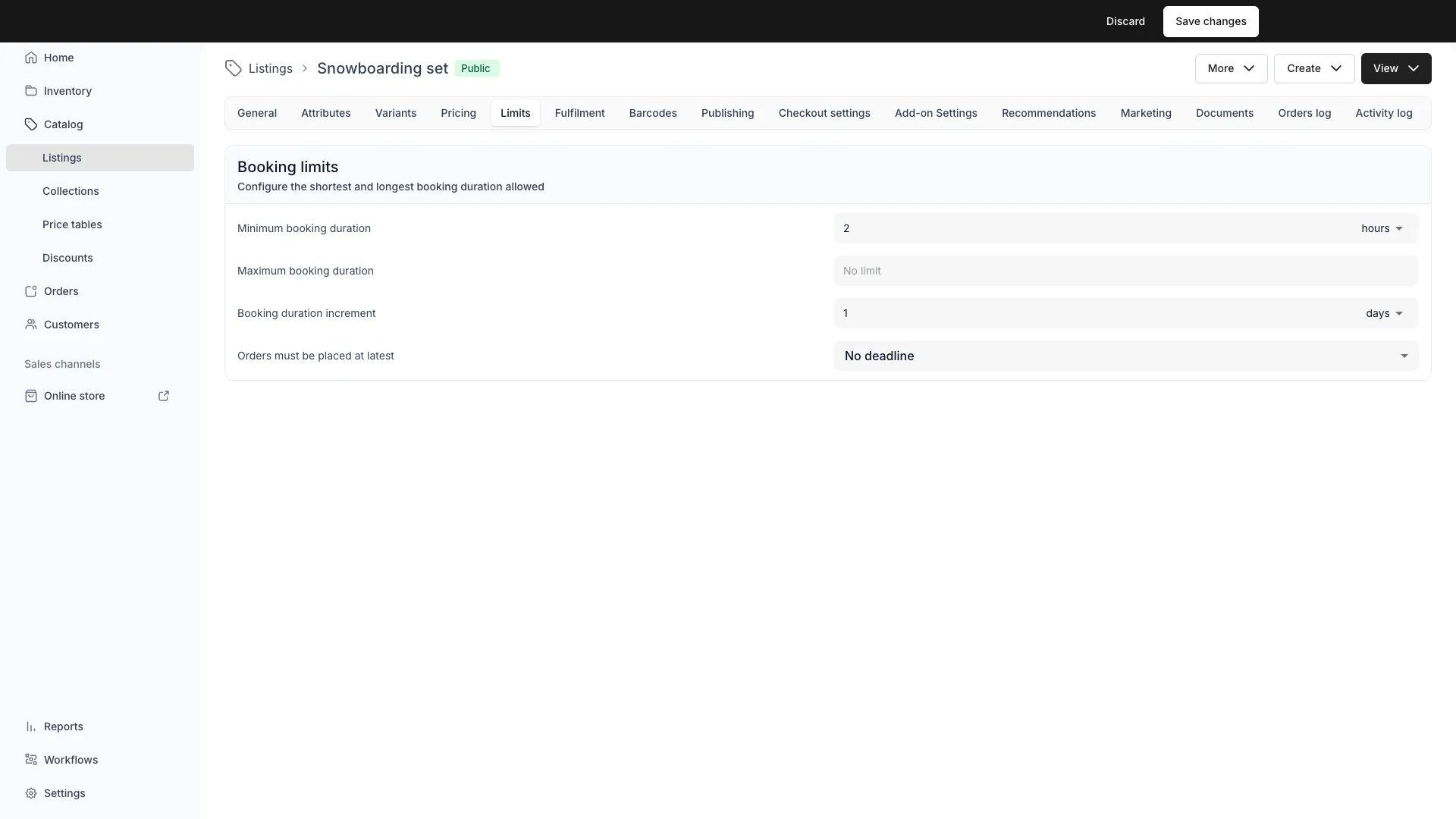 Read more: [Listing Limits](/docs/catalog/listings/limits) covers each one in full, including the order deadline's two modes — a fixed offset before the start, or a wall-clock cutoff on an earlier day.
**Testing this in the admin will not reproduce it.** The lead-time check applies only to anonymous storefront shoppers. Staff, API keys, and signed-in tokens are exempt by design, so an order you create yourself in the admin will go through on a start time a customer would be refused. Test it on the storefront, in a private window.
## The Walkthrough
Open **Inventory > SKUs**, pick the SKU, and use its **Fulfilment** tab if the buffer is a property of the product — most cases. Use an individual item's **Fulfilment** tab only when one unit genuinely differs.
In the **Buffer time** card, set **Before each booking** and **After each booking**.
On a stock item linked to a SKU, the pickers start disabled and show the inherited SKU values. Choose to override to edit them, or **Use the SKU default** to go back to inheriting. An inherited value is marked **Inherited from SKU**.
Widening a buffer can overlap bookings that are already on the calendar. TWICE checks before saving and, if it finds any, opens a dialog headed **Increasing buffer time would overlap {'{count}'} booking**, listing each one with a **View order** link.
Choose **Save anyway** to apply the new buffer while leaving those bookings on their current buffer — each is marked *This booking keeps its current buffer time* — or cancel and adjust the dates first.
In the **Bin Location** card on the same tab, type where the unit is kept. It is free text, so pick a scheme and stick to it — `A-3`, `Rack A-3` and `rack a3` are three different labels to anyone reading a pick list.
Bin location follows the same SKU inheritance: set it on the SKU when a whole product lives in one place, and override it on the item when a unit does not.
If customers book this item online, open the listing in **Catalog > Listings**, go to **Limits**, and set **Orders must be placed at latest** to cover your preparation buffer. Review the duration limits while you are there.
## How do I know it worked?
**Buffer time:** open the item's **Events** tab and look at the timeline around an existing booking — the padded window shows either side of it. Then check the storefront: dates immediately after that booking should no longer be selectable.
**Order deadline:** on the storefront, try to select a start inside the deadline window. It should not be offered at all. If it is offered and only fails later, the deadline is not set on that listing — the buffer alone cannot do this.
**Bin location:** open an order that has the item assigned and open its stock item drawer. A **Storage location** section appears with a **BIN** chip carrying your label. The section is hidden entirely when no bin location is set.
## Troubleshooting / Common Pitfalls
**Cause:** the item's preparation buffer was the only rule in place. It rejects a too-soon start but does not remove it from the calendar.
**What to do:** set **Orders must be placed at latest** on the listing's **Limits** tab, at least as long as the buffer. That is the setting the storefront calendar obeys.
**Cause:** the lead-time check runs only for anonymous public storefront requests. Staff sessions, API keys and tokens skip it deliberately, so that a member of staff can always take a last-minute booking over the counter.
**What to do:** reproduce it on the public storefront in a private window, not in the admin.
**Cause:** the item is still inheriting from its SKU, or you set it on the SKU while the item carries its own override. An item-level value always wins.
**What to do:** check the card for **Inherited from SKU**. Use **Use the SKU default** to drop an override and let the SKU govern.
**When this happens:** the new buffer will not fit around bookings already on the calendar.
**What to do:** **Save anyway** applies the buffer going forward and leaves those bookings on their existing buffer, which is usually what you want. Use **View order** on each to check them if the turnaround genuinely cannot be met, and move the dates instead.
**Cause:** buffer time is excluded from bulk editing — the card reads *Buffer time cannot be edited for multiple items*.
**What to do:** set it on the shared SKU, which reaches every linked item at once.
Read more: [How to bulk-edit stock items](/docs/guides/inventory/bulk-edit-stock-items#editing-through-the-sku-instead)
**When this happens:** bin location shows on the order's stock item drawer, and it can be placed on printed documents through a document template. It is **not** a column in the Stock Items table, so you cannot filter or sort by it.
**What to do:** if you need to work through stock by storage area, use an [attribute](/docs/concepts/admin/attributes) instead — attributes do become filterable, sortable columns.
## Next Steps
The storefront half: durations, increments, and the order deadline.
Every layer that decides whether a slot can be booked.
Blocking a window outright, rather than padding one.
What else the Fulfilment tab carries.
Read more: [Listing Limits](/docs/catalog/listings/limits) covers each one in full, including the order deadline's two modes — a fixed offset before the start, or a wall-clock cutoff on an earlier day.
**Testing this in the admin will not reproduce it.** The lead-time check applies only to anonymous storefront shoppers. Staff, API keys, and signed-in tokens are exempt by design, so an order you create yourself in the admin will go through on a start time a customer would be refused. Test it on the storefront, in a private window.
## The Walkthrough
Open **Inventory > SKUs**, pick the SKU, and use its **Fulfilment** tab if the buffer is a property of the product — most cases. Use an individual item's **Fulfilment** tab only when one unit genuinely differs.
In the **Buffer time** card, set **Before each booking** and **After each booking**.
On a stock item linked to a SKU, the pickers start disabled and show the inherited SKU values. Choose to override to edit them, or **Use the SKU default** to go back to inheriting. An inherited value is marked **Inherited from SKU**.
Widening a buffer can overlap bookings that are already on the calendar. TWICE checks before saving and, if it finds any, opens a dialog headed **Increasing buffer time would overlap {'{count}'} booking**, listing each one with a **View order** link.
Choose **Save anyway** to apply the new buffer while leaving those bookings on their current buffer — each is marked *This booking keeps its current buffer time* — or cancel and adjust the dates first.
In the **Bin Location** card on the same tab, type where the unit is kept. It is free text, so pick a scheme and stick to it — `A-3`, `Rack A-3` and `rack a3` are three different labels to anyone reading a pick list.
Bin location follows the same SKU inheritance: set it on the SKU when a whole product lives in one place, and override it on the item when a unit does not.
If customers book this item online, open the listing in **Catalog > Listings**, go to **Limits**, and set **Orders must be placed at latest** to cover your preparation buffer. Review the duration limits while you are there.
## How do I know it worked?
**Buffer time:** open the item's **Events** tab and look at the timeline around an existing booking — the padded window shows either side of it. Then check the storefront: dates immediately after that booking should no longer be selectable.
**Order deadline:** on the storefront, try to select a start inside the deadline window. It should not be offered at all. If it is offered and only fails later, the deadline is not set on that listing — the buffer alone cannot do this.
**Bin location:** open an order that has the item assigned and open its stock item drawer. A **Storage location** section appears with a **BIN** chip carrying your label. The section is hidden entirely when no bin location is set.
## Troubleshooting / Common Pitfalls
**Cause:** the item's preparation buffer was the only rule in place. It rejects a too-soon start but does not remove it from the calendar.
**What to do:** set **Orders must be placed at latest** on the listing's **Limits** tab, at least as long as the buffer. That is the setting the storefront calendar obeys.
**Cause:** the lead-time check runs only for anonymous public storefront requests. Staff sessions, API keys and tokens skip it deliberately, so that a member of staff can always take a last-minute booking over the counter.
**What to do:** reproduce it on the public storefront in a private window, not in the admin.
**Cause:** the item is still inheriting from its SKU, or you set it on the SKU while the item carries its own override. An item-level value always wins.
**What to do:** check the card for **Inherited from SKU**. Use **Use the SKU default** to drop an override and let the SKU govern.
**When this happens:** the new buffer will not fit around bookings already on the calendar.
**What to do:** **Save anyway** applies the buffer going forward and leaves those bookings on their existing buffer, which is usually what you want. Use **View order** on each to check them if the turnaround genuinely cannot be met, and move the dates instead.
**Cause:** buffer time is excluded from bulk editing — the card reads *Buffer time cannot be edited for multiple items*.
**What to do:** set it on the shared SKU, which reaches every linked item at once.
Read more: [How to bulk-edit stock items](/docs/guides/inventory/bulk-edit-stock-items#editing-through-the-sku-instead)
**When this happens:** bin location shows on the order's stock item drawer, and it can be placed on printed documents through a document template. It is **not** a column in the Stock Items table, so you cannot filter or sort by it.
**What to do:** if you need to work through stock by storage area, use an [attribute](/docs/concepts/admin/attributes) instead — attributes do become filterable, sortable columns.
## Next Steps
The storefront half: durations, increments, and the order deadline.
Every layer that decides whether a slot can be booked.
Blocking a window outright, rather than padding one.
What else the Fulfilment tab carries.