> ## Documentation Index
> Fetch the complete documentation index at: https://www.twicecommerce.com/docs/llms.txt
> Use this file to discover all available pages before exploring further.
# How to verify a customer's identity with documents
> Keep proof of who a customer is on their profile — uploading and naming documents, what the record shows afterwards, and the retention questions to settle before you make it routine.
 customers
Some orders need proof of who someone is: a licence before a van, an age check before alcohol equipment, a passport scan before something expensive leaves the building.
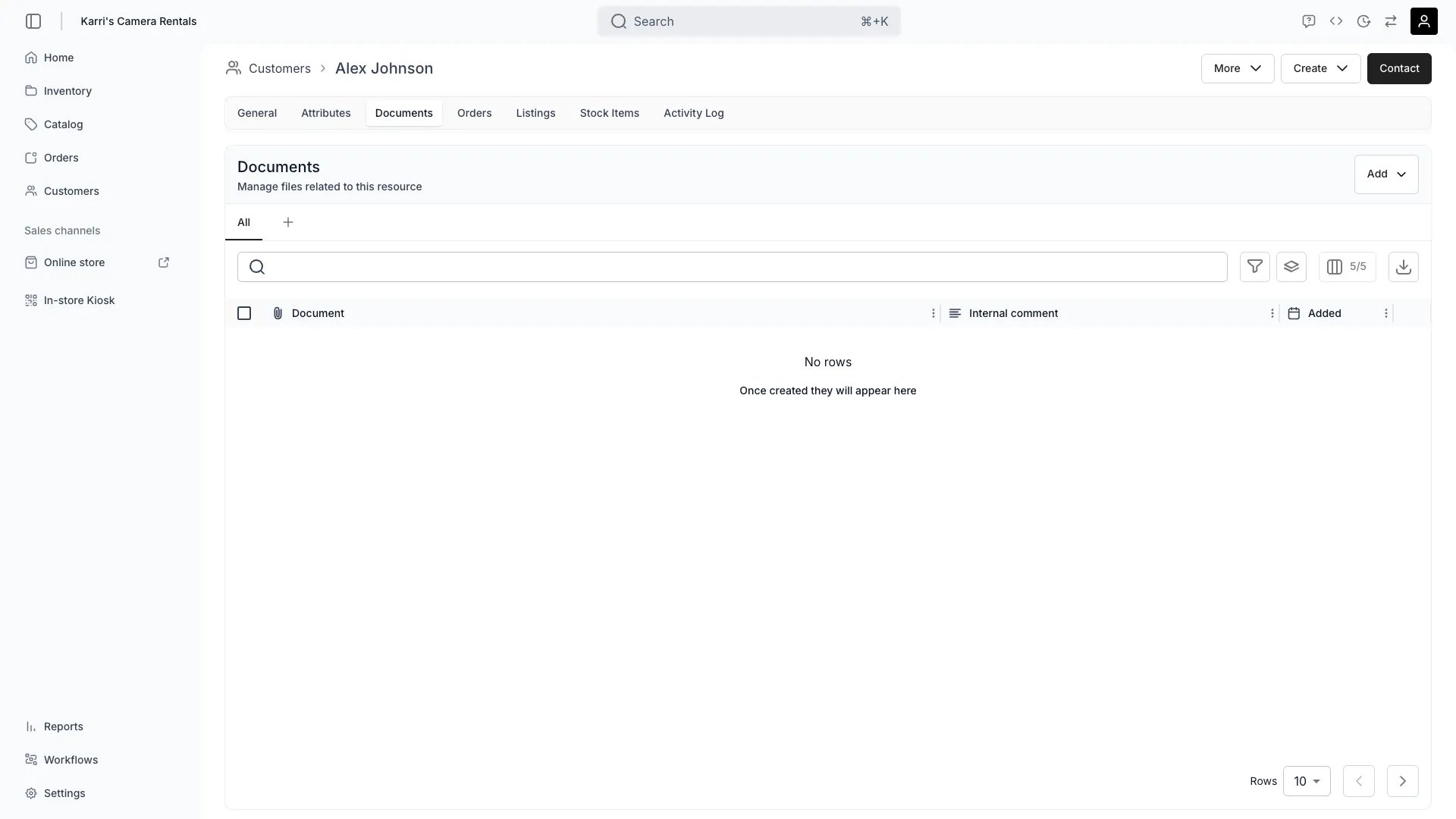
TWICE gives you a **Documents** tab on every customer to hold those files. What it does not give you is a verification workflow — nothing checks a document, marks a customer verified, or expires the check. So the mechanics here are simple, and the decisions around them are not. **Settle the policy before you make this routine**, because a folder of scanned passports you did not think about is a liability rather than an asset.
## Prerequisites
**Required permissions:** `customers:customer_documents`, in view, create, manage and delete. All four system roles — Owner, Admin, Manager and Member — hold every operation, **so anyone who can open a customer can open their identity documents.** That is the first thing to weigh — see the policy step.
**Settle before you start:**
* **Your legal basis** for holding identity documents at all, and for how long.
* **How long you keep them.** Nothing expires or deletes them for you.
* **Whether you need the document or only the check.** Frequently you need to have *looked*, not to have *kept a copy* — see the first step.
## The Walkthrough
Do this first, because it is the decision that matters and the upload button makes it easy to skip.
Three positions, in increasing risk:
| Approach | What you hold | When it fits |
| ---------------------------- | ---------------------------------------------- | --------------------------------------------------------------- |
| **Check, record nothing** | Nothing | An age check at a counter where you only need to have looked |
| **Check, record the fact** | An attribute — *licence verified*, with a date | Most cases. Filterable, reportable, and holds no sensitive copy |
| **Check, keep the document** | The file itself | Where a rule or an insurer requires the copy |
The middle option is under-used and usually right. A **customer attribute** recording that a check happened, and when, gives you an auditable, filterable record without storing a passport image — see [Segment customers](/docs/guides/customers/segment-customers). Only go to the third when something actually requires the copy.
On the customer's **Documents** tab, upload the file. Give it a name that will still make sense to a colleague in a year — *driving-licence-2026-03* rather than *scan1*.
Files can be renamed later from the row actions menu; renaming changes the display name only and leaves the stored file where it is. Full detail is on the [Documents tab](/docs/customers/customer-tabs/documents) page.
Even when you keep the document, record the *outcome* as an attribute: verified yes/no, and the date.
The reason is retrieval. A document is a file somebody has to open and read; an attribute is a column you can filter, so "which customers have an unexpired licence check" is answerable in one query rather than by opening profiles one at a time. The document is the evidence; the attribute is the index.
The customer's **Activity Log** records changes to the record, including documents being added, so there is a trail of who attached what and when.
What there is **not**:
* **No verified state** on the profile. Nothing marks a customer as verified; that is what your attribute is for.
* **No expiry.** A licence that expires next month keeps its document and its attribute unless you change them.
* **No enforcement.** Nothing prevents an order for a customer with no document, or with an expired one.
So verification gates the *transaction* through your staff, not through the software. If a check must block an order, the block is a person following a procedure.
Nothing deletes these files. A document uploaded today is there in five years unless somebody removes it.
So decide the period, write it down, and put a recurring review in whatever your team actually uses. Two practical shapes:
* **Delete on return** — for a check needed only to release the goods. The lowest-risk option.
* **Delete after a fixed period** — where a rule requires retention. Use a date attribute for the review date so the customers table can list what is due.
Deleting a document is a per-file action on the Documents tab. There is no bulk purge and no scheduled deletion, which is exactly why the review has to be somebody's job.
Identity documents are usually the most sensitive data in a TWICE account, and every system role can read them. If that is wrong for your operation, the lever is a custom role that withholds `customers:customer_documents` — see [Users & Roles](/docs/settings/users-roles). Note that custom roles only ever *add* permissions to a system role, so this needs the right system role underneath.
## How do I know it worked?
* **The document is on the profile**, named so a colleague can identify it without opening it.
* **An attribute records the outcome and the date**, so the check is findable in the table.
* **The Activity Log shows who added it**, which is the trail an audit asks for.
* **You can say how long you keep it**, and someone owns the review.
## Troubleshooting / Common Pitfalls
**There is no verified state.** Nothing on the profile represents verification, and no workflow sets one.
**What to do:** create a customer attribute for it — a yes/no or a date. That is both the record and the thing you can filter on.
**No.** Nothing checks documents or attributes before an order is taken, and nothing blocks a checkout on them.
**What to do:** the gate is procedural — staff check before handing over. If you need it enforced in software, that is not something TWICE does today.
**Expected — there is no expiry tracking.** A document and its attribute stay as they are indefinitely.
**What to do:** store the expiry as a *date* attribute, then keep a saved view filtered to dates in the past. That turns expiry into something the table surfaces rather than something you remember.
**Correct, on the system roles** — all four hold `customers:customer_documents` in full.
**What to do:** if that is unacceptable, the answer is role design rather than a setting on the tab. See [Users & Roles](/docs/settings/users-roles). Reducing what you store is the other lever, and often the easier one.
**Delete the file from the Documents tab** — it is a per-file action.
**What to do:** handle it as part of the wider request rather than in isolation, since they may be asking about more than the document. See [Export or erase a customer's data](/docs/guides/customers/handle-a-data-request).
## Next Steps
Responding to an access or erasure request.
The tab, control by control.
Recording and finding the outcome of a check.
Who can read what.
customers
Some orders need proof of who someone is: a licence before a van, an age check before alcohol equipment, a passport scan before something expensive leaves the building.
TWICE gives you a **Documents** tab on every customer to hold those files. What it does not give you is a verification workflow — nothing checks a document, marks a customer verified, or expires the check. So the mechanics here are simple, and the decisions around them are not. **Settle the policy before you make this routine**, because a folder of scanned passports you did not think about is a liability rather than an asset.
## Prerequisites
**Required permissions:** `customers:customer_documents`, in view, create, manage and delete. All four system roles — Owner, Admin, Manager and Member — hold every operation, **so anyone who can open a customer can open their identity documents.** That is the first thing to weigh — see the policy step.
**Settle before you start:**
* **Your legal basis** for holding identity documents at all, and for how long.
* **How long you keep them.** Nothing expires or deletes them for you.
* **Whether you need the document or only the check.** Frequently you need to have *looked*, not to have *kept a copy* — see the first step.
## The Walkthrough
Do this first, because it is the decision that matters and the upload button makes it easy to skip.
Three positions, in increasing risk:
| Approach | What you hold | When it fits |
| ---------------------------- | ---------------------------------------------- | --------------------------------------------------------------- |
| **Check, record nothing** | Nothing | An age check at a counter where you only need to have looked |
| **Check, record the fact** | An attribute — *licence verified*, with a date | Most cases. Filterable, reportable, and holds no sensitive copy |
| **Check, keep the document** | The file itself | Where a rule or an insurer requires the copy |
The middle option is under-used and usually right. A **customer attribute** recording that a check happened, and when, gives you an auditable, filterable record without storing a passport image — see [Segment customers](/docs/guides/customers/segment-customers). Only go to the third when something actually requires the copy.
On the customer's **Documents** tab, upload the file. Give it a name that will still make sense to a colleague in a year — *driving-licence-2026-03* rather than *scan1*.
Files can be renamed later from the row actions menu; renaming changes the display name only and leaves the stored file where it is. Full detail is on the [Documents tab](/docs/customers/customer-tabs/documents) page.
Even when you keep the document, record the *outcome* as an attribute: verified yes/no, and the date.
The reason is retrieval. A document is a file somebody has to open and read; an attribute is a column you can filter, so "which customers have an unexpired licence check" is answerable in one query rather than by opening profiles one at a time. The document is the evidence; the attribute is the index.
The customer's **Activity Log** records changes to the record, including documents being added, so there is a trail of who attached what and when.
What there is **not**:
* **No verified state** on the profile. Nothing marks a customer as verified; that is what your attribute is for.
* **No expiry.** A licence that expires next month keeps its document and its attribute unless you change them.
* **No enforcement.** Nothing prevents an order for a customer with no document, or with an expired one.
So verification gates the *transaction* through your staff, not through the software. If a check must block an order, the block is a person following a procedure.
Nothing deletes these files. A document uploaded today is there in five years unless somebody removes it.
So decide the period, write it down, and put a recurring review in whatever your team actually uses. Two practical shapes:
* **Delete on return** — for a check needed only to release the goods. The lowest-risk option.
* **Delete after a fixed period** — where a rule requires retention. Use a date attribute for the review date so the customers table can list what is due.
Deleting a document is a per-file action on the Documents tab. There is no bulk purge and no scheduled deletion, which is exactly why the review has to be somebody's job.
Identity documents are usually the most sensitive data in a TWICE account, and every system role can read them. If that is wrong for your operation, the lever is a custom role that withholds `customers:customer_documents` — see [Users & Roles](/docs/settings/users-roles). Note that custom roles only ever *add* permissions to a system role, so this needs the right system role underneath.
## How do I know it worked?
* **The document is on the profile**, named so a colleague can identify it without opening it.
* **An attribute records the outcome and the date**, so the check is findable in the table.
* **The Activity Log shows who added it**, which is the trail an audit asks for.
* **You can say how long you keep it**, and someone owns the review.
## Troubleshooting / Common Pitfalls
**There is no verified state.** Nothing on the profile represents verification, and no workflow sets one.
**What to do:** create a customer attribute for it — a yes/no or a date. That is both the record and the thing you can filter on.
**No.** Nothing checks documents or attributes before an order is taken, and nothing blocks a checkout on them.
**What to do:** the gate is procedural — staff check before handing over. If you need it enforced in software, that is not something TWICE does today.
**Expected — there is no expiry tracking.** A document and its attribute stay as they are indefinitely.
**What to do:** store the expiry as a *date* attribute, then keep a saved view filtered to dates in the past. That turns expiry into something the table surfaces rather than something you remember.
**Correct, on the system roles** — all four hold `customers:customer_documents` in full.
**What to do:** if that is unacceptable, the answer is role design rather than a setting on the tab. See [Users & Roles](/docs/settings/users-roles). Reducing what you store is the other lever, and often the easier one.
**Delete the file from the Documents tab** — it is a per-file action.
**What to do:** handle it as part of the wider request rather than in isolation, since they may be asking about more than the document. See [Export or erase a customer's data](/docs/guides/customers/handle-a-data-request).
## Next Steps
Responding to an access or erasure request.
The tab, control by control.
Recording and finding the outcome of a check.
Who can read what.