> ## Documentation Index
> Fetch the complete documentation index at: https://www.twicecommerce.com/docs/llms.txt
> Use this file to discover all available pages before exploring further.
# How to segment customers with groups and attributes
> Split your customer list into groups you can act on — tags for membership, attributes for facts, and what each one feeds downstream.
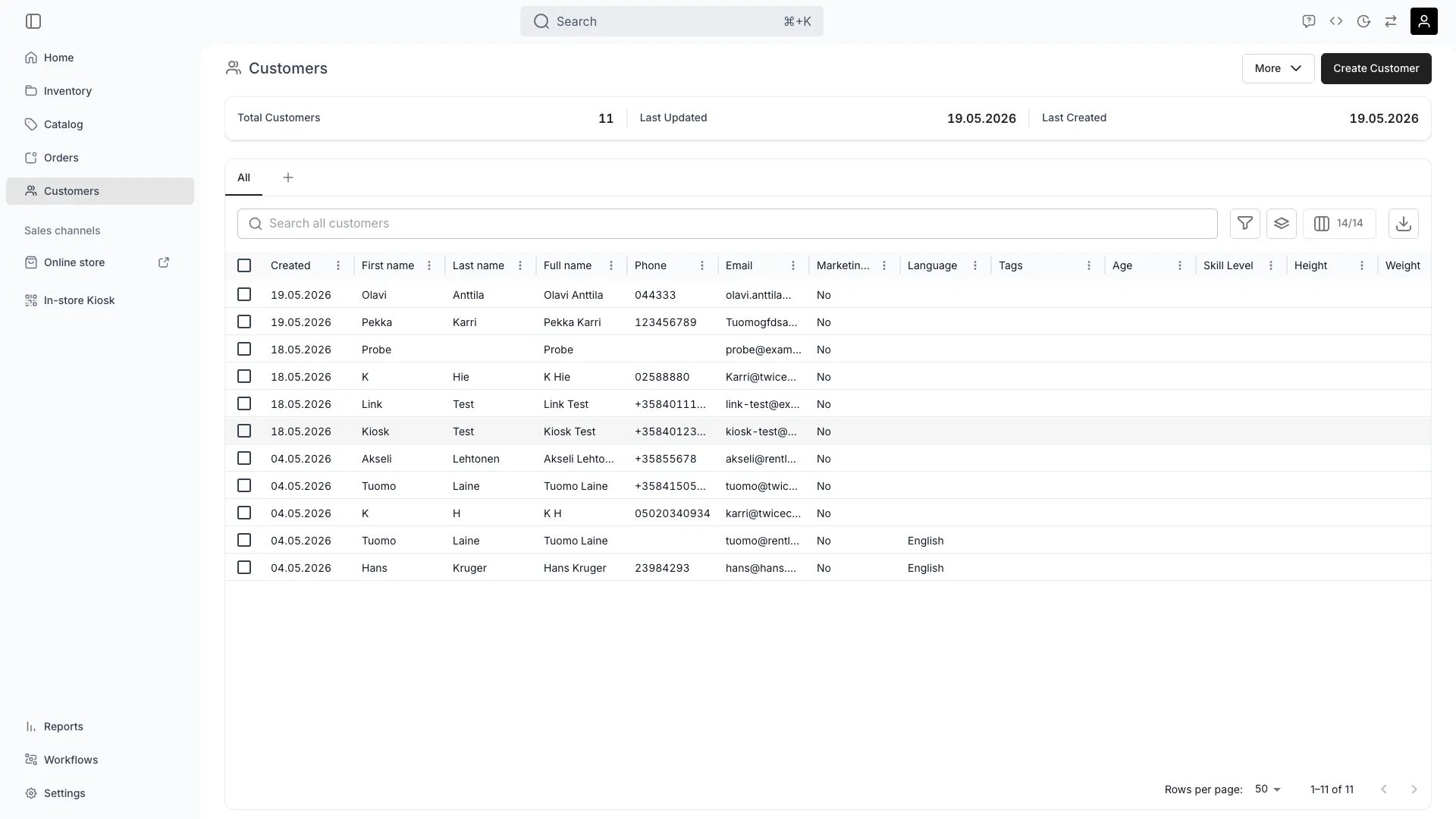 customers
A segment is only useful if you can act on it — email it, price for it, report on it. That means it has to be something the customers table can find, which rules out anything living in a free-text note.
TWICE gives you two mechanisms, and the difference between them is the whole of this guide: **tags collect customers into groups; attributes record facts about one customer.** Most segmentation questions are answered by picking the right one.
## Prerequisites
**Required permissions:** `customers:customer` in view and manage. All four system roles hold every operation on it. Creating attributes and tags is managed in Settings — see [Attributes & tags](/docs/settings/attributes-tags).
**Decide before you start:**
* **Is this membership or a fact?** *Ski club member* is membership — a tag. *Licence class B* is a fact — an attribute. See the first step.
* **Who maintains it?** A tag applied by hand needs someone to keep applying it. An attribute collected at checkout maintains itself.
## The Walkthrough
| | **Tags** | **Attributes** |
| -------- | ------------------------------------------------- | ---------------------------------------------------------------- |
| Answer | Which group is this customer in? | What is true of this customer? |
| Shape | A flat label, shared across customers | A named field with a value per customer |
| Values | Applied or not | Text, number, date, or a choice from a list |
| Good for | Membership, tiers, campaigns, staff-applied flags | Licence numbers, sizes, club IDs, anything collected at checkout |
Both are filterable columns in the customers table, so either can drive a segment. The test is whether you would ever want to know the *value* — if yes, it is an attribute; if the only question is in-or-out, a tag is simpler.
Full detail on the distinction is in [Customer groups](/docs/concepts/customers/customer-groups).
Apply tags on a customer's **General** tab, on the **Tags** card. The tag set is shared across your customers, so a tag applied here is available everywhere and appears in the table's **Tags** column.
Keep the taxonomy small and deliberate. Tags proliferate quietly: three people inventing *vip*, *VIP* and *v.i.p.* produce three groups where you wanted one, and nothing merges them for you. Agree the list before you scale it.
Tags are also the lever for restricting what a group can see — a listing can be limited to customer tags, which is how a members-only or trade-only offer is built. See [Create and publish a listing](/docs/guides/catalog/create-and-publish-a-listing).
Create the attribute once, then fill it per customer — by hand on the **Attributes** tab, or automatically by [collecting it at checkout](/docs/guides/customers/collect-customer-data-at-checkout).
Collected attributes are the ones worth building on, because they maintain themselves as customers order. An attribute nobody fills is a column of blanks, which is worse than not having it.
Attributes carry a type, and choosing it well is what makes filtering useful: a *select* attribute filters to exact choices, a *number* filters by range, a *date* by period. A text attribute filters by substring, which is the weakest of the four.
Combine filters to isolate the group. Anything in the table is fair game — tags, attributes, **Marketing consent**, **Customer type**, **Language**, **Created**, and the billing and shipping address columns.
Some combinations that earn their keep:
* **Marketing consent** is true, plus a tag — the segment you are allowed to email.
* **Customer type** is **Business**, plus a **Tax / VAT ID** that is set — companies whose invoicing details are complete.
* **Language** — for a campaign that only exists in one language.
* **Created** in a period — customers acquired by a specific push.
**Group by** a tag or a select attribute instead of filtering, and the table splits into every segment at once, which is the faster read when you are exploring rather than extracting.
Save the filter as a view so the segment is a tab rather than a reconstruction. Views appear on the table's tab row, and the panel at the right of that row searches, reorders and hides them.
Saved views are how a segment becomes routine — *consented Finnish-speaking members* stops being a query somebody remembers and becomes a thing anyone on the team can open. See [Tables](/docs/admin/tables).
Reordering and hiding tabs is per-user and per-browser, so your arrangement is yours; the views themselves are shared.
A saved view is the input to three things:
* **Export it** — the export respects your filters, sorts, groupings and visible columns, which is how a segment reaches an email tool. See [Export customers](/docs/guides/customers/export-customers).
* **Restrict a listing to it** — via tags, for members-only or trade pricing.
* **Read it** — for a straightforward count of how big a group actually is before you plan around it.
## How do I know it worked?
* **The filter returns the customers you expected**, and a spot-check of two or three confirms they belong.
* **The count is plausible.** A segment of three when you expected three hundred usually means the attribute is unfilled rather than the segment being small.
* **The view is saved** and opens to the same set tomorrow.
* **The export contains the columns you need**, not just the ones the table happened to be showing.
## Troubleshooting / Common Pitfalls
**Usually an unfilled attribute.** Filtering on an attribute only finds customers who have a value for it, and an attribute added last month is blank on everyone who ordered before that.
**What to do:** check how many customers have the attribute set at all before trusting a filter on it. If it is collected at checkout, it will fill over time — but it will never backfill.
**Nothing deduplicates tags**, and there is no merge.
**What to do:** pick the survivor, re-tag the affected customers, and remove the others. Then agree who may create tags — this is a taxonomy problem, not a tooling one. See [Customer groups](/docs/concepts/customers/customer-groups).
**Cause:** it is not a tag or an attribute. Free text on a profile, or an answer that landed on an order line, is not a customer column.
**What to do:** make it an attribute and collect it going forward. See [Collect customer data at checkout](/docs/guides/customers/collect-customer-data-at-checkout).
**Filter on Marketing consent as well** — it is a column, and it is the flag that says whether you may.
**What to do:** make consent part of every marketing segment rather than a check you do afterwards. See [Export customers](/docs/guides/customers/export-customers).
**A saved view does** — it is a filter, so it re-resolves every time it opens and picks up customers who newly match.
**A tag does not.** It is applied per customer and stays until someone changes it. If the definition of the group is a rule rather than a decision, express it as a filter on attributes, not as a tag somebody has to maintain.
## Next Steps
Getting a segment into an email tool.
Filling attributes without anyone typing.
Tags, attributes, and the taxonomy question.
Filters, grouping and saved views in full.
customers
A segment is only useful if you can act on it — email it, price for it, report on it. That means it has to be something the customers table can find, which rules out anything living in a free-text note.
TWICE gives you two mechanisms, and the difference between them is the whole of this guide: **tags collect customers into groups; attributes record facts about one customer.** Most segmentation questions are answered by picking the right one.
## Prerequisites
**Required permissions:** `customers:customer` in view and manage. All four system roles hold every operation on it. Creating attributes and tags is managed in Settings — see [Attributes & tags](/docs/settings/attributes-tags).
**Decide before you start:**
* **Is this membership or a fact?** *Ski club member* is membership — a tag. *Licence class B* is a fact — an attribute. See the first step.
* **Who maintains it?** A tag applied by hand needs someone to keep applying it. An attribute collected at checkout maintains itself.
## The Walkthrough
| | **Tags** | **Attributes** |
| -------- | ------------------------------------------------- | ---------------------------------------------------------------- |
| Answer | Which group is this customer in? | What is true of this customer? |
| Shape | A flat label, shared across customers | A named field with a value per customer |
| Values | Applied or not | Text, number, date, or a choice from a list |
| Good for | Membership, tiers, campaigns, staff-applied flags | Licence numbers, sizes, club IDs, anything collected at checkout |
Both are filterable columns in the customers table, so either can drive a segment. The test is whether you would ever want to know the *value* — if yes, it is an attribute; if the only question is in-or-out, a tag is simpler.
Full detail on the distinction is in [Customer groups](/docs/concepts/customers/customer-groups).
Apply tags on a customer's **General** tab, on the **Tags** card. The tag set is shared across your customers, so a tag applied here is available everywhere and appears in the table's **Tags** column.
Keep the taxonomy small and deliberate. Tags proliferate quietly: three people inventing *vip*, *VIP* and *v.i.p.* produce three groups where you wanted one, and nothing merges them for you. Agree the list before you scale it.
Tags are also the lever for restricting what a group can see — a listing can be limited to customer tags, which is how a members-only or trade-only offer is built. See [Create and publish a listing](/docs/guides/catalog/create-and-publish-a-listing).
Create the attribute once, then fill it per customer — by hand on the **Attributes** tab, or automatically by [collecting it at checkout](/docs/guides/customers/collect-customer-data-at-checkout).
Collected attributes are the ones worth building on, because they maintain themselves as customers order. An attribute nobody fills is a column of blanks, which is worse than not having it.
Attributes carry a type, and choosing it well is what makes filtering useful: a *select* attribute filters to exact choices, a *number* filters by range, a *date* by period. A text attribute filters by substring, which is the weakest of the four.
Combine filters to isolate the group. Anything in the table is fair game — tags, attributes, **Marketing consent**, **Customer type**, **Language**, **Created**, and the billing and shipping address columns.
Some combinations that earn their keep:
* **Marketing consent** is true, plus a tag — the segment you are allowed to email.
* **Customer type** is **Business**, plus a **Tax / VAT ID** that is set — companies whose invoicing details are complete.
* **Language** — for a campaign that only exists in one language.
* **Created** in a period — customers acquired by a specific push.
**Group by** a tag or a select attribute instead of filtering, and the table splits into every segment at once, which is the faster read when you are exploring rather than extracting.
Save the filter as a view so the segment is a tab rather than a reconstruction. Views appear on the table's tab row, and the panel at the right of that row searches, reorders and hides them.
Saved views are how a segment becomes routine — *consented Finnish-speaking members* stops being a query somebody remembers and becomes a thing anyone on the team can open. See [Tables](/docs/admin/tables).
Reordering and hiding tabs is per-user and per-browser, so your arrangement is yours; the views themselves are shared.
A saved view is the input to three things:
* **Export it** — the export respects your filters, sorts, groupings and visible columns, which is how a segment reaches an email tool. See [Export customers](/docs/guides/customers/export-customers).
* **Restrict a listing to it** — via tags, for members-only or trade pricing.
* **Read it** — for a straightforward count of how big a group actually is before you plan around it.
## How do I know it worked?
* **The filter returns the customers you expected**, and a spot-check of two or three confirms they belong.
* **The count is plausible.** A segment of three when you expected three hundred usually means the attribute is unfilled rather than the segment being small.
* **The view is saved** and opens to the same set tomorrow.
* **The export contains the columns you need**, not just the ones the table happened to be showing.
## Troubleshooting / Common Pitfalls
**Usually an unfilled attribute.** Filtering on an attribute only finds customers who have a value for it, and an attribute added last month is blank on everyone who ordered before that.
**What to do:** check how many customers have the attribute set at all before trusting a filter on it. If it is collected at checkout, it will fill over time — but it will never backfill.
**Nothing deduplicates tags**, and there is no merge.
**What to do:** pick the survivor, re-tag the affected customers, and remove the others. Then agree who may create tags — this is a taxonomy problem, not a tooling one. See [Customer groups](/docs/concepts/customers/customer-groups).
**Cause:** it is not a tag or an attribute. Free text on a profile, or an answer that landed on an order line, is not a customer column.
**What to do:** make it an attribute and collect it going forward. See [Collect customer data at checkout](/docs/guides/customers/collect-customer-data-at-checkout).
**Filter on Marketing consent as well** — it is a column, and it is the flag that says whether you may.
**What to do:** make consent part of every marketing segment rather than a check you do afterwards. See [Export customers](/docs/guides/customers/export-customers).
**A saved view does** — it is a filter, so it re-resolves every time it opens and picks up customers who newly match.
**A tag does not.** It is applied per customer and stays until someone changes it. If the definition of the group is a rule rather than a decision, express it as a filter on attributes, not as a tag somebody has to maintain.
## Next Steps
Getting a segment into an email tool.
Filling attributes without anyone typing.
Tags, attributes, and the taxonomy question.
Filters, grouping and saved views in full.