> ## Documentation Index
> Fetch the complete documentation index at: https://www.twicecommerce.com/docs/llms.txt
> Use this file to discover all available pages before exploring further.
# How to read a customer's history
> Answer what this customer has had and how it came back — reading the Orders, Listings and Stock Items tabs together, and knowing that all three are derived from orders.
 customers
Someone is on the phone asking about a deposit you kept last summer. Or standing at the counter wanting the same kit as last time. Or you are deciding whether to sell them something expensive.
All three are the same question — what has this person had, and how did it come back — and the answer is spread across three tabs on their profile. The thing worth knowing up front: **all three are views of their orders.** Nothing here records interest, intent or preference; it records what they actually took.
## Prerequisites
**Required permissions:** `customers:customer` in view, plus `customers:customer_orders`, `customers:customer_listings` and `customers:customer_stock_items` in view for the respective tabs. All four system roles hold these. See [Users & Roles](/docs/settings/users-roles).
**Know before you read:**
* **Everything is order-derived.** A customer with no orders has three empty tabs, however long they have existed as a record.
* **History follows the record, not the person.** Two profiles for the same human split their history — see the pitfalls.
## The Walkthrough
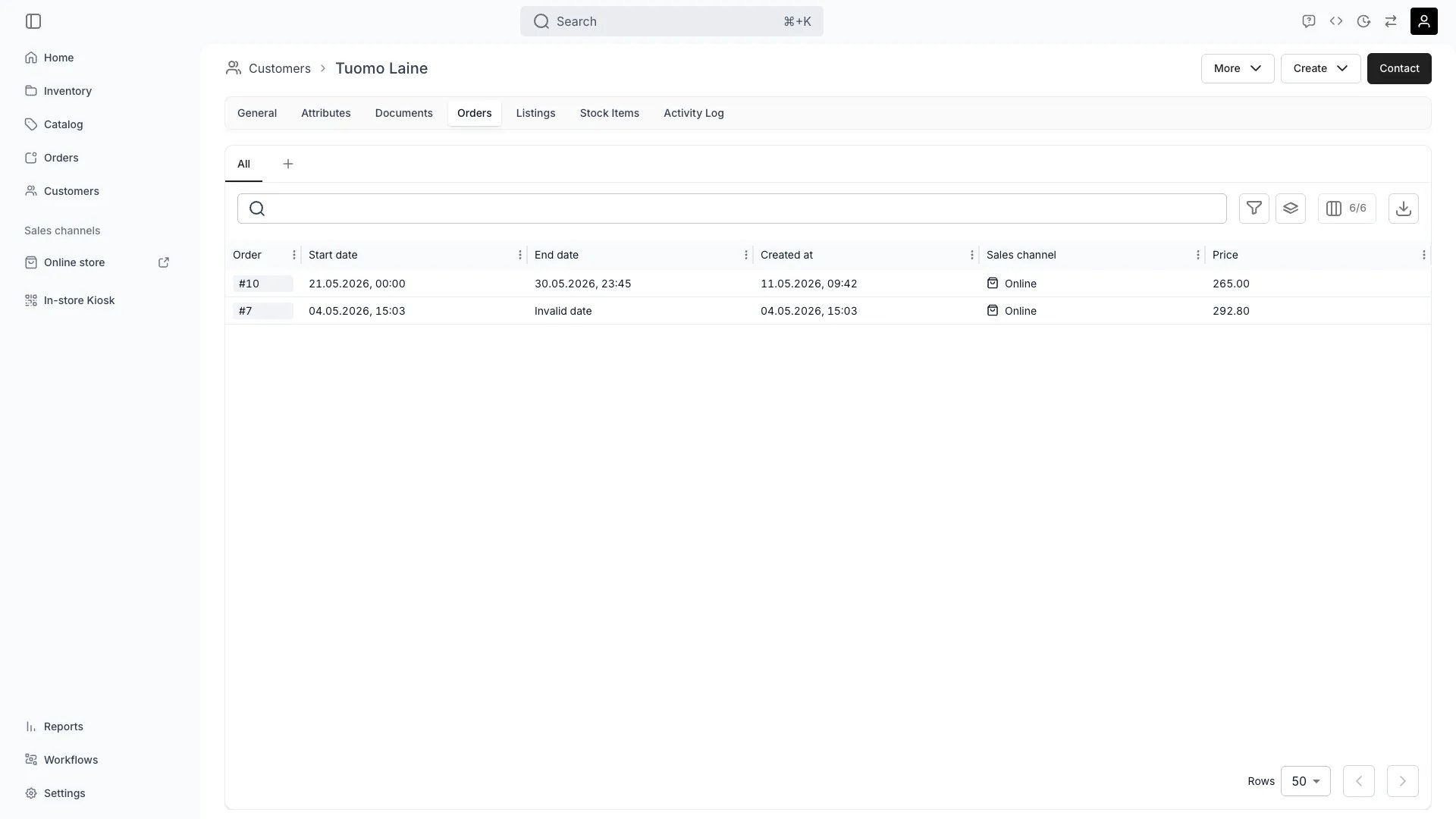
The **Orders** tab lists every order this customer is on, with its dates, state and value. Read it first, because it is the only one of the three that shows the *arc* — how often they come back, whether orders grow or shrink, whether anything is still open.
Each row links to the order, which is where the detail lives: what was on it, what was paid, what came back. The tab is an index, not a substitute for opening the order.
For a repeat customer, the useful read is the gaps: someone who ordered monthly and then stopped six months ago is a different conversation from someone who orders every spring.
The **Listings** tab shows the listings this customer has ordered, each row carrying the date and the order reference it came from.
This is the "same as last time" answer. Someone asking for the kit they had in June is answered here in one look, and the order reference takes you to the exact configuration.
This is a record of what they **ordered**, derived from their orders — not a wishlist, a saved-items list, or anything they browsed. TWICE does not track interest, only transactions. A listing appears here because they took it.
The **Stock Items** tab goes one level deeper: the specific units, with the pickup date and the order they belonged to.
This is the tab for disputes and for patterns. "This bike came back with a bent derailleur" is a question about a unit and a person, and this is where the two meet. Follow the row to the order, or to the [unit's own history](/docs/guides/inventory/read-stock-item-history) for everything that ever happened to it.
It is also how you check a suspicion — the same unit going out to the same customer repeatedly, or a customer who has had three of the four units you own.
The tabs answer different halves of one question, and the useful move is combining them:
| You want to know | Read |
| ------------------------------------------------------ | ------------------------------------------------------ |
| How often they come back, and whether anything is open | **Orders** |
| What they habitually take | **Listings** |
| Which unit was involved in a specific incident | **Stock Items**, then the unit's history |
| Whether an item came back damaged | The order's **Stock Items** tab, and the unit's record |
| Who changed something on the profile, and when | **Activity Log** |
Condition and damage are not on the customer record. They live on the unit, because that is where they stay true after the order closes — see [Handle a return](/docs/guides/orders/handle-a-return).
The three history tabs cover what the customer did. The **Activity Log** covers what was done *to the record* — fields changed, documents added, consent flipped, and by which member of staff.
That is the tab for "who gave them that discount" or "when did this address change", and it is the one that settles an internal question rather than a customer-facing one.
## How do I know it worked?
You have the answer when you can state it with a reference attached:
* **The order reference** for the order in question, not just "last summer".
* **The specific unit**, where the question is about condition or damage.
* **A date** for anything the customer disputes.
If you cannot get to a reference, the history is telling you the record is wrong — usually a duplicate profile — rather than that nothing happened.
## Troubleshooting / Common Pitfalls
**Almost always a duplicate profile.** The order is attached to a different record for the same person — a second email, a name typo, or a profile created at a counter while another already existed.
**What to do:** search the customers table by surname, by phone, and by partial email rather than by the exact address you were given. Emails are unique per profile, so a second address is a second record with its own separate history.
**Check whether they were the billing contact rather than the order customer**, or the reverse. Both roles put a record on an order, and someone who only paid may not be who you were looking for.
**What to do:** open the order and read its **Customers** tab, which shows every record attached and in which role. See [Create a customer profile](/docs/guides/customers/create-a-customer).
**There is nothing to see — TWICE does not track it.** The Listings tab is what they ordered, derived from orders. No browsing, saving or wishlisting is recorded anywhere.
**What to do:** treat listing history as a purchase record. For anything about intent you need your storefront analytics, not the customer profile.
**There is no per-customer item restriction.** Nothing on the profile blocks a customer from a listing or a unit.
**What to do:** the levers that do exist are broader — customer tags with tag-restricted listings, or simply not assigning the unit. See [Segment customers](/docs/guides/customers/segment-customers).
**Archiving takes an order out of the table**, so check whether it was archived rather than assuming it never existed.
**What to do:** look in [Settings → Archived assets](/docs/settings/archived-assets). See [Cancel or archive an order](/docs/guides/orders/cancel-or-archive-an-order).
## Next Steps
Turning what you learn into a group you can act on.
The other end of a damage question.
Every field and tab the record carries.
Order customer versus billing contact.
customers
Someone is on the phone asking about a deposit you kept last summer. Or standing at the counter wanting the same kit as last time. Or you are deciding whether to sell them something expensive.
All three are the same question — what has this person had, and how did it come back — and the answer is spread across three tabs on their profile. The thing worth knowing up front: **all three are views of their orders.** Nothing here records interest, intent or preference; it records what they actually took.
## Prerequisites
**Required permissions:** `customers:customer` in view, plus `customers:customer_orders`, `customers:customer_listings` and `customers:customer_stock_items` in view for the respective tabs. All four system roles hold these. See [Users & Roles](/docs/settings/users-roles).
**Know before you read:**
* **Everything is order-derived.** A customer with no orders has three empty tabs, however long they have existed as a record.
* **History follows the record, not the person.** Two profiles for the same human split their history — see the pitfalls.
## The Walkthrough
The **Orders** tab lists every order this customer is on, with its dates, state and value. Read it first, because it is the only one of the three that shows the *arc* — how often they come back, whether orders grow or shrink, whether anything is still open.
Each row links to the order, which is where the detail lives: what was on it, what was paid, what came back. The tab is an index, not a substitute for opening the order.
For a repeat customer, the useful read is the gaps: someone who ordered monthly and then stopped six months ago is a different conversation from someone who orders every spring.
The **Listings** tab shows the listings this customer has ordered, each row carrying the date and the order reference it came from.
This is the "same as last time" answer. Someone asking for the kit they had in June is answered here in one look, and the order reference takes you to the exact configuration.
This is a record of what they **ordered**, derived from their orders — not a wishlist, a saved-items list, or anything they browsed. TWICE does not track interest, only transactions. A listing appears here because they took it.
The **Stock Items** tab goes one level deeper: the specific units, with the pickup date and the order they belonged to.
This is the tab for disputes and for patterns. "This bike came back with a bent derailleur" is a question about a unit and a person, and this is where the two meet. Follow the row to the order, or to the [unit's own history](/docs/guides/inventory/read-stock-item-history) for everything that ever happened to it.
It is also how you check a suspicion — the same unit going out to the same customer repeatedly, or a customer who has had three of the four units you own.
The tabs answer different halves of one question, and the useful move is combining them:
| You want to know | Read |
| ------------------------------------------------------ | ------------------------------------------------------ |
| How often they come back, and whether anything is open | **Orders** |
| What they habitually take | **Listings** |
| Which unit was involved in a specific incident | **Stock Items**, then the unit's history |
| Whether an item came back damaged | The order's **Stock Items** tab, and the unit's record |
| Who changed something on the profile, and when | **Activity Log** |
Condition and damage are not on the customer record. They live on the unit, because that is where they stay true after the order closes — see [Handle a return](/docs/guides/orders/handle-a-return).
The three history tabs cover what the customer did. The **Activity Log** covers what was done *to the record* — fields changed, documents added, consent flipped, and by which member of staff.
That is the tab for "who gave them that discount" or "when did this address change", and it is the one that settles an internal question rather than a customer-facing one.
## How do I know it worked?
You have the answer when you can state it with a reference attached:
* **The order reference** for the order in question, not just "last summer".
* **The specific unit**, where the question is about condition or damage.
* **A date** for anything the customer disputes.
If you cannot get to a reference, the history is telling you the record is wrong — usually a duplicate profile — rather than that nothing happened.
## Troubleshooting / Common Pitfalls
**Almost always a duplicate profile.** The order is attached to a different record for the same person — a second email, a name typo, or a profile created at a counter while another already existed.
**What to do:** search the customers table by surname, by phone, and by partial email rather than by the exact address you were given. Emails are unique per profile, so a second address is a second record with its own separate history.
**Check whether they were the billing contact rather than the order customer**, or the reverse. Both roles put a record on an order, and someone who only paid may not be who you were looking for.
**What to do:** open the order and read its **Customers** tab, which shows every record attached and in which role. See [Create a customer profile](/docs/guides/customers/create-a-customer).
**There is nothing to see — TWICE does not track it.** The Listings tab is what they ordered, derived from orders. No browsing, saving or wishlisting is recorded anywhere.
**What to do:** treat listing history as a purchase record. For anything about intent you need your storefront analytics, not the customer profile.
**There is no per-customer item restriction.** Nothing on the profile blocks a customer from a listing or a unit.
**What to do:** the levers that do exist are broader — customer tags with tag-restricted listings, or simply not assigning the unit. See [Segment customers](/docs/guides/customers/segment-customers).
**Archiving takes an order out of the table**, so check whether it was archived rather than assuming it never existed.
**What to do:** look in [Settings → Archived assets](/docs/settings/archived-assets). See [Cancel or archive an order](/docs/guides/orders/cancel-or-archive-an-order).
## Next Steps
Turning what you learn into a group you can act on.
The other end of a damage question.
Every field and tab the record carries.
Order customer versus billing contact.