> ## Documentation Index
> Fetch the complete documentation index at: https://www.twicecommerce.com/docs/llms.txt
> Use this file to discover all available pages before exploring further.
# How to export customers for your email tool
> Get a customer segment out of TWICE as a file your email tool can read — building the view first, what the export includes, and the consent check to do before you send anything.
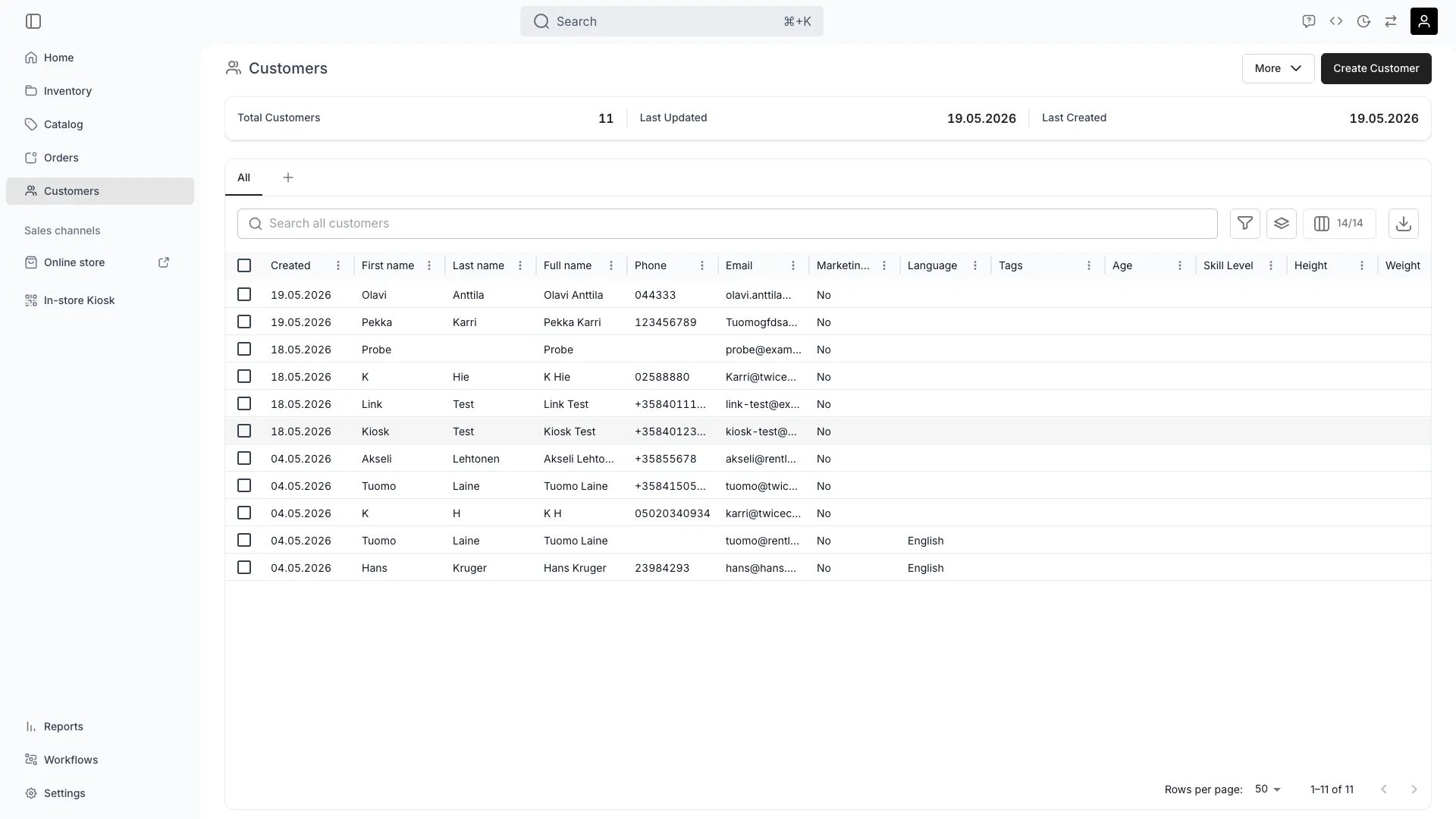 customers
TWICE does not send marketing email, and there is no sync to a mail platform. What it has is an export that mirrors exactly what you have on screen — so getting a list into your email tool is a two-part job: build the right view, then export it.
The order matters. The export takes the view as it stands, which means every decision about who is on the list is made *before* you press the button.
## Prerequisites
**Required permissions:** `customers:customer` in view. All four system roles hold it, and export is available to anyone who can read the table. See [Users & Roles](/docs/settings/users-roles).
**Before you start:**
* **Know your legal basis for emailing.** **Marketing consent** is a field on every profile, and it is there to be used. Exporting people who have not consented and mailing them anyway is your risk, not TWICE's.
* **Know what your email tool needs.** Most want an email column plus a name; some want a language or a country for localisation.
## The Walkthrough
Start with **Marketing consent** set to true. Make it the first filter rather than the last check — a list built the other way round is one accidental send away from a problem.
Then narrow to the segment you actually want: a tag, an attribute, a language, a **Created** period, or a combination. [Segment customers](/docs/guides/customers/segment-customers) covers the mechanics.
**Consent is off unless something set it.** A customer created at a counter, or imported from a CSV without the column, has no consent recorded — correctly, because turning up is not consent. So a segment that ignores the flag will be larger than the segment you are allowed to mail, and the difference is exactly the people you must not contact.
**The export contains the visible columns, in the order they are shown.** So shaping the file is column work, not export work: hide what you do not need, show what you do, and reorder to match what your email tool expects on import.
A workable set for most mail platforms:
| Column | Why |
| ------------------------------ | ----------------------------------------------------------------- |
| **Email** | The only genuinely essential one |
| **First name** / **Last name** | Personalisation |
| **Language** | So the campaign goes out in the right one |
| **Marketing consent** | Carry the evidence with the list, so the file is self-documenting |
| **Tags** or an attribute | Where the tool segments further on its side |
Leave out what you do not need. An export carrying dates of birth and addresses to a mail tool is personal data you have moved for no reason.
Export with the button on the table. The file mirrors the view: **all filters, sorts, groupings and visible columns are respected**, which is why the previous two steps are the actual work.
See [Tables](/docs/admin/tables) for the export control and the rest of the table features.
Two minutes here saves a bad send:
* **Row count** — does it match what the table said? A surprise means a filter did not apply the way you thought.
* **Consent column** — every row true, if you filtered on it.
* **Encoding** — open it and check accented names look right, since a mail tool that mis-reads the encoding will greet people with mojibake.
* **No blank emails** — a row without an address is a row your tool will reject.
There is no ongoing sync. The export is a snapshot, so a list in your email tool starts drifting from TWICE the moment you upload it: new customers do not appear, and — importantly — **customers who withdraw consent in TWICE stay subscribed in your tool.**
Two consequences worth designing around:
* **Re-export on a rhythm** that matches how often you send, and use your tool's own suppression list as the second line of defence.
* **Treat withdrawal as a two-place job.** Someone unsubscribing needs their consent cleared in TWICE *and* removing in the tool, or the next export re-adds them.
For a segment you use constantly, save the view so each re-export is one click rather than a rebuild.
## How do I know it worked?
* **The file opens with the columns you chose**, in that order, and the row count matches the table.
* **Every row has an email**, and every row is consented.
* **Your email tool accepts the import** without a column-mapping fight.
* **The saved view is on the tab row**, so the next export is a click.
## Troubleshooting / Common Pitfalls
**The export takes the visible columns.** It is not a separate field picker.
**What to do:** hide the columns first, then export. Reordering them also reorders the file, which is worth doing if your tool imports by position.
**You almost certainly did not filter on Marketing consent.** The table shows every customer; only some have consented.
**What to do:** add the filter and re-export. Do not fix this on the email tool's side — the authoritative flag is in TWICE, and next month's export will have the same problem.
**Because the export re-added them.** Unsubscribing in the tool does not reach back into TWICE, so the flag there still says consented.
**What to do:** clear **Marketing consent** on the profile as well. Any unsubscribe process that does not write back to TWICE will keep producing this.
**An encoding mismatch between the file and your email tool**, not a problem with the data.
**What to do:** check the file opens correctly first, then set the encoding explicitly during your tool's import step rather than accepting its default.
**Not natively.** There is no built-in integration with an email platform, and no scheduled export.
**What to do:** export manually, or build it yourself against the API — see [API keys](/docs/concepts/integrations/api-keys) and [Webhooks](/docs/concepts/integrations/webhooks).
## Next Steps
Building the view before you export it.
The single-customer, privacy-request version.
The export control and column features.
Building a real sync instead of exporting.
customers
TWICE does not send marketing email, and there is no sync to a mail platform. What it has is an export that mirrors exactly what you have on screen — so getting a list into your email tool is a two-part job: build the right view, then export it.
The order matters. The export takes the view as it stands, which means every decision about who is on the list is made *before* you press the button.
## Prerequisites
**Required permissions:** `customers:customer` in view. All four system roles hold it, and export is available to anyone who can read the table. See [Users & Roles](/docs/settings/users-roles).
**Before you start:**
* **Know your legal basis for emailing.** **Marketing consent** is a field on every profile, and it is there to be used. Exporting people who have not consented and mailing them anyway is your risk, not TWICE's.
* **Know what your email tool needs.** Most want an email column plus a name; some want a language or a country for localisation.
## The Walkthrough
Start with **Marketing consent** set to true. Make it the first filter rather than the last check — a list built the other way round is one accidental send away from a problem.
Then narrow to the segment you actually want: a tag, an attribute, a language, a **Created** period, or a combination. [Segment customers](/docs/guides/customers/segment-customers) covers the mechanics.
**Consent is off unless something set it.** A customer created at a counter, or imported from a CSV without the column, has no consent recorded — correctly, because turning up is not consent. So a segment that ignores the flag will be larger than the segment you are allowed to mail, and the difference is exactly the people you must not contact.
**The export contains the visible columns, in the order they are shown.** So shaping the file is column work, not export work: hide what you do not need, show what you do, and reorder to match what your email tool expects on import.
A workable set for most mail platforms:
| Column | Why |
| ------------------------------ | ----------------------------------------------------------------- |
| **Email** | The only genuinely essential one |
| **First name** / **Last name** | Personalisation |
| **Language** | So the campaign goes out in the right one |
| **Marketing consent** | Carry the evidence with the list, so the file is self-documenting |
| **Tags** or an attribute | Where the tool segments further on its side |
Leave out what you do not need. An export carrying dates of birth and addresses to a mail tool is personal data you have moved for no reason.
Export with the button on the table. The file mirrors the view: **all filters, sorts, groupings and visible columns are respected**, which is why the previous two steps are the actual work.
See [Tables](/docs/admin/tables) for the export control and the rest of the table features.
Two minutes here saves a bad send:
* **Row count** — does it match what the table said? A surprise means a filter did not apply the way you thought.
* **Consent column** — every row true, if you filtered on it.
* **Encoding** — open it and check accented names look right, since a mail tool that mis-reads the encoding will greet people with mojibake.
* **No blank emails** — a row without an address is a row your tool will reject.
There is no ongoing sync. The export is a snapshot, so a list in your email tool starts drifting from TWICE the moment you upload it: new customers do not appear, and — importantly — **customers who withdraw consent in TWICE stay subscribed in your tool.**
Two consequences worth designing around:
* **Re-export on a rhythm** that matches how often you send, and use your tool's own suppression list as the second line of defence.
* **Treat withdrawal as a two-place job.** Someone unsubscribing needs their consent cleared in TWICE *and* removing in the tool, or the next export re-adds them.
For a segment you use constantly, save the view so each re-export is one click rather than a rebuild.
## How do I know it worked?
* **The file opens with the columns you chose**, in that order, and the row count matches the table.
* **Every row has an email**, and every row is consented.
* **Your email tool accepts the import** without a column-mapping fight.
* **The saved view is on the tab row**, so the next export is a click.
## Troubleshooting / Common Pitfalls
**The export takes the visible columns.** It is not a separate field picker.
**What to do:** hide the columns first, then export. Reordering them also reorders the file, which is worth doing if your tool imports by position.
**You almost certainly did not filter on Marketing consent.** The table shows every customer; only some have consented.
**What to do:** add the filter and re-export. Do not fix this on the email tool's side — the authoritative flag is in TWICE, and next month's export will have the same problem.
**Because the export re-added them.** Unsubscribing in the tool does not reach back into TWICE, so the flag there still says consented.
**What to do:** clear **Marketing consent** on the profile as well. Any unsubscribe process that does not write back to TWICE will keep producing this.
**An encoding mismatch between the file and your email tool**, not a problem with the data.
**What to do:** check the file opens correctly first, then set the encoding explicitly during your tool's import step rather than accepting its default.
**Not natively.** There is no built-in integration with an email platform, and no scheduled export.
**What to do:** export manually, or build it yourself against the API — see [API keys](/docs/concepts/integrations/api-keys) and [Webhooks](/docs/concepts/integrations/webhooks).
## Next Steps
Building the view before you export it.
The single-customer, privacy-request version.
The export control and column features.
Building a real sync instead of exporting.