> ## Documentation Index
> Fetch the complete documentation index at: https://www.twicecommerce.com/docs/llms.txt
> Use this file to discover all available pages before exploring further.
# How to create a customer profile and attach it to an order
> Make a customer record and put it on an order — the built-in fields, the custom ones you define, and the difference between an order customer and the billing contact.
 customers
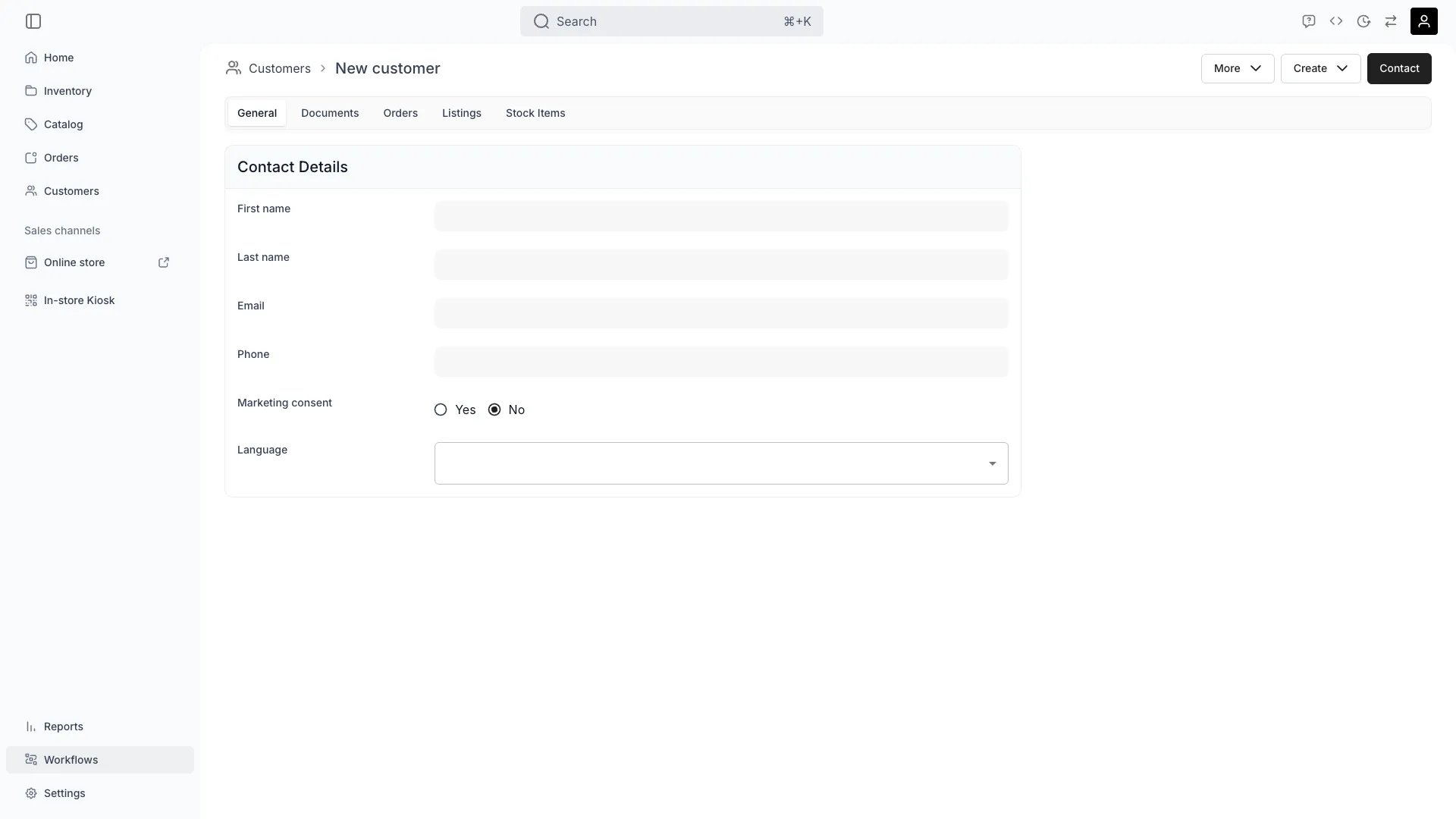
A customer profile is the record everything else hangs off: the orders they have had, the units they have held, the documents you keep, and the consent you rely on to email them.
You can create one from scratch in Customers, or from inside an order while you are taking it. Either way you get the same record, and the choice that actually matters comes later — whether the person is an *order customer*, a *billing contact*, or both.
## Prerequisites
**Required permissions:** `customers:customer` in create and manage. All four system roles — Owner, Admin, Manager and Member — hold every operation on it. See [Users & Roles](/docs/settings/users-roles).
**Have ready before you start:**
* **A name and an email.** Everything else can be filled in later; these two are what make the record findable and contactable.
* **Whether this is a person or a company.** It sets the **Customer type**, which changes which fields you get — see [Set up business customers](/docs/guides/customers/business-customers).
* **Any custom fields you expect to fill.** Attributes have to exist before you can set them. See [Attributes](/docs/concepts/admin/attributes).
## The Walkthrough
From **Customers**, press **Create Customer**. Or, if you are mid-order, use **+ Add → Customer** and then **Create new customer** — the record is made without leaving the order and is attached to it in the same move.
Creating from the order is usually the better habit at a counter: it saves a step and guarantees the profile ends up on the order rather than sitting unattached.
These exist on every profile and cannot be removed:
| Field | Notes |
| --------------------- | -------------------------------------------------------------------------------------------------------------------------- |
| **Customer type** | **Individual** or **Business**. Choosing Business reveals **Company name** and **Tax / VAT ID** |
| **First name** | The only genuinely required field |
| **Last name** | Optional, but a profile without one is hard to find later |
| **Email** | Must be unique across your customers. Also where checkout links and receipts go |
| **Phone** | For the call when something is late |
| **Date of birth** | Where an age limit or licence class matters |
| **Marketing consent** | Off unless set. This is the flag your email exports filter on — see [Export customers](/docs/guides/customers/export-customers) |
| **Language** | Which language this customer's emails and documents render in |
Addresses are kept as two sets, **Billing address** and **Shipping address**, so an invoice and a delivery can go to different places.
Anything beyond the built-ins is a **customer attribute** — a field you define once and then fill per customer. Licence number, membership tier, shoe size, whatever your operation actually asks people.
Attributes are set on the profile's **Attributes** tab, and they are the same mechanism that makes a customer findable later: an attribute can be filtered and sorted in the customers table, which a note in a comment field cannot. See [Segment customers](/docs/guides/customers/segment-customers).
**Tags** are the other axis — a flat label you apply to many customers to form a group. Attributes describe one customer; tags collect several. See [Customer groups](/docs/concepts/customers/customer-groups).
On the order, **+ Add → Customer** searches your existing profiles as you type. Pick one and press **Add selected**.
An order can carry several customers, which is what makes group orders possible — line items can be assigned per person. But the person who pays is tracked separately.
Two roles, and they answer different questions:
* **Order customer** — who is *taking* the goods. Line items can be assigned to them individually.
* **Billing contact** — who is *paying*. Added with **Add billing contact**, and this is the identity that lands on the money side of the order.
For an ordinary counter sale one person is both, and you need not think about it. It matters when a company pays for an employee's order, or a parent pays for a child's: the goods belong to one record and the invoice to another. See [Set up business customers](/docs/guides/customers/business-customers).
## How do I know it worked?
* **The profile is findable** in the customers table by name or email.
* **The order shows the customer** on its **Customers** tab, and the billing contact where you set one.
* **The order appears on the customer's own Orders tab** — the link runs both ways, which is what makes [reading their history](/docs/guides/customers/read-customer-history) possible.
* **Marketing consent reads what you intended**, because nothing will correct it for you later.
## Troubleshooting / Common Pitfalls
**Cause:** emails are unique per customer, so the address already belongs to another profile.
**What to do:** search for it before creating a second record — the existing profile is almost always the one you want. Duplicate profiles for one person split their history in two, which is the thing this constraint exists to prevent.
**Cause:** it is not a built-in field, and no attribute exists for it yet.
**What to do:** create the attribute first, then fill it. Attributes are defined once for all customers rather than per profile — see [Create attributes and attribute groups](/docs/settings/attributes-tags).
**Cause:** you set an order customer and not a billing contact, or the wrong one of the two.
**What to do:** add or change the billing contact on the order. The order customer is who takes the goods; it does not decide who is billed.
**Working as designed** — consent is off unless something sets it, and nothing infers it.
**What to do:** set it only if you actually have the consent. A customer created at a counter has not consented to marketing by turning up, and your exports depend on this flag meaning what it says.
## Next Steps
Company records, tax IDs, and billing versus shipping.
Bringing an existing list in in bulk.
What this customer has had, and how it came back.
Every field the record carries.
customers
A customer profile is the record everything else hangs off: the orders they have had, the units they have held, the documents you keep, and the consent you rely on to email them.
You can create one from scratch in Customers, or from inside an order while you are taking it. Either way you get the same record, and the choice that actually matters comes later — whether the person is an *order customer*, a *billing contact*, or both.
## Prerequisites
**Required permissions:** `customers:customer` in create and manage. All four system roles — Owner, Admin, Manager and Member — hold every operation on it. See [Users & Roles](/docs/settings/users-roles).
**Have ready before you start:**
* **A name and an email.** Everything else can be filled in later; these two are what make the record findable and contactable.
* **Whether this is a person or a company.** It sets the **Customer type**, which changes which fields you get — see [Set up business customers](/docs/guides/customers/business-customers).
* **Any custom fields you expect to fill.** Attributes have to exist before you can set them. See [Attributes](/docs/concepts/admin/attributes).
## The Walkthrough
From **Customers**, press **Create Customer**. Or, if you are mid-order, use **+ Add → Customer** and then **Create new customer** — the record is made without leaving the order and is attached to it in the same move.
Creating from the order is usually the better habit at a counter: it saves a step and guarantees the profile ends up on the order rather than sitting unattached.
These exist on every profile and cannot be removed:
| Field | Notes |
| --------------------- | -------------------------------------------------------------------------------------------------------------------------- |
| **Customer type** | **Individual** or **Business**. Choosing Business reveals **Company name** and **Tax / VAT ID** |
| **First name** | The only genuinely required field |
| **Last name** | Optional, but a profile without one is hard to find later |
| **Email** | Must be unique across your customers. Also where checkout links and receipts go |
| **Phone** | For the call when something is late |
| **Date of birth** | Where an age limit or licence class matters |
| **Marketing consent** | Off unless set. This is the flag your email exports filter on — see [Export customers](/docs/guides/customers/export-customers) |
| **Language** | Which language this customer's emails and documents render in |
Addresses are kept as two sets, **Billing address** and **Shipping address**, so an invoice and a delivery can go to different places.
Anything beyond the built-ins is a **customer attribute** — a field you define once and then fill per customer. Licence number, membership tier, shoe size, whatever your operation actually asks people.
Attributes are set on the profile's **Attributes** tab, and they are the same mechanism that makes a customer findable later: an attribute can be filtered and sorted in the customers table, which a note in a comment field cannot. See [Segment customers](/docs/guides/customers/segment-customers).
**Tags** are the other axis — a flat label you apply to many customers to form a group. Attributes describe one customer; tags collect several. See [Customer groups](/docs/concepts/customers/customer-groups).
On the order, **+ Add → Customer** searches your existing profiles as you type. Pick one and press **Add selected**.
An order can carry several customers, which is what makes group orders possible — line items can be assigned per person. But the person who pays is tracked separately.
Two roles, and they answer different questions:
* **Order customer** — who is *taking* the goods. Line items can be assigned to them individually.
* **Billing contact** — who is *paying*. Added with **Add billing contact**, and this is the identity that lands on the money side of the order.
For an ordinary counter sale one person is both, and you need not think about it. It matters when a company pays for an employee's order, or a parent pays for a child's: the goods belong to one record and the invoice to another. See [Set up business customers](/docs/guides/customers/business-customers).
## How do I know it worked?
* **The profile is findable** in the customers table by name or email.
* **The order shows the customer** on its **Customers** tab, and the billing contact where you set one.
* **The order appears on the customer's own Orders tab** — the link runs both ways, which is what makes [reading their history](/docs/guides/customers/read-customer-history) possible.
* **Marketing consent reads what you intended**, because nothing will correct it for you later.
## Troubleshooting / Common Pitfalls
**Cause:** emails are unique per customer, so the address already belongs to another profile.
**What to do:** search for it before creating a second record — the existing profile is almost always the one you want. Duplicate profiles for one person split their history in two, which is the thing this constraint exists to prevent.
**Cause:** it is not a built-in field, and no attribute exists for it yet.
**What to do:** create the attribute first, then fill it. Attributes are defined once for all customers rather than per profile — see [Create attributes and attribute groups](/docs/settings/attributes-tags).
**Cause:** you set an order customer and not a billing contact, or the wrong one of the two.
**What to do:** add or change the billing contact on the order. The order customer is who takes the goods; it does not decide who is billed.
**Working as designed** — consent is off unless something sets it, and nothing infers it.
**What to do:** set it only if you actually have the consent. A customer created at a counter has not consented to marketing by turning up, and your exports depend on this flag meaning what it says.
## Next Steps
Company records, tax IDs, and billing versus shipping.
Bringing an existing list in in bulk.
What this customer has had, and how it came back.
Every field the record carries.