> ## Documentation Index
> Fetch the complete documentation index at: https://www.twicecommerce.com/docs/llms.txt
> Use this file to discover all available pages before exploring further.
# Topbar
> Access global actions and account settings from the top navigation bar
export const viewAccessDefinition = "Read-only access without ability to make changes.";
export const editAccessDefinition = "Update and read data, but cannot create or delete.";
export const manageAccessDefinition = "Create, update, read, and delete data.";
export const permissionsDefinition = "The actions you are authorized to perform.";
export const visibilityDefinition = "Which features, sections, or data tables are visible to you.";
export const userRoleDefinition = "What a user can see and do. Each user has one built-in system role — Owner, Admin, Manager, or Member — and can also be assigned any number of custom roles you create with specific permissions. Effective access is the combination of all their roles.";
export const locationDefinition = "A location is any physical or logical place that holds inventory and connects to fulfillment operations — whether it's a storefront, warehouse, service center, or fulfillment hub. Locations enable multi-site operations with unified inventory visibility.";
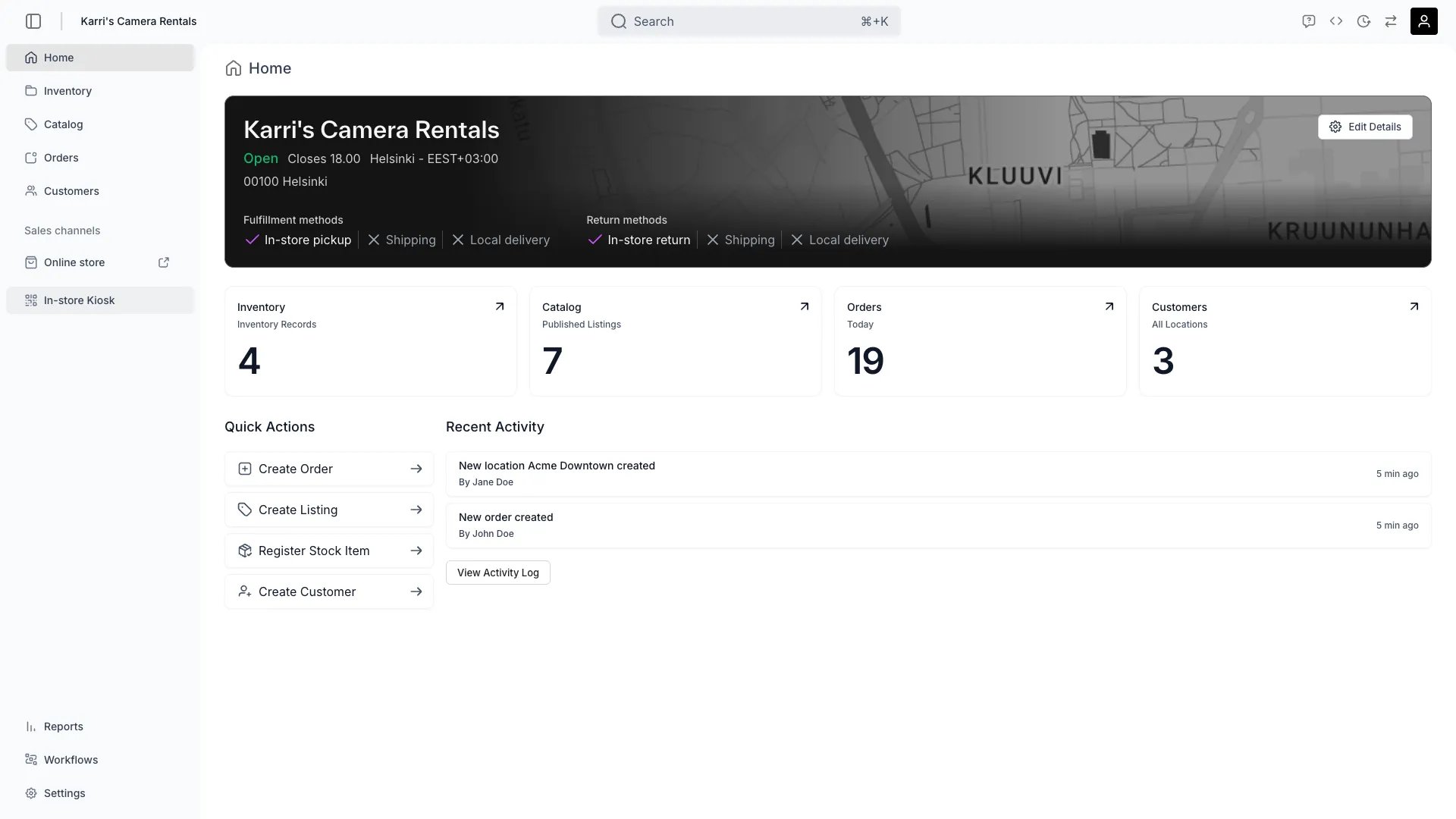 This view can look different dependent on your user role.
See [Visibility & Permissions](#visibility-and-permissions) for details.
## Primary Purpose
The top navigation bar provides access to global actions and control and user profile specific settings.
Switch between locations you have access to. The selected location controls which data and orders you see elsewhere in the Admin views.
Read more: [Managing Multiple Locations](/docs/concepts/admin/locations)
Access these Docs inside the platform. Reach out to support.
Read more: [How to use Docs](/docs/index)
Access the account-wide activity logs. Review all actions across your entire account, including who accessed records, made changes, and when—dependent on your user access levels.
Read more: [Activity Logs](/docs/concepts/admin/activity-logs)
Access your profile, set up preferences, and manage other user account specific settings. If you belong to multiple merchant accounts, switch between them from the profile menu or the [Merchant accounts](/docs/settings/profile#merchant-accounts) card.
Read more: [User Profile](/docs/settings/profile)
## Related Concepts
Here are a few key concepts of TWICE Commerce that relate to the top navigation.
* The top navigation maintains consistent access to key functions regardless of where you are in the platform.
* A location (or multiple locations) is always selected in the top navigation, setting the context for all data and actions available throughout the Admin.
Every user can define a range of personal preferences in TWICE Commerce. These include settings such as your interface language, personal information, and how data is displayed for you.
For example, you can save custom views of data tables (filters, columns, sorts) to your own account — those saved views are only visible to you, and do not appear for your colleagues. Only table views marked as Global are shared with the whole team, ensuring you can personalize your Admin experience without affecting others.
## Visibility and Permissions
Access to top navigation features is controlled by your user role. Your user role determines both
visibility and
permissions for
manage,
edit, and
view access levels.
| Feature | Admin | Manager | Member |
| ----------------- | ----- | ------- | ------ |
| Location Selector | ✓ | ✓ | ✓ |
| Notifications | ✓ | ✓ | ✓ |
| Docs & Support | ✓ | ✓ | ✓ |
| Activity Logs | ✓ | ✓ | ✗ |
| Profile Settings | ✓ | ✓ | ✓ |
| Feature | Admin | Manager | Member |
| ----------------- | ------ | ------- | ------ |
| Location Selector | Manage | Manage | Manage |
| Notifications | Manage | Manage | Manage |
| Docs & Support | View | View | View |
| Activity Logs | View | View | - |
| Profile Settings | Manage | Manage | Manage |