> ## Documentation Index
> Fetch the complete documentation index at: https://www.twicecommerce.com/docs/llms.txt
> Use this file to discover all available pages before exploring further.
# Sidebar
> Navigate through TWICE Commerce using the main sidebar navigation
export const viewAccessDefinition = "Read-only access without ability to make changes.";
export const editAccessDefinition = "Update and read data, but cannot create or delete.";
export const manageAccessDefinition = "Create, update, read, and delete data.";
export const permissionsDefinition = "The actions you are authorized to perform.";
export const visibilityDefinition = "Which features, sections, or data tables are visible to you.";
export const userRoleDefinition = "What a user can see and do. Each user has one built-in system role — Owner, Admin, Manager, or Member — and can also be assigned any number of custom roles you create with specific permissions. Effective access is the combination of all their roles.";
export const reservationDefinition = "An internal reservation that allocates inventory for a specific time period, blocking availability. Reservations are manageable under the stock item's 'Timeline' and ensure items are ready for maintenance or internal use.";
export const attributesDefinition = "An attribute is a custom data field that captures additional information about entities in TWICE Commerce - from technical specifications and operational data to business-specific metadata. Attributes give you full control over what data you want to record for any asset, allowing you to extend the platform to match your exact business needs.";
export const onlineStoreDefinition = "The Online Store is a whitelabel e-commerce storefront provided by TWICE that enables customers to browse, configure, and purchase or rent products directly. It provides a fully customizable, mobile-responsive shopping experience under your own branding, integrated with your inventory, catalog, and order management systems.";
export const fulfillmentDefinition = "Fulfillment is the process of delivering products to customers, including inventory allocation, pickup/delivery coordination, returns processing, and completing the physical handoff of items.";
export const orderDefinition = "A customer-facing order that tracks the entire journey from initial reservation through fulfillment, payment, and completion. Orders are manageable under 'Orders' and block inventory availability. They can be for rentals, sales, buybacks, or maintenance services.";
export const salesChannelDefinition = "A sales channel is a platform or venue where customers can browse and purchase your products, such as an online store, marketplace integration, or custom storefront.";
export const collectionDefinition = "A Collection is a curated group of listings organized for merchandising and navigation purposes. Collections help customers discover products by category, theme, or business logic, and can be displayed across your online store and sales channels.";
export const listingDefinition = "A Listing is a sellable product offering in your catalog that defines what customers can purchase or rent. Listings connect to SKUs and stock items to manage availability, pricing, variants, and publishing settings across your sales channels.";
export const skuDefinition = "A SKU (Stock Keeping Unit) is a product-level identifier that groups similar stock items under a shared definition. SKUs enable you to manage product information, pricing, and attributes at scale while maintaining individual stock item tracking for serialized inventory management.";
export const stockItemDefinition = "A Stock Item is a unique, serialized inventory record in TWICE that represents either a single physical item or a group of identical items tracked together. Each stock item has its own item code, allowing precise tracking of usage, income, expenses, and lifecycle events throughout its entire journey in your business.";
export const locationDefinition = "A location is any physical or logical place that holds inventory and connects to fulfillment operations — whether it's a storefront, warehouse, service center, or fulfillment hub. Locations enable multi-site operations with unified inventory visibility.";
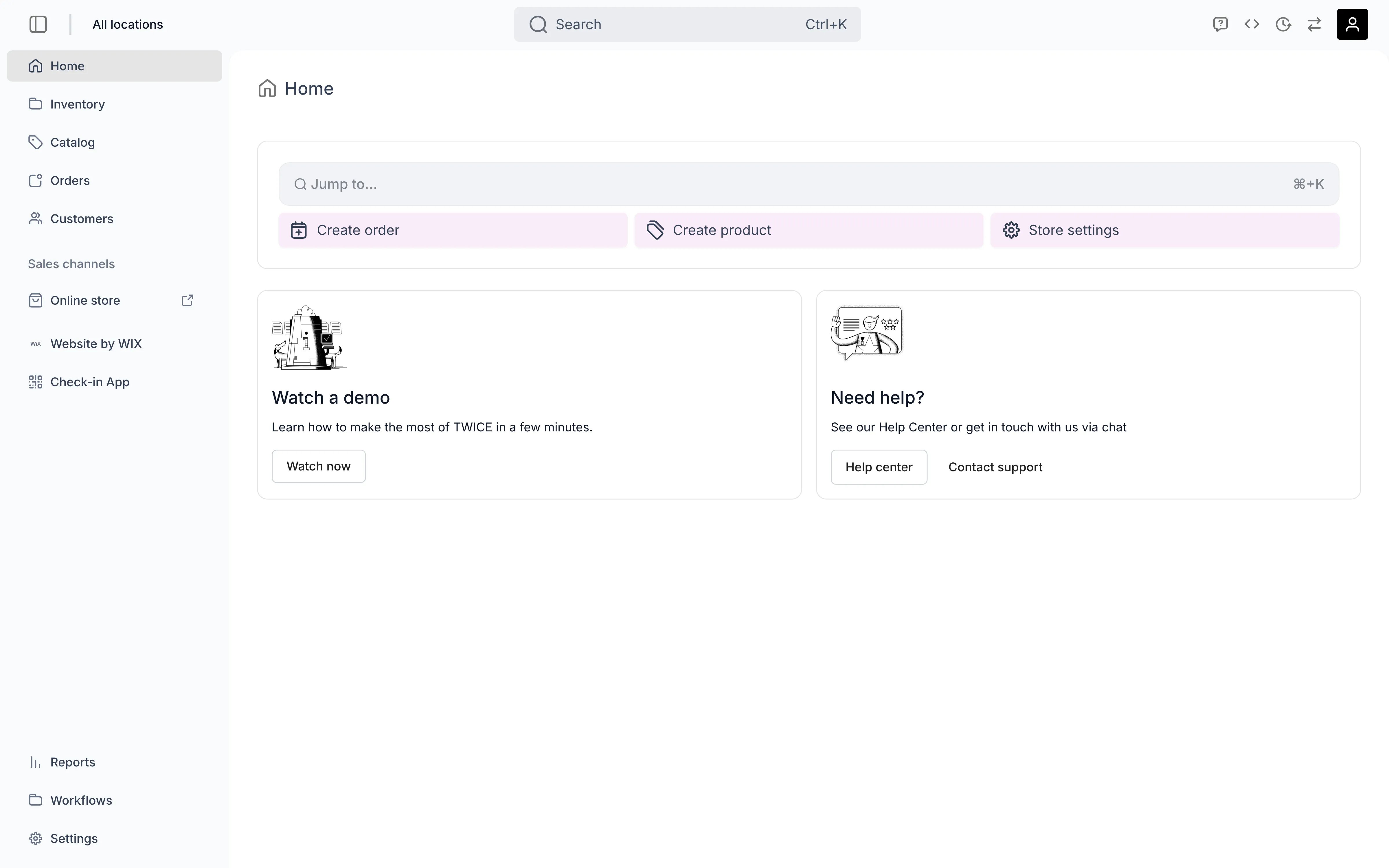 This view can look different dependent on your user role.
See [Visibility & Permissions](#visibility-and-permissions) for details.
## Primary Purpose
The sidebar is divided into three main sections for efficient navigation:
1. **Location-specific navigation** — At the top, you'll find access to features that apply to your selected location(s): [Home](/docs/home), [Inventory](/docs/inventory/stock-items/general), [Catalog](/docs/catalog/listings/general), [Orders](/docs/orders/order-tabs/summary), and [Customers](/docs/customers/customer-tabs/general). These sections change context based on your location selection.
2. **Sales Channels** — This section provides shortcuts to manage your sales channels (like [Online Store](/docs/sales-channels/online-store/overview)) that are global to your account, giving you visibility beyond a single location.
3. **Account-level navigation** — The final section contains account-wide features such as [Reports](/docs/reports), [Workflows](/docs/workflows), and [Settings](/docs/settings/account) that impact your overall TWICE Commerce environment.
Below you can find a short explanation for the purpose of each navigational element.
### Location-Specific Navigation
Access the selected location(s) dashboard showing key metrics, recent activity, and quick actions to start your day.
Read more: [Home Dashboard](/docs/home)
View and manage all stock items at your selected location. Add new stock items, update details or quantities, and organize related items using SKUs.
Check availability, create reservations for maintenance or internal orders, and enrich your data using custom attributes for filtering and reporting.
Read more: [Inventory Management](/docs/inventory/stock-items/general)
Related guides: Register New Stock • Track Item Costs
Build and manage your product listings, collections, and pricing — defining what your customers see and can purchase in each channel and location.
Read more: [Catalog Management](/docs/catalog/listings/general)
Create, manage and fulfill orders for any channel for the selected location.
Read more: [Order Management](/docs/orders/order-tabs/summary)
Related guides: Creating an Order
Manage customer profiles, track transaction history, and build relationships with your customer base.
Read more: [Customer Management](/docs/customers/customer-tabs/general)
Organize and track work across your team with assignments, due dates, and progress monitoring.
Not available yet. There is no committed release date.
### Sales Channels
Configure and manage your Online Store — a whitelabel storefront provided by TWICE to reach customers and handle e-commerce transactions directly under your own branding.
Read more: [Online Store](/docs/sales-channels/online-store/overview)
All additional and third-party sales channels (apps and integrations) will be listed here for centralized management.
Read more: [Managing Sales Channels](/docs/sales-channels/online-store/overview)
### Account-Level Navigation
Create, view, and manage custom reports tailored to your business needs. Build your own reports for sales, rentals, inventory, and accounting — or start from template examples to track performance and ensure financial compliance.
Read more: [Reports](/docs/reports)
Build automated workflows that trigger actions based on events, saving time and ensuring consistency across operations.
Read more: [Workflows](/docs/workflows)
Configure account-wide settings, integrations, payment providers, and system preferences.
Read more: [Settings](/docs/settings/account)
## Related Concepts
Here are a few key concepts of TWICE Commerce that relate to the sidebar navigation.
The sidebar mirrors your commerce operations, organizing functionality into logical sections:
* **Core Assets** (Inventory, Catalog, Orders, Customers) for day-to-day operations
* **Sales Channels** for customer-facing interfaces
* **Operations & Analysis** (Reports, Workflows) for automation and analysis.
* **Configuration** (Settings) for system setup
The sidebar sections you see are determined by your role's [visible areas](/docs/concepts/admin/visible-areas) — not by data access permissions alone. For example, a role can grant access to customer data (for use in the order flow) without showing the Customers tab in the sidebar. System roles come with predefined visible areas, and custom roles can extend them.
Read more: [Visible Areas](/docs/concepts/admin/visible-areas) | [Users & Roles](/docs/settings/users-roles)
While the sidebar structure remains consistent, the data you see within each section is filtered by your selected location (set in the top navigation). This ensures you're always working with the relevant inventory, orders, and customers for your current context.
Read more: [Locations](/docs/concepts/admin/locations)
## Visibility and Permissions
Access to top navigation features is controlled by your user role. Your user role determines both
visibility and
permissions for
manage,
edit, and
view access levels.
| Sidebar Section | Admin | Manager | Member |
| --------------- | ----- | ------- | ------ |
| Home | ✓ | ✓ | ✓ |
| Inventory | ✓ | ✓ | ✓ |
| Catalog | ✓ | ✓ | ✓ |
| Orders | ✓ | ✓ | ✓ |
| Customers | ✓ | ✓ | ✓ |
| Sales Channels | ✓ | ✓ | ✓ |
| Reports | ✓ | ✓ | ✗ |
| Workflows | ✓ | ✓ | ✗ |
| Settings | ✓ | ✗ | ✗ |
| Section / Resource | Admin | Manager | Member |
| ------------------ | ------ | ------- | ------ |
| Home | Manage | View | View |
| Inventory | Manage | Edit | View |
| Catalog | Manage | Edit | View |
| Orders | Manage | Edit | View |
| Customers | Manage | Edit | View |
| Sales Channels | Manage | Edit | View |
| Reports | View | View | - |
| Workflows | Manage | Edit | - |
| Settings | Manage | - | - |