> ## Documentation Index
> Fetch the complete documentation index at: https://www.twicecommerce.com/docs/llms.txt
> Use this file to discover all available pages before exploring further.
# Finance Reports
> Accrual-basis Revenue report and cash-basis Payments report for financial analysis and reconciliation.
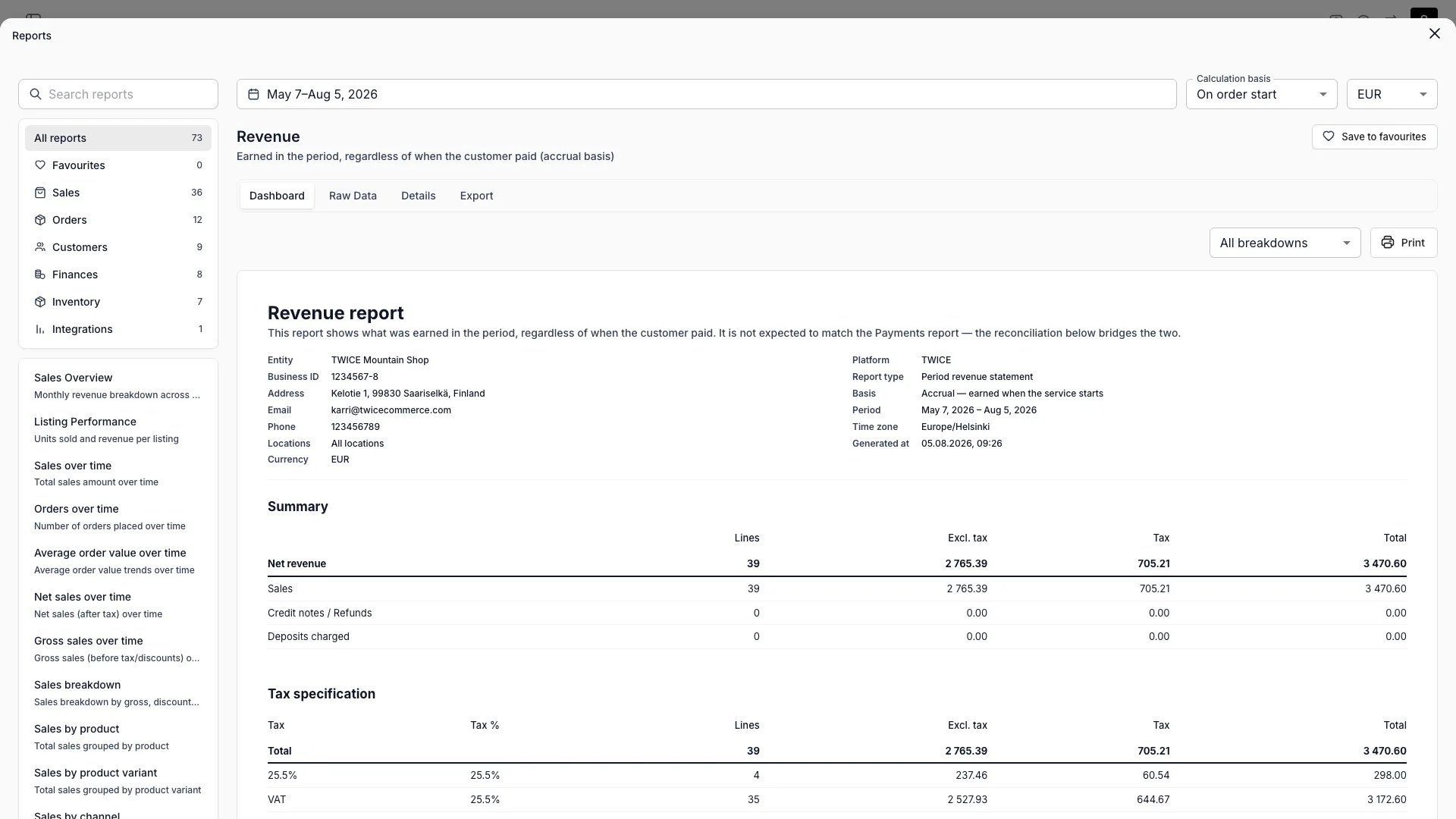 TWICE Commerce includes two complementary finance reports under **Reports > Finances**: the **Revenue report** (accrual basis) and the **Payments report** (cash basis). Together they give you a complete picture of what you earned and what you collected.
| Report | Basis | Measures |
| -------- | ------- | ----------------------------------------------------------------- |
| Revenue | Accrual | What was earned in the period, regardless of when payment arrived |
| Payments | Cash | Money received in the period, regardless of when it was earned |
Both reports share the same filter bar: date range, currency, and location. Each report has four tabs — Dashboard, Raw Data, Details, and Export.
The Raw Data tab shows at most 1,000 rows. When the ledger is larger, a warning shows how many rows exist and points you to the Export tab, where the CSV export includes up to 100,000 rows.
## Revenue report
The Revenue report answers: **how much did you earn in this period?** Revenue is recognized when the service starts (or when the order was created, depending on your selected basis) — not when the customer pays.
Navigate to **Reports > Revenue**.
### Calculation basis
A select labeled **Calculation basis** at the top of the report controls when revenue is recognized:
| Basis | Label | Rule |
| ------------------ | ----------------- | -------------------------------------------------------------------------------------------------- |
| Handover (default) | On order start | Revenue is earned when the service starts. For subscriptions, when the billing cycle begins. |
| Creation | On order creation | Revenue is earned when the order line was created. For subscriptions, when the invoice was issued. |
This is a read-time setting, not stored configuration. You can switch between the two bases at any time to view the same data from either perspective. All derived figures (deferred revenue, reconciliation) recompute when you change it.
### Summary
The top section shows four rows:
| Row | What it includes |
| ---------------------- | ------------------------------------------------------------------------------- |
| Sales | Order line items, subscription cycles, and order-level charges (shipping, fees) |
| Credit notes / Refunds | Refunds (negative) net of refund reversals (positive) |
| Deposits charged | Captured or kept deposits |
| **Net revenue** | Total of the above |
Each row shows a line count, amount excluding tax, tax, and total.
### Deferred revenue
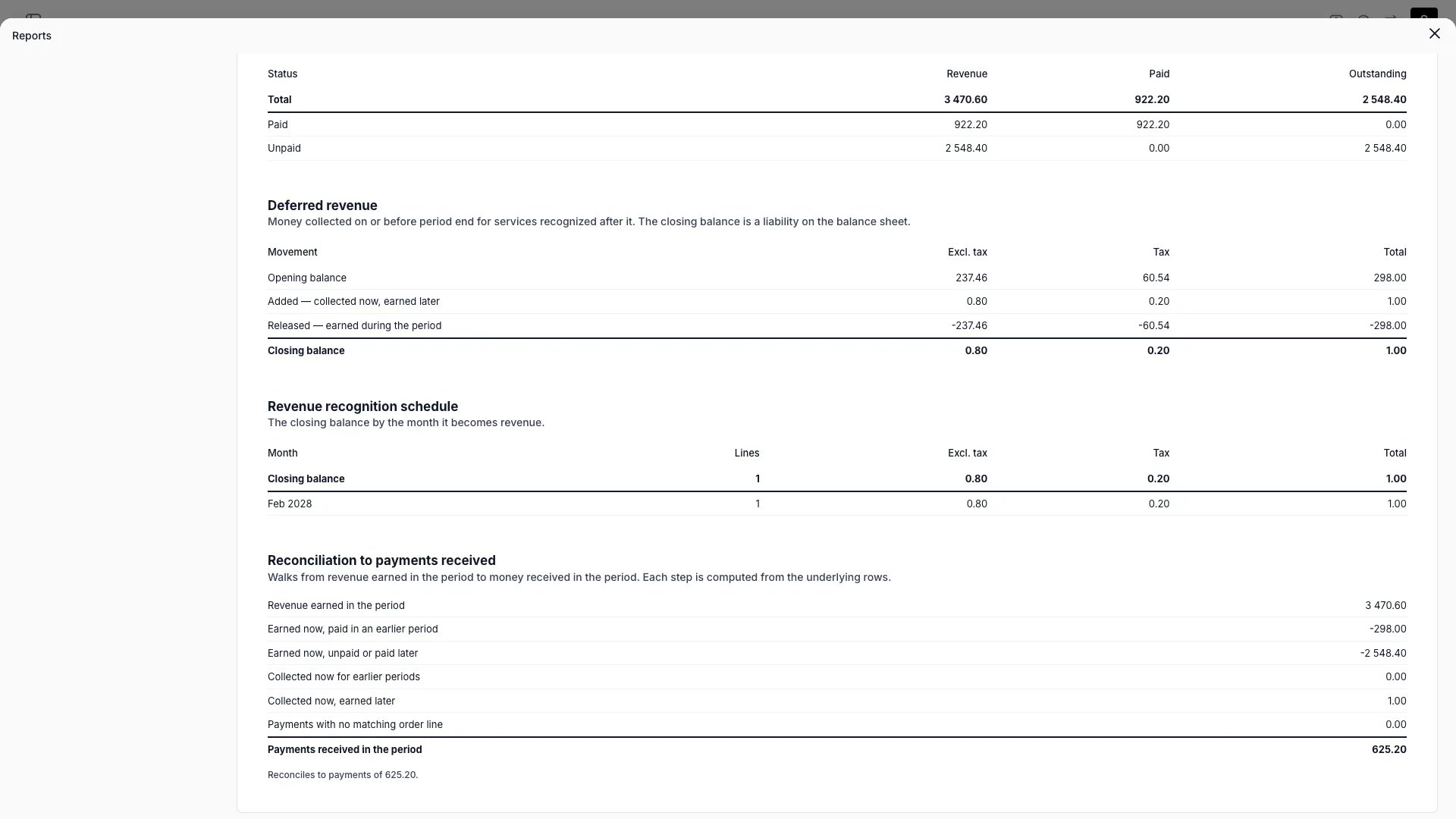
Money collected on or before period end for services recognized after it. The closing balance is a liability on your balance sheet.
Four rows track the movement:
| Row | Meaning |
| ------------------- | ------------------------------------------------------------------- |
| Opening balance | Deferred amount as of the day before the period starts |
| Added | New money collected in the period for future services |
| Released | Opening-balance lines whose recognition date fell inside the period |
| **Closing balance** | Remaining deferred liability at period end |
The identity holds: opening + added − released = closing.
When a closing balance exists, a **recognition schedule** breaks it down by the month each deferred line becomes revenue.
### Reconciliation to payments received
This section bridges accrual revenue to cash payments — it explains why the Revenue report total differs from the Payments report total. Every component is a signed addend:
| Line | Sign | Meaning |
| ------------------------------------- | ---- | ------------------------------------------------------------ |
| Revenue earned in the period | | Starting point — accrual revenue |
| Earned now, paid in an earlier period | − | Revenue earned this period but payment was already collected |
| Earned now, unpaid or paid later | − | Revenue earned but not yet collected |
| Collected now for earlier periods | + | Cash received for revenue recognized in a prior period |
| Collected now, earned later | + | Prepayments for future services (deferred revenue) |
| Payments with no matching order line | + | Orphaned payments not tied to a revenue line |
| **Payments received in the period** | = | Should match the Payments report's net payments |
When the bridge balances, a footnote confirms reconciliation.
TWICE Commerce includes two complementary finance reports under **Reports > Finances**: the **Revenue report** (accrual basis) and the **Payments report** (cash basis). Together they give you a complete picture of what you earned and what you collected.
| Report | Basis | Measures |
| -------- | ------- | ----------------------------------------------------------------- |
| Revenue | Accrual | What was earned in the period, regardless of when payment arrived |
| Payments | Cash | Money received in the period, regardless of when it was earned |
Both reports share the same filter bar: date range, currency, and location. Each report has four tabs — Dashboard, Raw Data, Details, and Export.
The Raw Data tab shows at most 1,000 rows. When the ledger is larger, a warning shows how many rows exist and points you to the Export tab, where the CSV export includes up to 100,000 rows.
## Revenue report
The Revenue report answers: **how much did you earn in this period?** Revenue is recognized when the service starts (or when the order was created, depending on your selected basis) — not when the customer pays.
Navigate to **Reports > Revenue**.
### Calculation basis
A select labeled **Calculation basis** at the top of the report controls when revenue is recognized:
| Basis | Label | Rule |
| ------------------ | ----------------- | -------------------------------------------------------------------------------------------------- |
| Handover (default) | On order start | Revenue is earned when the service starts. For subscriptions, when the billing cycle begins. |
| Creation | On order creation | Revenue is earned when the order line was created. For subscriptions, when the invoice was issued. |
This is a read-time setting, not stored configuration. You can switch between the two bases at any time to view the same data from either perspective. All derived figures (deferred revenue, reconciliation) recompute when you change it.
### Summary
The top section shows four rows:
| Row | What it includes |
| ---------------------- | ------------------------------------------------------------------------------- |
| Sales | Order line items, subscription cycles, and order-level charges (shipping, fees) |
| Credit notes / Refunds | Refunds (negative) net of refund reversals (positive) |
| Deposits charged | Captured or kept deposits |
| **Net revenue** | Total of the above |
Each row shows a line count, amount excluding tax, tax, and total.
### Deferred revenue
Money collected on or before period end for services recognized after it. The closing balance is a liability on your balance sheet.
Four rows track the movement:
| Row | Meaning |
| ------------------- | ------------------------------------------------------------------- |
| Opening balance | Deferred amount as of the day before the period starts |
| Added | New money collected in the period for future services |
| Released | Opening-balance lines whose recognition date fell inside the period |
| **Closing balance** | Remaining deferred liability at period end |
The identity holds: opening + added − released = closing.
When a closing balance exists, a **recognition schedule** breaks it down by the month each deferred line becomes revenue.
### Reconciliation to payments received
This section bridges accrual revenue to cash payments — it explains why the Revenue report total differs from the Payments report total. Every component is a signed addend:
| Line | Sign | Meaning |
| ------------------------------------- | ---- | ------------------------------------------------------------ |
| Revenue earned in the period | | Starting point — accrual revenue |
| Earned now, paid in an earlier period | − | Revenue earned this period but payment was already collected |
| Earned now, unpaid or paid later | − | Revenue earned but not yet collected |
| Collected now for earlier periods | + | Cash received for revenue recognized in a prior period |
| Collected now, earned later | + | Prepayments for future services (deferred revenue) |
| Payments with no matching order line | + | Orphaned payments not tied to a revenue line |
| **Payments received in the period** | = | Should match the Payments report's net payments |
When the bridge balances, a footnote confirms reconciliation.
 ### Breakdown sections
Toggle these on or off from the section visibility menu:
| Section | Groups by |
| ------------------- | -------------------------------------------------------------------------------------------------------------------------------------------- |
| Tax specification | Tax rate |
| Revenue by category | Revenue category (see below) |
| Revenue by location | Pickup location. Payment-sourced rows with no order are grouped under **No location** — see [Rows with no location](#rows-with-no-location). |
| Revenue by item | Line item name |
| Payment status | Paid, partially paid, or unpaid |
### Revenue categories
Both reports classify each line into one of these categories: `booking`, `booking_addon`, `sale`, `sale_addon`, `subscription`, `buyback`, `shipping`, `fee`, `rounding`, `deposit`, and `unknown`.
There is no standalone add-on category — an add-on carries its parent line's purchase type, so a booking's add-ons post as `booking_addon` and a sale's add-ons as `sale_addon`. Rows the report cannot classify land in `unknown` rather than being dropped or mislabeled, so breakdown totals always foot.
## Payments report
The Payments report answers: **how much money moved in this period?** It shows cash received and refunded, regardless of when the associated revenue was earned.
Navigate to **Reports > Payments**.
### Breakdown sections
Toggle these on or off from the section visibility menu:
| Section | Groups by |
| ------------------- | -------------------------------------------------------------------------------------------------------------------------------------------- |
| Tax specification | Tax rate |
| Revenue by category | Revenue category (see below) |
| Revenue by location | Pickup location. Payment-sourced rows with no order are grouped under **No location** — see [Rows with no location](#rows-with-no-location). |
| Revenue by item | Line item name |
| Payment status | Paid, partially paid, or unpaid |
### Revenue categories
Both reports classify each line into one of these categories: `booking`, `booking_addon`, `sale`, `sale_addon`, `subscription`, `buyback`, `shipping`, `fee`, `rounding`, `deposit`, and `unknown`.
There is no standalone add-on category — an add-on carries its parent line's purchase type, so a booking's add-ons post as `booking_addon` and a sale's add-ons as `sale_addon`. Rows the report cannot classify land in `unknown` rather than being dropped or mislabeled, so breakdown totals always foot.
## Payments report
The Payments report answers: **how much money moved in this period?** It shows cash received and refunded, regardless of when the associated revenue was earned.
Navigate to **Reports > Payments**.
 ### Movements
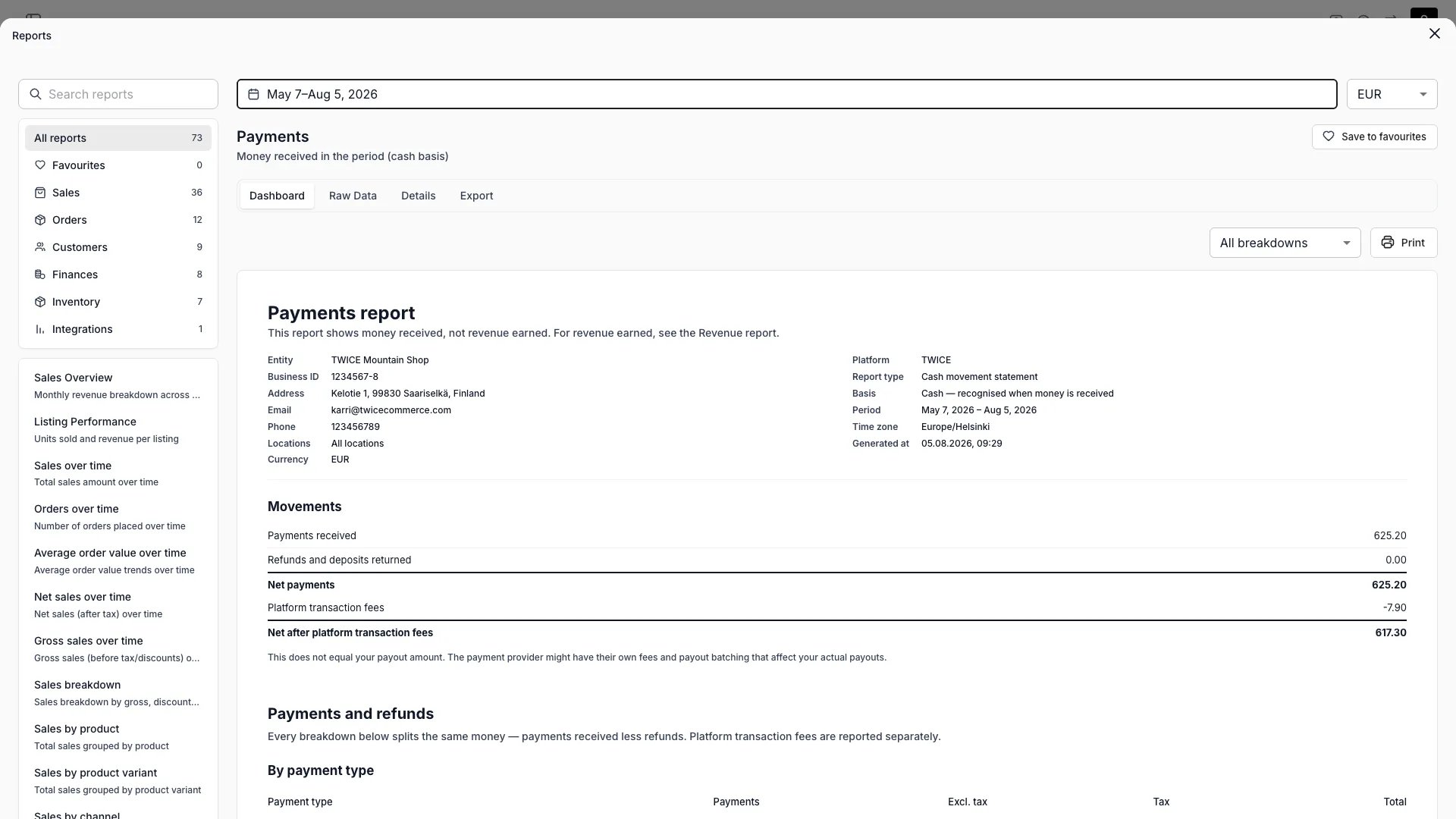
The top section shows:
| Row | Meaning |
| --------------------------------------- | ----------------------------------------------------------- |
| Payments received | All incoming money (sales, kept deposits, refund reversals) |
| Refunds and deposits returned | All outgoing money |
| **Net payments** | Payments received minus refunds |
| Platform transaction fees | TWICE's processing fee (negative) |
| **Net after platform transaction fees** | Net payments minus platform fees |
Net after platform transaction fees does not equal your payout amount. Your payment provider may apply their own fees and batch payouts separately.
### Platform transaction fees
A dedicated section breaks down TWICE's service fees by VAT rate. These fees are excluded from the payment breakdowns above because they are not customer money movements.
Fees bucket into a period by their own recorded date, not the parent payment's date. A fee the payment provider posts late lands in the period it arrives — it never rewrites the fee figures of a month you already exported.
### Breakdown sections
Toggle these on or off:
| Section | Groups by |
| ----------------- | -------------------------------------------------------------------------------------------------------------------------------- |
| By payment type | Sale, deposit charge, refund, refund reversal, or unknown |
| By payment method | Card, bank transfer, invoice, etc. |
| Daily breakdown | Calendar date in your timezone. Excludes platform fee postings. |
| By tax rate | Tax rate |
| By item | Line item name |
| By category | Revenue category (see [Revenue categories](#revenue-categories)) |
| By location | Pickup location. Payments with no order are grouped under **No location** — see [Rows with no location](#rows-with-no-location). |
## Filters
Both reports share a common filter bar:
| Filter | Description |
| ---------- | ------------------------------------------------------------------------------------------------------------------------------------------------------------------------------------------------- |
| Date range | Inclusive start and end dates, interpreted in your account timezone |
| Currency | Filter by currency. Defaults to your account's configured currency. The list offers every currency the period actually holds, so a period whose only revenue is unpaid still offers its currency. |
| Location | Filter by pickup location. Only shown when you have multiple service locations. Selecting a location drops rows that belong to no location — see below. |
The Revenue report adds a **Calculation basis** select (see above).
The currency list is built from the period itself, not from a configured list. The Revenue report offers every currency with revenue recognized in the period — paid or not — plus every currency money moved in. The Payments report offers every currency money moved in, plus every currency a platform fee posting landed in.
### Rows with no location
A payment can exist with no order behind it — a captured deposit whose order was later hard-deleted, for example. Such a payment belongs to no pickup location, and it is not assigned to one, because any assignment would be a guess:
* In the all-locations view it appears in the location breakdown under **No location**.
* Selecting one or more locations excludes it from the report entirely.
Per-location reports therefore do not sum to the all-locations total for a period that holds these payments. Reconcile against the all-locations view, and treat the **No location** row as the difference.
## Report sheet header
Both reports display an organizational header above the report sections — on screen, in print, and in CSV exports. The header pulls from your [Account Details](/docs/settings/account) and report metadata:
| Field | Source |
| ------------ | ---------------------------------------------------- |
| Entity | Your business name |
| Business ID | VAT or tax registration number |
| Address | Street address, ZIP / postal code, city, and country |
| Email | Organisation contact email |
| Phone | Organisation phone number |
| Locations | Filtered location(s), or all locations |
| Currency | Filtered currency |
| Report type | Revenue or Payments |
| Basis | Calculation basis (Revenue report only) |
| Period | Selected date range |
| Time zone | Your account timezone |
| Generated at | Timestamp of the export |
| Generated by | Email of the user who generated the report |
Fields left blank in [Account Details](/docs/settings/account) are omitted from the header.
## Printing
Both reports are designed as printable financial statements. Click **Print** to produce an A4-formatted sheet with the report header, the report period, and all visible sections. What you see on screen is what prints.
## CSV export
Both reports export to CSV from the **Export** tab. Each export includes up to 100,000 rows.
### Revenue CSV
Each row represents one revenue line (an order line item, subscription cycle, or payment event). Key columns:
* **Recognition\_Date** — the date revenue was recognized, in your timezone
* **Document\_Type** — `sale`, `credit_note`, or `deposit_charge`
* **Revenue\_Category** — one of the [revenue categories](#revenue-categories), e.g. `booking`, `booking_addon`, `sale_addon`, `shipping`, `deposit`
* **Amount\_Excl\_Tax**, tax columns (one per rate), **Amount\_Total**
* **Payment\_Status** — `paid`, `partially_paid`, or `unpaid`
* **Amount\_Paid**, **Amount\_Refunded**, **Amount\_Outstanding**
* **First\_Payment\_Date** — the date of the earliest sale payment against the line, in your timezone. Empty when no sale payment in the report currency reached the line by the period end.
* **Row\_ID** — unique and stable across exports (use for idempotent import)
Refunds are negative and refund reversals are positive, so `SUM(Amount_Total)` equals net revenue.
**Payment\_Status**, the amount columns, and **First\_Payment\_Date** all stop at the period end. A payment made after the period never appears on that period's rows, so a row exported as `unpaid` cannot cite a later payment date, and re-exporting a closed period returns the same figures it returned the first time.
### Payments CSV
Each row represents one payment line or platform fee posting. Key columns:
* **Payment\_Date** and **Payment\_Datetime** — in your timezone
* **Payment\_Type** — `sale`, `deposit_charge`, `refund`, `refund_reverse`, `unknown`, or `fee`
* **Payment\_Method** and **Payment\_Provider**
* **Amount\_Excl\_Tax**, tax columns, **Amount\_Total**
* **Revenue\_Row\_ID** — matches the revenue export's `Row_ID` (empty on platform fees and orphaned collections)
* **Row\_ID** — unique and stable across exports
Refunds and platform fees are negative, so `SUM(Amount_Total)` equals net proceeds.
### Joining the two exports
The payments CSV includes a **Revenue\_Row\_ID** column that references the revenue CSV's **Row\_ID**. Use this to join cash payments to their corresponding accrual revenue lines. Platform transaction fees and orphaned collections have no matching revenue row.
## Control checks
Both reports run automated integrity checks on every request. The checks verify that breakdown totals match the summary and that the reconciliation bridge balances. Only failures that indicate a defect in the report itself surface a notice with a reference ID; routine data-quality findings — differences that can occur on ordinary merchant data, such as legacy tax rows — are logged for TWICE to review and do not appear in the report.
## Related
All report categories and shared features.
Business name, address, and contact info shown in the report header.
Payment providers, methods, and processing.
Deposit holds, captures, and releases.
Booking, sale, and subscription orders.
### Movements
The top section shows:
| Row | Meaning |
| --------------------------------------- | ----------------------------------------------------------- |
| Payments received | All incoming money (sales, kept deposits, refund reversals) |
| Refunds and deposits returned | All outgoing money |
| **Net payments** | Payments received minus refunds |
| Platform transaction fees | TWICE's processing fee (negative) |
| **Net after platform transaction fees** | Net payments minus platform fees |
Net after platform transaction fees does not equal your payout amount. Your payment provider may apply their own fees and batch payouts separately.
### Platform transaction fees
A dedicated section breaks down TWICE's service fees by VAT rate. These fees are excluded from the payment breakdowns above because they are not customer money movements.
Fees bucket into a period by their own recorded date, not the parent payment's date. A fee the payment provider posts late lands in the period it arrives — it never rewrites the fee figures of a month you already exported.
### Breakdown sections
Toggle these on or off:
| Section | Groups by |
| ----------------- | -------------------------------------------------------------------------------------------------------------------------------- |
| By payment type | Sale, deposit charge, refund, refund reversal, or unknown |
| By payment method | Card, bank transfer, invoice, etc. |
| Daily breakdown | Calendar date in your timezone. Excludes platform fee postings. |
| By tax rate | Tax rate |
| By item | Line item name |
| By category | Revenue category (see [Revenue categories](#revenue-categories)) |
| By location | Pickup location. Payments with no order are grouped under **No location** — see [Rows with no location](#rows-with-no-location). |
## Filters
Both reports share a common filter bar:
| Filter | Description |
| ---------- | ------------------------------------------------------------------------------------------------------------------------------------------------------------------------------------------------- |
| Date range | Inclusive start and end dates, interpreted in your account timezone |
| Currency | Filter by currency. Defaults to your account's configured currency. The list offers every currency the period actually holds, so a period whose only revenue is unpaid still offers its currency. |
| Location | Filter by pickup location. Only shown when you have multiple service locations. Selecting a location drops rows that belong to no location — see below. |
The Revenue report adds a **Calculation basis** select (see above).
The currency list is built from the period itself, not from a configured list. The Revenue report offers every currency with revenue recognized in the period — paid or not — plus every currency money moved in. The Payments report offers every currency money moved in, plus every currency a platform fee posting landed in.
### Rows with no location
A payment can exist with no order behind it — a captured deposit whose order was later hard-deleted, for example. Such a payment belongs to no pickup location, and it is not assigned to one, because any assignment would be a guess:
* In the all-locations view it appears in the location breakdown under **No location**.
* Selecting one or more locations excludes it from the report entirely.
Per-location reports therefore do not sum to the all-locations total for a period that holds these payments. Reconcile against the all-locations view, and treat the **No location** row as the difference.
## Report sheet header
Both reports display an organizational header above the report sections — on screen, in print, and in CSV exports. The header pulls from your [Account Details](/docs/settings/account) and report metadata:
| Field | Source |
| ------------ | ---------------------------------------------------- |
| Entity | Your business name |
| Business ID | VAT or tax registration number |
| Address | Street address, ZIP / postal code, city, and country |
| Email | Organisation contact email |
| Phone | Organisation phone number |
| Locations | Filtered location(s), or all locations |
| Currency | Filtered currency |
| Report type | Revenue or Payments |
| Basis | Calculation basis (Revenue report only) |
| Period | Selected date range |
| Time zone | Your account timezone |
| Generated at | Timestamp of the export |
| Generated by | Email of the user who generated the report |
Fields left blank in [Account Details](/docs/settings/account) are omitted from the header.
## Printing
Both reports are designed as printable financial statements. Click **Print** to produce an A4-formatted sheet with the report header, the report period, and all visible sections. What you see on screen is what prints.
## CSV export
Both reports export to CSV from the **Export** tab. Each export includes up to 100,000 rows.
### Revenue CSV
Each row represents one revenue line (an order line item, subscription cycle, or payment event). Key columns:
* **Recognition\_Date** — the date revenue was recognized, in your timezone
* **Document\_Type** — `sale`, `credit_note`, or `deposit_charge`
* **Revenue\_Category** — one of the [revenue categories](#revenue-categories), e.g. `booking`, `booking_addon`, `sale_addon`, `shipping`, `deposit`
* **Amount\_Excl\_Tax**, tax columns (one per rate), **Amount\_Total**
* **Payment\_Status** — `paid`, `partially_paid`, or `unpaid`
* **Amount\_Paid**, **Amount\_Refunded**, **Amount\_Outstanding**
* **First\_Payment\_Date** — the date of the earliest sale payment against the line, in your timezone. Empty when no sale payment in the report currency reached the line by the period end.
* **Row\_ID** — unique and stable across exports (use for idempotent import)
Refunds are negative and refund reversals are positive, so `SUM(Amount_Total)` equals net revenue.
**Payment\_Status**, the amount columns, and **First\_Payment\_Date** all stop at the period end. A payment made after the period never appears on that period's rows, so a row exported as `unpaid` cannot cite a later payment date, and re-exporting a closed period returns the same figures it returned the first time.
### Payments CSV
Each row represents one payment line or platform fee posting. Key columns:
* **Payment\_Date** and **Payment\_Datetime** — in your timezone
* **Payment\_Type** — `sale`, `deposit_charge`, `refund`, `refund_reverse`, `unknown`, or `fee`
* **Payment\_Method** and **Payment\_Provider**
* **Amount\_Excl\_Tax**, tax columns, **Amount\_Total**
* **Revenue\_Row\_ID** — matches the revenue export's `Row_ID` (empty on platform fees and orphaned collections)
* **Row\_ID** — unique and stable across exports
Refunds and platform fees are negative, so `SUM(Amount_Total)` equals net proceeds.
### Joining the two exports
The payments CSV includes a **Revenue\_Row\_ID** column that references the revenue CSV's **Row\_ID**. Use this to join cash payments to their corresponding accrual revenue lines. Platform transaction fees and orphaned collections have no matching revenue row.
## Control checks
Both reports run automated integrity checks on every request. The checks verify that breakdown totals match the summary and that the reconciliation bridge balances. Only failures that indicate a defect in the report itself surface a notice with a reference ID; routine data-quality findings — differences that can occur on ordinary merchant data, such as legacy tax rows — are logged for TWICE to review and do not appear in the report.
## Related
All report categories and shared features.
Business name, address, and contact info shown in the report header.
Payment providers, methods, and processing.
Deposit holds, captures, and releases.
Booking, sale, and subscription orders.