> ## Documentation Index
> Fetch the complete documentation index at: https://www.twicecommerce.com/docs/llms.txt
> Use this file to discover all available pages before exploring further.
# Archiving and Deletion
> How TWICE removes assets: archiving takes them out of use, deletion removes them for good.
Removing an asset in the admin archives it. Archiving takes the asset out of use and hides it from the places it would otherwise appear, but keeps the record and everything that references it. You bring it back with **Unarchive**, or remove it for good from [Settings → Archived assets](/docs/settings/archived-assets).
The same lifecycle applies to every major asset: listings, collections, price tables, discount codes, stock items, SKUs, orders, customers, and locations.
## How it works
### The lifecycle
| Stage | What it means | How you get there | How you get back |
| :----------- | :--------------------------------------------------------------- | :---------------------------------------- | :----------------------------------------------------------------------------------- |
| **Active** | In normal use | The default for everything you create | — |
| **Archived** | Out of use, hidden from lists and the storefront, still readable | Any remove or archive action in the admin | **Unarchive**, from the archived asset's own page or from Settings → Archived assets |
| **Deleted** | No longer returned anywhere | **Delete** in Settings → Archived assets | Not reversible from the admin |
Hard delete is not reachable from the admin. Every remove action you can click archives; the only deletion available is the one on an already-archived asset.
Deleting an archived asset cannot be undone in the admin. Unarchive is the reversible step; Delete is not.
### Archiving is a state, not a status
Archiving stamps a timestamp on the asset. It is a separate axis from the asset's own status:
* A listing has a publishing status — **Public** or **Draft** — and, independently, is either active or archived.
* An order has a status — pending, draft, open, active, or closed — and, independently, is either active or archived. An order is closed *and* archived.
See [Status vs State](/docs/concepts/repeating-patterns/status-vs-state) for the status side of that pairing.
### What archiving hides, and what it keeps
| Hidden | Kept |
| :-------------------------------------------------------------------------------------------------------------- | :-------------------------------------------------------------------------- |
| Table lists and pickers across the admin, which show active assets by default | The asset's own detail page, which still opens and shows an archived banner |
| The storefront — archived listings, collections, and locations are not reachable and cannot be resolved by slug | Orders and history that already reference the asset |
| Bookable capacity — an archived stock item adds none, and archiving releases its future holds | Existing bookings on an archived stock item, which keep operating |
### Visibility rules
* Lists return active assets only unless you ask otherwise. The archived view asks for archived assets only; list endpoints take a `scope` filter of `active` (the default), `archived`, or `all`.
* Fetching a single asset by its id still returns it when archived. That is how detail pages, banners, and unarchiving keep working.
* Deleted assets are never returned — not from lists, not by id, not on the storefront — regardless of the scope you ask for.
* The storefront excludes archived and deleted assets with no opt-out.
### Impact scans
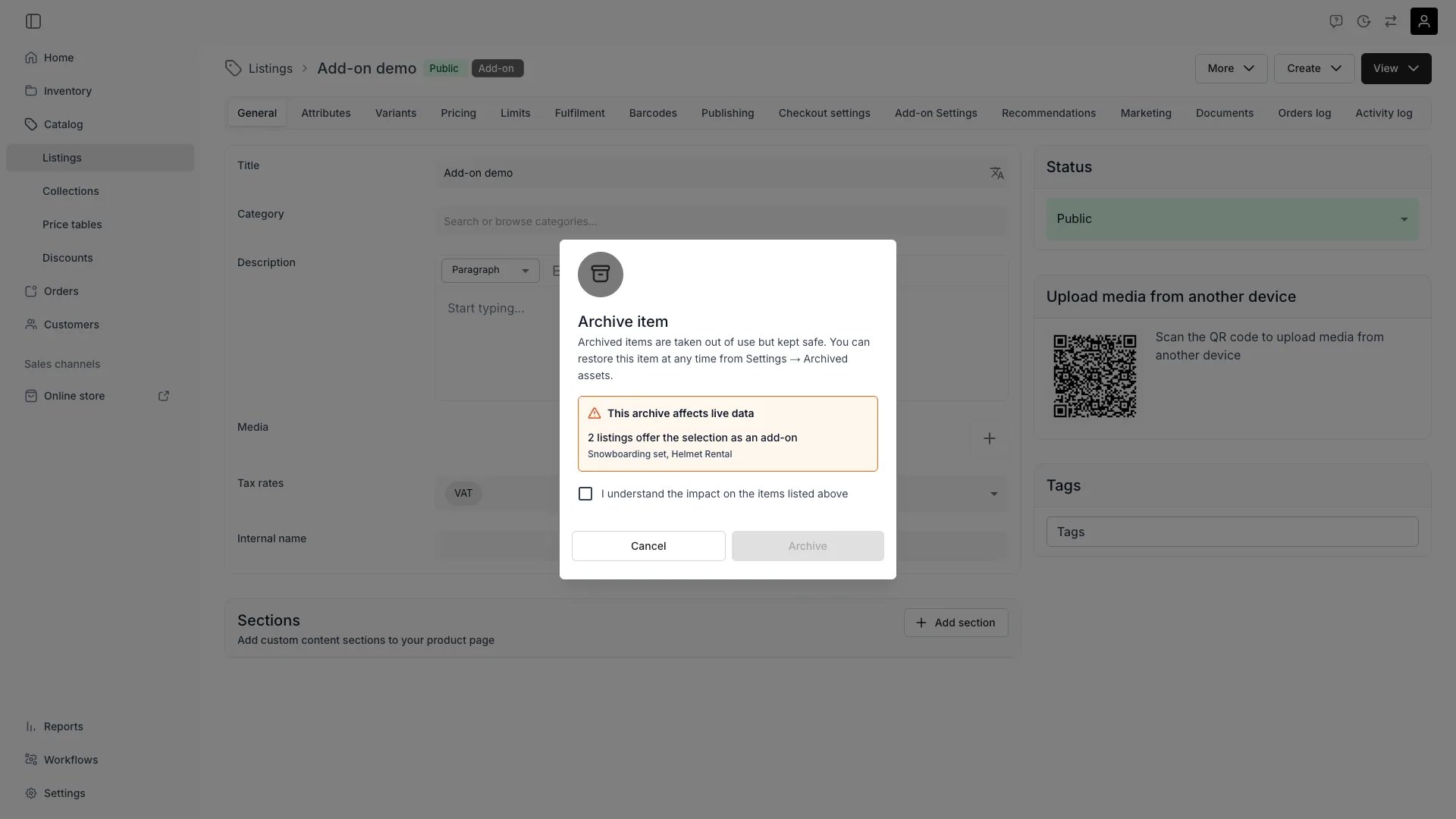
Every archive action first scans what live data it would affect and shows the result in the confirmation dialog. Findings come in two severities: warnings, which mean archiving breaks something operational and require you to tick an acknowledgement before you can confirm, and informational notes about references that will be left dangling.
 | Asset | What the scan reports |
| :------------- | :---------------------------------------------------------------------------------------------------------------------------------------------------------------------------------- |
| Stock items | Upcoming order bookings using the stock, which become [conflicts](/docs/concepts/orders/stock-item-conflicts) needing a replacement unit, and upcoming reservations that lose their hold |
| SKUs | Active stock items that would be left without their SKU |
| Listings | Use as an add-on or related listing, storefront navigation and homepage references, discount codes restricted to the listing, and collection memberships |
| Price tables | Active listings priced by the selection, and tables that are a listing's default |
| Discount codes | Codes already used in orders — informational, since those orders are unaffected |
| Customers | Open orders, active subscriptions, and open invoices |
| Orders | Open orders in the selection that would be closed first, and closed orders that archive as-is |
| Locations | Stock items and orders that archive with the location, listings left with no active location, and assigned team members |
### Permissions
Permissions are checked per asset type, using the same resource permissions that govern the asset elsewhere:
| Action | Permission needed |
| :----------------------- | :--------------------- |
| Run the impact scan | `view` on that asset |
| Archive, unarchive | `manage` on that asset |
| Delete an archived asset | `delete` on that asset |
Settings → Archived assets itself carries no separate permission — what you can do inside it follows the permissions above.
## Usage
### Archive an asset
Use the remove or archive action wherever the asset lives: the bulk toolbar on its table, or the actions on its detail page. Review the impact scan in the confirmation, acknowledge it if it carries warnings, and confirm.
### Work with archived assets
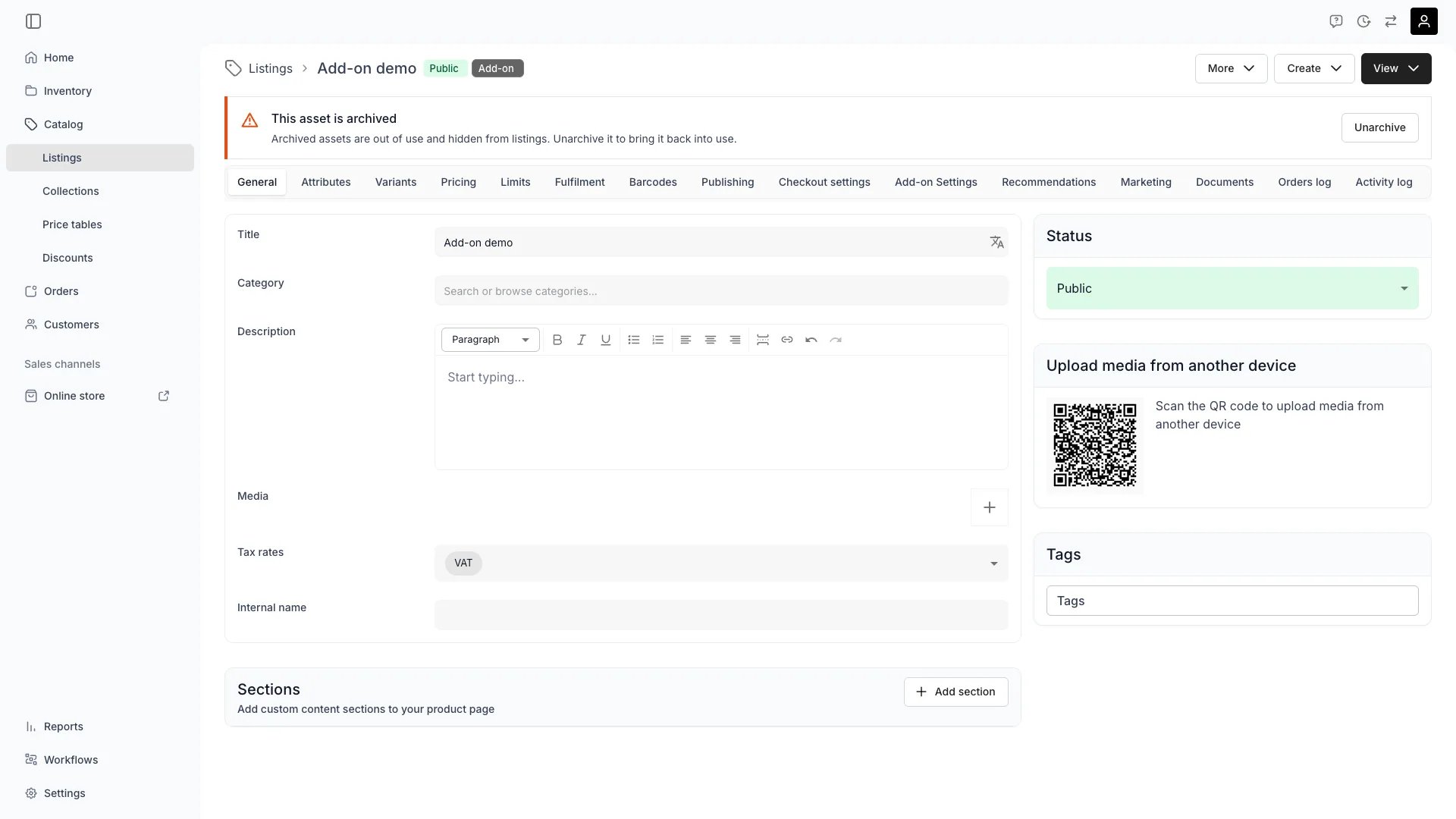
An archived asset still opens in its normal detail view, with a banner naming the state and offering **Unarchive** inline.
| Asset | What the scan reports |
| :------------- | :---------------------------------------------------------------------------------------------------------------------------------------------------------------------------------- |
| Stock items | Upcoming order bookings using the stock, which become [conflicts](/docs/concepts/orders/stock-item-conflicts) needing a replacement unit, and upcoming reservations that lose their hold |
| SKUs | Active stock items that would be left without their SKU |
| Listings | Use as an add-on or related listing, storefront navigation and homepage references, discount codes restricted to the listing, and collection memberships |
| Price tables | Active listings priced by the selection, and tables that are a listing's default |
| Discount codes | Codes already used in orders — informational, since those orders are unaffected |
| Customers | Open orders, active subscriptions, and open invoices |
| Orders | Open orders in the selection that would be closed first, and closed orders that archive as-is |
| Locations | Stock items and orders that archive with the location, listings left with no active location, and assigned team members |
### Permissions
Permissions are checked per asset type, using the same resource permissions that govern the asset elsewhere:
| Action | Permission needed |
| :----------------------- | :--------------------- |
| Run the impact scan | `view` on that asset |
| Archive, unarchive | `manage` on that asset |
| Delete an archived asset | `delete` on that asset |
Settings → Archived assets itself carries no separate permission — what you can do inside it follows the permissions above.
## Usage
### Archive an asset
Use the remove or archive action wherever the asset lives: the bulk toolbar on its table, or the actions on its detail page. Review the impact scan in the confirmation, acknowledge it if it carries warnings, and confirm.
### Work with archived assets
An archived asset still opens in its normal detail view, with a banner naming the state and offering **Unarchive** inline.
 [Settings → Archived assets](/docs/settings/archived-assets) lists everything archived, by asset type, with the same table tools you use elsewhere. Unarchive and Delete are bulk actions there.
### Per-asset behaviour
Closing an order changes its status and nothing else; archiving is a distinct action. Archiving an open order closes it first through the regular close transition — checkout links stop working, scheduled payment collections stop, subscriptions are cancelled, and the order becomes read-only. The confirmation warns about exactly that and requires an acknowledgement.
On the orders table, a selection that mixes open and closed orders asks which you mean: archive only the closed orders, or close the open ones and archive everything. A selection of open orders only can only be closed and archived. Unarchiving returns an order to closed.
Nothing is archived automatically, and existing closed orders were not archived retroactively — they gained the action, not the state.
Archiving a location asks what to do with the stock items assigned to it now or in the future: archive them with the location, or move them to another location you pick. Assignments that span the archive instant are split at that moment; assignments entirely in the past are left alone.
Orders at the location are archived with it, and open ones are closed first. You cannot archive your default location, and you cannot move stock to a location that is archived or is being archived in the same action.
An archived stock item contributes no bookable capacity, so its future reservations are released. Orders that had it assigned keep the assignment but lose the hold behind it, which surfaces them as [stock item conflicts](/docs/concepts/orders/stock-item-conflicts) to be resolved with a replacement unit. The impact scan counts these before you confirm.
A customer's `status` is derived from whether the record is archived: `active` while in use, `archived` once archived. There is no separate status control — archive and unarchive the customer instead.
## Related
The settings view for reviewing, unarchiving, and deleting
The status axis archiving sits beside
What an archived stock item leaves behind on an order
Publishing status and archiving on a listing
[Settings → Archived assets](/docs/settings/archived-assets) lists everything archived, by asset type, with the same table tools you use elsewhere. Unarchive and Delete are bulk actions there.
### Per-asset behaviour
Closing an order changes its status and nothing else; archiving is a distinct action. Archiving an open order closes it first through the regular close transition — checkout links stop working, scheduled payment collections stop, subscriptions are cancelled, and the order becomes read-only. The confirmation warns about exactly that and requires an acknowledgement.
On the orders table, a selection that mixes open and closed orders asks which you mean: archive only the closed orders, or close the open ones and archive everything. A selection of open orders only can only be closed and archived. Unarchiving returns an order to closed.
Nothing is archived automatically, and existing closed orders were not archived retroactively — they gained the action, not the state.
Archiving a location asks what to do with the stock items assigned to it now or in the future: archive them with the location, or move them to another location you pick. Assignments that span the archive instant are split at that moment; assignments entirely in the past are left alone.
Orders at the location are archived with it, and open ones are closed first. You cannot archive your default location, and you cannot move stock to a location that is archived or is being archived in the same action.
An archived stock item contributes no bookable capacity, so its future reservations are released. Orders that had it assigned keep the assignment but lose the hold behind it, which surfaces them as [stock item conflicts](/docs/concepts/orders/stock-item-conflicts) to be resolved with a replacement unit. The impact scan counts these before you confirm.
A customer's `status` is derived from whether the record is archived: `active` while in use, `archived` once archived. There is no separate status control — archive and unarchive the customer instead.
## Related
The settings view for reviewing, unarchiving, and deleting
The status axis archiving sits beside
What an archived stock item leaves behind on an order
Publishing status and archiving on a listing