> ## Documentation Index
> Fetch the complete documentation index at: https://www.twicecommerce.com/docs/llms.txt
> Use this file to discover all available pages before exploring further.
# Subscription Portal
> A self-service portal where your customers manage subscriptions, pay invoices, update payment methods, and cancel.
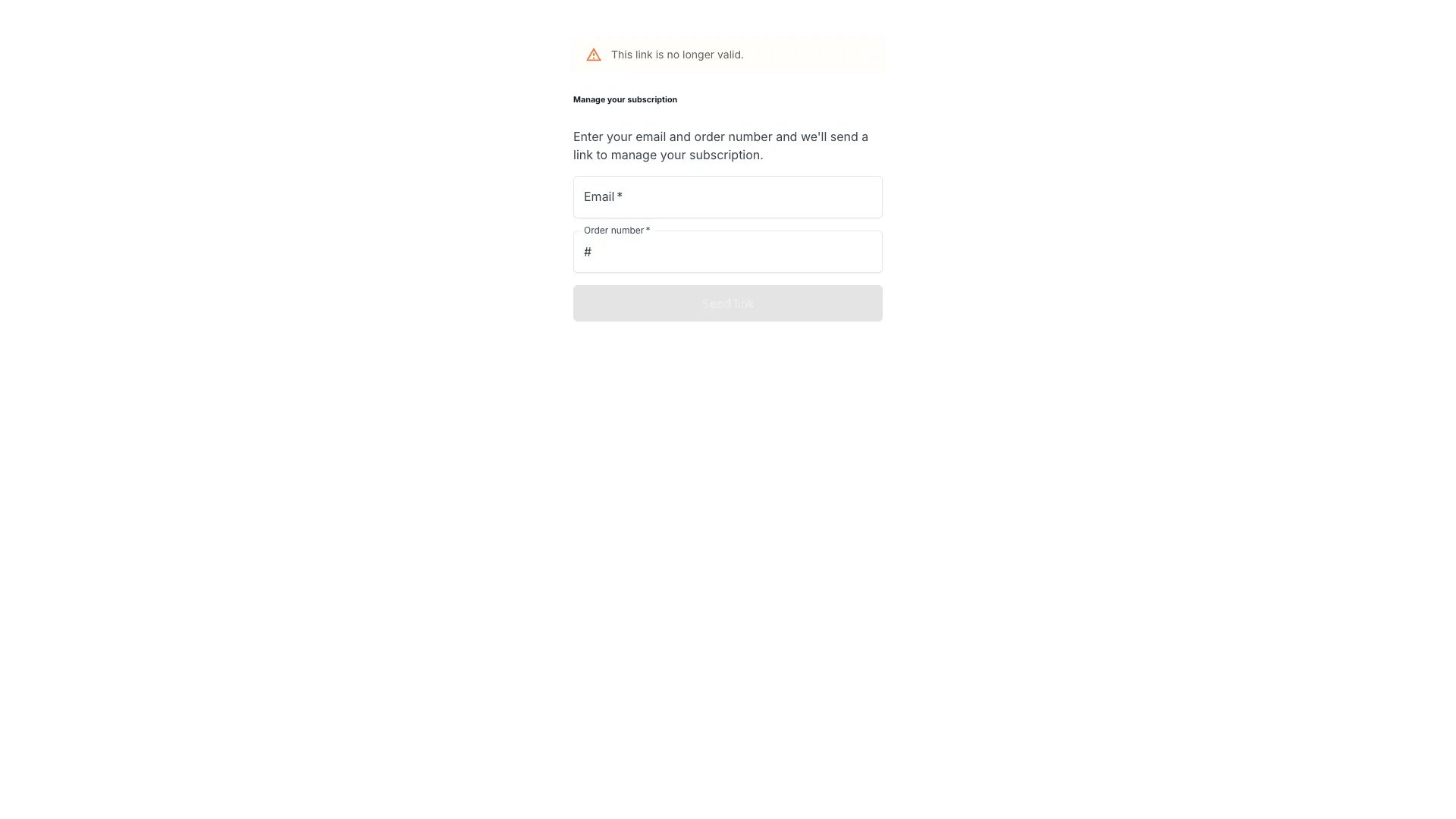 The subscription portal is a customer-facing page on your online store where customers manage their active subscriptions. Customers access the portal through a secure link sent via email — no account registration or password required.
The portal is available automatically for any order with active subscriptions. No configuration or opt-in is needed beyond having a payment gateway (Stripe or Adyen) connected and your online store deployed.
## How it works
### Magic link access
Customers reach the portal through a one-time-use link embedded in subscription-related emails:
* **Order confirmation** — sent when a subscription order is placed
* **Payment failed** — sent when an automatic charge fails
* **Renewal reminder** — sent before an upcoming billing cycle
* **Recovery email** — sent when a customer requests a new link
Each link is valid for 30 days and can only be used once. Clicking the link opens the portal and starts a 30-minute session. After the session expires, the customer needs to request a new link.
### Recovery flow
If a link has expired or been used, the customer sees a recovery form. They enter their email address and order number to receive a fresh link. The portal does not confirm whether the details match an existing order — this prevents third parties from probing for valid accounts.
## Portal sections
### Subscription cards
Each subscription on the order appears as a card showing:
* Listing name and variants
* Recurring price and billing cycle (e.g. "\$29.99/month")
* Plan label
* Status indicator
**Attention banners** appear when action is needed:
| Condition | Banner | Action |
| :------------------------------- | :------------------------------------------------------- | :-------------------- |
| No payment method on file | "Add a payment method to keep your subscription active." | Add payment method |
| Payment failed with balance owed | "Your last payment of \$X failed." | Pay now |
| Payment failed, no balance | "We couldn't collect a payment..." | Update payment method |
| Payment due | "\$X is due now." | Pay now |
| Cancellation scheduled | "Cancels {date}" | — |
**Plan details** are shown below the status:
* Start date
* Renewal type (automatic or non-renewing)
* Minimum term, when a commitment period applies (e.g. "6 months, until Jan 15, 2027")
* Cancellation notice period, when the plan auto-renews (e.g. "1 month, earliest Jan 15, 2027" or "Anytime")
* Payment schedule timeline — a list of upcoming billing-rate segments
### Upcoming payment
Displays the next scheduled payment amount and date. Shows "Overdue since {date}" for past-due invoices, or "No upcoming payments" when nothing is scheduled.
### Billing details
Shows the customer's billing email and saved payment method (card brand and last four digits). Customers can update their card or add a new one from this section.
### Invoice history
Lists all issued invoices with date, status, and amount. Each invoice supports:
* **Retry** — re-attempt a failed charge using the saved card (available when the invoice is open and a card is on file)
* **Download invoice PDF** — available for all issued invoices
* **Download receipt PDF** — available after payment is captured
### Cancel subscription
Customers can cancel individual subscriptions or all subscriptions on the order at once.
## Subscription states
The portal shows these statuses on each subscription card:
| State | Label | Meaning |
| :------------- | :--------------- | :-------------------------------------------------------- |
| Active | "Active" | Billing normally, card on file, no issues |
| Payment due | "Payment due" | An unpaid balance exists |
| Payment failed | "Payment failed" | The last automatic charge was declined |
| No card | "Add a card" | No payment method saved (auto-collect subscriptions only) |
| Cancelling | "Cancelling" | Cancellation is scheduled for a future date |
| Cancelled | "Cancelled" | Subscription has been cancelled |
| Ended | "Ended" | Subscription completed its full term |
## Cancellation flow
When a customer cancels, the portal shows a confirmation dialog with the effective cancellation date. The date depends on the subscription plan's commitment period and cancellation notice period:
* The subscription stays active and continues billing until the effective date
* If the effective date is today, the cancellation takes effect immediately
* The confirmation dialog shows any outstanding balance and remaining scheduled charges before the effective date
After confirmation:
* **Immediate cancellation** — the subscription status changes to "Cancelled" and billing stops
* **Scheduled cancellation** — the subscription is marked "Cancelling" and continues billing until the effective date, then automatically transitions to "Cancelled"
A confirmation email is sent after cancellation. For batch cancellations (cancelling all subscriptions), a single grouped email is sent per distinct effective date.
Cancellation stops future automatic charges but does not clear existing unpaid balances. Outstanding invoices remain collectible.
## Payment updates
Updating a payment method creates a zero-amount authorization to verify the card. If the card requires 3D Secure verification, the customer completes the challenge in the portal. After a successful card update, the portal automatically attempts to settle any outstanding balance.
The **Pay Now** action charges all open invoices using the saved card in a single transaction. If no card is on file or the charge fails, the customer is prompted to add or update their payment method.
## Prerequisites
The portal requires:
* A **payment gateway** (Stripe or Adyen) connected to your account — needed for card updates and payment actions
* Your **online store** deployed — the portal is hosted on your storefront
* **Email delivery** active — magic links are sent via email
No additional merchant configuration is needed. The portal inherits your storefront theme and displays your merchant name.
## Related
Purchase types including subscription orders.
Payment processing, refunds, and provider requirements.
The subscription portal is a customer-facing page on your online store where customers manage their active subscriptions. Customers access the portal through a secure link sent via email — no account registration or password required.
The portal is available automatically for any order with active subscriptions. No configuration or opt-in is needed beyond having a payment gateway (Stripe or Adyen) connected and your online store deployed.
## How it works
### Magic link access
Customers reach the portal through a one-time-use link embedded in subscription-related emails:
* **Order confirmation** — sent when a subscription order is placed
* **Payment failed** — sent when an automatic charge fails
* **Renewal reminder** — sent before an upcoming billing cycle
* **Recovery email** — sent when a customer requests a new link
Each link is valid for 30 days and can only be used once. Clicking the link opens the portal and starts a 30-minute session. After the session expires, the customer needs to request a new link.
### Recovery flow
If a link has expired or been used, the customer sees a recovery form. They enter their email address and order number to receive a fresh link. The portal does not confirm whether the details match an existing order — this prevents third parties from probing for valid accounts.
## Portal sections
### Subscription cards
Each subscription on the order appears as a card showing:
* Listing name and variants
* Recurring price and billing cycle (e.g. "\$29.99/month")
* Plan label
* Status indicator
**Attention banners** appear when action is needed:
| Condition | Banner | Action |
| :------------------------------- | :------------------------------------------------------- | :-------------------- |
| No payment method on file | "Add a payment method to keep your subscription active." | Add payment method |
| Payment failed with balance owed | "Your last payment of \$X failed." | Pay now |
| Payment failed, no balance | "We couldn't collect a payment..." | Update payment method |
| Payment due | "\$X is due now." | Pay now |
| Cancellation scheduled | "Cancels {date}" | — |
**Plan details** are shown below the status:
* Start date
* Renewal type (automatic or non-renewing)
* Minimum term, when a commitment period applies (e.g. "6 months, until Jan 15, 2027")
* Cancellation notice period, when the plan auto-renews (e.g. "1 month, earliest Jan 15, 2027" or "Anytime")
* Payment schedule timeline — a list of upcoming billing-rate segments
### Upcoming payment
Displays the next scheduled payment amount and date. Shows "Overdue since {date}" for past-due invoices, or "No upcoming payments" when nothing is scheduled.
### Billing details
Shows the customer's billing email and saved payment method (card brand and last four digits). Customers can update their card or add a new one from this section.
### Invoice history
Lists all issued invoices with date, status, and amount. Each invoice supports:
* **Retry** — re-attempt a failed charge using the saved card (available when the invoice is open and a card is on file)
* **Download invoice PDF** — available for all issued invoices
* **Download receipt PDF** — available after payment is captured
### Cancel subscription
Customers can cancel individual subscriptions or all subscriptions on the order at once.
## Subscription states
The portal shows these statuses on each subscription card:
| State | Label | Meaning |
| :------------- | :--------------- | :-------------------------------------------------------- |
| Active | "Active" | Billing normally, card on file, no issues |
| Payment due | "Payment due" | An unpaid balance exists |
| Payment failed | "Payment failed" | The last automatic charge was declined |
| No card | "Add a card" | No payment method saved (auto-collect subscriptions only) |
| Cancelling | "Cancelling" | Cancellation is scheduled for a future date |
| Cancelled | "Cancelled" | Subscription has been cancelled |
| Ended | "Ended" | Subscription completed its full term |
## Cancellation flow
When a customer cancels, the portal shows a confirmation dialog with the effective cancellation date. The date depends on the subscription plan's commitment period and cancellation notice period:
* The subscription stays active and continues billing until the effective date
* If the effective date is today, the cancellation takes effect immediately
* The confirmation dialog shows any outstanding balance and remaining scheduled charges before the effective date
After confirmation:
* **Immediate cancellation** — the subscription status changes to "Cancelled" and billing stops
* **Scheduled cancellation** — the subscription is marked "Cancelling" and continues billing until the effective date, then automatically transitions to "Cancelled"
A confirmation email is sent after cancellation. For batch cancellations (cancelling all subscriptions), a single grouped email is sent per distinct effective date.
Cancellation stops future automatic charges but does not clear existing unpaid balances. Outstanding invoices remain collectible.
## Payment updates
Updating a payment method creates a zero-amount authorization to verify the card. If the card requires 3D Secure verification, the customer completes the challenge in the portal. After a successful card update, the portal automatically attempts to settle any outstanding balance.
The **Pay Now** action charges all open invoices using the saved card in a single transaction. If no card is on file or the charge fails, the customer is prompted to add or update their payment method.
## Prerequisites
The portal requires:
* A **payment gateway** (Stripe or Adyen) connected to your account — needed for card updates and payment actions
* Your **online store** deployed — the portal is hosted on your storefront
* **Email delivery** active — magic links are sent via email
No additional merchant configuration is needed. The portal inherits your storefront theme and displays your merchant name.
## Related
Purchase types including subscription orders.
Payment processing, refunds, and provider requirements.