> ## Documentation Index
> Fetch the complete documentation index at: https://www.twicecommerce.com/docs/llms.txt
> Use this file to discover all available pages before exploring further.
# Stock Item Conflicts
> Detect and resolve orders where assigned stock items have lost their inventory reservation.
## Definition
A **stock item conflict** occurs when a stock item is assigned to fulfill an order but no longer holds a valid reservation in the inventory system. The item is committed to the order on paper, but the underlying unavailability record that blocks other bookings from claiming it is missing.
Conflicts require attention because the conflicted item may have been double-booked or its reservation was cleared by another operation. Until resolved, the order's fulfillment is at risk.
## When does a conflict occur?
A stock item on an order is flagged as conflicting when all four conditions are true:
1. The item is **assigned to an inventory article** (it references a specific physical item)
2. The item has **no resolved unavailability reservation** (the hold that blocks competing bookings is missing)
3. The **rental period has not ended** (the return date is in the future or not set)
4. The item is **not in a terminal state** (not returned or cancelled)
Common causes:
* A scheduled event or maintenance window cleared the item's unavailability
* The item was manually unassigned from its inventory article and reassigned
* A capacity reallocation moved the reservation to a different slot
## Where conflicts appear
TWICE Commerce surfaces conflicts in two places in the admin.
### Orders table
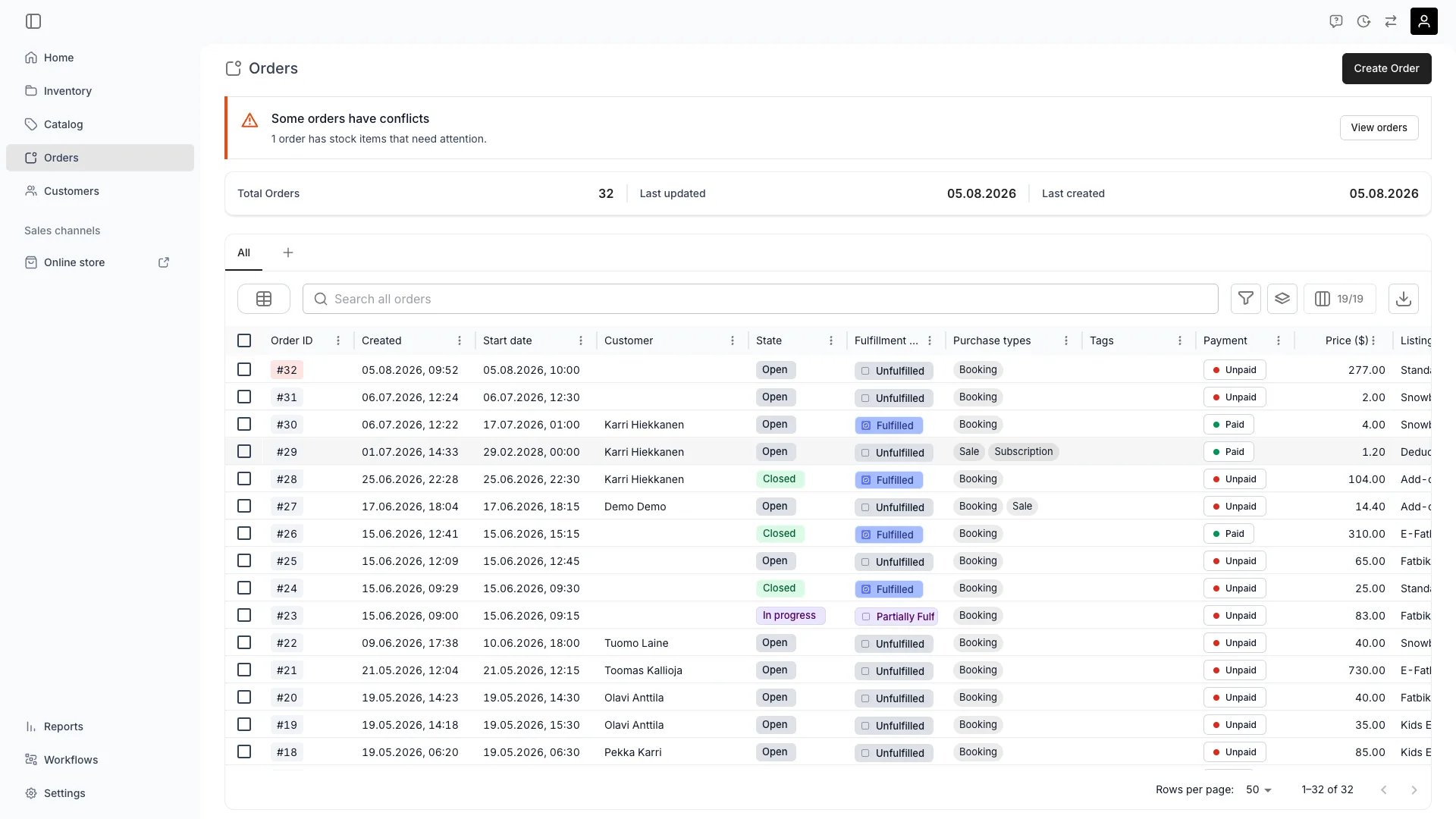 When any orders have stock item conflicts, a warning banner appears at the top of the **Orders** table:
> **Some orders have conflicts** — *N* orders have stock items that need attention.
Click **View orders** on the banner to filter the table to only orders with conflicts.
You can also:
* **Filter** the **Has conflicts** column to **Yes** to find affected orders
* **Group** by the **Has conflicts** column to separate clean orders from those needing attention
* **Spot** conflicted orders by their highlighted order number (error-colored background on the order number chip)
### Order detail page
When any orders have stock item conflicts, a warning banner appears at the top of the **Orders** table:
> **Some orders have conflicts** — *N* orders have stock items that need attention.
Click **View orders** on the banner to filter the table to only orders with conflicts.
You can also:
* **Filter** the **Has conflicts** column to **Yes** to find affected orders
* **Group** by the **Has conflicts** column to separate clean orders from those needing attention
* **Spot** conflicted orders by their highlighted order number (error-colored background on the order number chip)
### Order detail page
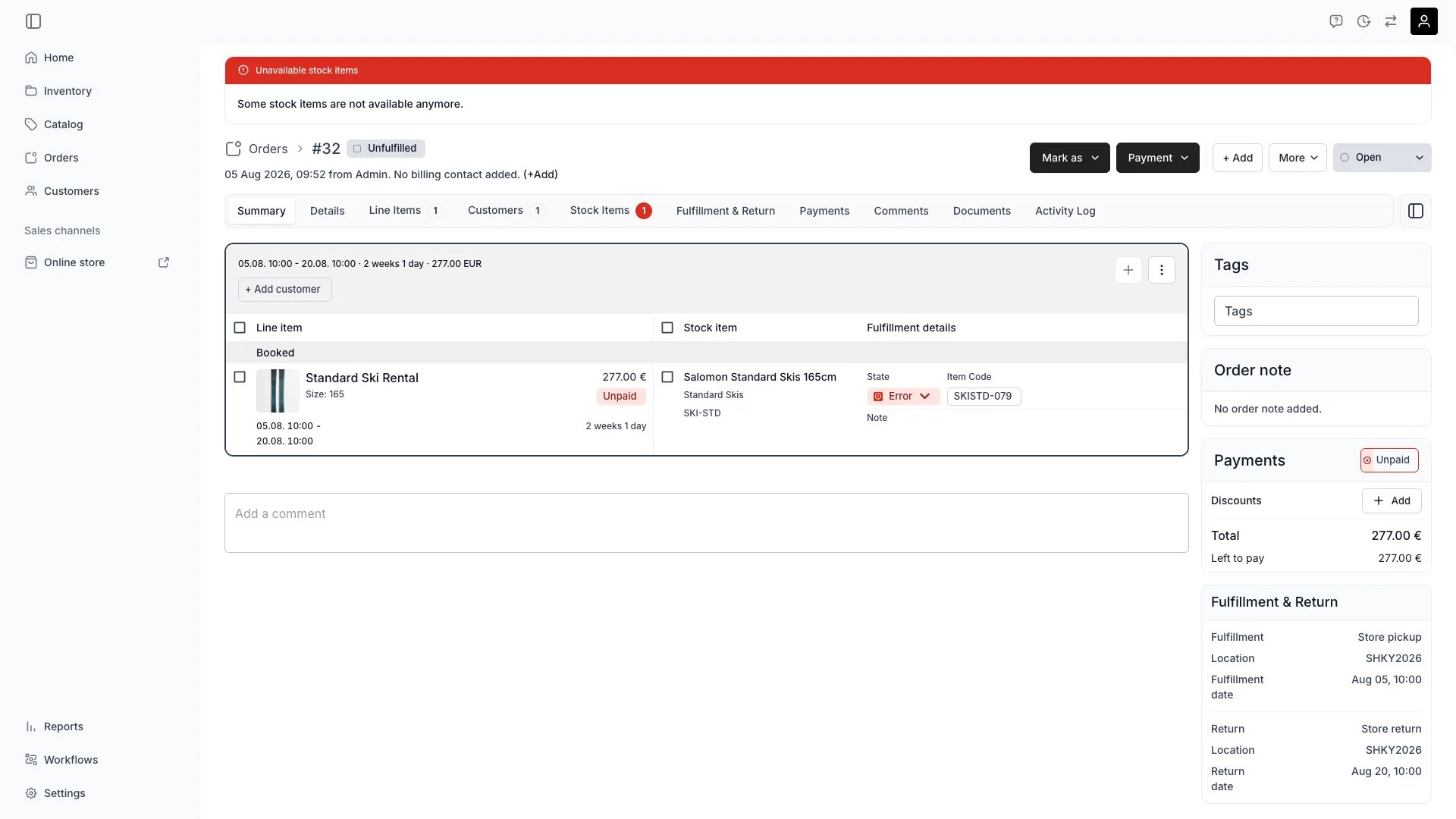 On an individual order, a red banner appears when any assigned stock item is in conflict:
> **Unavailable stock items** — Some stock items are not available anymore.
The **Stock Items** tab highlights the affected items with a red badge. Open the tab to see which specific items need reassignment.
## Resolving conflicts
To resolve a stock item conflict:
1. Open the affected order
2. Go to the **Stock Items** tab — items with conflicts are highlighted
3. Open the stock item drawer for a conflicted item
4. Use the **Change stock item** section to swap the item for an available alternative
5. TWICE Commerce shows availability status for each candidate item, so you can pick one that does not conflict with other orders
When you assign a new stock item, TWICE Commerce creates the unavailability reservation automatically. The conflict flag clears once every stock item on the order holds a valid reservation.
The conflict count on the orders table is scoped to your selected service locations. Switch locations to see conflicts at a specific site.
## Capacity-aware resolution
When resolving conflicts that involve capacity-constrained inventory, TWICE Commerce uses a capacity-aware approach:
* If a slot is already free for the requested period, the new reservation is created without disturbing other bookings
* If reallocation can free a slot (moving another booking to a different physical item), the swap is performed automatically
* Only when no slot can be freed does TWICE Commerce flag overlapping reservations that need manual intervention
This minimizes disruption to existing bookings when resolving conflicts.
## FAQs
The most common cause is a scheduled event or maintenance operation that cleared the unavailability record. Capacity reallocations and manual inventory changes can also remove reservations.
Not necessarily. A conflict means the reservation hold is missing — the item *could* be claimed by another booking. Check the item's availability calendar to see if an actual overlap exists.
Conflicts do not block order processing, but they indicate that the assigned item may not be available when the customer arrives. Resolving them promptly prevents fulfillment surprises.
No. A conflict clears only when you reassign the stock item or the order reaches a terminal state (returned or cancelled). The system detects conflicts but requires manual resolution.
The banner only appears when at least one order at your selected service location has a stock item conflict. If you have no conflicts, the table displays normally.
## Related
How In and Out state tracks physical item location.
Order status, payment, and fulfillment dimensions.
Managing assigned stock items on an individual order.
Automatic stock item assignment and reservation.
On an individual order, a red banner appears when any assigned stock item is in conflict:
> **Unavailable stock items** — Some stock items are not available anymore.
The **Stock Items** tab highlights the affected items with a red badge. Open the tab to see which specific items need reassignment.
## Resolving conflicts
To resolve a stock item conflict:
1. Open the affected order
2. Go to the **Stock Items** tab — items with conflicts are highlighted
3. Open the stock item drawer for a conflicted item
4. Use the **Change stock item** section to swap the item for an available alternative
5. TWICE Commerce shows availability status for each candidate item, so you can pick one that does not conflict with other orders
When you assign a new stock item, TWICE Commerce creates the unavailability reservation automatically. The conflict flag clears once every stock item on the order holds a valid reservation.
The conflict count on the orders table is scoped to your selected service locations. Switch locations to see conflicts at a specific site.
## Capacity-aware resolution
When resolving conflicts that involve capacity-constrained inventory, TWICE Commerce uses a capacity-aware approach:
* If a slot is already free for the requested period, the new reservation is created without disturbing other bookings
* If reallocation can free a slot (moving another booking to a different physical item), the swap is performed automatically
* Only when no slot can be freed does TWICE Commerce flag overlapping reservations that need manual intervention
This minimizes disruption to existing bookings when resolving conflicts.
## FAQs
The most common cause is a scheduled event or maintenance operation that cleared the unavailability record. Capacity reallocations and manual inventory changes can also remove reservations.
Not necessarily. A conflict means the reservation hold is missing — the item *could* be claimed by another booking. Check the item's availability calendar to see if an actual overlap exists.
Conflicts do not block order processing, but they indicate that the assigned item may not be available when the customer arrives. Resolving them promptly prevents fulfillment surprises.
No. A conflict clears only when you reassign the stock item or the order reaches a terminal state (returned or cancelled). The system detects conflicts but requires manual resolution.
The banner only appears when at least one order at your selected service location has a stock item conflict. If you have no conflicts, the table displays normally.
## Related
How In and Out state tracks physical item location.
Order status, payment, and fulfillment dimensions.
Managing assigned stock items on an individual order.
Automatic stock item assignment and reservation.