> ## Documentation Index
> Fetch the complete documentation index at: https://www.twicecommerce.com/docs/llms.txt
> Use this file to discover all available pages before exploring further.
# Security Deposits
> How TWICE holds, captures, and releases rental security deposits.
 ## Definition
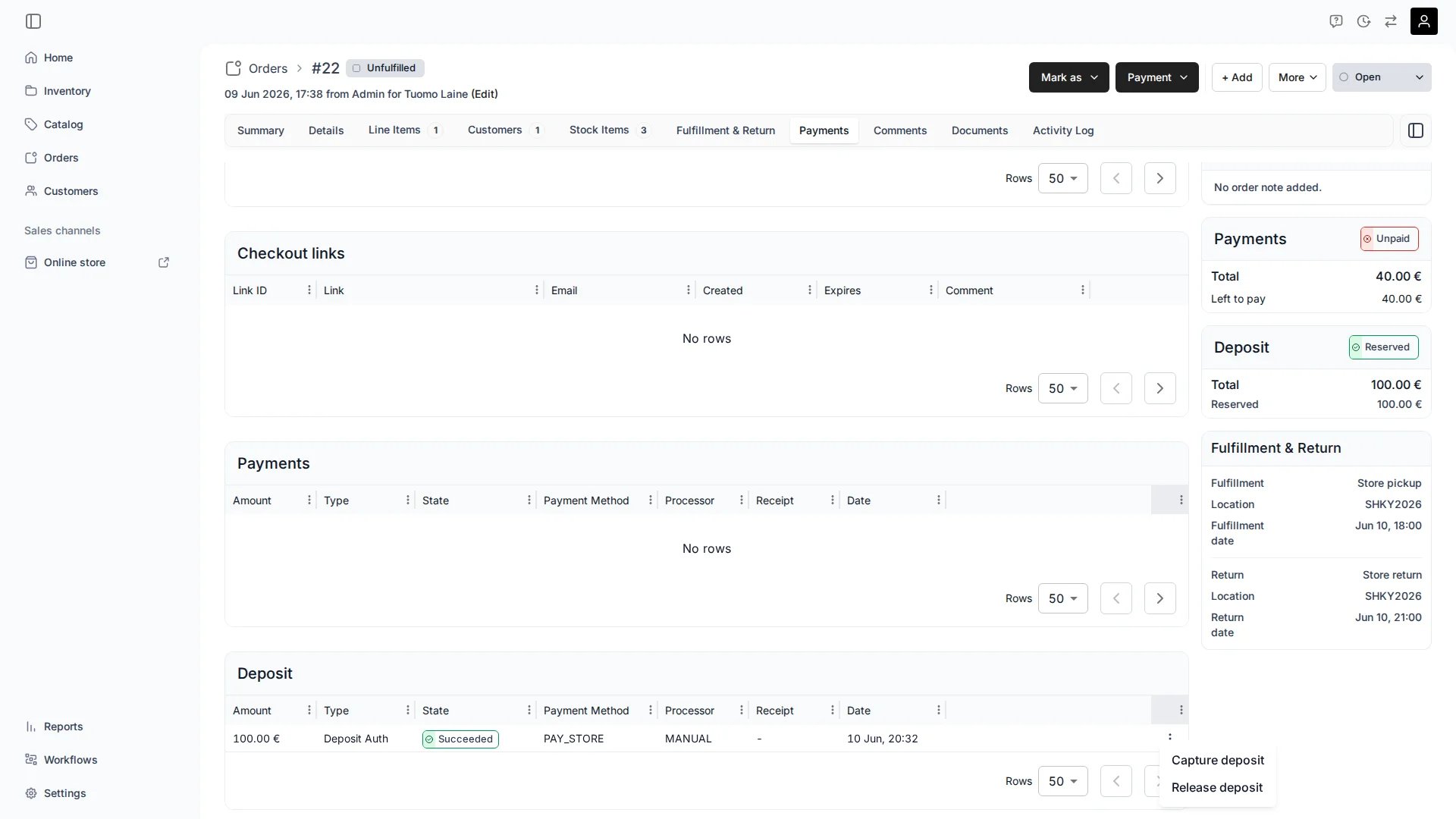
A security deposit is an amount held to cover loss or damage during a rental. When the customer pays by card, TWICE places the deposit as an **authorization (hold)** — funds are reserved but not captured. You later **capture** part or all of the hold, or **release** it. When the customer pays with a manual payment method (Pay on pickup, custom methods), the deposit is recorded as a **manual deposit** and managed outside the payment provider.
A deposit hold is separate from the rental payment. The rental is paid as normal; the deposit sits alongside it as its own Payment object.
## Where do I use it?
* Holding a damage deposit before a rental starts
* Capturing against the hold when an item is returned damaged or late
* Releasing the hold when an item is returned in good condition
## How it works
When an order has an outstanding deposit and the customer paid by card, TWICE authorizes the hold **off-session** (without the customer present) using the saved card.
### Automatic reservation schedule
TWICE attempts the hold automatically in the run-up to the rental start, retrying periodically until it succeeds or the earliest rental start date passes.
### Reservation states
| State | Meaning |
| :----------- | :---------------------------------------------------------------------------------------------------------------------------------- |
| **Pending** | The hold has not yet been authorized. TWICE keeps retrying until it succeeds or the deadline passes. |
| **Reserved** | The hold was authorized successfully. The record is kept as an audit trail of what was held and when. |
| **Expired** | The deadline (earliest rental start) passed before the hold could be authorized. |
| **Failed** | TWICE stopped trying for a non-time reason — for example, no saved card, the card was repeatedly declined, or the order was closed. |
### Authorization expiry
When a hold is successfully authorized (state: **Reserved**), the payment provider keeps it open for a limited window — typically around 7 days for Stripe. If you do not capture or release the hold within that window, the provider cancels it automatically.
TWICE detects this via the provider's webhook and records the hold as **Expired** on the Payments tab. This is distinct from a manual release, which shows as **Cancelled**.
| Payments tab state | Cause |
| :----------------- | :-------------------------------------------------------------------------------------- |
| **Cancelled** | You manually released the hold before it was captured. |
| **Expired** | The provider auto-cancelled the uncaptured hold after its authorization window elapsed. |
The **Expired** reservation state (above) and the **Expired** payment state are different things. The reservation state means the hold was never authorized. The payment state means a successfully authorized hold was not captured in time and the provider released it automatically.
If you attempt to capture an expired hold, TWICE returns an error. Releasing an already-expired hold reconciles the record against the provider — no funds move because the hold is already gone.
## Managing a deposit
From the order's **Payment** tab:
| Action | What it does |
| :-------------------- | :------------------------------------------------------------------------------------------------------------------------------------------------------------------------------------------------------------------- |
| **Reserve on demand** | Manually trigger a hold instead of waiting for the schedule. Two modes: **card** (off-session authorization against the saved card) or **manual** (recorded without a payment provider, for cash or external holds). |
| **Capture** | Charge part or all of an authorized hold. You can add a reason and tax lines, and optionally email the customer. |
| **Release** | Cancel the remaining authorized hold and return the funds. |
## Supported payment providers
Card-based deposit holds work with **Stripe** (available to all stores) and **Adyen** (enabled for selected merchants only). These return a reusable card reference after the first successful charge so the hold can be authorized off-session.
Orders with a security deposit can also be checked out using manual payment methods (Pay on pickup, custom methods). In this case no automatic hold is placed — the deposit is recorded as a manual deposit and you manage it outside the payment provider (cash, ID card, bank transfer). Use the **Reserve on demand → manual** action to record these deposits.
## Related
Payment hierarchy, transactions, and refunds.
How orders move through fulfillment.
Manage payments and deposits on an order.
Connect Stripe and manage payment providers.
## Definition
A security deposit is an amount held to cover loss or damage during a rental. When the customer pays by card, TWICE places the deposit as an **authorization (hold)** — funds are reserved but not captured. You later **capture** part or all of the hold, or **release** it. When the customer pays with a manual payment method (Pay on pickup, custom methods), the deposit is recorded as a **manual deposit** and managed outside the payment provider.
A deposit hold is separate from the rental payment. The rental is paid as normal; the deposit sits alongside it as its own Payment object.
## Where do I use it?
* Holding a damage deposit before a rental starts
* Capturing against the hold when an item is returned damaged or late
* Releasing the hold when an item is returned in good condition
## How it works
When an order has an outstanding deposit and the customer paid by card, TWICE authorizes the hold **off-session** (without the customer present) using the saved card.
### Automatic reservation schedule
TWICE attempts the hold automatically in the run-up to the rental start, retrying periodically until it succeeds or the earliest rental start date passes.
### Reservation states
| State | Meaning |
| :----------- | :---------------------------------------------------------------------------------------------------------------------------------- |
| **Pending** | The hold has not yet been authorized. TWICE keeps retrying until it succeeds or the deadline passes. |
| **Reserved** | The hold was authorized successfully. The record is kept as an audit trail of what was held and when. |
| **Expired** | The deadline (earliest rental start) passed before the hold could be authorized. |
| **Failed** | TWICE stopped trying for a non-time reason — for example, no saved card, the card was repeatedly declined, or the order was closed. |
### Authorization expiry
When a hold is successfully authorized (state: **Reserved**), the payment provider keeps it open for a limited window — typically around 7 days for Stripe. If you do not capture or release the hold within that window, the provider cancels it automatically.
TWICE detects this via the provider's webhook and records the hold as **Expired** on the Payments tab. This is distinct from a manual release, which shows as **Cancelled**.
| Payments tab state | Cause |
| :----------------- | :-------------------------------------------------------------------------------------- |
| **Cancelled** | You manually released the hold before it was captured. |
| **Expired** | The provider auto-cancelled the uncaptured hold after its authorization window elapsed. |
The **Expired** reservation state (above) and the **Expired** payment state are different things. The reservation state means the hold was never authorized. The payment state means a successfully authorized hold was not captured in time and the provider released it automatically.
If you attempt to capture an expired hold, TWICE returns an error. Releasing an already-expired hold reconciles the record against the provider — no funds move because the hold is already gone.
## Managing a deposit
From the order's **Payment** tab:
| Action | What it does |
| :-------------------- | :------------------------------------------------------------------------------------------------------------------------------------------------------------------------------------------------------------------- |
| **Reserve on demand** | Manually trigger a hold instead of waiting for the schedule. Two modes: **card** (off-session authorization against the saved card) or **manual** (recorded without a payment provider, for cash or external holds). |
| **Capture** | Charge part or all of an authorized hold. You can add a reason and tax lines, and optionally email the customer. |
| **Release** | Cancel the remaining authorized hold and return the funds. |
## Supported payment providers
Card-based deposit holds work with **Stripe** (available to all stores) and **Adyen** (enabled for selected merchants only). These return a reusable card reference after the first successful charge so the hold can be authorized off-session.
Orders with a security deposit can also be checked out using manual payment methods (Pay on pickup, custom methods). In this case no automatic hold is placed — the deposit is recorded as a manual deposit and you manage it outside the payment provider (cash, ID card, bank transfer). Use the **Reserve on demand → manual** action to record these deposits.
## Related
Payment hierarchy, transactions, and refunds.
How orders move through fulfillment.
Manage payments and deposits on an order.
Connect Stripe and manage payment providers.