> ## Documentation Index
> Fetch the complete documentation index at: https://www.twicecommerce.com/docs/llms.txt
> Use this file to discover all available pages before exploring further.
# Stock Item Status
> Understand the three stock item statuses: Active, Inactive, and Draft.
export const stockItemStatusDefinition = "The operational availability of a stock item. Active items are available for orders, rentals, and inventory operations. Inactive items are indefinitely excluded from assignments (e.g., retired, under repair, or quarantined). For temporary unavailability, use a reservation instead.";
 ## Definition
Stock Item Status describes where an item sits in its **operational lifecycle**. It controls whether the item counts toward availability and can be assigned to orders.
**Three Status Values:**
| UI label | API value | Meaning |
| ------------ | ---------- | ----------------------------------------------------------------------------------------------------------------------- |
| **Active** | `active` | Item is operational — it counts toward availability and can be assigned to orders. |
| **Inactive** | `inactive` | Item is excluded from operations (e.g. under repair, retired, lost, or sold). The record and its history are preserved. |
| **Draft** | `draft` | Registration is in progress. The item is not yet operational. |
The `status` field on the Article resource holds exactly these three values. There are no other statuses — situations like a lost or sold item are handled with **Inactive** (see below).
Status is independent from [State](/docs/concepts/inventory/stock-item-state) (In / Out — physical location).
## Where do I use it?
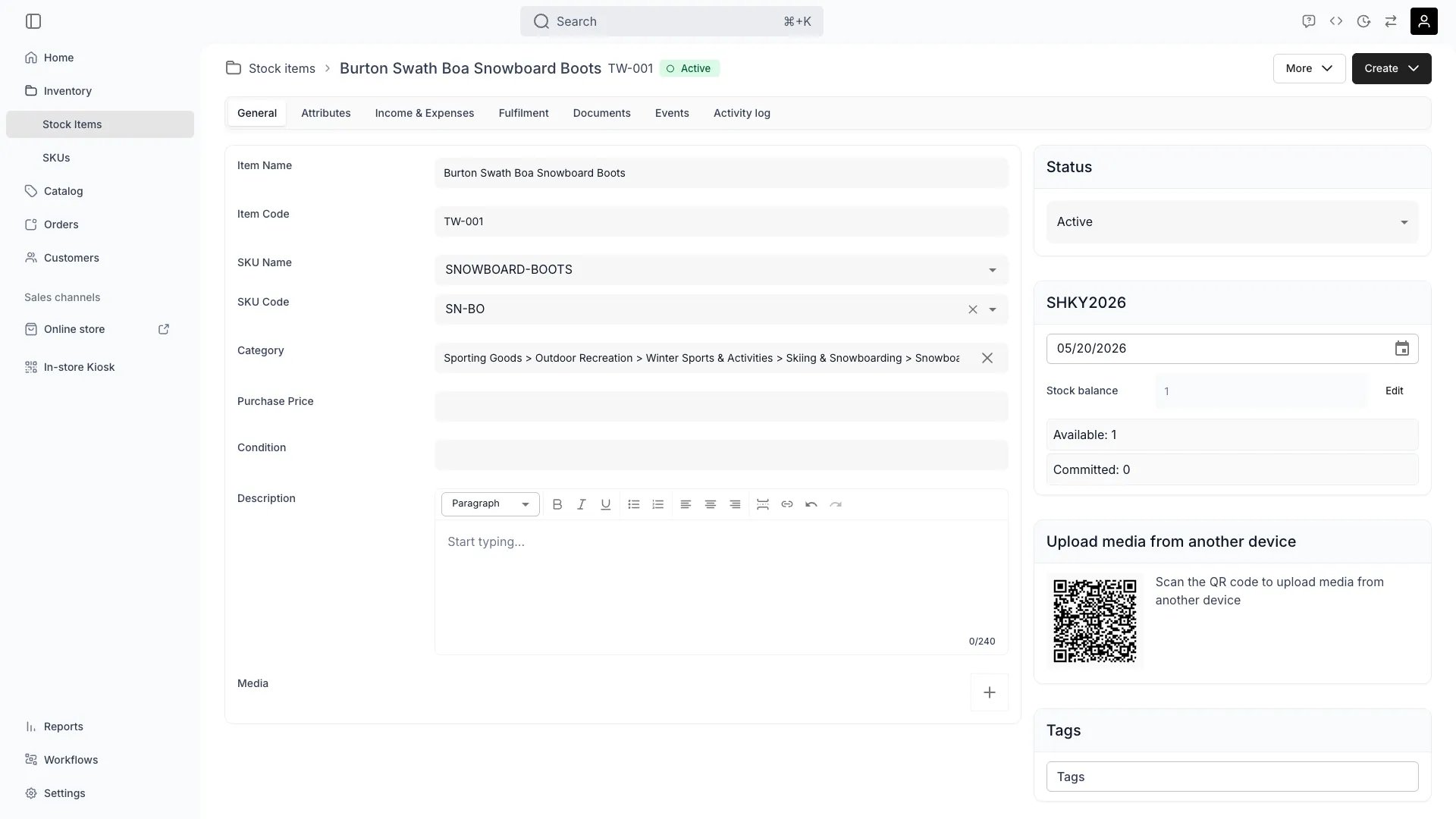
You see and edit status on each Stock Item's **General** tab, and as a column and filter on the stock items table. The status also shows as a chip in the item header: **Active** (green), **Draft** (orange), **Inactive** (red).
Status affects:
* **Availability calculations** — only **Active** items count toward Available To Sell (ATS). Availability queries join stock items on `status = 'active'`.
* **Order fulfillment** — only **Active** items can be assigned to new orders.
* **Reports** — filter by status to separate operational inventory from retired inventory.
* **Listings** — listings reading from a SKU only count Active Stock Items.
Read more: [Stock Items — General Tab](/docs/inventory/stock-items/general).
## Key Properties
| Property | Active | Inactive | Draft |
| --------------------------------------------- | ----------------- | -------- | ------------------ |
| Available for new orders | Yes | No | No |
| Counts in ATS | Yes | No | No |
| Retains history (ledger, events, attachments) | Yes | Yes | Yes |
| Can transition to | Inactive | Active | Active or Inactive |
| Typically set by | Default on create | Operator | Registration flow |
## When to use each status
### Active
The default for any item ready to participate in operations. New Stock Items are created with `status: 'active'` unless you specify otherwise.
* Rentals or sales available now.
* Items in working condition.
* Items kept on shelves or in fleet circulation.
### Inactive
Use **Inactive** when an item should be excluded from operations indefinitely.
* Under long-term repair or refurbishment.
* Retired but kept on record.
* Quarantined pending inspection.
* Lost, stolen, or written off.
* Sold and no longer tracked operationally.
* Demo or test units not for customer use.
For **temporary** unavailability with a known end date (a one-week service window, a photo shoot, holding an item for a specific date), use a **scheduled event** of type `reservation` instead. Reservations expire automatically — **Inactive** requires manual reactivation. See [Stock Item Events](/docs/concepts/inventory/events).
### Draft
**Draft** marks an item whose registration is not finished. The registration flow creates draft records while you fill in details (for example, the AI-assisted register dialog creates a draft to attach uploaded images to) and promotes them when registration completes.
Once an item is registered, the status dropdown in the admin only offers **Active** and **Inactive** — the UI does not move a registered item back to **Draft**.
## Retiring an item
There is no separate "retired", "lost", or "sold" status. To retire an item, set its status to **Inactive**:
* From the item's **General** tab or the bulk action on the table.
* Via `PUT /articles/:id` with `{"status": "inactive"}`.
* Via `POST /articles/:id/inactivate` — this endpoint also walks the item's upcoming bookings and tries to reassign each one to another available Stock Item, so retiring an item does not silently strand its orders.
All history — ledger, events, media, documents — stays on the record. The item drops out of ATS and can no longer be assigned to new orders.
Retiring with a status change instead of deletion preserves the item's full history — purchase records, rental history, ledger entries — without keeping it in availability calculations. To record *why* an item went Inactive (lost, sold, damaged), add a note event or a ledger entry.
## Status transitions
```mermaid theme={null}
stateDiagram-v2
direction LR
Draft --> Active: registration completes
Draft --> Inactive: registered as not operational
Active --> Inactive: retire / repair / lost / sold
Inactive --> Active: back in service
```
* **Draft → Active** — the normal outcome of registration.
* **Active ↔ Inactive** — freely reversible. Reactivating an item makes it count toward ATS again for any range it is not already committed to. No history is lost in either direction.
* **→ Draft** — not offered in the admin once the item is registered.
Every status change is recorded in the item's activity log as an update event carrying the changed value and the user who made it, so you can reconstruct when each change happened.
### What changes immediately
When you set an **Active** item to **Inactive**:
* Item drops out of ATS within the next availability read.
* Item is excluded from new order assignment.
* Existing orders that already include the item are **not** modified — reassign or handle those manually (or use `POST /articles/:id/inactivate`, which attempts the reassignment for you).
* Ledger, events, media, and documents stay intact.
When you set an **Inactive** item to **Active**:
* Item starts counting toward ATS for any range it is not already committed to.
* Item becomes eligible for new orders again.
* No history is lost.
## Lifecycle
### Creation
New Stock Items default to `status: 'active'`. You can override at creation:
* Set `status: 'inactive'` when importing items that still need inspection — they stay out of availability until you flip them.
* `status: 'draft'` is normally set by the registration flow, not by hand.
### Modification
Change status from the General tab on the item detail, the bulk action on the table, or via the API — see the [API reference](https://server.twicecommerce.com/api/internal) for the `articles` endpoints. The `status` field on the list endpoint's filters accepts one of the three values.
For mass deactivation (e.g. end-of-season retirement), update many via the bulk-edit UI.
### Deletion
Prefer setting status to **Inactive** over deletion. Deletion is destructive — `DELETE /articles/:id` removes the article record and its inline associations.
## FAQs
* **Status** (Active / Inactive / Draft) — operational lifecycle, set manually.
* **State** (In / Out) — physical location, set automatically by fulfillment.
An **Active** item can be **Out** (with a customer). An **Inactive** item can be **In** (in your storage, off duty). The two are independent. Read more: [Stock Item State](/docs/concepts/inventory/stock-item-state).
Set the status to **Inactive**. There is no dedicated Lost or Sold status. To keep the reason on record, add a note to the item's timeline or record a ledger entry. The item's full history stays available for follow-up, accounting, and reporting.
Use a **reservation** when you know when the item will be back available — reservations expire automatically. Use **Inactive** when the timing is open-ended or indefinite.
Open **Inventory > Stock Items** and filter the Status column to **Inactive**. The same filter is available via the API on the `status` field.
Yes. Setting an item Inactive does not retroactively cancel orders that already include it. Handle those orders manually — refund the line, reassign to another Stock Item, or cancel. The `POST /articles/:id/inactivate` endpoint attempts the reassignment automatically.
Yes. Change the status back to **Active**. All historical data is preserved. This is useful for items back from repair, recovered items, or returned sales.
Yes — a draft item shows an orange **Draft** chip in its header. Drafts come from unfinished registrations. Once registered, the admin does not offer returning an item to Draft.
## Developer Reference
Stock item status is read and updated via the `articles` endpoints.
Open the endpoint in the API reference.
## Related Concepts
Full Stock Item model and lifecycle
In vs Out — physical location dimension
Reservations, notes, activity log
Automate inventory operations
## Definition
Stock Item Status describes where an item sits in its **operational lifecycle**. It controls whether the item counts toward availability and can be assigned to orders.
**Three Status Values:**
| UI label | API value | Meaning |
| ------------ | ---------- | ----------------------------------------------------------------------------------------------------------------------- |
| **Active** | `active` | Item is operational — it counts toward availability and can be assigned to orders. |
| **Inactive** | `inactive` | Item is excluded from operations (e.g. under repair, retired, lost, or sold). The record and its history are preserved. |
| **Draft** | `draft` | Registration is in progress. The item is not yet operational. |
The `status` field on the Article resource holds exactly these three values. There are no other statuses — situations like a lost or sold item are handled with **Inactive** (see below).
Status is independent from [State](/docs/concepts/inventory/stock-item-state) (In / Out — physical location).
## Where do I use it?
You see and edit status on each Stock Item's **General** tab, and as a column and filter on the stock items table. The status also shows as a chip in the item header: **Active** (green), **Draft** (orange), **Inactive** (red).
Status affects:
* **Availability calculations** — only **Active** items count toward Available To Sell (ATS). Availability queries join stock items on `status = 'active'`.
* **Order fulfillment** — only **Active** items can be assigned to new orders.
* **Reports** — filter by status to separate operational inventory from retired inventory.
* **Listings** — listings reading from a SKU only count Active Stock Items.
Read more: [Stock Items — General Tab](/docs/inventory/stock-items/general).
## Key Properties
| Property | Active | Inactive | Draft |
| --------------------------------------------- | ----------------- | -------- | ------------------ |
| Available for new orders | Yes | No | No |
| Counts in ATS | Yes | No | No |
| Retains history (ledger, events, attachments) | Yes | Yes | Yes |
| Can transition to | Inactive | Active | Active or Inactive |
| Typically set by | Default on create | Operator | Registration flow |
## When to use each status
### Active
The default for any item ready to participate in operations. New Stock Items are created with `status: 'active'` unless you specify otherwise.
* Rentals or sales available now.
* Items in working condition.
* Items kept on shelves or in fleet circulation.
### Inactive
Use **Inactive** when an item should be excluded from operations indefinitely.
* Under long-term repair or refurbishment.
* Retired but kept on record.
* Quarantined pending inspection.
* Lost, stolen, or written off.
* Sold and no longer tracked operationally.
* Demo or test units not for customer use.
For **temporary** unavailability with a known end date (a one-week service window, a photo shoot, holding an item for a specific date), use a **scheduled event** of type `reservation` instead. Reservations expire automatically — **Inactive** requires manual reactivation. See [Stock Item Events](/docs/concepts/inventory/events).
### Draft
**Draft** marks an item whose registration is not finished. The registration flow creates draft records while you fill in details (for example, the AI-assisted register dialog creates a draft to attach uploaded images to) and promotes them when registration completes.
Once an item is registered, the status dropdown in the admin only offers **Active** and **Inactive** — the UI does not move a registered item back to **Draft**.
## Retiring an item
There is no separate "retired", "lost", or "sold" status. To retire an item, set its status to **Inactive**:
* From the item's **General** tab or the bulk action on the table.
* Via `PUT /articles/:id` with `{"status": "inactive"}`.
* Via `POST /articles/:id/inactivate` — this endpoint also walks the item's upcoming bookings and tries to reassign each one to another available Stock Item, so retiring an item does not silently strand its orders.
All history — ledger, events, media, documents — stays on the record. The item drops out of ATS and can no longer be assigned to new orders.
Retiring with a status change instead of deletion preserves the item's full history — purchase records, rental history, ledger entries — without keeping it in availability calculations. To record *why* an item went Inactive (lost, sold, damaged), add a note event or a ledger entry.
## Status transitions
```mermaid theme={null}
stateDiagram-v2
direction LR
Draft --> Active: registration completes
Draft --> Inactive: registered as not operational
Active --> Inactive: retire / repair / lost / sold
Inactive --> Active: back in service
```
* **Draft → Active** — the normal outcome of registration.
* **Active ↔ Inactive** — freely reversible. Reactivating an item makes it count toward ATS again for any range it is not already committed to. No history is lost in either direction.
* **→ Draft** — not offered in the admin once the item is registered.
Every status change is recorded in the item's activity log as an update event carrying the changed value and the user who made it, so you can reconstruct when each change happened.
### What changes immediately
When you set an **Active** item to **Inactive**:
* Item drops out of ATS within the next availability read.
* Item is excluded from new order assignment.
* Existing orders that already include the item are **not** modified — reassign or handle those manually (or use `POST /articles/:id/inactivate`, which attempts the reassignment for you).
* Ledger, events, media, and documents stay intact.
When you set an **Inactive** item to **Active**:
* Item starts counting toward ATS for any range it is not already committed to.
* Item becomes eligible for new orders again.
* No history is lost.
## Lifecycle
### Creation
New Stock Items default to `status: 'active'`. You can override at creation:
* Set `status: 'inactive'` when importing items that still need inspection — they stay out of availability until you flip them.
* `status: 'draft'` is normally set by the registration flow, not by hand.
### Modification
Change status from the General tab on the item detail, the bulk action on the table, or via the API — see the [API reference](https://server.twicecommerce.com/api/internal) for the `articles` endpoints. The `status` field on the list endpoint's filters accepts one of the three values.
For mass deactivation (e.g. end-of-season retirement), update many via the bulk-edit UI.
### Deletion
Prefer setting status to **Inactive** over deletion. Deletion is destructive — `DELETE /articles/:id` removes the article record and its inline associations.
## FAQs
* **Status** (Active / Inactive / Draft) — operational lifecycle, set manually.
* **State** (In / Out) — physical location, set automatically by fulfillment.
An **Active** item can be **Out** (with a customer). An **Inactive** item can be **In** (in your storage, off duty). The two are independent. Read more: [Stock Item State](/docs/concepts/inventory/stock-item-state).
Set the status to **Inactive**. There is no dedicated Lost or Sold status. To keep the reason on record, add a note to the item's timeline or record a ledger entry. The item's full history stays available for follow-up, accounting, and reporting.
Use a **reservation** when you know when the item will be back available — reservations expire automatically. Use **Inactive** when the timing is open-ended or indefinite.
Open **Inventory > Stock Items** and filter the Status column to **Inactive**. The same filter is available via the API on the `status` field.
Yes. Setting an item Inactive does not retroactively cancel orders that already include it. Handle those orders manually — refund the line, reassign to another Stock Item, or cancel. The `POST /articles/:id/inactivate` endpoint attempts the reassignment automatically.
Yes. Change the status back to **Active**. All historical data is preserved. This is useful for items back from repair, recovered items, or returned sales.
Yes — a draft item shows an orange **Draft** chip in its header. Drafts come from unfinished registrations. Once registered, the admin does not offer returning an item to Draft.
## Developer Reference
Stock item status is read and updated via the `articles` endpoints.
Open the endpoint in the API reference.
## Related Concepts
Full Stock Item model and lifecycle
In vs Out — physical location dimension
Reservations, notes, activity log
Automate inventory operations