> ## Documentation Index
> Fetch the complete documentation index at: https://www.twicecommerce.com/docs/llms.txt
> Use this file to discover all available pages before exploring further.
# Stock Item State
> Understand how stock item state (In/Out) automatically tracks whether an item is at hand or out with a customer.
export const stockItemStateDefinition = "Stock Item State tracks whether a stock item is currently In (at hand in your inventory) or Out (in a customer's possession). State changes automatically based on fulfillment and returns on orders.";
 ## Definition
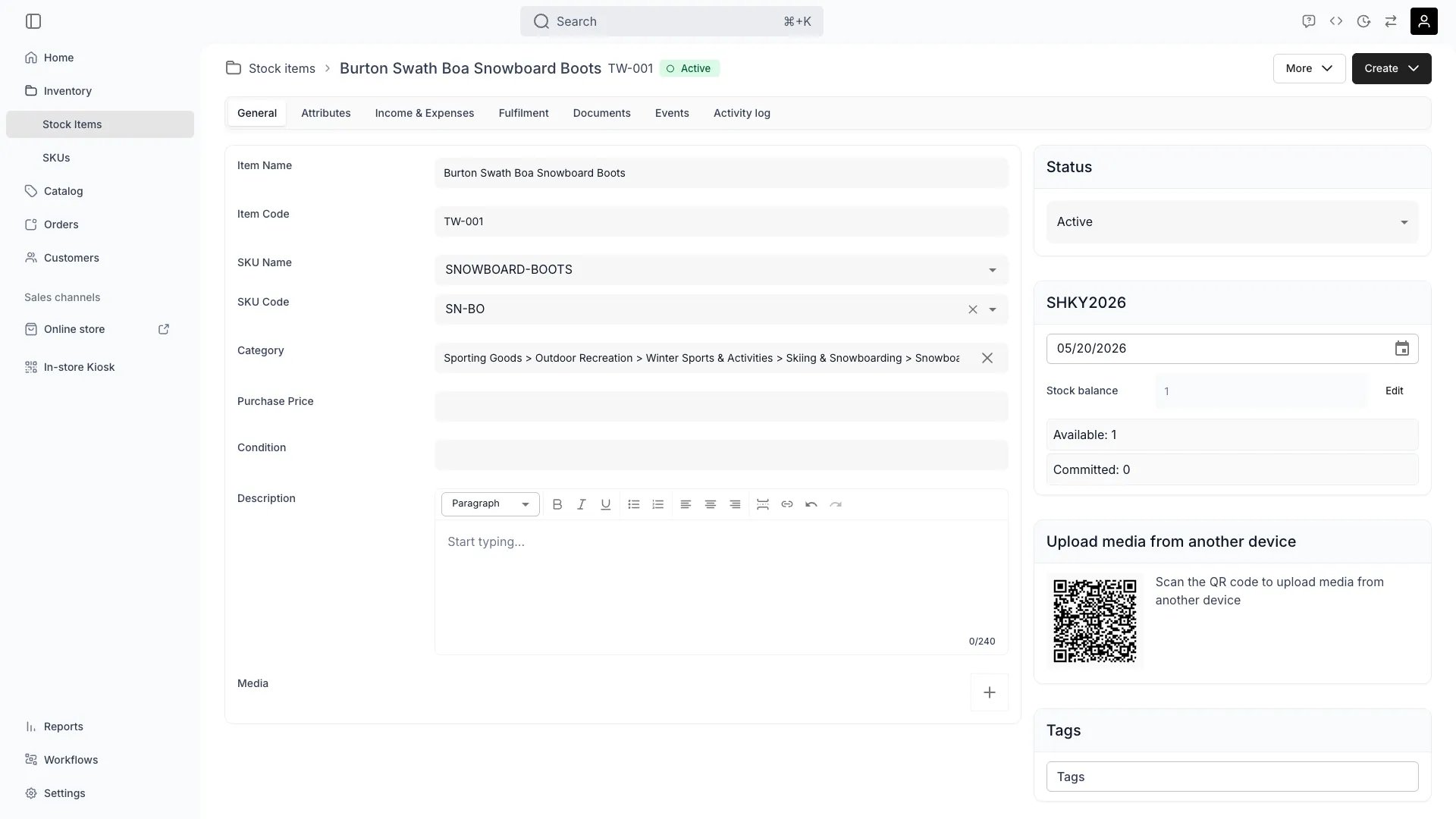
Stock Item State tracks where a stock item physically is — at hand in your inventory, or out with a customer. State is **automatic**: TWICE updates it based on fulfillment events on the orders the item participates in.
**Two State Values:**
* **In** — Item is at hand in your inventory. It may still be committed to an upcoming order, but it is physically with you.
* **Out** — Item is with the customer (rented or sold) or otherwise away.
State is displayed as a chip on the stock item and exposed via the unavailability ranges on the article API.
## State vs Status
These are two independent dimensions. You will see both on the same item.
| Dimension | What it tracks | Values | Set by |
| ---------- | ---------------------------- | ------------------------- | ------------------------------ |
| **State** | Where the item physically is | In / Out | Fulfillment system (automatic) |
| **Status** | Lifecycle stage of the item | Active / Inactive / Draft | Operator (manual) |
A perfectly healthy bike that is currently on a rental shows **Active / Out**. The same bike under repair after the rental shows **Inactive / In**. Read more: [Stock Item Status](/docs/concepts/inventory/stock-item-status).
## Where do I use it?
You view state on each Stock Item in **Inventory > Stock Items** and on the item's **General** tab. State is also a filter column on the stock items table.
State affects:
* **Available To Sell (ATS)** — only items that are **In** and not committed to overlapping bookings count toward availability.
* **Returns workflow** — items that are **Out** are expected back; this drives return reminders and overdue reporting.
* **Calendar views** — see when items are expected to come back **In**.
* **Conflict detection** — moving an item that is **Out** is flagged because the customer still has it.
Read more: [Stock Items — General Tab](/docs/inventory/stock-items/general).
## Key Properties
| Property | In | Out |
| -------------------------------- | ------------------------- | ------------------- |
| Physical location | At hand in your inventory | With a customer |
| Can be picked up for a new order | Yes | Not until returned |
| Counts toward ATS *for now* | Yes | No |
| Manually settable | No (automatic) | No (automatic) |
| Shows in calendar as occupied | Only when committed | Always until return |
## How state changes
State transitions are driven by **fulfillment events** on orders that include the Stock Item. The relevant events are recorded in the item's activity log.
### In → Out
Triggered when an item is **handed out** on an order. Recorded events:
* `handed_out` — pickup / dispatch on a rental or sale.
* `assigned_to_order` followed by handout — the item was reserved and then physically went out.
Once handed out, the item participates in an `unavailability` range driven by the order. ATS for any range overlapping that unavailability drops by one.
### Out → In
Triggered when:
* `returned` — the item is returned on a rental order.
* Order is cancelled or the line item is removed before pickup (item never actually left).
* Fulfillment is reversed (operator undoes a handout in the admin).
When the return happens, the unavailability range closes at the return timestamp and ATS recovers.
```mermaid theme={null}
stateDiagram-v2
[*] --> In
In --> Out: handed_out / shipped
Out --> In: returned
Out --> In: order cancelled
Out --> In: handout reversed
```
A Stock Item can be **In** and still be **committed** to an upcoming order. State only describes physical location, not whether the item is reserved. Availability calculations take both into account.
## How fulfillment drives state
Order line items go through pickup and return phases:
1. **Reservation** — order is created; item is **In**, but now linked to the reserving order. ATS drops for the booked range.
2. **Handout** — operator marks the line as picked up. Activity log records `handed_out`. State becomes **Out**.
3. **Customer holds the item** — state stays **Out**. Late return reports surface items overdue.
4. **Return** — operator marks the line as returned. Activity log records `returned`. State becomes **In**. Item is freed for re-rental.
5. **Order completion / cancellation** — closes the order side. If a line is removed before handout, `freed_from_order` is recorded.
For **sales orders**, the equivalent flow is fulfillment / shipment; after shipment the item is **Out** indefinitely and is typically also set to **Inactive** status manually once you stop tracking it operationally.
For **pooled inventory** (one record covering several units), state and unavailability operate on **counts**, not individual identities. The number of units **Out** is the sum of active fulfilled lines that consume from this pool.
## ATS calculation
Available To Sell answers: *for the requested date range, how many units of this SKU can I commit to a new booking?*
For a SKU's ATS over a range `[start, end]`:
1. Start from the total count of linked Stock Items where `status = active` and the requested service location matches.
2. Subtract units that are **Out** with a return date later than `start`.
3. Subtract units that are **In** but committed to overlapping bookings (`scheduledEvents.type = reservation` and unavailability ranges from other orders).
4. The remainder is ATS for the range.
The engine exposes the result as `temporalStock` on the article availability response — four series of `{ range, value }` pairs:
| Field | Meaning |
| ---------------------- | --------------------------------------------------------------------------------- |
| `stockBalance` | Units on the books for the range (total, minus units removed by completed sales). |
| `stockCommitted` | Units committed to orders and reservations overlapping the range. |
| `stockAvailableToSell` | `stockBalance − stockCommitted`, floored at zero. This is ATS. |
| `stockUtilisation` | `stockCommitted / stockBalance`, as a percentage. |
**Worked example.** A SKU has 10 active Stock Items at one location:
* 3 are **Out** on rentals running until **Jan 15**.
* 5 are **In** but committed to an order covering **Jan 10–13**.
* The other 2 are **In** and uncommitted.
| Range | `stockBalance` | `stockCommitted` | `stockAvailableToSell` |
| ------------------- | -------------- | --------------------------- | ---------------------- |
| **Jan 1 – Jan 9** | 10 | 3 (the rentals) | 7 |
| **Jan 10 – Jan 13** | 10 | 8 (3 rentals + 5 committed) | 2 |
| **Jan 14 – Jan 15** | 10 | 3 (the rentals) | 7 |
| **Jan 16 onwards** | 10 | 0 | 10 |
`stockBalance` stays at 10 throughout — rentals commit units, they do not remove them from the books. Only sales reduce the balance. `stockUtilisation` for Jan 10–13 is 80%.
## Edge cases
Change the item's **status** to **Inactive** on the General tab and record the reason as a note. The state stays **Out** until the related order is closed or cancelled — the item is still recorded as in the customer's possession until you close that loop. Ledger and event history are preserved.
State is set on physical handout, not on the booking start date. An item booked Jan 5–12 but not yet picked up is **In** on Jan 5. Once handed out, it stays **Out** for the entire rental — across days, weeks, or months — until returned.
Partial returns are handled per-unit on pooled lines, per-item on serialized lines. The returned units flip back to **In**; the rest stay **Out** until their own return.
The return updates state to **In** and a `location_changed` event is recorded. The article's `articleLocations` gets a new range starting at the return timestamp at the new service location.
Re-fulfill the line. The item flips back to **Out** and the activity log records a new `handed_out` event. The earlier reversal stays in the log for audit.
Until the order is cancelled, the item stays **In** but the booking still counts toward ATS for the booked range. Cancel the order to release ATS.
## Querying items by state
State is exposed indirectly through `unavailability` ranges and the `articleLocations` array. To find items currently **Out**, list articles with a date range covering "now" and filter to those with an active unavailability of type `order` whose handout has fired and whose return has not.
In the admin: open **Inventory > Stock Items** and filter the **State** column to **Out**.
In the API: pass a `dateRange` covering the moment of interest. Stock Items that are currently out have an unavailability range overlapping that point, originating from an order line that is in the handed-out phase.
## FAQs
No. State is set automatically by fulfillment and returns on orders. To change it, fulfill or return the order line for that item.
Update the item's **status** to **Inactive** on the General tab and record the reason as a note. State remains **Out** until the related order is closed or cancelled.
Open **Inventory > Stock Items** and filter the State column to **Out**. You will see all items in customer possession along with their associated orders.
Yes. ATS calculations only count items that are **In** and not committed to overlapping bookings for the requested period. Items that are **Out** with a return after the requested start date are subtracted from ATS.
Most likely the order line was marked as returned in the admin without the physical return. Re-open the order line or use the activity log to investigate; you can re-fulfill if needed.
## Developer Reference
Stock item state is read from the `articles` endpoints — filter by `dateRange` to see items currently Out.
Open the endpoint in the API reference.
## Related Concepts
Full Stock Item model and lifecycle
Operational lifecycle (Active / Inactive / Draft)
How orders and reservations record events
How fulfillment and returns drive state changes
## Definition
Stock Item State tracks where a stock item physically is — at hand in your inventory, or out with a customer. State is **automatic**: TWICE updates it based on fulfillment events on the orders the item participates in.
**Two State Values:**
* **In** — Item is at hand in your inventory. It may still be committed to an upcoming order, but it is physically with you.
* **Out** — Item is with the customer (rented or sold) or otherwise away.
State is displayed as a chip on the stock item and exposed via the unavailability ranges on the article API.
## State vs Status
These are two independent dimensions. You will see both on the same item.
| Dimension | What it tracks | Values | Set by |
| ---------- | ---------------------------- | ------------------------- | ------------------------------ |
| **State** | Where the item physically is | In / Out | Fulfillment system (automatic) |
| **Status** | Lifecycle stage of the item | Active / Inactive / Draft | Operator (manual) |
A perfectly healthy bike that is currently on a rental shows **Active / Out**. The same bike under repair after the rental shows **Inactive / In**. Read more: [Stock Item Status](/docs/concepts/inventory/stock-item-status).
## Where do I use it?
You view state on each Stock Item in **Inventory > Stock Items** and on the item's **General** tab. State is also a filter column on the stock items table.
State affects:
* **Available To Sell (ATS)** — only items that are **In** and not committed to overlapping bookings count toward availability.
* **Returns workflow** — items that are **Out** are expected back; this drives return reminders and overdue reporting.
* **Calendar views** — see when items are expected to come back **In**.
* **Conflict detection** — moving an item that is **Out** is flagged because the customer still has it.
Read more: [Stock Items — General Tab](/docs/inventory/stock-items/general).
## Key Properties
| Property | In | Out |
| -------------------------------- | ------------------------- | ------------------- |
| Physical location | At hand in your inventory | With a customer |
| Can be picked up for a new order | Yes | Not until returned |
| Counts toward ATS *for now* | Yes | No |
| Manually settable | No (automatic) | No (automatic) |
| Shows in calendar as occupied | Only when committed | Always until return |
## How state changes
State transitions are driven by **fulfillment events** on orders that include the Stock Item. The relevant events are recorded in the item's activity log.
### In → Out
Triggered when an item is **handed out** on an order. Recorded events:
* `handed_out` — pickup / dispatch on a rental or sale.
* `assigned_to_order` followed by handout — the item was reserved and then physically went out.
Once handed out, the item participates in an `unavailability` range driven by the order. ATS for any range overlapping that unavailability drops by one.
### Out → In
Triggered when:
* `returned` — the item is returned on a rental order.
* Order is cancelled or the line item is removed before pickup (item never actually left).
* Fulfillment is reversed (operator undoes a handout in the admin).
When the return happens, the unavailability range closes at the return timestamp and ATS recovers.
```mermaid theme={null}
stateDiagram-v2
[*] --> In
In --> Out: handed_out / shipped
Out --> In: returned
Out --> In: order cancelled
Out --> In: handout reversed
```
A Stock Item can be **In** and still be **committed** to an upcoming order. State only describes physical location, not whether the item is reserved. Availability calculations take both into account.
## How fulfillment drives state
Order line items go through pickup and return phases:
1. **Reservation** — order is created; item is **In**, but now linked to the reserving order. ATS drops for the booked range.
2. **Handout** — operator marks the line as picked up. Activity log records `handed_out`. State becomes **Out**.
3. **Customer holds the item** — state stays **Out**. Late return reports surface items overdue.
4. **Return** — operator marks the line as returned. Activity log records `returned`. State becomes **In**. Item is freed for re-rental.
5. **Order completion / cancellation** — closes the order side. If a line is removed before handout, `freed_from_order` is recorded.
For **sales orders**, the equivalent flow is fulfillment / shipment; after shipment the item is **Out** indefinitely and is typically also set to **Inactive** status manually once you stop tracking it operationally.
For **pooled inventory** (one record covering several units), state and unavailability operate on **counts**, not individual identities. The number of units **Out** is the sum of active fulfilled lines that consume from this pool.
## ATS calculation
Available To Sell answers: *for the requested date range, how many units of this SKU can I commit to a new booking?*
For a SKU's ATS over a range `[start, end]`:
1. Start from the total count of linked Stock Items where `status = active` and the requested service location matches.
2. Subtract units that are **Out** with a return date later than `start`.
3. Subtract units that are **In** but committed to overlapping bookings (`scheduledEvents.type = reservation` and unavailability ranges from other orders).
4. The remainder is ATS for the range.
The engine exposes the result as `temporalStock` on the article availability response — four series of `{ range, value }` pairs:
| Field | Meaning |
| ---------------------- | --------------------------------------------------------------------------------- |
| `stockBalance` | Units on the books for the range (total, minus units removed by completed sales). |
| `stockCommitted` | Units committed to orders and reservations overlapping the range. |
| `stockAvailableToSell` | `stockBalance − stockCommitted`, floored at zero. This is ATS. |
| `stockUtilisation` | `stockCommitted / stockBalance`, as a percentage. |
**Worked example.** A SKU has 10 active Stock Items at one location:
* 3 are **Out** on rentals running until **Jan 15**.
* 5 are **In** but committed to an order covering **Jan 10–13**.
* The other 2 are **In** and uncommitted.
| Range | `stockBalance` | `stockCommitted` | `stockAvailableToSell` |
| ------------------- | -------------- | --------------------------- | ---------------------- |
| **Jan 1 – Jan 9** | 10 | 3 (the rentals) | 7 |
| **Jan 10 – Jan 13** | 10 | 8 (3 rentals + 5 committed) | 2 |
| **Jan 14 – Jan 15** | 10 | 3 (the rentals) | 7 |
| **Jan 16 onwards** | 10 | 0 | 10 |
`stockBalance` stays at 10 throughout — rentals commit units, they do not remove them from the books. Only sales reduce the balance. `stockUtilisation` for Jan 10–13 is 80%.
## Edge cases
Change the item's **status** to **Inactive** on the General tab and record the reason as a note. The state stays **Out** until the related order is closed or cancelled — the item is still recorded as in the customer's possession until you close that loop. Ledger and event history are preserved.
State is set on physical handout, not on the booking start date. An item booked Jan 5–12 but not yet picked up is **In** on Jan 5. Once handed out, it stays **Out** for the entire rental — across days, weeks, or months — until returned.
Partial returns are handled per-unit on pooled lines, per-item on serialized lines. The returned units flip back to **In**; the rest stay **Out** until their own return.
The return updates state to **In** and a `location_changed` event is recorded. The article's `articleLocations` gets a new range starting at the return timestamp at the new service location.
Re-fulfill the line. The item flips back to **Out** and the activity log records a new `handed_out` event. The earlier reversal stays in the log for audit.
Until the order is cancelled, the item stays **In** but the booking still counts toward ATS for the booked range. Cancel the order to release ATS.
## Querying items by state
State is exposed indirectly through `unavailability` ranges and the `articleLocations` array. To find items currently **Out**, list articles with a date range covering "now" and filter to those with an active unavailability of type `order` whose handout has fired and whose return has not.
In the admin: open **Inventory > Stock Items** and filter the **State** column to **Out**.
In the API: pass a `dateRange` covering the moment of interest. Stock Items that are currently out have an unavailability range overlapping that point, originating from an order line that is in the handed-out phase.
## FAQs
No. State is set automatically by fulfillment and returns on orders. To change it, fulfill or return the order line for that item.
Update the item's **status** to **Inactive** on the General tab and record the reason as a note. State remains **Out** until the related order is closed or cancelled.
Open **Inventory > Stock Items** and filter the State column to **Out**. You will see all items in customer possession along with their associated orders.
Yes. ATS calculations only count items that are **In** and not committed to overlapping bookings for the requested period. Items that are **Out** with a return after the requested start date are subtracted from ATS.
Most likely the order line was marked as returned in the admin without the physical return. Re-open the order line or use the activity log to investigate; you can re-fulfill if needed.
## Developer Reference
Stock item state is read from the `articles` endpoints — filter by `dateRange` to see items currently Out.
Open the endpoint in the API reference.
## Related Concepts
Full Stock Item model and lifecycle
Operational lifecycle (Active / Inactive / Draft)
How orders and reservations record events
How fulfillment and returns drive state changes