> ## Documentation Index
> Fetch the complete documentation index at: https://www.twicecommerce.com/docs/llms.txt
> Use this file to discover all available pages before exploring further.
# Visible Areas
> Visible areas and per-tab hiding control which sections and tabs appear in the admin, independently from data access permissions.
export const userRoleDefinition = "What a user can see and do. Each user has one built-in system role — Owner, Admin, Manager, or Member — and can also be assigned any number of custom roles you create with specific permissions. Effective access is the combination of all their roles.";
**Visible areas** determine which top-level sections appear in the admin sidebar for a given role. **Hidden tabs** extend this to individual in-page tabs — a role can hide specific tabs within a section without removing the section itself. Both are independent from data access permissions.
## How it works
Every role — system or custom — carries two separate fields:
* **Permissions** — server-enforced data access. Controls what the API returns for a user. Example: `customers:view` lets the user read customer data.
* **Visible areas** — client-side UI presence. Controls which sections appear in the admin sidebar and are reachable by URL. Example: `customers` in `visibleAreas` shows the Customers tab.
These two axes are independent. A user can have `customers:view` permission (to support cross-resource workflows like an order's customer picker) without the Customers section appearing in the sidebar.
### The asymmetric rule
Visible areas follow one directional constraint:
* **Showing an area forces data access.** If `customers` is in `visibleAreas`, the role must also have `customers:view` permission. The permissions matrix enforces this automatically — enabling an area's visibility adds the `:view` permission if it is missing.
* **Data access does not force visibility.** Granting `customers:view` does not automatically add `customers` to `visibleAreas`. The sidebar stays unchanged.
This means you can build roles like "Order Manager with customer data access but no Customers tab" — the user can pick customers from within the order flow without seeing a dedicated Customers section in the sidebar.
### Resolution across roles
A user's effective visible areas are the **union** of all assigned roles — the system role plus any custom roles. If any role includes an area, that area appears in the sidebar.
```json Effective resolution example theme={null}
{
"system_role": "member",
"system_role_visible_areas": [
"tasks", "inventory", "catalog",
"orders", "customers", "online_store"
],
"custom_roles": [
{
"name": "Finance Viewer",
"visible_areas": ["finance"]
}
],
"effective_visible_areas": [
"tasks", "inventory", "catalog",
"orders", "customers", "online_store",
"finance"
]
}
```
The Member system role does not include `finance` by default, but the "Finance Viewer" custom role adds it. The user sees all seven sections.
### Available areas
Visible areas map one-to-one with the top-level admin resources:
| Area | Sidebar section |
| :------------------ | :-------------------------------------- |
| `tasks` | Tasks |
| `inventory` | Inventory |
| `catalog` | Catalog |
| `orders` | Orders |
| `customers` | Customers |
| `online_store` | Online Store (and other sales channels) |
| `reports` | Reports |
| `location_settings` | Location Settings |
| `account_settings` | Account Settings |
| `finance` | Finance |
### Per-tab visibility
In addition to hiding entire sidebar sections, roles can hide individual **tabs** within a section. Each role carries a `hiddenTabs` list — an array of `resource:subResource` keys that identifies which tabs to suppress.
Tabs follow **intersection** (AND) semantics, the inverse of visible areas:
* **Visible areas** use union — any role showing an area wins.
* **Hidden tabs** use intersection — a tab is hidden only if **every** role assigned to the user hides it. If any role leaves the tab visible, it appears.
This means a more-permissive role always wins: adding a role never hides a tab that another role shows.
```json Intersection example theme={null}
{
"roles": [
{ "name": "Warehouse Lead", "hiddenTabs": ["orders:order_payments", "orders:order_documents"] },
{ "name": "Returns Handler", "hiddenTabs": ["orders:order_payments"] }
],
"effective_hidden_tabs": ["orders:order_payments"]
}
```
Both roles hide `orders:order_payments`, so it stays hidden. Only one role hides `orders:order_documents`, so the Documents tab appears.
### Hideable tabs
Every tab in the admin is identified by a `resource:subResource` key. The full set spans all major areas:
| Resource | Example tabs |
| :--------------------- | :----------------------------------------------------------------------------------------------------------------------------------------------------------------------------------------------------------------------------------------------------------------------------------------------------------- |
| **orders** | `order_summary`, `order_line_items`, `order_customers`, `order_stock_items`, `order_fulfillment`, `order_payments`, `order_comments`, `order_documents`, `order_activity_log` |
| **catalog** | `listing_general`, `listing_attributes`, `listing_variants`, `listing_price`, `listing_limits`, `listing_fulfilment`, `listing_checkout`, `listing_seo`, `listing_documents`, `listing_orders_log`, `listing_activity_log`, `collection`, `collection_listings`, `collection_seo`, `price_table`, `discount` |
| **inventory** | `stock_item_general`, `stock_item_attributes`, `stock_item_cost`, `stock_item_fulfilment`, `stock_item_documents`, `stock_item_events`, `sku_general`, `sku_attributes`, `sku_stock_items`, `sku_documents` |
| **customers** | `customer_general`, `customer_attributes`, `customer_documents`, `customer_orders`, `customer_listings`, `customer_stock_items` |
| **online\_store** | `editor`, `default_content`, `settings` |
| **location\_settings** | `contact_info`, `opening_hours`, `sales_channels`, `document` |
| **account\_settings** | `business_details`, `general`, `brand`, `payment`, `policies`, `taxes`, `users_and_roles`, `notifications`, `languages`, `translations`, `integrations`, `domain`, `checkout`, `documents`, `file_manager`, `security` |
| **reports** | `sales_report`, `tax_report` |
| **finance** | `subscription_plan`, `billing` |
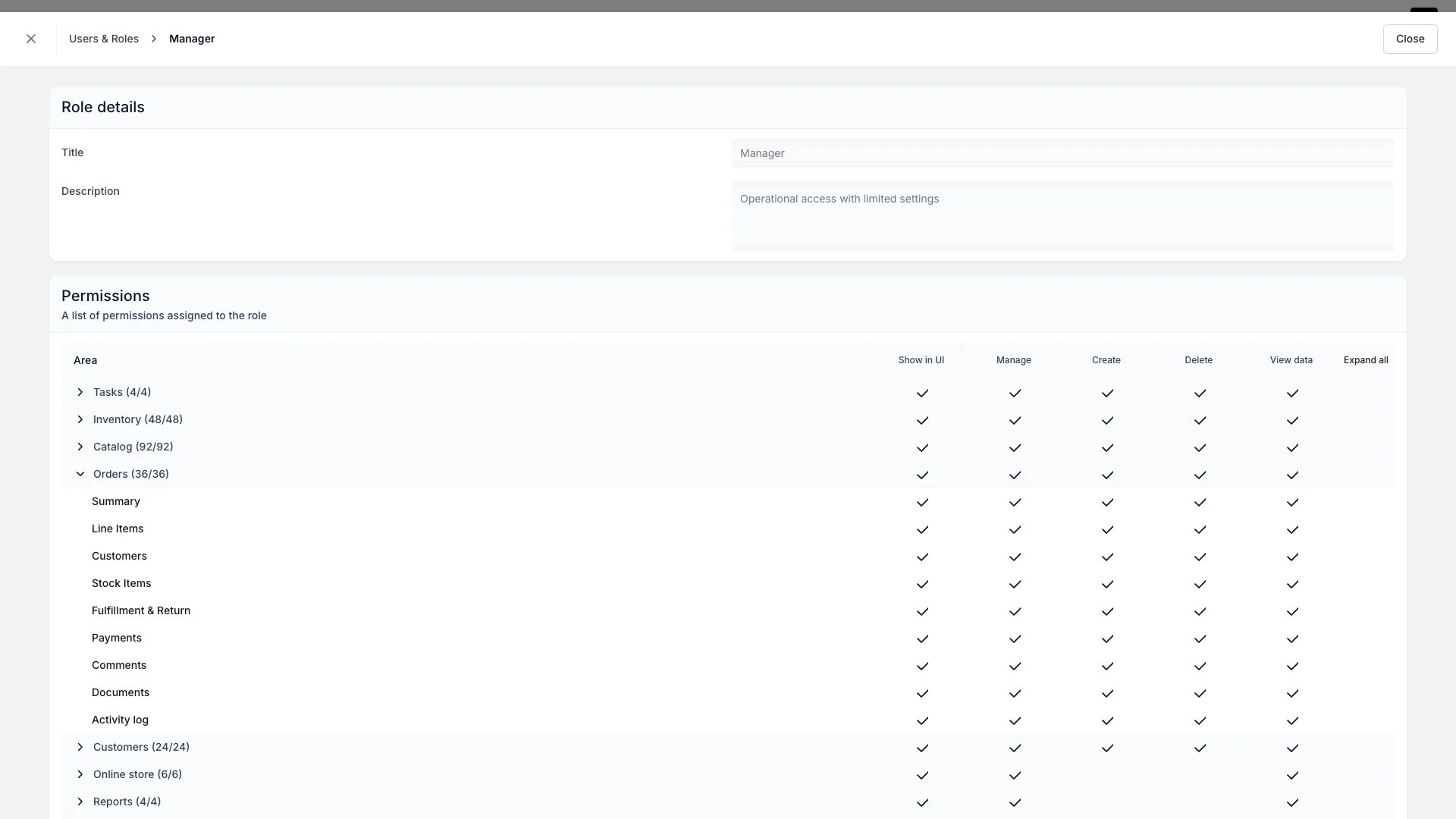
Each key is prefixed with its resource in the API (e.g., `orders:order_payments`). The permissions matrix in the admin displays them grouped by resource with their readable names.
 ### System role defaults
Each system role comes with a predefined set of visible areas:
| System role | Visible areas |
| :---------- | :--------------------------------------------------------------------- |
| **Owner** | All 10 areas |
| **Admin** | All except `finance` |
| **Manager** | All except `account_settings` and `finance` |
| **Member** | `tasks`, `inventory`, `catalog`, `orders`, `customers`, `online_store` |
Custom roles can extend these defaults by adding areas the system role does not include.
System roles do not hide any tabs by default — all tabs are visible. Per-tab hiding is configured only through custom roles.
## Usage
### Configuring visibility in the permissions matrix
When you create or edit a custom role, the permissions matrix shows a **Show in UI** column alongside the data access columns (View, Create, Manage, Delete). The column has two levels of checkboxes:
* **Top-level row** — controls the sidebar section (visible area). Toggling it on or off shows or hides the entire section.
* **Sub-resource rows** — controls individual tabs within that section. Expand a top-level row to see per-tab checkboxes.
The matrix enforces the asymmetric rule at both levels: turning on Show in UI automatically enables View data for that resource or tab. Turning off View data automatically disables Show in UI.
### When visibility is hidden but data access remains
A hidden area or tab does not block cross-resource workflows. Common scenarios:
* **Customer picker in orders** — a role with `customers:view` but without `customers` in visible areas can still search and select customers when creating an order. The Customers section is hidden, but the picker works.
* **Hidden tab, visible data** — hiding `orders:order_payments` removes the Payments tab from the order detail page, but payment data still flows through other views (e.g., order summary totals, reports).
* **Deep links** — linking directly to a URL within a hidden area shows an access-restricted page. The data permission still applies server-side, but the admin does not render the page.
Visible areas and hidden tabs are a UI convenience, not a security boundary. They control what appears in the sidebar and on detail pages. They do not restrict API access — data access is governed entirely by permissions.
## Related
Manage team members, assign roles, and configure permissions.
How the admin sidebar is organized and what each section contains.
### System role defaults
Each system role comes with a predefined set of visible areas:
| System role | Visible areas |
| :---------- | :--------------------------------------------------------------------- |
| **Owner** | All 10 areas |
| **Admin** | All except `finance` |
| **Manager** | All except `account_settings` and `finance` |
| **Member** | `tasks`, `inventory`, `catalog`, `orders`, `customers`, `online_store` |
Custom roles can extend these defaults by adding areas the system role does not include.
System roles do not hide any tabs by default — all tabs are visible. Per-tab hiding is configured only through custom roles.
## Usage
### Configuring visibility in the permissions matrix
When you create or edit a custom role, the permissions matrix shows a **Show in UI** column alongside the data access columns (View, Create, Manage, Delete). The column has two levels of checkboxes:
* **Top-level row** — controls the sidebar section (visible area). Toggling it on or off shows or hides the entire section.
* **Sub-resource rows** — controls individual tabs within that section. Expand a top-level row to see per-tab checkboxes.
The matrix enforces the asymmetric rule at both levels: turning on Show in UI automatically enables View data for that resource or tab. Turning off View data automatically disables Show in UI.
### When visibility is hidden but data access remains
A hidden area or tab does not block cross-resource workflows. Common scenarios:
* **Customer picker in orders** — a role with `customers:view` but without `customers` in visible areas can still search and select customers when creating an order. The Customers section is hidden, but the picker works.
* **Hidden tab, visible data** — hiding `orders:order_payments` removes the Payments tab from the order detail page, but payment data still flows through other views (e.g., order summary totals, reports).
* **Deep links** — linking directly to a URL within a hidden area shows an access-restricted page. The data permission still applies server-side, but the admin does not render the page.
Visible areas and hidden tabs are a UI convenience, not a security boundary. They control what appears in the sidebar and on detail pages. They do not restrict API access — data access is governed entirely by permissions.
## Related
Manage team members, assign roles, and configure permissions.
How the admin sidebar is organized and what each section contains.