> ## Documentation Index
> Fetch the complete documentation index at: https://www.twicecommerce.com/docs/llms.txt
> Use this file to discover all available pages before exploring further.
# Listing - Recommendations
> Attach add-ons to this listing and pick the related listings shown on its storefront page
export const userRoleDefinition = "What a user can see and do. Each user has one built-in system role — Owner, Admin, Manager, or Member — and can also be assigned any number of custom roles you create with specific permissions. Effective access is the combination of all their roles.";
 This view can look different dependent on your user role.
See [Visibility & Permissions](#visibility-and-permissions) for details.
## Primary Purpose
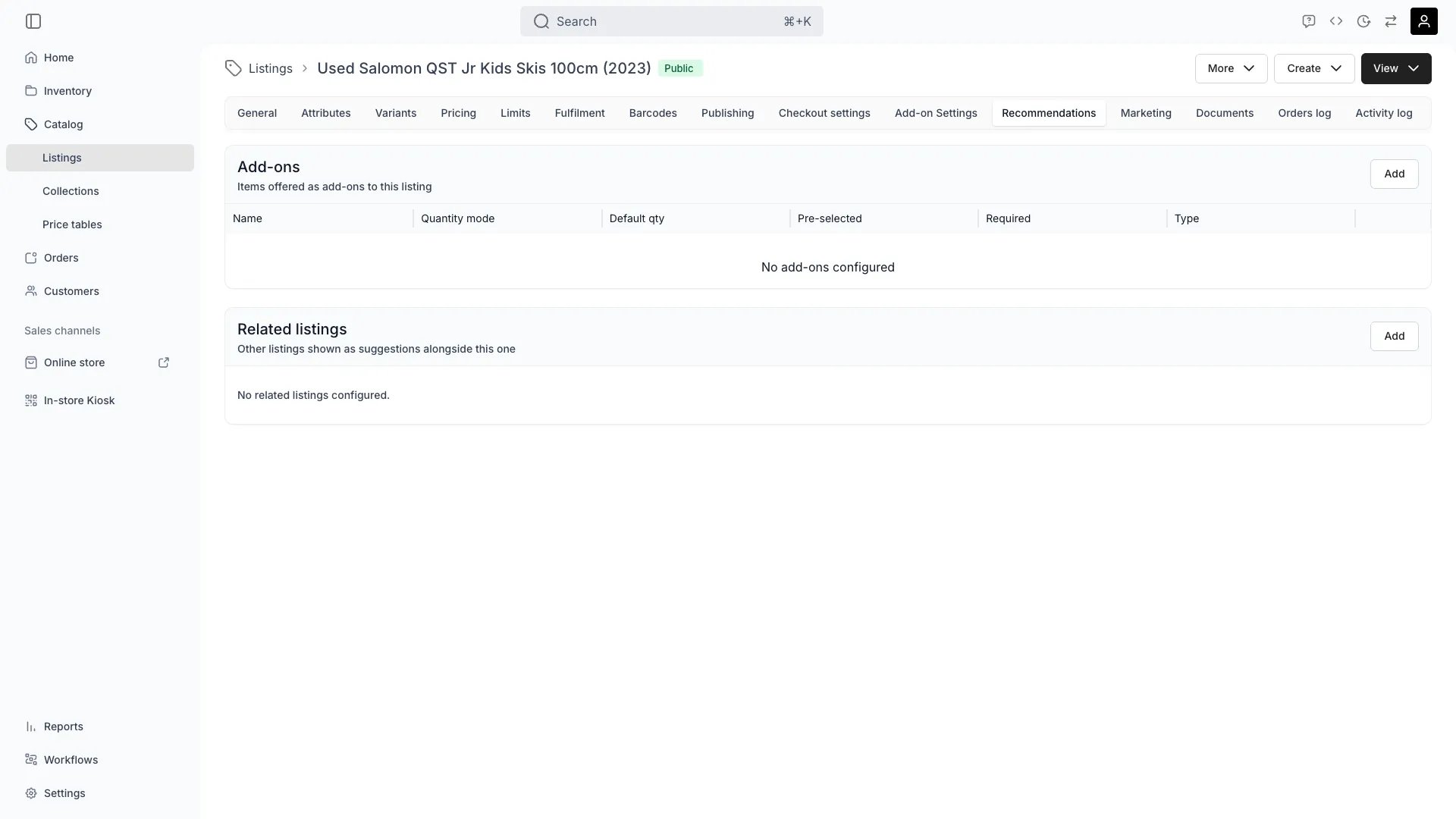
The Recommendations tab has two sections: **Add-ons** — other listings offered as add-ons when a customer orders this listing — and **Related listings** — a manually curated list of listings shown as recommendations on this listing's storefront page.
Attach another listing as an add-on with **Add**: pick the listing, then configure the link. Each add-on link has its own settings:
* **Type** (`purchaseType`) — offer the add-on as a booking (**Book**) or as a purchase (**Buy**). The same listing can be attached twice, once per type. Add-ons priced as a percentage of the parent always use **Buy**.
* **Quantity mode** (`quantityMode`) — **Selectable** lets the customer choose the quantity; **Fixed** locks it to the default.
* **Default quantity** (`defaultQuantity`) — the quantity pre-filled (Selectable) or enforced (Fixed).
* **Pre-selected** (`defaultSelected`) — the add-on starts checked on the storefront; the customer can still remove it.
* **Required** (`required`) — the add-on is shown as included with the listing and cannot be deselected.
* **Default variant values** (`defaultVariantValueIds`) — if the add-on listing has variants, pre-select which variant values are used.
Whether the add-on is priced from its own price tables or as a percentage of this listing's price is configured on the add-on listing itself — see [Add-on Settings](/docs/catalog/listings/addons).
Pick specific listings to show as recommendations on this listing's storefront page (`relatedListingIds`, up to 100). Reorder them with the arrow controls — the storefront shows them in this order. Selection is manual only.
## Related Concepts
How a listing behaves when sold as an add-on — add-on-only visibility and add-on pricing mode — is configured on that listing's [Add-on Settings](/docs/catalog/listings/addons) tab.
Add-ons configured here also appear as suggestions when an operator attaches an add-on to an existing order from the order's Line Items tab. See [Order Line Items](/docs/orders/order-tabs/line-items).
## Visibility and Permissions
Access to this view is controlled by your user role.
| Feature | Admin | Manager | Member |
| -------------------- | :---: | :-----: | :----: |
| View Recommendations | ✓ | ✓ | ✓ |
| Edit Recommendations | ✓ | ✓ | ✗ |