> ## Documentation Index
> Fetch the complete documentation index at: https://www.twicecommerce.com/docs/llms.txt
> Use this file to discover all available pages before exploring further.
# Publishing
> Publishing settings define where your listing is available — the service locations it can be fulfilled from and the sales channels it is sold through.
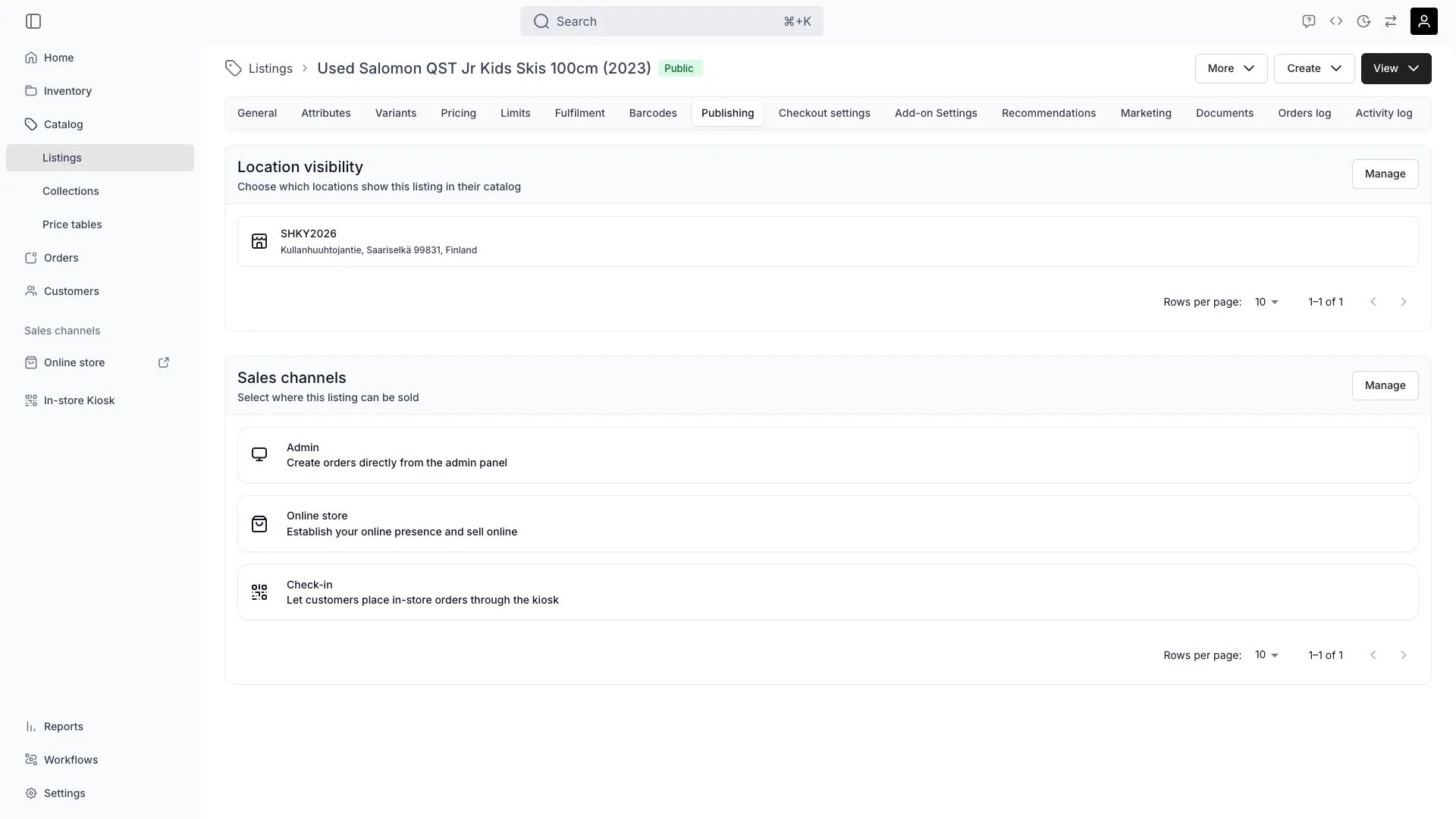 Publishing settings define **where** your listing is available: the service locations it can be fulfilled from, and the sales channels it is sold through.
Store visibility and sales channel settings require the **Manager** role or above. Users with the Member role cannot modify these settings. See [Catalog Permissions](/docs/catalog/overview#visibility-and-permissions) for details.
## Location visibility
Choose which locations show this listing in their catalog.
Each selected location determines where customers can view and place orders for the listing. If a listing should only appear in specific stores or warehouses, select those locations here.
Leave all locations unselected to keep the listing hidden from customer-facing catalogs.
Removing a location from visibility does not cancel existing orders at that location.
### Permissions
Store visibility editing requires the **Manager** role or above.
| Role | Access |
| ------- | ------------------------------------------------- |
| Admin | Edit visibility for all locations |
| Manager | Edit visibility for locations they have access to |
| Member | No access to store visibility settings |
## Sales channels
Two toggles control where the listing can be sold:
* **Admin** (`salesChannelAdmin`) — the listing is available when creating orders from the admin.
* **Online store** (`salesChannelOnline`) — the listing is sold through your online storefront.
Disable both to keep the listing in the catalog but unsellable. The tab shows a warning when no channel is enabled.
## Via the API
Listings are the `catalog` resource. Authenticate with the `X-API-KEY` header (see [API Keys](/docs/concepts/integrations/api-keys)) and call:
* `GET /internal/catalog/` — list listings (with `filters`, `orderBy`, and `pagination`)
* `PUT /internal/catalog/{id}` — update a listing, including the sales-channel flags `salesChannelAdmin` and `salesChannelOnline`
See the [API reference](https://server.twicecommerce.com/api/internal) for the full request and response schemas — it is generated from the live API, so it always reflects the current fields.
## Summary
Publishing settings define the **where** of your listing's availability:
* **Location visibility** — which service locations show and fulfil the listing.
* **Sales channels** — whether it is sold in the admin, the online store, both, or neither.
Role requirements for catalog features.
Configure your sales channel settings.
Publishing settings define **where** your listing is available: the service locations it can be fulfilled from, and the sales channels it is sold through.
Store visibility and sales channel settings require the **Manager** role or above. Users with the Member role cannot modify these settings. See [Catalog Permissions](/docs/catalog/overview#visibility-and-permissions) for details.
## Location visibility
Choose which locations show this listing in their catalog.
Each selected location determines where customers can view and place orders for the listing. If a listing should only appear in specific stores or warehouses, select those locations here.
Leave all locations unselected to keep the listing hidden from customer-facing catalogs.
Removing a location from visibility does not cancel existing orders at that location.
### Permissions
Store visibility editing requires the **Manager** role or above.
| Role | Access |
| ------- | ------------------------------------------------- |
| Admin | Edit visibility for all locations |
| Manager | Edit visibility for locations they have access to |
| Member | No access to store visibility settings |
## Sales channels
Two toggles control where the listing can be sold:
* **Admin** (`salesChannelAdmin`) — the listing is available when creating orders from the admin.
* **Online store** (`salesChannelOnline`) — the listing is sold through your online storefront.
Disable both to keep the listing in the catalog but unsellable. The tab shows a warning when no channel is enabled.
## Via the API
Listings are the `catalog` resource. Authenticate with the `X-API-KEY` header (see [API Keys](/docs/concepts/integrations/api-keys)) and call:
* `GET /internal/catalog/` — list listings (with `filters`, `orderBy`, and `pagination`)
* `PUT /internal/catalog/{id}` — update a listing, including the sales-channel flags `salesChannelAdmin` and `salesChannelOnline`
See the [API reference](https://server.twicecommerce.com/api/internal) for the full request and response schemas — it is generated from the live API, so it always reflects the current fields.
## Summary
Publishing settings define the **where** of your listing's availability:
* **Location visibility** — which service locations show and fulfil the listing.
* **Sales channels** — whether it is sold in the admin, the online store, both, or neither.
Role requirements for catalog features.
Configure your sales channel settings.