> ## Documentation Index
> Fetch the complete documentation index at: https://www.twicecommerce.com/docs/llms.txt
> Use this file to discover all available pages before exploring further.
# Orders log
> The Orders log shows all orders where this listing has been included — whether sold, rented, or booked.
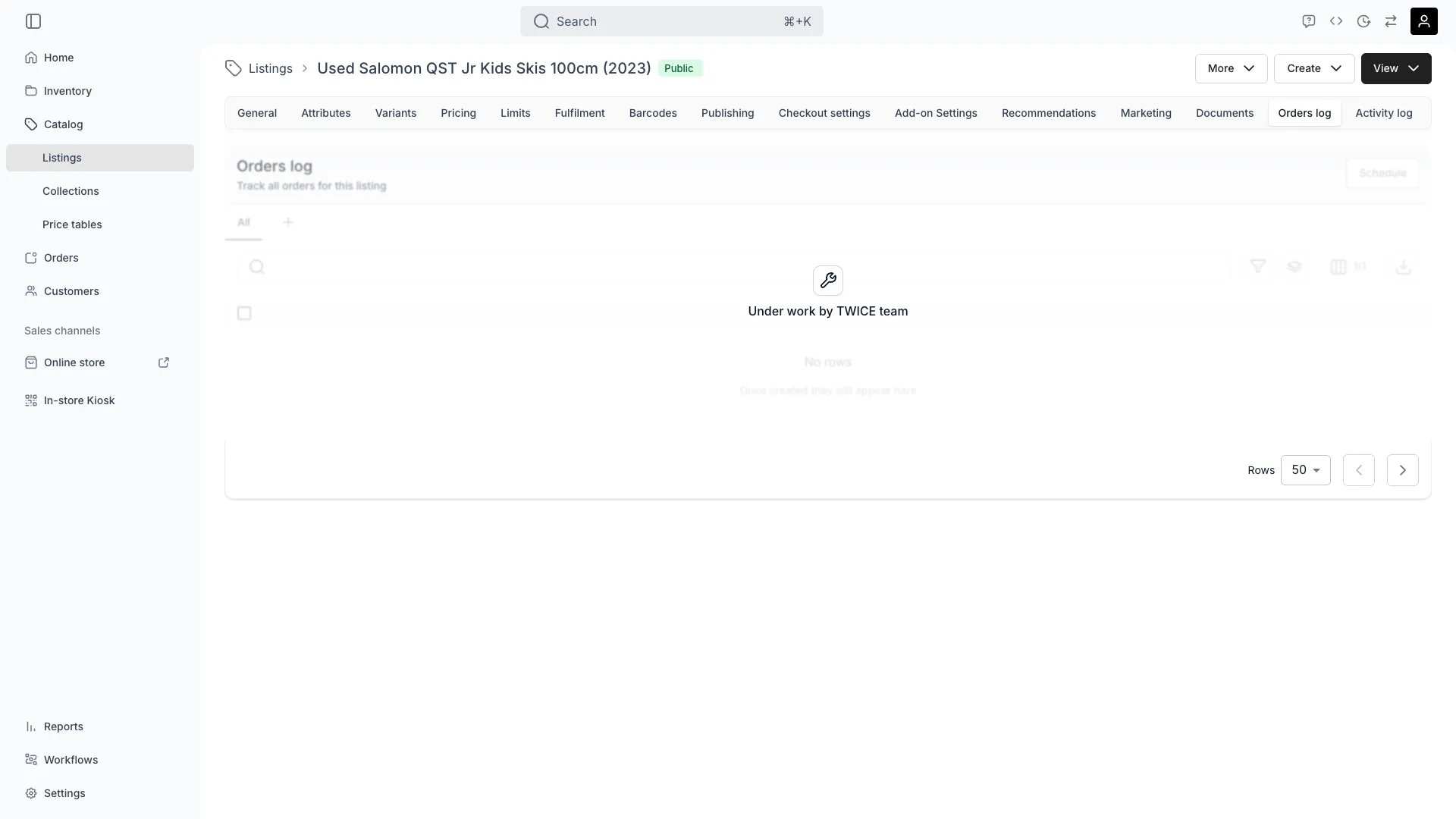 The **Orders log** shows every order that has included this listing — across rentals, sales, and bookings. It connects catalog management to real-world transactional activity, so you can see how a listing performs without leaving the listing page.
The Orders log is currently under active development. The table renders within the listing detail page but the column set and filters are still being finalized — what you see in this article reflects the intended shape of the feature.
## Scope
The log is scoped to the listing you are viewing. An order appears here when:
* The order contains a **line item** that references this Listing, or
* A line item resolves to a Stock Item that the listing's fulfillment rules match (for variant-level or rule-based assignments)
Each row represents one **order** — not one line item — so an order that includes the listing multiple times still appears once with the aggregated quantity.
## Columns
Each row exposes the most useful fields for catalog-level analysis:
| Column | Description |
| :---------------- | :----------------------------------------------------------------------- |
| **Order number** | The merchant-facing order reference. Click to open the order |
| **Customer** | The customer who placed the order |
| **Order type** | `Rental`, `Sale`, or `Booking` |
| **Order date** | When the order was created |
| **Rental period** | Start and end dates for rental and booking orders |
| **Status** | The order's current status — `Draft`, `Active`, or `Archived` |
| **State** | Operational state — `Upcoming`, `Active`, `Completed`, `Cancelled`, etc. |
| **Quantity** | How many units of this listing were on the order |
| **Total** | The order total contributed by this listing |
## Filters and sort
The orders log uses the same data table pattern as the main Orders view, so you can:
* Filter by **Order type**, **Status**, **State**, **Customer**, and date range
* Sort by any column — defaults to newest first by **Order date**
* Save filter and column combinations as **custom views**
* Export the current view as CSV (respects filters and visible columns)
## Use cases
* Review how many times a listing has been rented or sold over a given period
* Identify repeat customers for a specific listing
* Reconcile listing-level revenue against the main Orders view
* Spot operational patterns — for example a listing that's frequently cancelled or returned
* Jump from the listing into the underlying order for troubleshooting or follow-up actions
The **Orders log** shows every order that has included this listing — across rentals, sales, and bookings. It connects catalog management to real-world transactional activity, so you can see how a listing performs without leaving the listing page.
The Orders log is currently under active development. The table renders within the listing detail page but the column set and filters are still being finalized — what you see in this article reflects the intended shape of the feature.
## Scope
The log is scoped to the listing you are viewing. An order appears here when:
* The order contains a **line item** that references this Listing, or
* A line item resolves to a Stock Item that the listing's fulfillment rules match (for variant-level or rule-based assignments)
Each row represents one **order** — not one line item — so an order that includes the listing multiple times still appears once with the aggregated quantity.
## Columns
Each row exposes the most useful fields for catalog-level analysis:
| Column | Description |
| :---------------- | :----------------------------------------------------------------------- |
| **Order number** | The merchant-facing order reference. Click to open the order |
| **Customer** | The customer who placed the order |
| **Order type** | `Rental`, `Sale`, or `Booking` |
| **Order date** | When the order was created |
| **Rental period** | Start and end dates for rental and booking orders |
| **Status** | The order's current status — `Draft`, `Active`, or `Archived` |
| **State** | Operational state — `Upcoming`, `Active`, `Completed`, `Cancelled`, etc. |
| **Quantity** | How many units of this listing were on the order |
| **Total** | The order total contributed by this listing |
## Filters and sort
The orders log uses the same data table pattern as the main Orders view, so you can:
* Filter by **Order type**, **Status**, **State**, **Customer**, and date range
* Sort by any column — defaults to newest first by **Order date**
* Save filter and column combinations as **custom views**
* Export the current view as CSV (respects filters and visible columns)
## Use cases
* Review how many times a listing has been rented or sold over a given period
* Identify repeat customers for a specific listing
* Reconcile listing-level revenue against the main Orders view
* Spot operational patterns — for example a listing that's frequently cancelled or returned
* Jump from the listing into the underlying order for troubleshooting or follow-up actions