> ## Documentation Index
> Fetch the complete documentation index at: https://www.twicecommerce.com/docs/llms.txt
> Use this file to discover all available pages before exploring further.
# Checkout Settings
> Decide whether items are assigned to a named customer and what information your team collects to prepare an order.
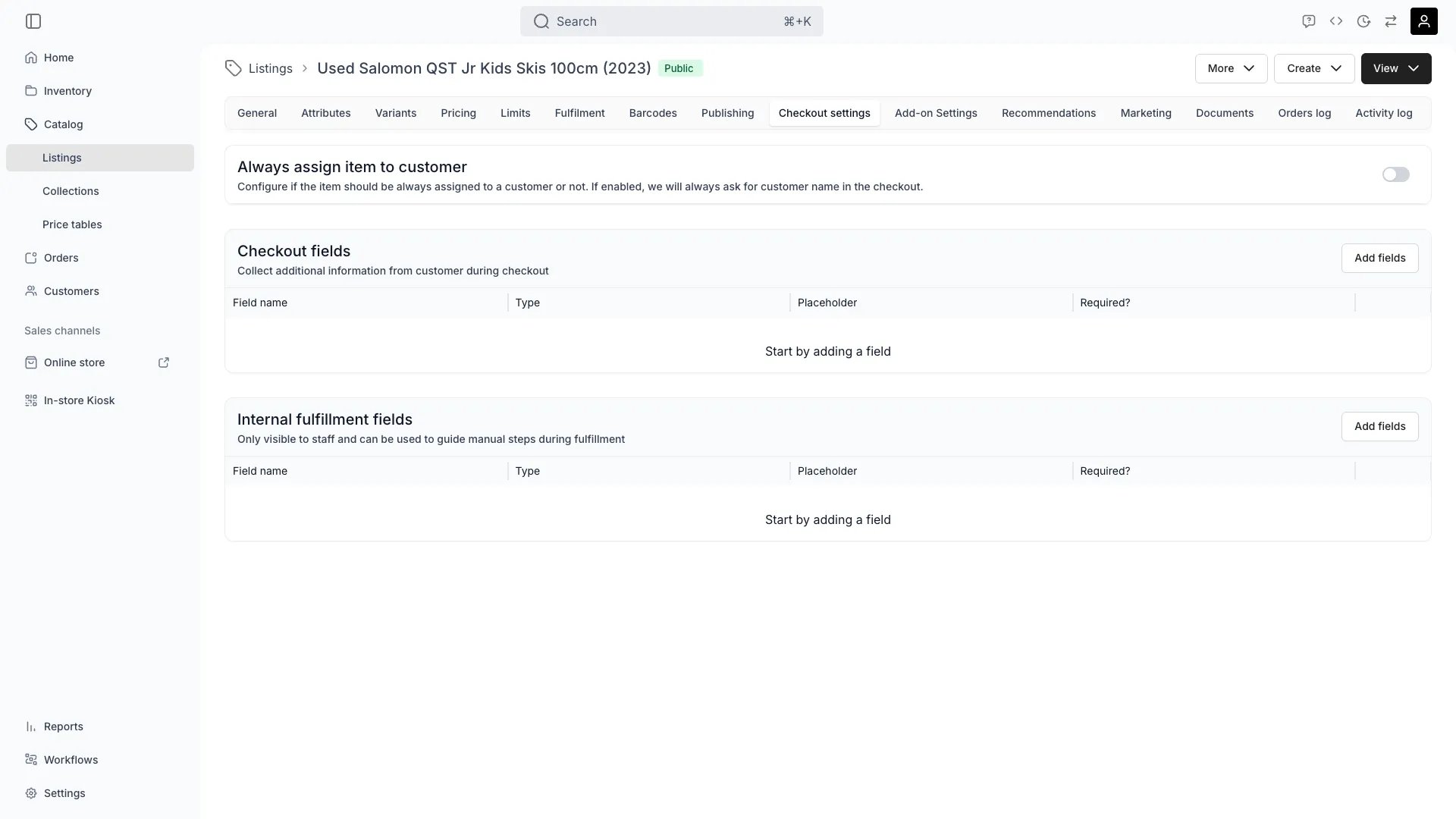 The Checkout Settings tab controls whether this listing's items are assigned to a named customer at checkout, and which extra fields are collected — from the customer during checkout, or by staff during fulfilment.
Deposits are not configured here. The booking deposit — a single fixed-amount, refundable security hold — is set on the [Pricing](/docs/catalog/listings/pricing#booking-deposit) tab. See [Security Deposits](/docs/concepts/orders/deposits) for how holds are placed, captured, and released.
## Assign to customer
Toggle **Always assign item to customer** to require that every ordered item of this listing is assigned to a customer. When enabled, checkout always asks for the customer's name.
Use this for items that are personal to the person using them — ski rentals sized to a specific skier, lift tickets, or course seats.
## Checkout fields
Define custom fields the customer fills in during checkout. These fields appear whenever this listing is part of the order — for example:
* **Car rentals:** driver's license number, license photo, driver's age
* **B2B orders:** company name, VAT number, purchase order reference
* **Ski rentals:** height, weight, shoe size, and experience level (for DIN settings)
* **Event bookings:** attendee name, dietary restrictions, or seat preference
Add or edit fields with **Add fields**. Each field opens in a drawer where you set its label, type, placeholder text, and whether it is required.
### Field types
| Type | Description |
| ---------------------- | ------------------------------------------------------------------------------------------------------------------------------------------------------------------------------------- |
| **Text field** | Free-form text input. |
| **Number field** | Numeric input. |
| **Checkbox** | A single on/off toggle. |
| **Select field** | Dropdown with a predefined list of options. |
| **Customer attribute** | Links the field to a [customer attribute](/docs/customers/customer-tabs/attributes). The value is stored on the customer profile. Only available for checkout fields, not internal fields. |
### Select field options
When you choose **Select field** as the type, an options editor appears below the type selector.
* Click **Add option** to add an option. Enter a name for each option.
* Click the trash icon next to an option to remove it.
* At least one option is required.
* Option names must be unique.
The customer sees the field as a dropdown during checkout and picks one option from the list.
## Internal fulfilment fields
Internal fields are visible to staff only. Use them to guide manual steps during fulfilment — for example, a field for the assigned DIN setting, a prep checklist item, or a serial number recorded at pickup.
Internal fields support the same field types as checkout fields except **Customer attribute**.
Internal fields never appear to the customer.
## Related Concepts
The refundable security hold for this listing is configured on the [Pricing](/docs/catalog/listings/pricing#booking-deposit) tab. See [Security Deposits](/docs/concepts/orders/deposits) for the hold lifecycle.
Duration constraints and order deadlines are enforced at checkout but configured on the [Limits](/docs/catalog/listings/limits) tab.
The Checkout Settings tab controls whether this listing's items are assigned to a named customer at checkout, and which extra fields are collected — from the customer during checkout, or by staff during fulfilment.
Deposits are not configured here. The booking deposit — a single fixed-amount, refundable security hold — is set on the [Pricing](/docs/catalog/listings/pricing#booking-deposit) tab. See [Security Deposits](/docs/concepts/orders/deposits) for how holds are placed, captured, and released.
## Assign to customer
Toggle **Always assign item to customer** to require that every ordered item of this listing is assigned to a customer. When enabled, checkout always asks for the customer's name.
Use this for items that are personal to the person using them — ski rentals sized to a specific skier, lift tickets, or course seats.
## Checkout fields
Define custom fields the customer fills in during checkout. These fields appear whenever this listing is part of the order — for example:
* **Car rentals:** driver's license number, license photo, driver's age
* **B2B orders:** company name, VAT number, purchase order reference
* **Ski rentals:** height, weight, shoe size, and experience level (for DIN settings)
* **Event bookings:** attendee name, dietary restrictions, or seat preference
Add or edit fields with **Add fields**. Each field opens in a drawer where you set its label, type, placeholder text, and whether it is required.
### Field types
| Type | Description |
| ---------------------- | ------------------------------------------------------------------------------------------------------------------------------------------------------------------------------------- |
| **Text field** | Free-form text input. |
| **Number field** | Numeric input. |
| **Checkbox** | A single on/off toggle. |
| **Select field** | Dropdown with a predefined list of options. |
| **Customer attribute** | Links the field to a [customer attribute](/docs/customers/customer-tabs/attributes). The value is stored on the customer profile. Only available for checkout fields, not internal fields. |
### Select field options
When you choose **Select field** as the type, an options editor appears below the type selector.
* Click **Add option** to add an option. Enter a name for each option.
* Click the trash icon next to an option to remove it.
* At least one option is required.
* Option names must be unique.
The customer sees the field as a dropdown during checkout and picks one option from the list.
## Internal fulfilment fields
Internal fields are visible to staff only. Use them to guide manual steps during fulfilment — for example, a field for the assigned DIN setting, a prep checklist item, or a serial number recorded at pickup.
Internal fields support the same field types as checkout fields except **Customer attribute**.
Internal fields never appear to the customer.
## Related Concepts
The refundable security hold for this listing is configured on the [Pricing](/docs/catalog/listings/pricing#booking-deposit) tab. See [Security Deposits](/docs/concepts/orders/deposits) for the hold lifecycle.
Duration constraints and order deadlines are enforced at checkout but configured on the [Limits](/docs/catalog/listings/limits) tab.