> ## Documentation Index
> Fetch the complete documentation index at: https://www.twicecommerce.com/docs/llms.txt
> Use this file to discover all available pages before exploring further.
# Listing - Barcodes
> Assign the barcode that identifies this listing at scan time
export const userRoleDefinition = "What a user can see and do. Each user has one built-in system role — Owner, Admin, Manager, or Member — and can also be assigned any number of custom roles you create with specific permissions. Effective access is the combination of all their roles.";
 This view can look different dependent on your user role.
See [Visibility & Permissions](#visibility-and-permissions) for details.
## Primary Purpose
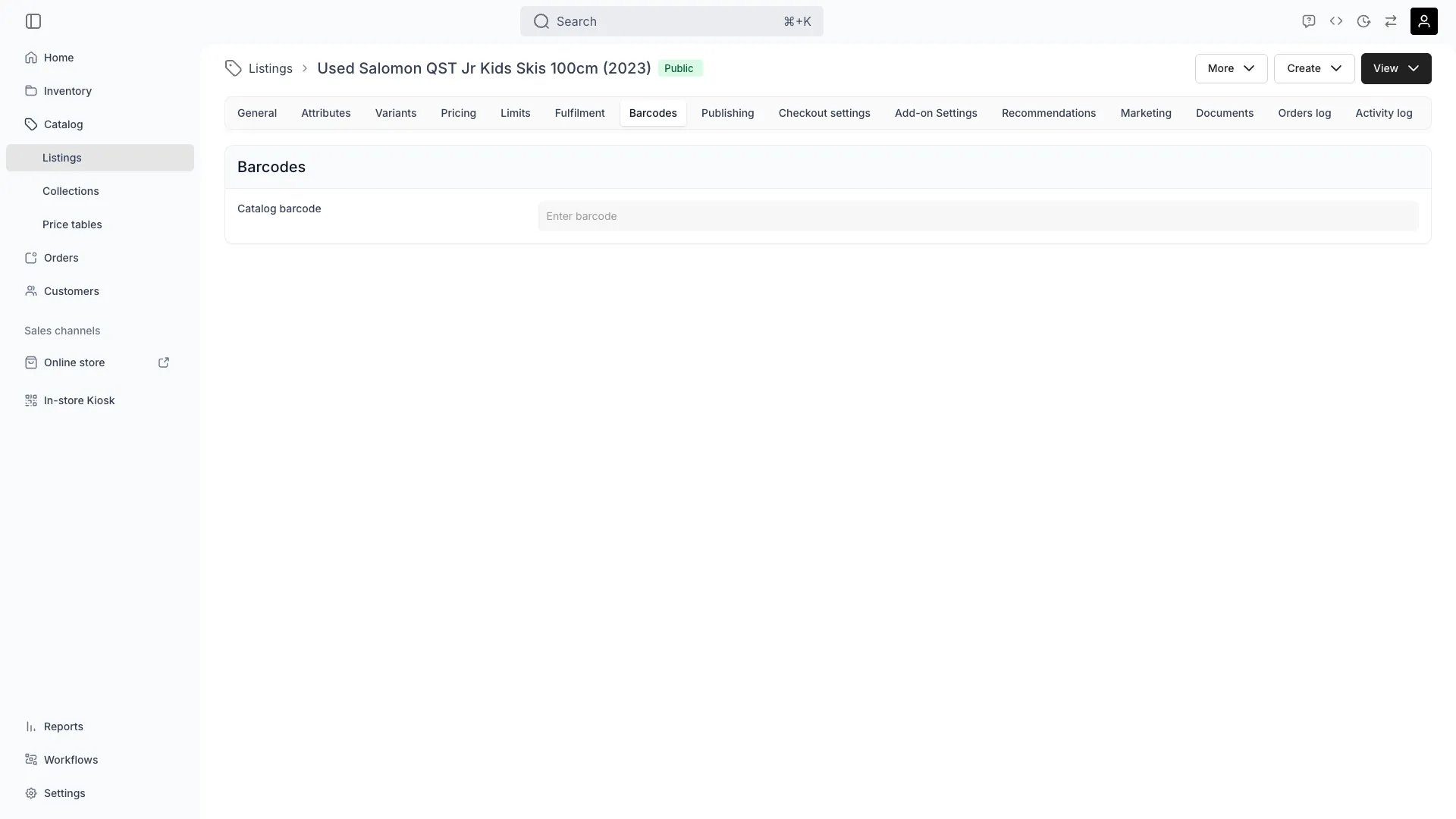
The Barcodes tab assigns a barcode to the listing. Scanners and external systems use the barcode to identify and look up this listing.
The tab holds a single barcode value for the whole listing. The code can be any format — UPC, EAN, or a custom code used internally or by suppliers. Barcodes are not assigned per variant.
Scanning the barcode resolves straight to the listing for quick lookup and order creation.
## Related Concepts
Barcodes on a listing are different from item-level [Stock Codes](/docs/concepts/inventory/stock-codes), which identify individual stock items.
## Visibility and Permissions
Access to this view is controlled by your user role.
| Feature | Admin | Manager | Member |
| ------------- | :---: | :-----: | :----: |
| View Barcodes | ✓ | ✓ | ✓ |
| Edit Barcodes | ✓ | ✓ | ✗ |