> ## Documentation Index
> Fetch the complete documentation index at: https://www.twicecommerce.com/docs/llms.txt
> Use this file to discover all available pages before exploring further.
# Activity log
> The activity log captures every event related to a specific listing in TWICE.
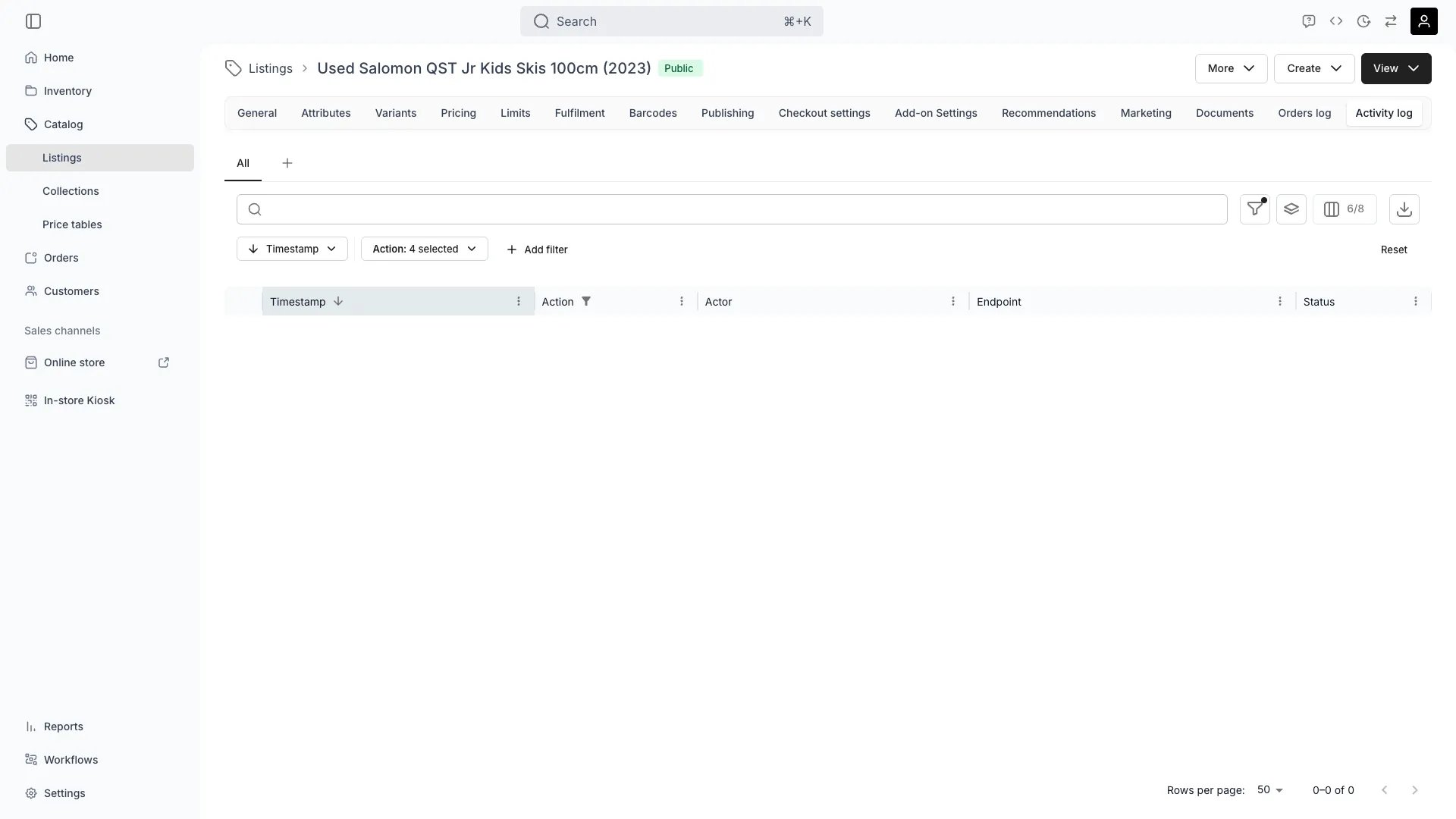
The activity log captures every event related to a specific **listing** in TWICE. It is scoped to the listing you are viewing — the table only shows entries whose **affected record** is this listing's ID.
 ## Columns
Each row in the activity log represents a single audit event. The table shows:
| Column | Description |
| :---------------- | :---------------------------------------------------------------------------------- |
| **Timestamp** | When the event happened, in your local time |
| **Action** | The kind of change — `Create`, `Update`, `Delete`, or `Read` |
| **Resource type** | Which entity was touched — for example `Catalog`, `Variant`, `Pricing table`, `SKU` |
| **Record ID** | The ID of the affected record. Links to its detail page when available |
| **Actor** | Who performed the change — a user email, an API key, or a system process |
| **Endpoint** | The API endpoint that handled the request |
| **Status** | The HTTP status code returned (green for success, red for errors) |
Expand any row to see the full audit payload — including the request body, response, and the diff between the previous and new state of the record.
## Default view
When you first open the activity log, the table is pre-filtered to:
* The last **24 hours** of activity (you can widen this with the **Timestamp** filter)
* Write actions only — `Create`, `Update`, and `Delete`. `Read` events are hidden by default but can be enabled in the **Action** filter
Rows are sorted newest-first.
## Filters
The audit log supports a fixed set of filters that match what the underlying API can query efficiently:
* **Timestamp** — `is`, `after`, `on or after`, `before`, `on or before`
* **Action** — multi-select across `Create`, `Update`, `Delete`, `Read`
* **Resource type** — multi-select (for example to see only `Pricing table` changes)
* **Actor** — exact email match for user accounts
* **Endpoint** — substring match on the URL path
The **Record ID** and **Status** columns are not filterable — record scope is set by the parent listing and status codes are derived from the response.
## What gets logged
Any write to the listing or one of its child resources produces an entry. Typical events include:
* General tab edits (name, title, description, media, tags)
* Variant creation, edits, and deletion
* Pricing table changes and price overrides
* Publishing and channel visibility updates
* Fulfillment rule changes (stock item assignments, variant rules)
* Checkout settings updates
* Document uploads and deletions
System-generated events — for example automatic price recalculations or attribute syncs — appear with an `API` or `System` actor instead of a user email.
## Use cases
* Trace when a listing went from `Draft` to `Public` and who published it
* Audit price changes before a campaign launches
* Investigate why a fulfillment rule stopped matching the expected stock items
* Provide a clear paper trail for compliance reviews
## Columns
Each row in the activity log represents a single audit event. The table shows:
| Column | Description |
| :---------------- | :---------------------------------------------------------------------------------- |
| **Timestamp** | When the event happened, in your local time |
| **Action** | The kind of change — `Create`, `Update`, `Delete`, or `Read` |
| **Resource type** | Which entity was touched — for example `Catalog`, `Variant`, `Pricing table`, `SKU` |
| **Record ID** | The ID of the affected record. Links to its detail page when available |
| **Actor** | Who performed the change — a user email, an API key, or a system process |
| **Endpoint** | The API endpoint that handled the request |
| **Status** | The HTTP status code returned (green for success, red for errors) |
Expand any row to see the full audit payload — including the request body, response, and the diff between the previous and new state of the record.
## Default view
When you first open the activity log, the table is pre-filtered to:
* The last **24 hours** of activity (you can widen this with the **Timestamp** filter)
* Write actions only — `Create`, `Update`, and `Delete`. `Read` events are hidden by default but can be enabled in the **Action** filter
Rows are sorted newest-first.
## Filters
The audit log supports a fixed set of filters that match what the underlying API can query efficiently:
* **Timestamp** — `is`, `after`, `on or after`, `before`, `on or before`
* **Action** — multi-select across `Create`, `Update`, `Delete`, `Read`
* **Resource type** — multi-select (for example to see only `Pricing table` changes)
* **Actor** — exact email match for user accounts
* **Endpoint** — substring match on the URL path
The **Record ID** and **Status** columns are not filterable — record scope is set by the parent listing and status codes are derived from the response.
## What gets logged
Any write to the listing or one of its child resources produces an entry. Typical events include:
* General tab edits (name, title, description, media, tags)
* Variant creation, edits, and deletion
* Pricing table changes and price overrides
* Publishing and channel visibility updates
* Fulfillment rule changes (stock item assignments, variant rules)
* Checkout settings updates
* Document uploads and deletions
System-generated events — for example automatic price recalculations or attribute syncs — appear with an `API` or `System` actor instead of a user email.
## Use cases
* Trace when a listing went from `Draft` to `Public` and who published it
* Audit price changes before a campaign launches
* Investigate why a fulfillment rule stopped matching the expected stock items
* Provide a clear paper trail for compliance reviews