> ## Documentation Index
> Fetch the complete documentation index at: https://www.twicecommerce.com/docs/llms.txt
> Use this file to discover all available pages before exploring further.
# Collections
> Group listings into categories that make your online store easier to browse and navigate
export const userRoleDefinition = "What a user can see and do. Each user has one built-in system role — Owner, Admin, Manager, or Member — and can also be assigned any number of custom roles you create with specific permissions. Effective access is the combination of all their roles.";
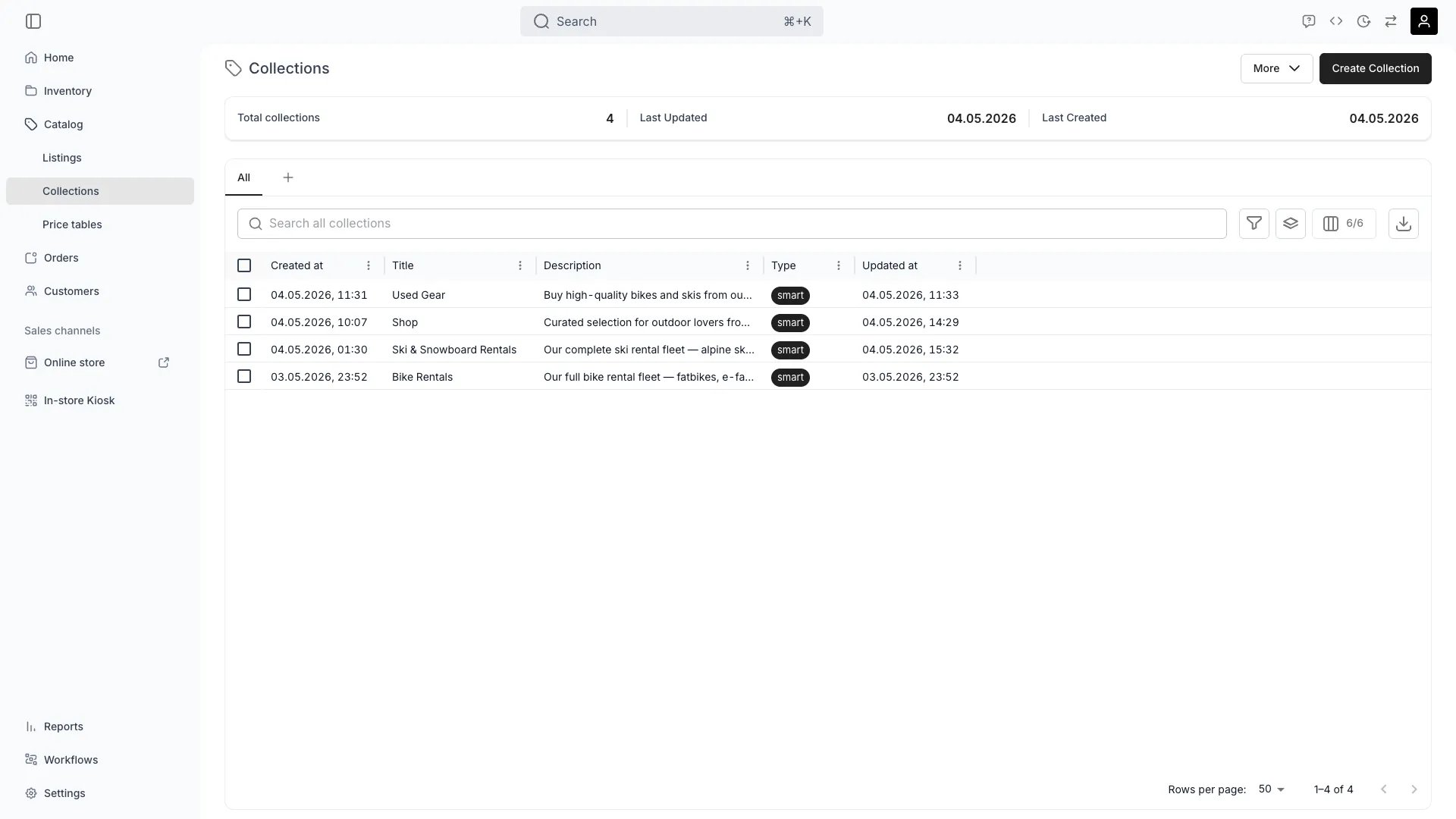 This view can look different dependent on your user role.
See [Visibility & Permissions](#visibility-and-permissions) for details.
catalog/collections
## Primary Purpose
Collections group listings into categories that make your online store easier to browse — manually curated or automatically populated by rules.
Build curated sets by selecting listings individually for complete editorial control (e.g., "Editor's Picks", "New Arrivals", "Bestsellers").
Create dynamic smart collections that automatically include listings based on tags, attributes, or categories.
Read more: [Collections Key Concept](/docs/concepts/catalog/collections)
Group listings for seasonal promotions or marketing campaigns.
Manage whether collections appear in navigation or are used only for internal organization.
## Related Concepts
**Manual collections** give you complete control over which listings appear. **Smart collections** automatically update based on rules you define using tags, attributes, or categories.
Listings can belong to as many collections as you want, allowing flexible cross-categorization.
## Visibility and Permissions
Access to this view is controlled by your user role.
| Feature | Admin | Manager | Member |
| ------------------ | ----- | ------- | ------ |
| Collections Table | ✓ | ✓ | ✓ |
| Create Collections | ✓ | ✓ | ✗ |
| Smart Rules | ✓ | ✓ | ✗ |
| Resource | Admin | Manager | Member |
| --------------------- | ------ | ------- | ------ |
| Collection Management | Manage | Edit | View |