> ## Documentation Index
> Fetch the complete documentation index at: https://www.twicecommerce.com/docs/llms.txt
> Use this file to discover all available pages before exploring further.
# Collection - Listings
> Manage which listings belong to this collection, either manually or via smart rules
export const userRoleDefinition = "What a user can see and do. Each user has one built-in system role — Owner, Admin, Manager, or Member — and can also be assigned any number of custom roles you create with specific permissions. Effective access is the combination of all their roles.";
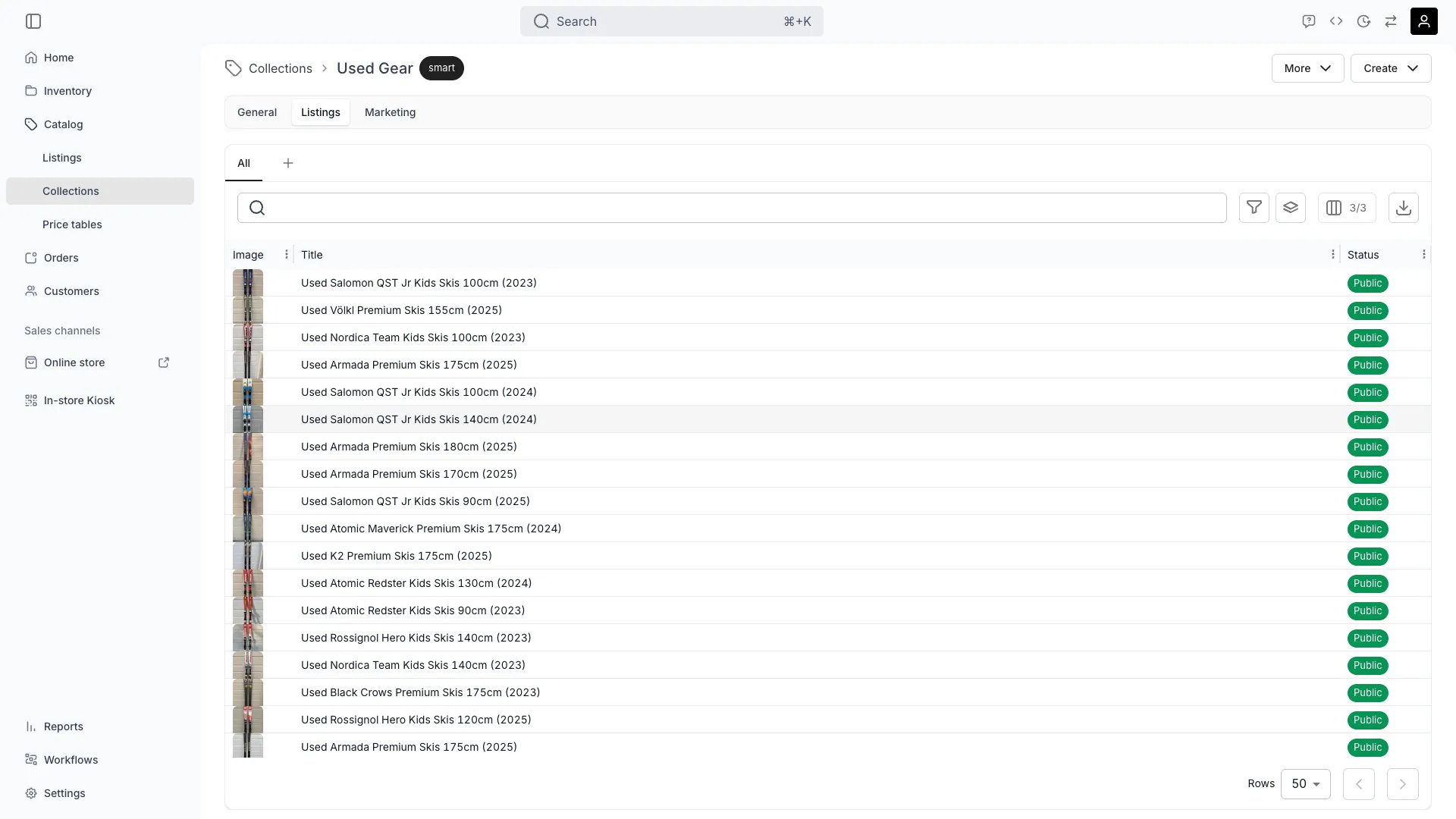 This view can look different dependent on your user role.
See [Visibility & Permissions](#visibility-and-permissions) for details.
## Primary Purpose
The Listings tab controls which listings belong to this collection. For manual collections, you add or remove listings directly. For smart collections, you define the rules that determine membership.
Add and remove listings one by one. Useful for curated collections like featured products or editorial selections.
Define conditions (by tag, attribute, category, etc.) so listings are added automatically when they match. Match logic can require ALL or ANY of the rules.
Preview which listings will appear in the collection and define their display order on the storefront.
## Visibility and Permissions
Access to this view is controlled by your user role.
| Feature | Admin | Manager | Member |
| --------------- | :---: | :-----: | :----: |
| View listings | ✓ | ✓ | ✓ |
| Edit membership | ✓ | ✓ | ✗ |