> ## Documentation Index
> Fetch the complete documentation index at: https://www.twicecommerce.com/docs/llms.txt
> Use this file to discover all available pages before exploring further.
# Tables in TWICE Commerce
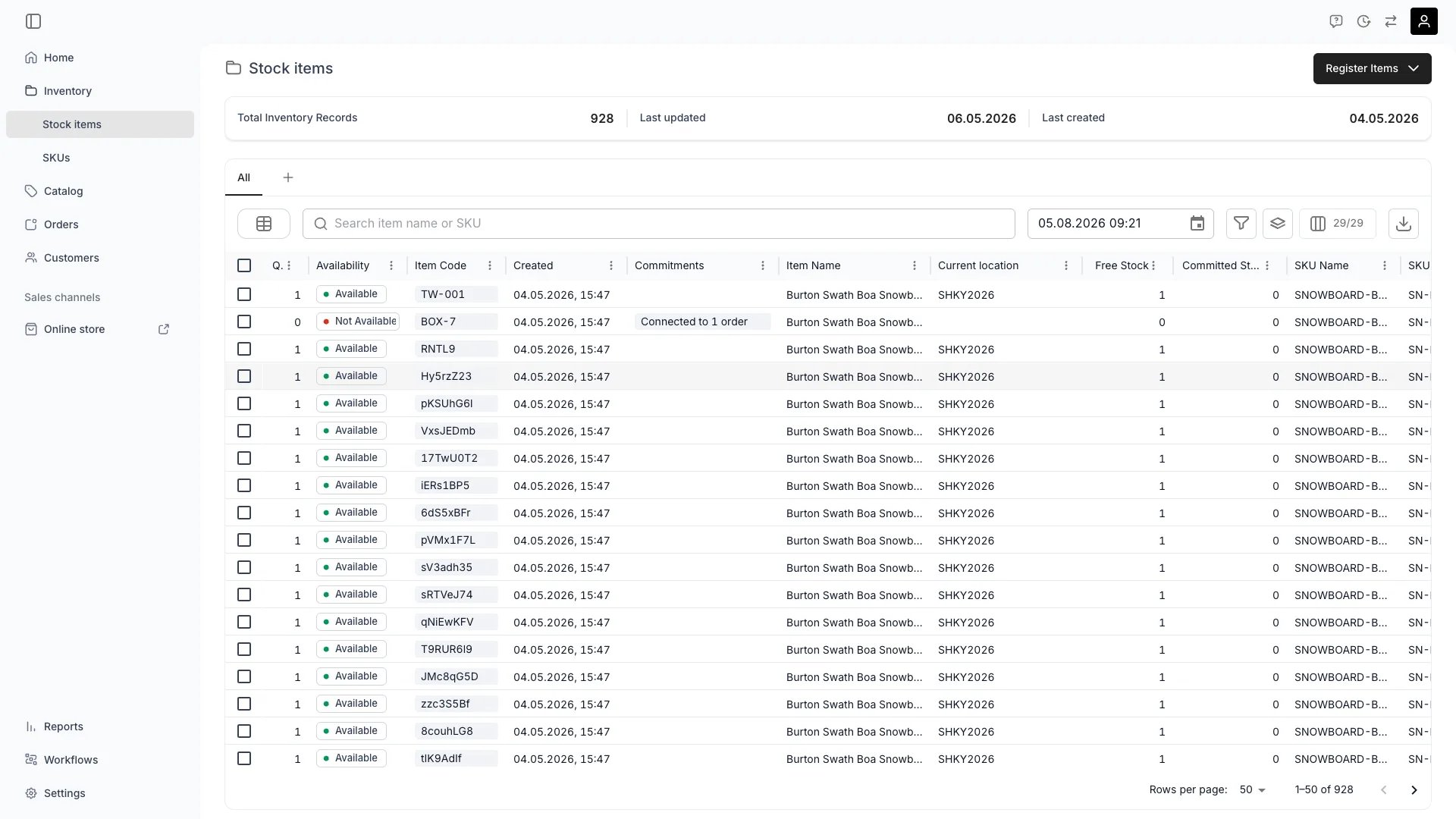
> TWICE Admin provide you access to the core assets (inventory, catalog, orders, and customers) through customizable tables
Every table view is fully *searchable, filterable, sortable, and groupable*, with full *column controls* (pin, hide, reorder) and one-click *export*. You can build and save these *custom views* (similar to Notion) to fit your daily workflows and roles.
 ## Core table features
Every table in TWICE Admin includes the following core features.
### Search
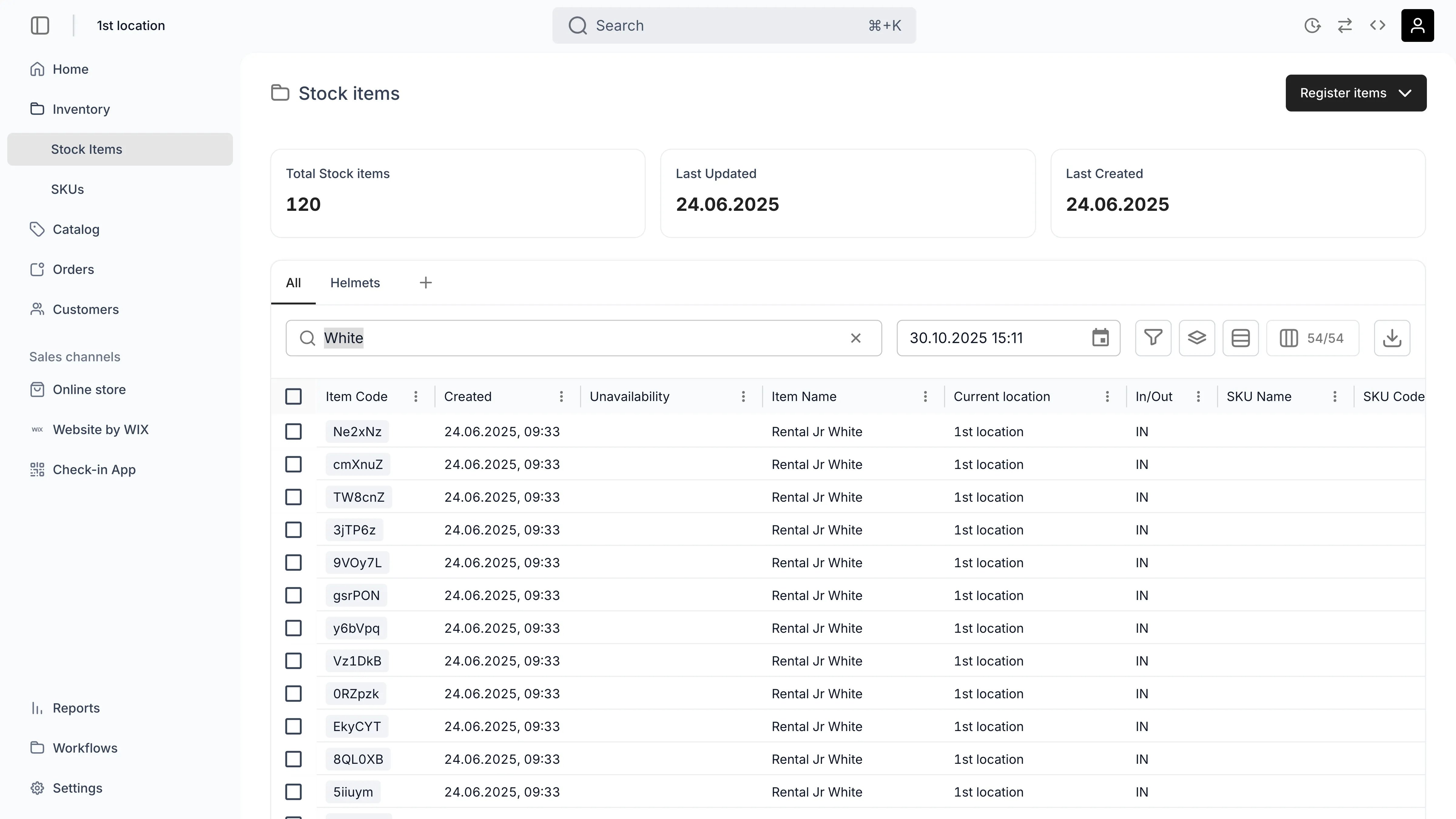
The search covers all (visible and hidden) columns.
## Core table features
Every table in TWICE Admin includes the following core features.
### Search
The search covers all (visible and hidden) columns.
 ### Sorting
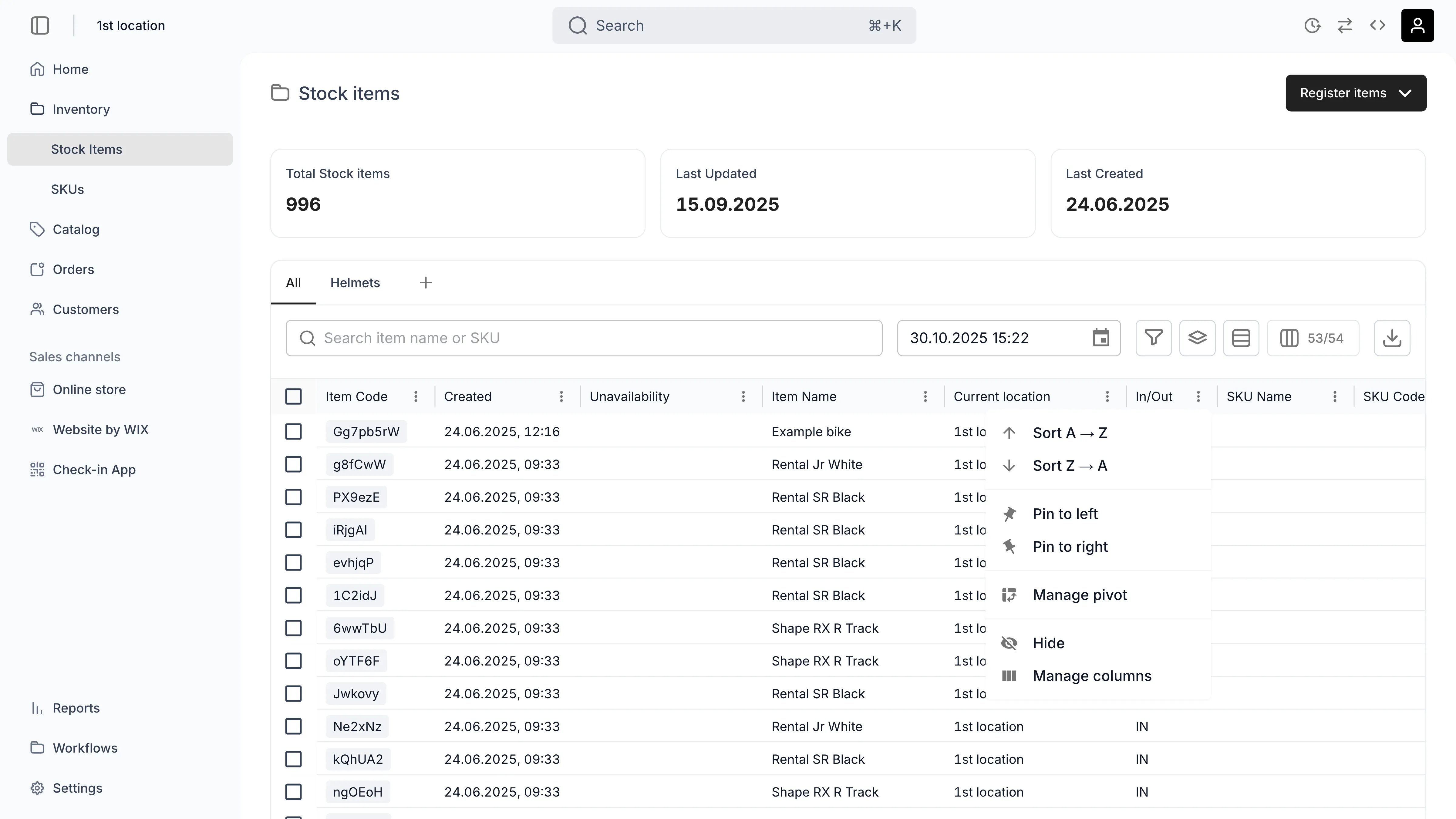
You can sort by any column by clicking the arrow that appears next to the column title.
### Sorting
You can sort by any column by clicking the arrow that appears next to the column title.
 You control the sort after it has been created from a dedicated pill below the search bar.
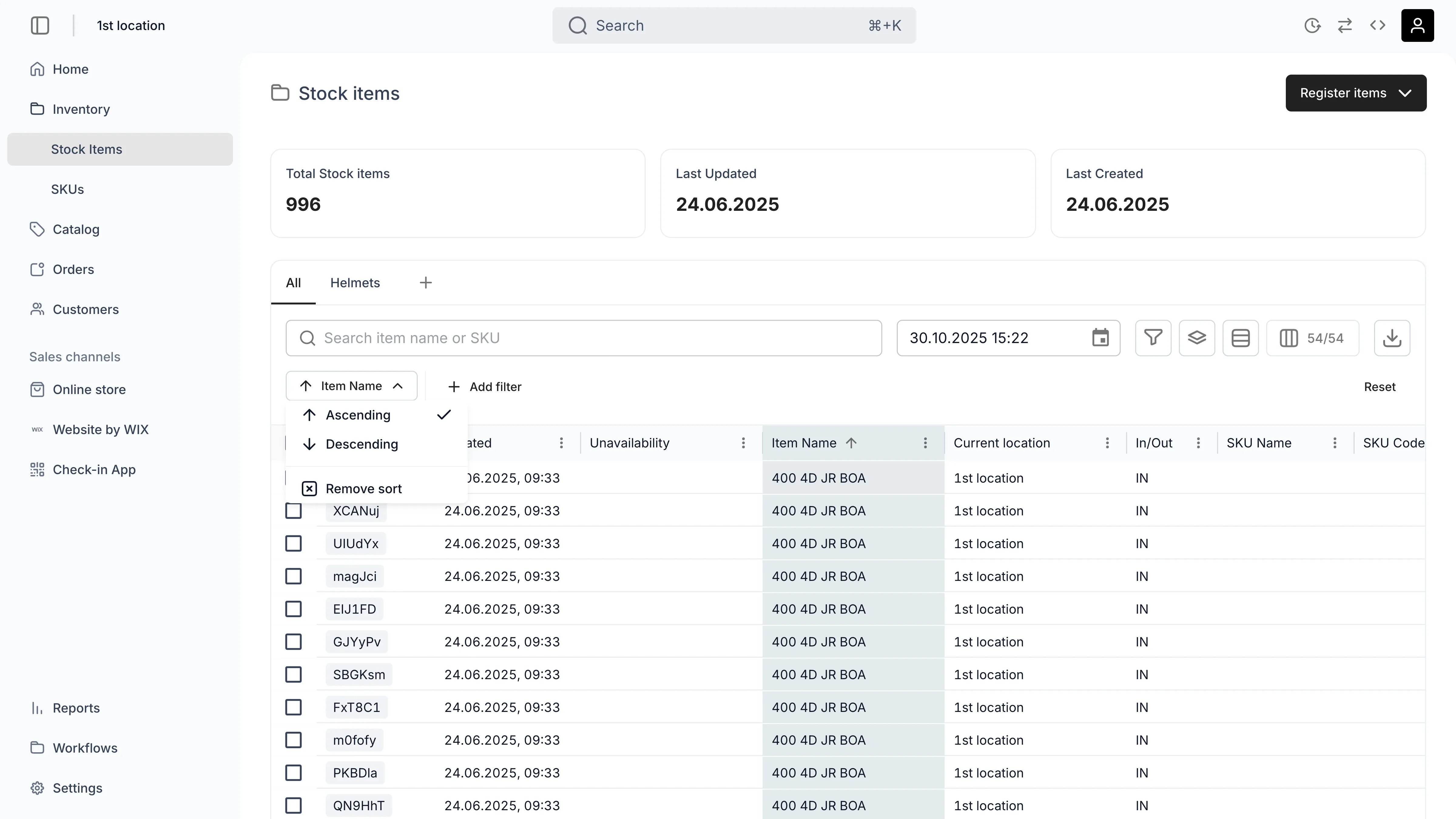 You can only sort by one column at a time.
### Filtering
You can filter by any column by clicking the filter icon next to the searc bar. After a filter has been created you can define, remove, or add new filters from the dedicated section below the search bar.
You can only sort by one column at a time.
### Filtering
You can filter by any column by clicking the filter icon next to the searc bar. After a filter has been created you can define, remove, or add new filters from the dedicated section below the search bar.
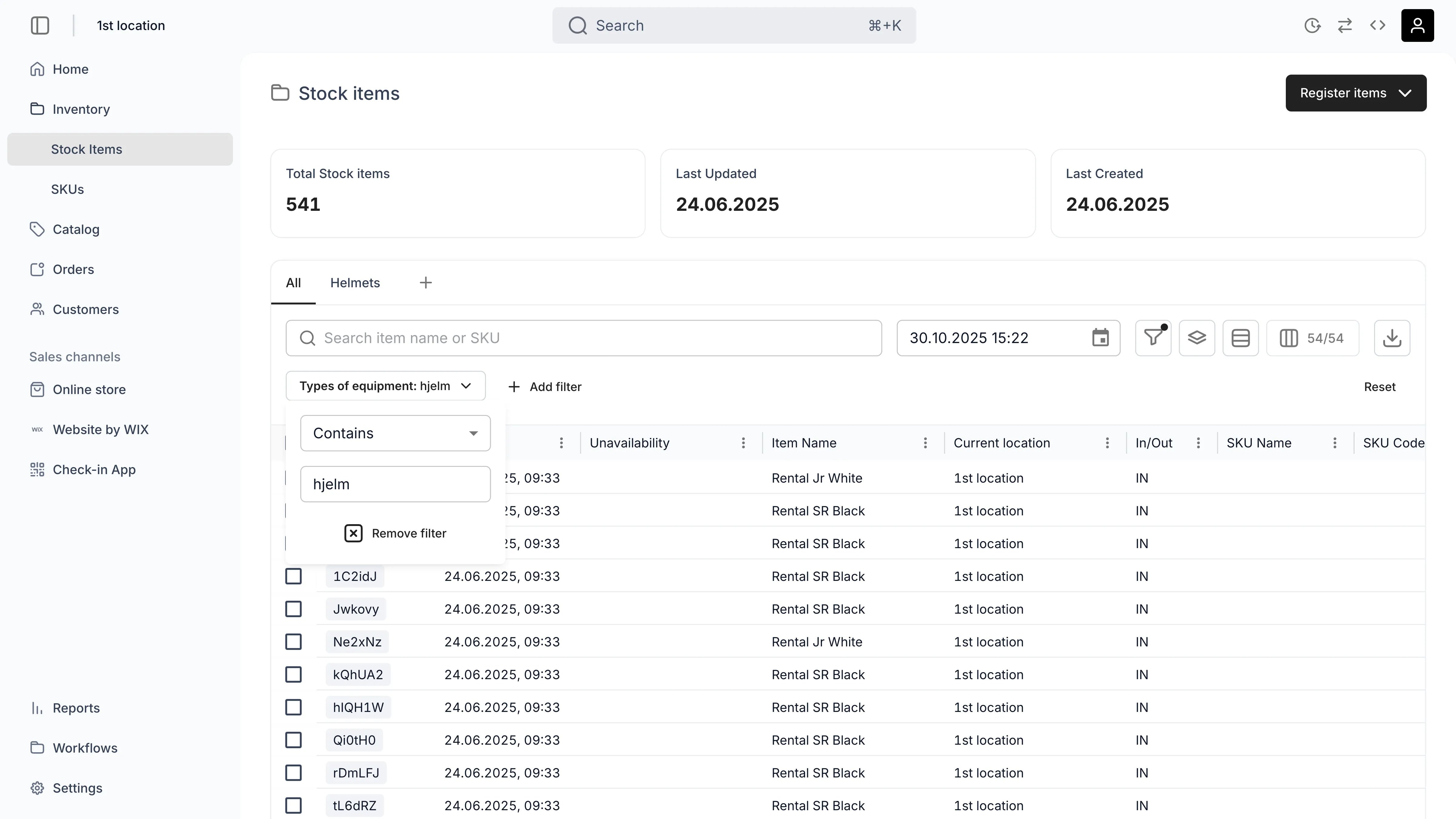 You can add as many filters as you want. The filters are combined using AND logic.
### Grouping
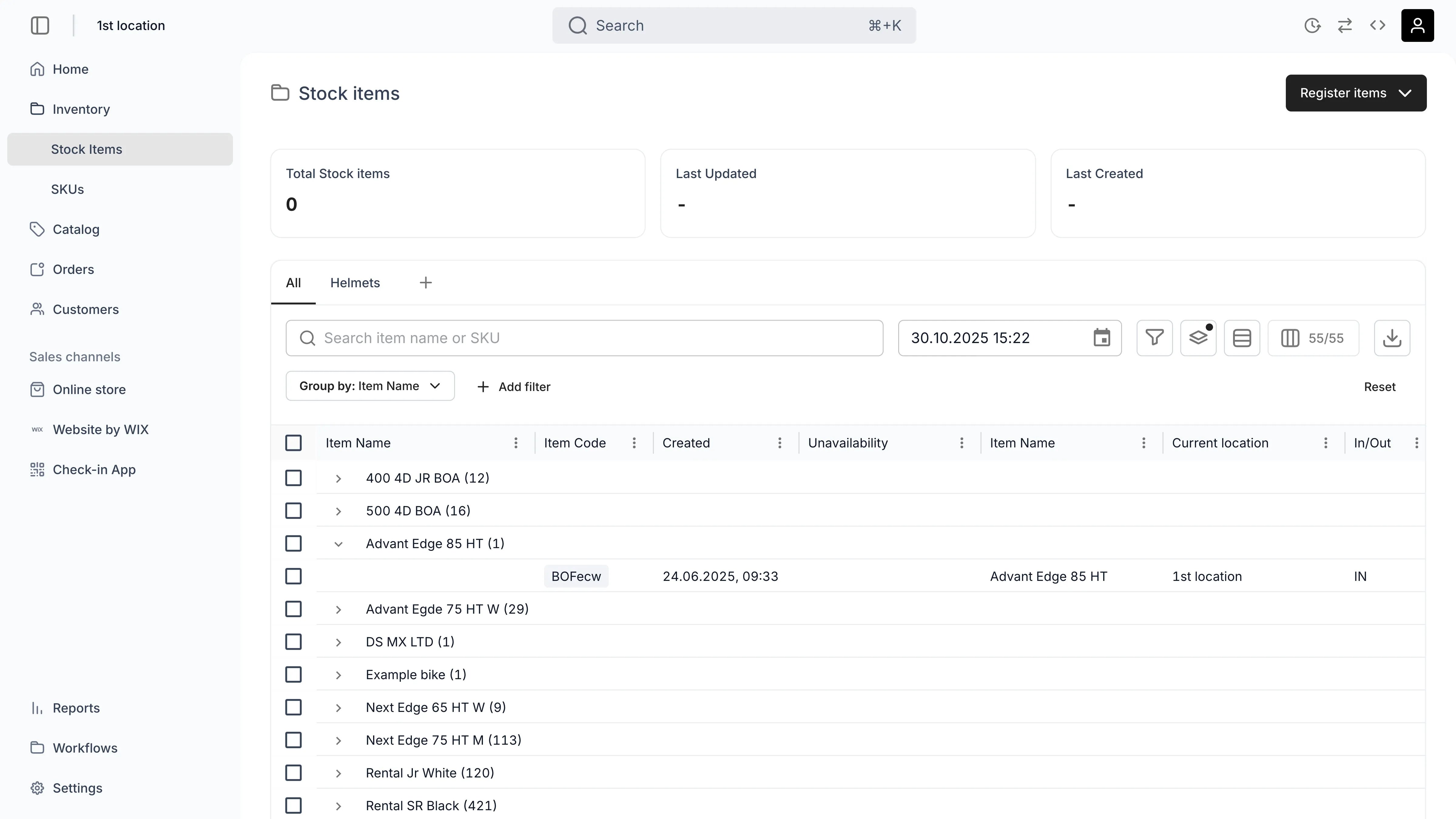
You can group by any column by clicking the group symbol next to the search bar.
Once you have a created a group, you can see how many items it includes and toggle it open and closed.
You can add as many filters as you want. The filters are combined using AND logic.
### Grouping
You can group by any column by clicking the group symbol next to the search bar.
Once you have a created a group, you can see how many items it includes and toggle it open and closed.
 ### Column controls
You have multiple controls for the columns.
#### Density
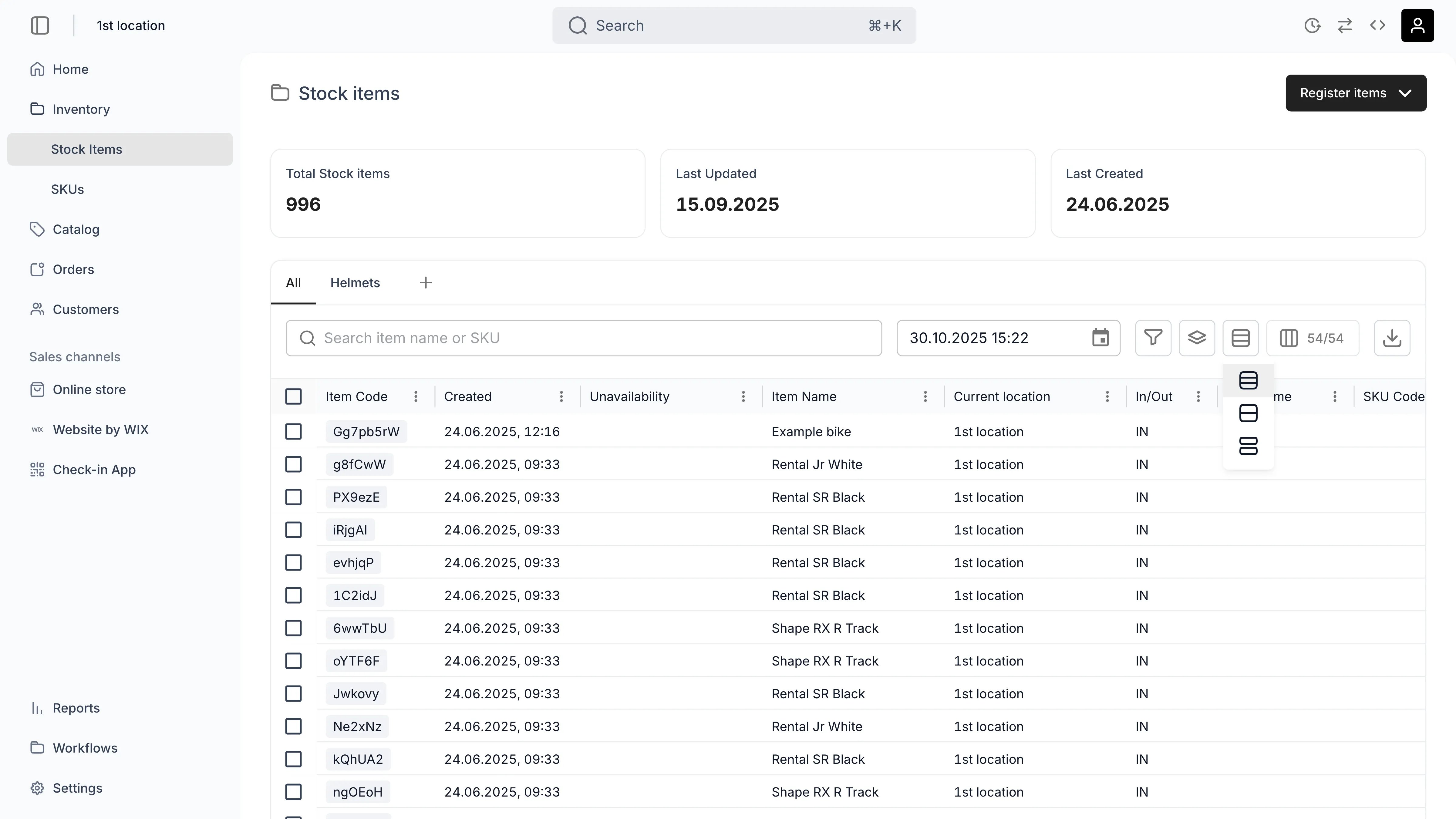
You have 3 levels of density which defines how much vertical space each row takes and so control the amount of rows visible in your viewport.
### Column controls
You have multiple controls for the columns.
#### Density
You have 3 levels of density which defines how much vertical space each row takes and so control the amount of rows visible in your viewport.
 #### Visibility
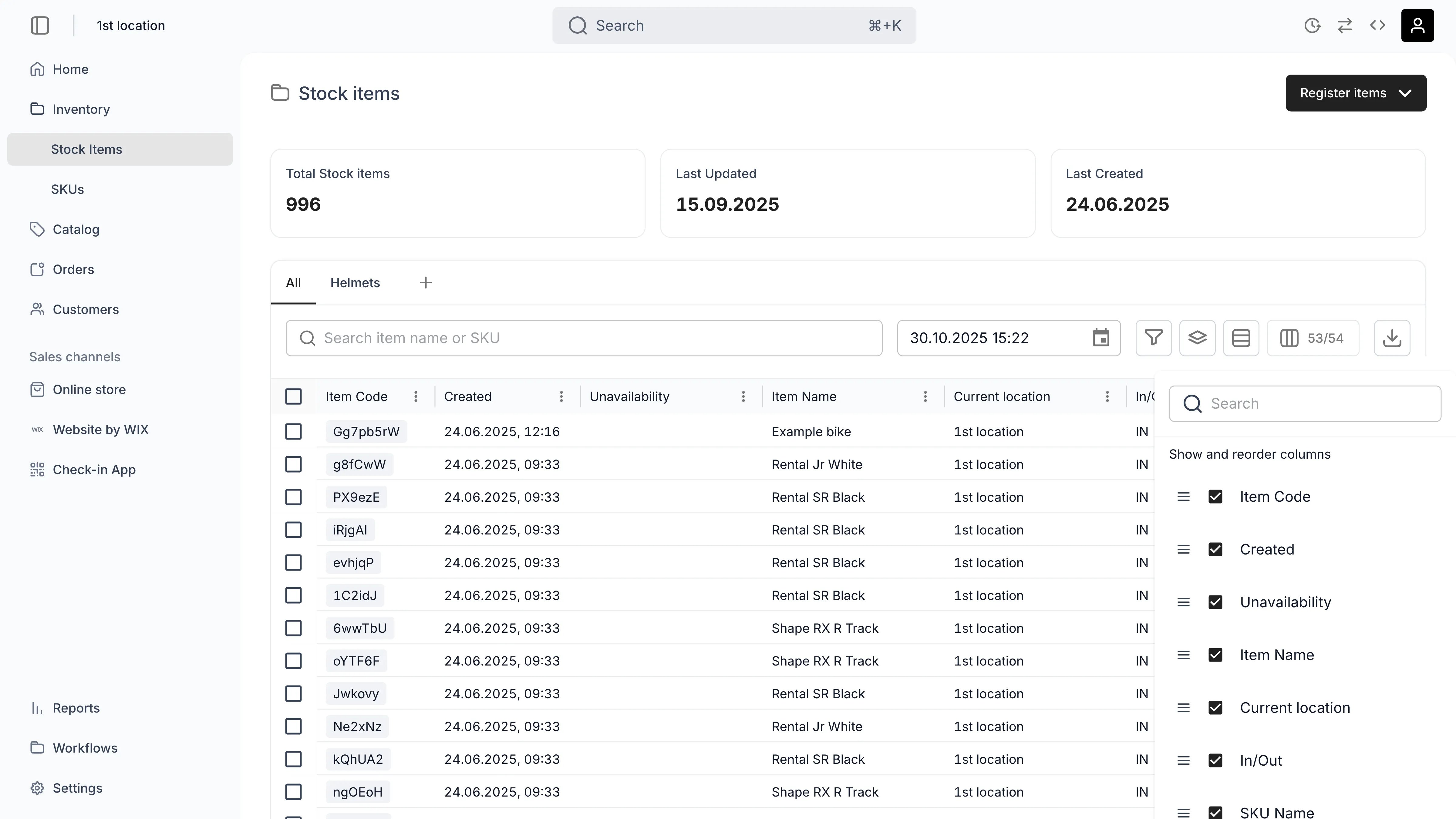
You can control which columns are visible or hidden from the column symbol.
#### Visibility
You can control which columns are visible or hidden from the column symbol.
 ### Column settings
You can control multiple settings for a column from the menu which opens from the three dots
### Export
You can export the current view with a press of a button. The export respects all filters, sorts, groupings, and visible columns you have defined.
### Import
Depending on the table, you can import using dedicated tools, such as registering stock items or importing customers.
### Custom views
You can save any table configuration as a named view from the plus symbol. Saved views preserve all customizations — column visibility, filters, sorts, groupings, and density.
### Column settings
You can control multiple settings for a column from the menu which opens from the three dots
### Export
You can export the current view with a press of a button. The export respects all filters, sorts, groupings, and visible columns you have defined.
### Import
Depending on the table, you can import using dedicated tools, such as registering stock items or importing customers.
### Custom views
You can save any table configuration as a named view from the plus symbol. Saved views preserve all customizations — column visibility, filters, sorts, groupings, and density.
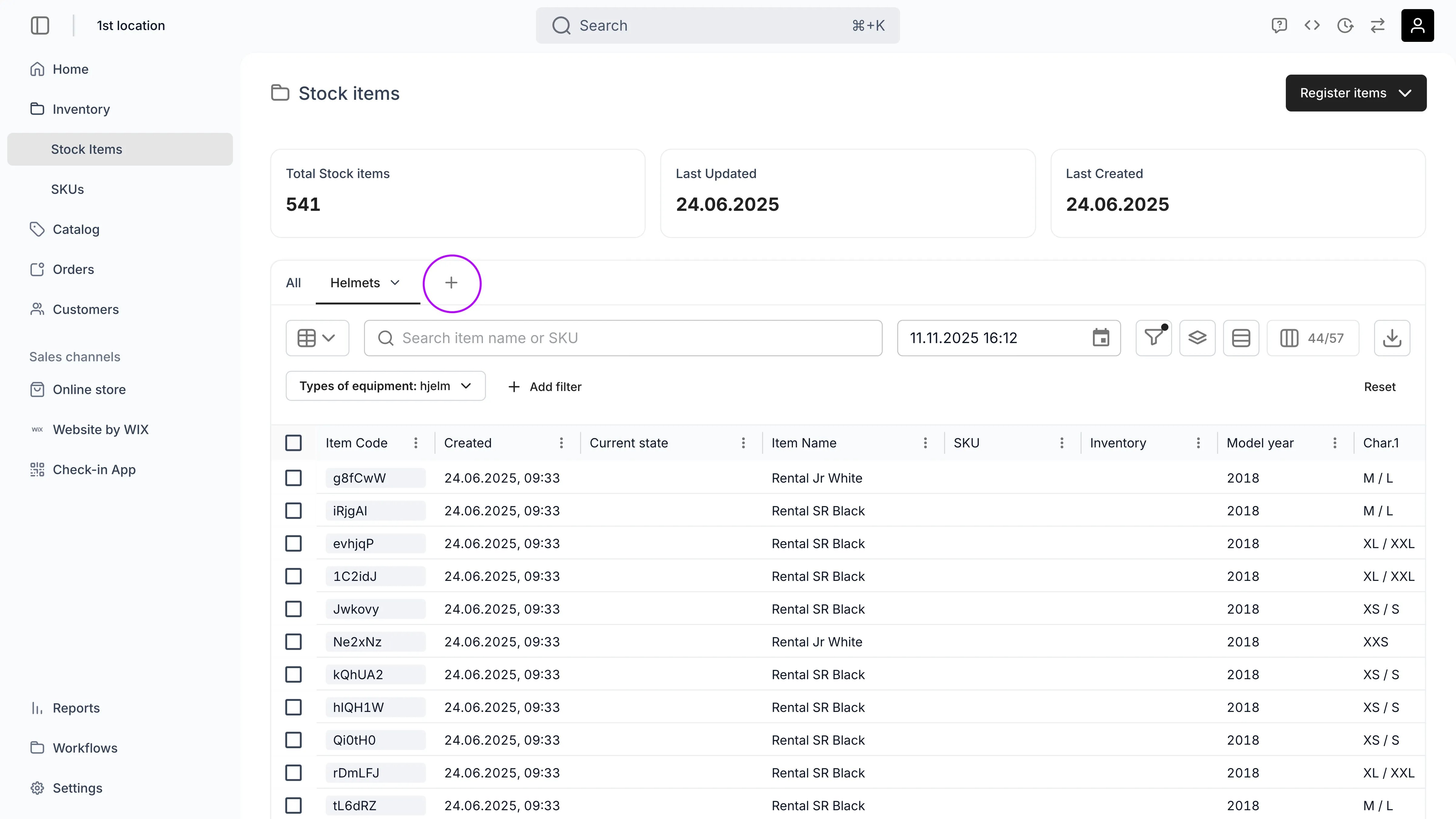 You can save changes, rename, or duplicate views from the submenu that opens from the arrow next to the view's name.
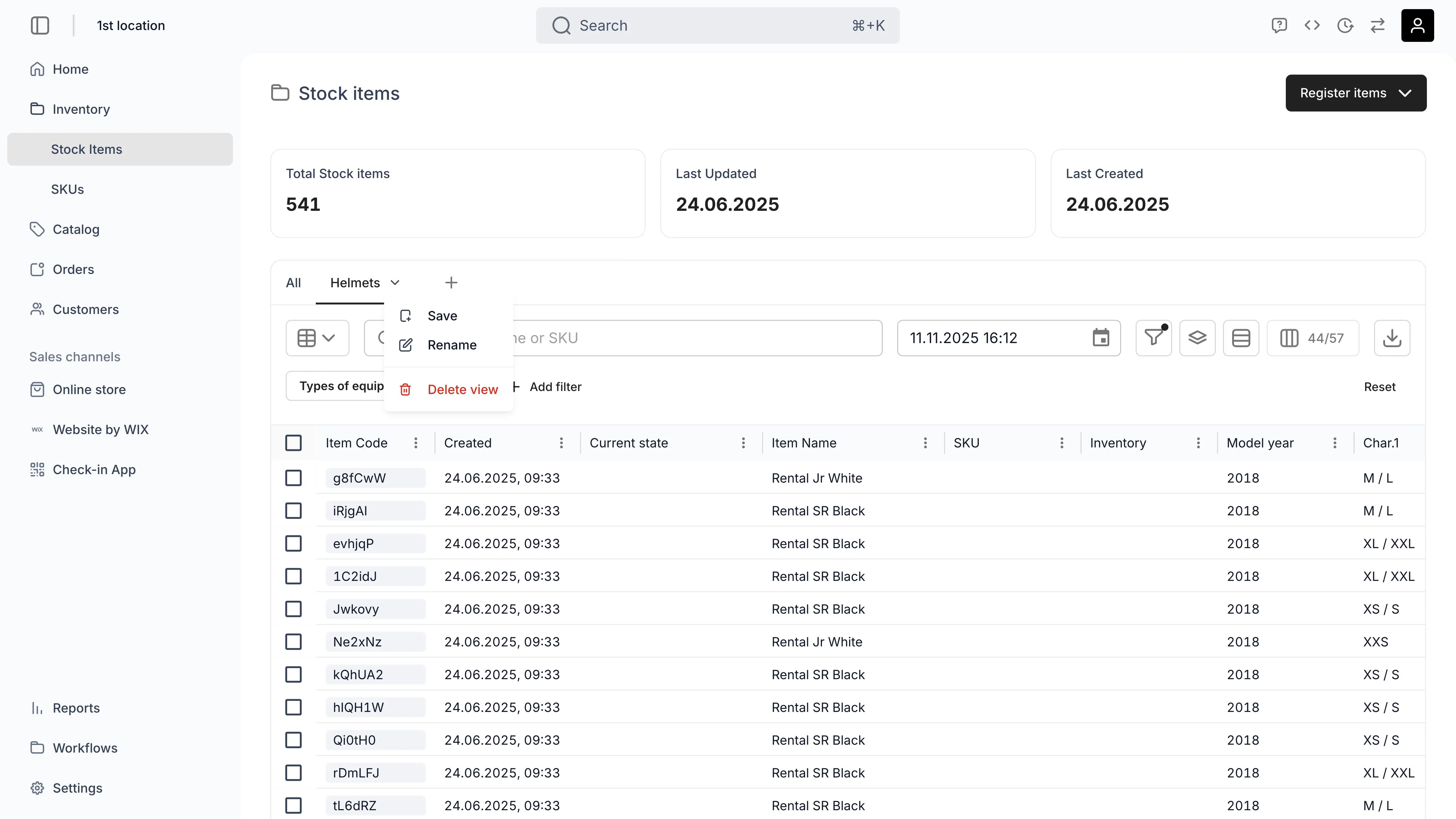 ### Sharing views with your team
Managers and Admins can publish their saved views to the entire team. Shared views appear as tabs for all team members and display a share icon to distinguish them from personal views.
To share a view, open the view's submenu and select **Share with team**. To make it private again, select **Make private** from the same menu.
Shared views follow these ownership rules:
* **Manager, Admin, and Owner** roles can edit, rename, share/unshare, and delete any shared view — not just their own.
* **Members** see shared views as read-only — they can apply them but not modify them.
* Private (unshared) views are always creator-only, regardless of role.
* Any team member can create, edit, and delete their own personal views.
Publishing a view to your team requires the **Manager** role or higher (`account_settings:shared_table_views:manage` permission). Members can create and use personal views but cannot share them.
```json Permission structure theme={null}
{
"resource": "account_settings",
"sub_resource": "shared_table_views",
"operation": "manage",
"granted_to": ["Owner", "Admin", "Manager"]
}
```
## Temporal table features
In commerce, especially in recommerce, most of your assets are *temporal in nature*. For example your stock items' location and availability depend on the time and are constantly changing.
We have added dedicated features to support the temporal world of recommerce.
### Time selection
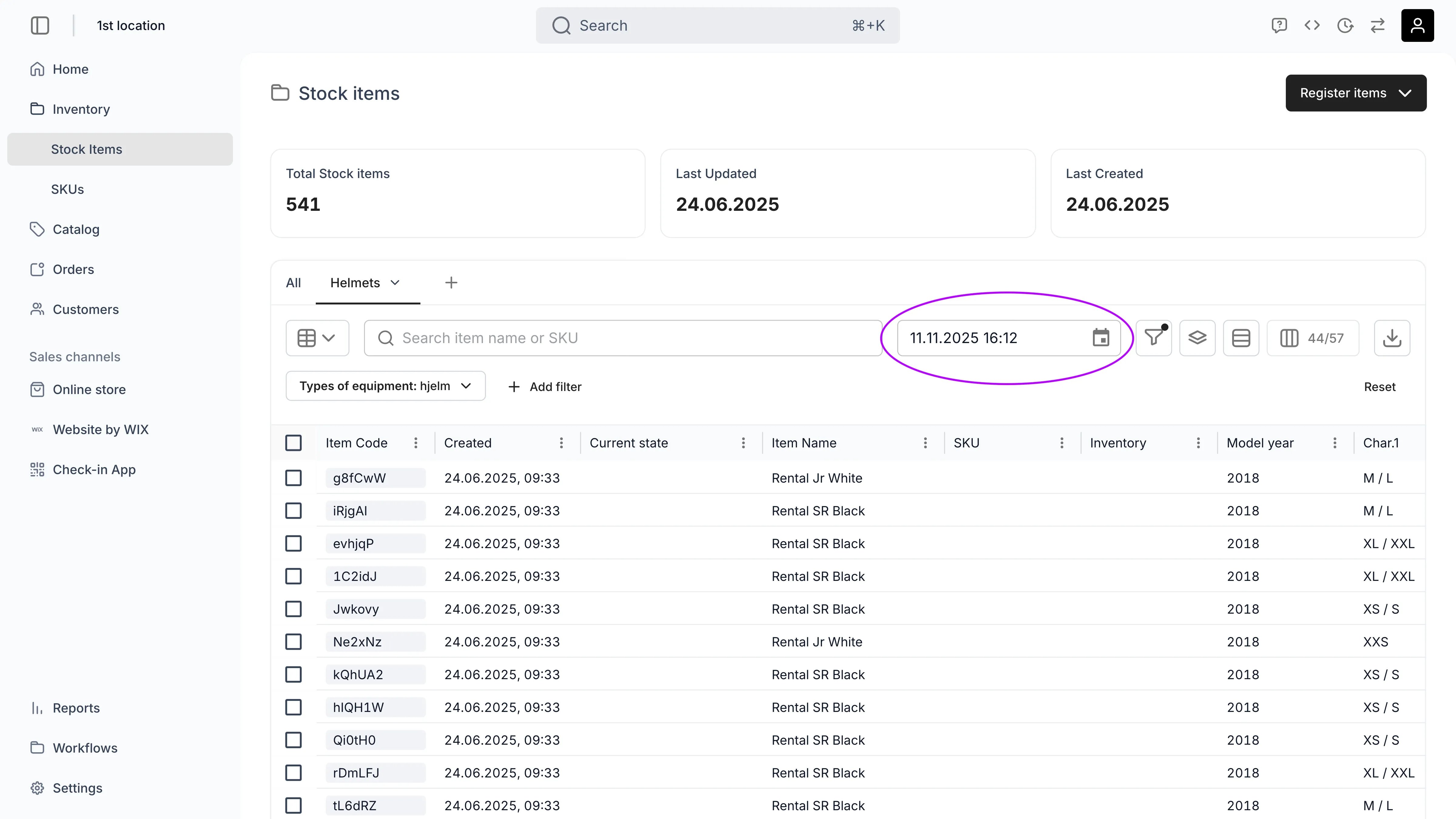
On top of your inventory you can select what ever moment and see what your inventory looks then. This can be in the history or in the future.
### Sharing views with your team
Managers and Admins can publish their saved views to the entire team. Shared views appear as tabs for all team members and display a share icon to distinguish them from personal views.
To share a view, open the view's submenu and select **Share with team**. To make it private again, select **Make private** from the same menu.
Shared views follow these ownership rules:
* **Manager, Admin, and Owner** roles can edit, rename, share/unshare, and delete any shared view — not just their own.
* **Members** see shared views as read-only — they can apply them but not modify them.
* Private (unshared) views are always creator-only, regardless of role.
* Any team member can create, edit, and delete their own personal views.
Publishing a view to your team requires the **Manager** role or higher (`account_settings:shared_table_views:manage` permission). Members can create and use personal views but cannot share them.
```json Permission structure theme={null}
{
"resource": "account_settings",
"sub_resource": "shared_table_views",
"operation": "manage",
"granted_to": ["Owner", "Admin", "Manager"]
}
```
## Temporal table features
In commerce, especially in recommerce, most of your assets are *temporal in nature*. For example your stock items' location and availability depend on the time and are constantly changing.
We have added dedicated features to support the temporal world of recommerce.
### Time selection
On top of your inventory you can select what ever moment and see what your inventory looks then. This can be in the history or in the future.
 ### Timeline view
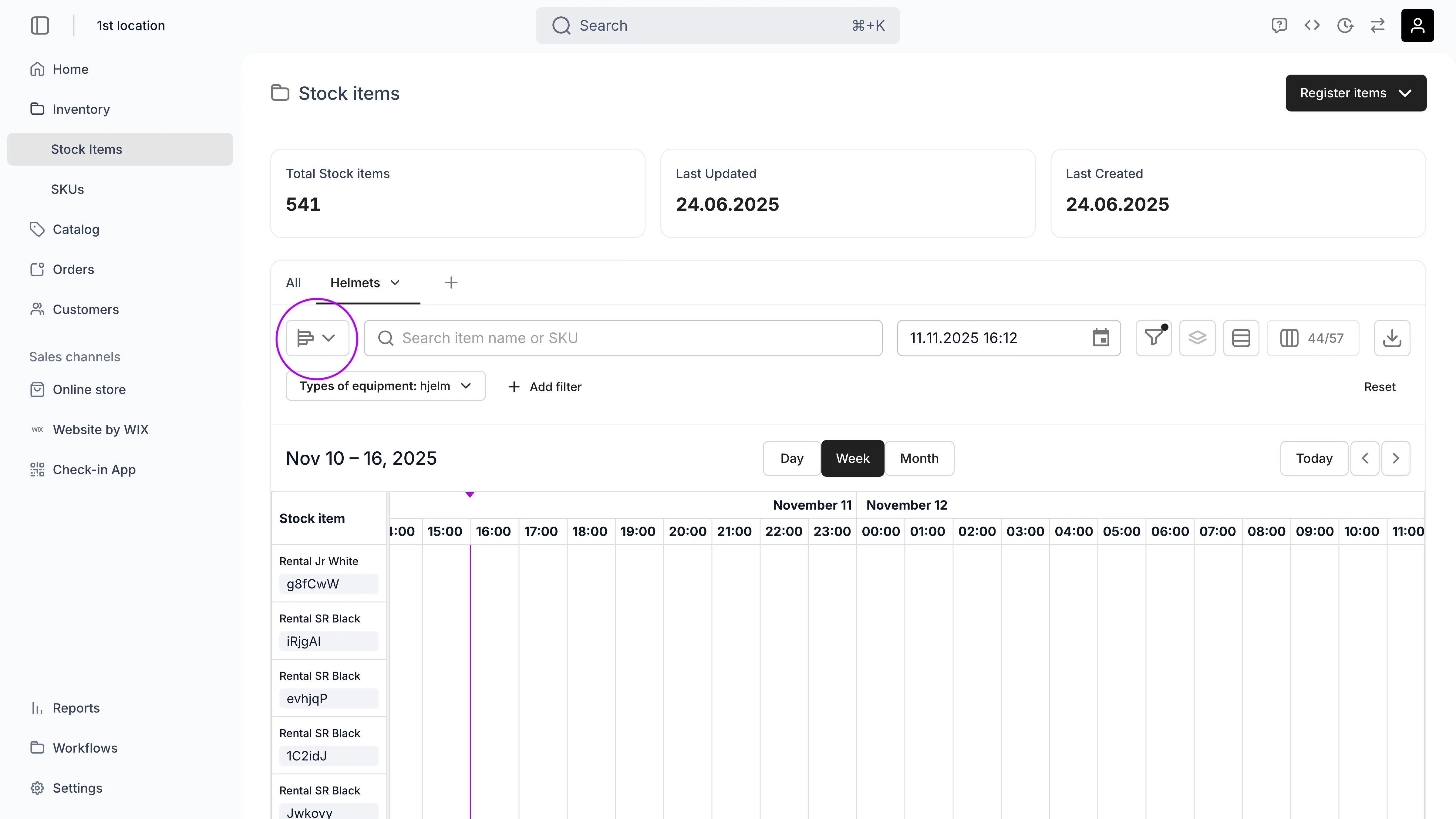
Timeline view provides easy visual way to see when your stock items are available or unavailable.
### Timeline view
Timeline view provides easy visual way to see when your stock items are available or unavailable.
 ## Visibility and Permissions
All table features — searching, filtering, sorting, grouping, column controls, export, and personal saved views — are available to every team member who can access the underlying data table.
| Feature | Owner | Admin | Manager | Member |
| :-------------------- | :---: | :---: | :-----: | :----: |
| Use table features | ✓ | ✓ | ✓ | ✓ |
| Create personal views | ✓ | ✓ | ✓ | ✓ |
| Share views with team | ✓ | ✓ | ✓ | ✗ |
| Edit shared views | ✓ | ✓ | ✓ | — |
## Related
Manage team members, assign roles, and configure permissions.
How sidebar visibility and data access permissions interact.
## Visibility and Permissions
All table features — searching, filtering, sorting, grouping, column controls, export, and personal saved views — are available to every team member who can access the underlying data table.
| Feature | Owner | Admin | Manager | Member |
| :-------------------- | :---: | :---: | :-----: | :----: |
| Use table features | ✓ | ✓ | ✓ | ✓ |
| Create personal views | ✓ | ✓ | ✓ | ✓ |
| Share views with team | ✓ | ✓ | ✓ | ✗ |
| Edit shared views | ✓ | ✓ | ✓ | — |
## Related
Manage team members, assign roles, and configure permissions.
How sidebar visibility and data access permissions interact.